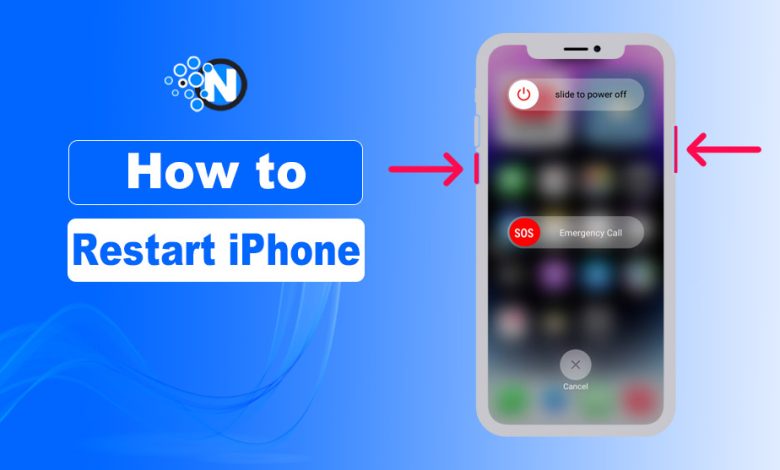
Restarting an iPhone only takes a few steps. You first need to turn the iPhone off completely and then turn it back on.
Restarting your iPhone can give it a fresh start when an app stops responding, the system feels slow, or you simply need to reboot the device. The process is straightforward and does not erase your personal data.
In this guide, you’ll learn how to restart an iPhone using the buttons, turn it off from Settings, and force-restart it when the screen is frozen or any feature stops responding.
Easy Way to Restart Your iPhone
Here’s how I restarted my iPhone, along with live screenshots and pictures while I was doing it.
Press the Side and Volume Buttons
Start by pressing and holding the Side button and either one of the Volume buttons at the same time. Keep holding the buttons until you see the power-off options.
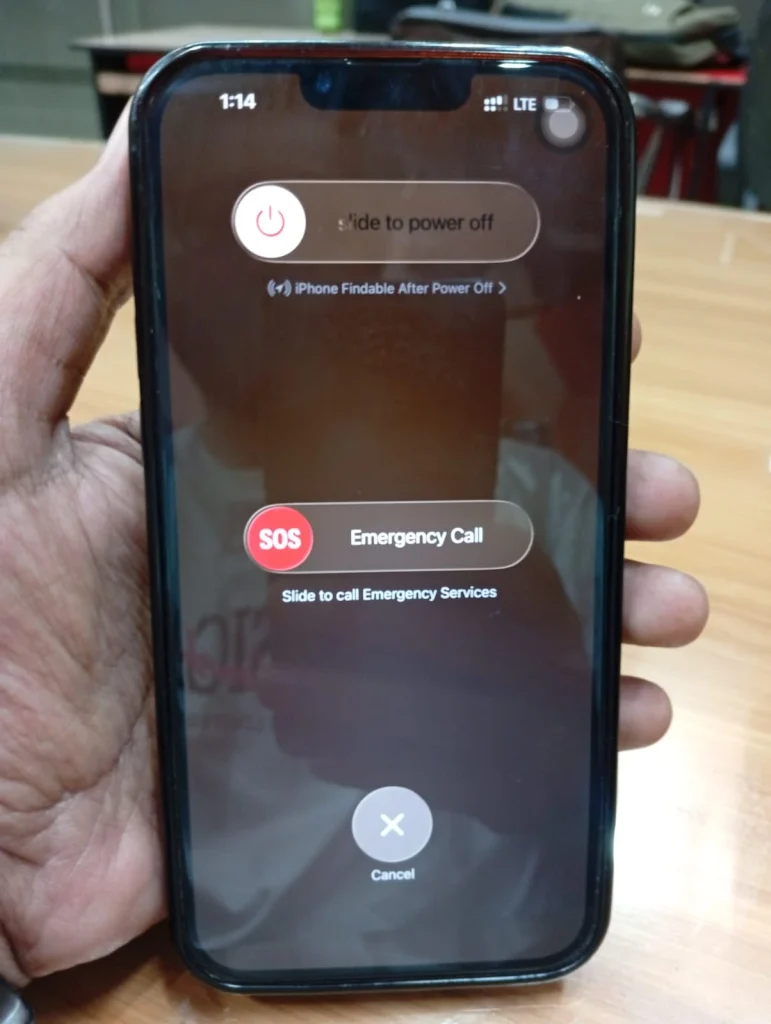
Drag the power icon from left to right to turn off your iPhone. You may also see the Emergency Call option on the same screen. You don’t need to select it for a normal restart.
Wait for the iPhone to Turn Off Completely
After sliding the power-off control, the iPhone will start shutting down. I waited until the screen went completely black before doing anything else. In my test with the iPhone 13 Pro, 25 seconds are enough.
Turn the iPhone Back On
Once your iPhone has completely shut down, press and hold the Side button. Keep holding it until the Apple logo appears on the screen.
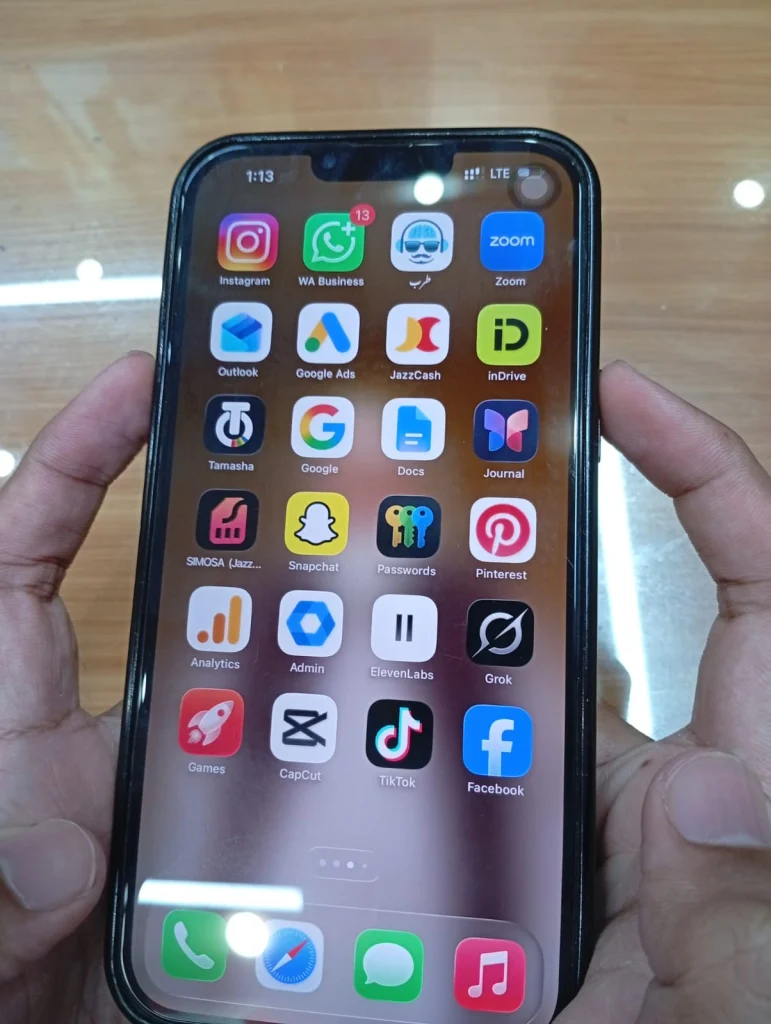
After the Apple logo appears, the iPhone will start normally and eventually take you back to the lock screen. That’s all you need to do to restart the iPhone.
Keep in mind: There’s no fixed or recommended schedule for restarting your device. Do it when it feels slow, an app stops responding, or you want a fresh start.
Does the Restart Method Differ on Older iPhones?
Yes. The button used to turn off an iPhone depends on the model.
Apple’s official documentation says that for iPhone X, 11, 12, 13, and later models, press and hold the Side button and either Volume button until the power-off slider appears.
On iPhone 6, 7, 8, and iPhone SE (2nd or 3rd generation), press and hold the Side button until the slider appears.
On the 1st-generation iPhone SE, iPhone 5, and earlier models, press and hold the Top button instead.
After the iPhone shuts down, wait about half a minute. Then hold the Side or Top button, depending on your model, until the Apple logo appears.
How Do You Restart an iPhone Using Settings?
For some people, continuously pressing the buttons can be irritating, especially when they don’t get pressed properly. Instead of wasting time trying again and again, simply shut down your iPhone from Settings and then turn it back on using only the side power button.
- Open Settings and look for General.
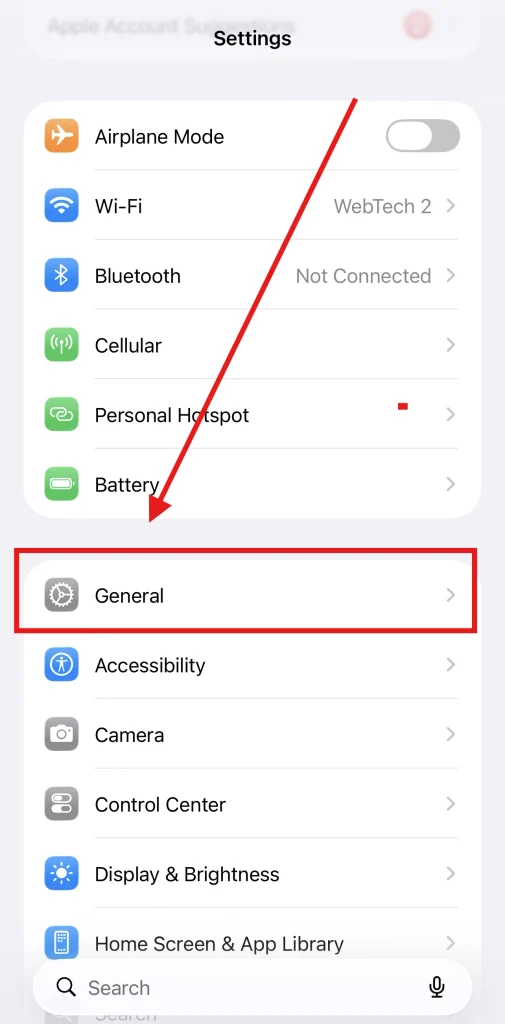
- Tap General.
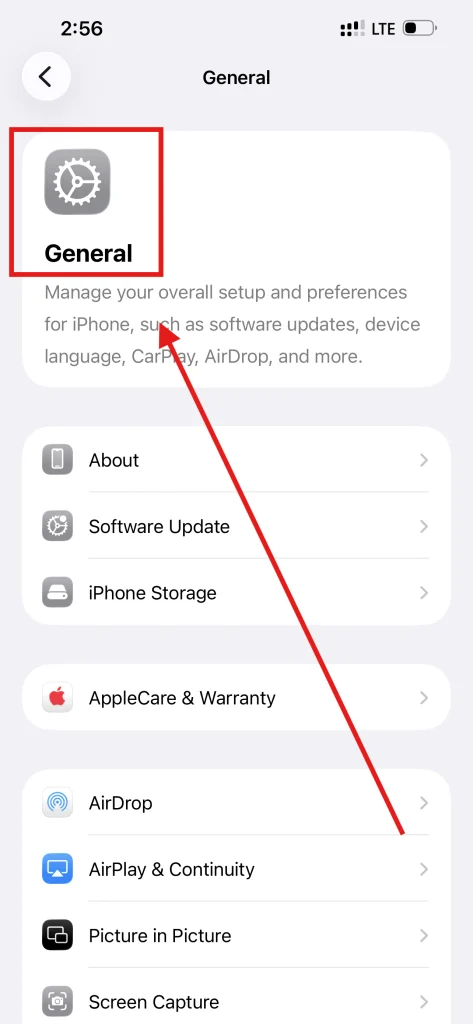
- Scroll down and tap Shut Down.
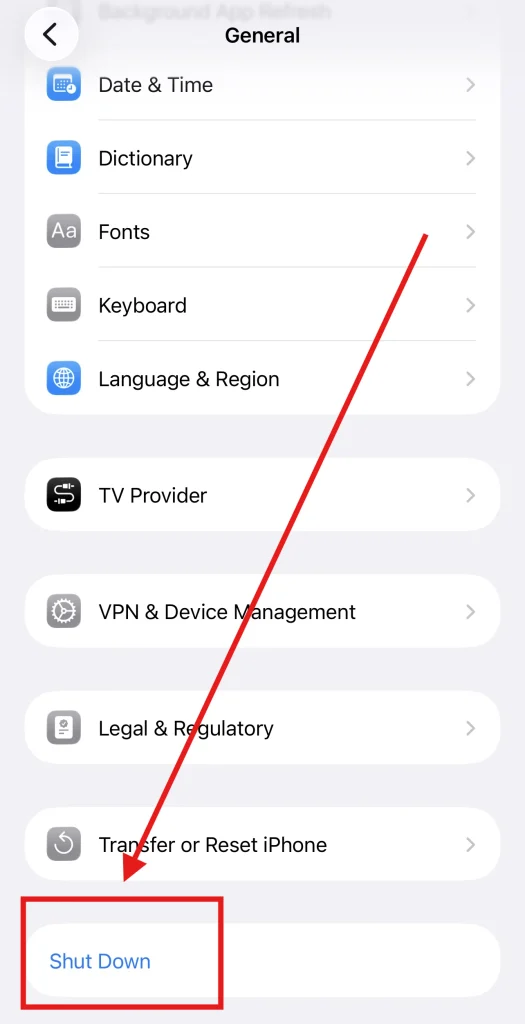
- Drag the power-off slider to the right. Wait until the iPhone turns off completely.
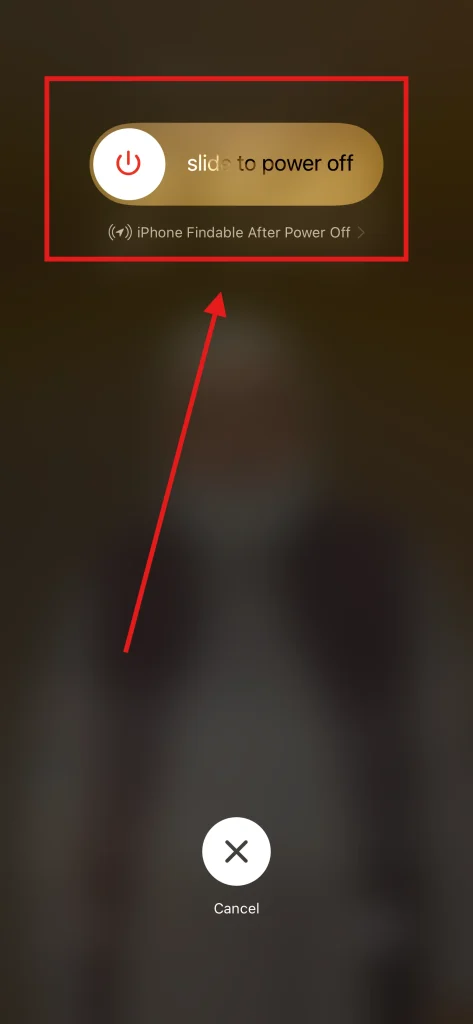
- Press and hold the Side button to turn it back on.
I find the button method quicker, but the Settings option is useful if you simply prefer using the touchscreen or don’t want to use the physical buttons to restart your phone.
How Do You Force Restart an iPhone?
A normal restart works when your iPhone is responding normally. But sometimes the screen freezes, an app gets stuck, or the phone becomes completely unresponsive.
That’s when a force restart is more useful, as guided by Apple Support. On an iPhone 13 Pro, you can force restart it without using the touchscreen:
- Quickly press and release the Volume Up button.
- Quickly press and release the Volume Down button.
- Press and hold the Side button.
- Keep holding the Side button until the Apple logo appears.
- Release the button when you see the Apple logo.
The Apple logo may take a little while to appear, so don’t release the Side button too quickly. This also helps you restart your iPhone without touching the screen.
Restart vs. Reset: What Is the Difference?
Restarting and resetting an iPhone are not the same action.
- A restart simply turns your iPhone off and then turns it back on. It is normally used for basic troubleshooting and does not remove your personal information.
- A reset changes one or more iPhone settings. Some reset and erase options even remove settings or complete data.
If you only want to reboot a slow or unresponsive iPhone, I suggest you use a normal restart or force restart rather than choosing an erase or reset option.
What Should You Do If Your iPhone Won't Restart?
If your iPhone does not respond to a normal restart, try a force restart first.
If the iPhone still doesn’t turn on, connect it to a charger and give it some time. A completely drained battery can also make the phone appear unresponsive.
If it still doesn’t respond after charging and trying a force restart, you may need further troubleshooting or support.
By the way If the iPhone is working normally but you want to limit interruptions, you can also use Focus Mode to control notifications and calls.