Want to give your iPhone a custom name instead of the default one? You can change it in a few taps: Settings > General > About > Name section > Then enter your preferred name.
Your iPhone name is also used to identify your device with AirDrop, Personal Hotspot, Bluetooth, iCloud, and your computer, so changing it here updates the device name wherever it is used on its own.
Below, I have explained the complete process in five simple steps with original screenshots from my iPhone.
How to Change iPhone Name in Settings?
Follow these steps to change your iPhone’s device name:
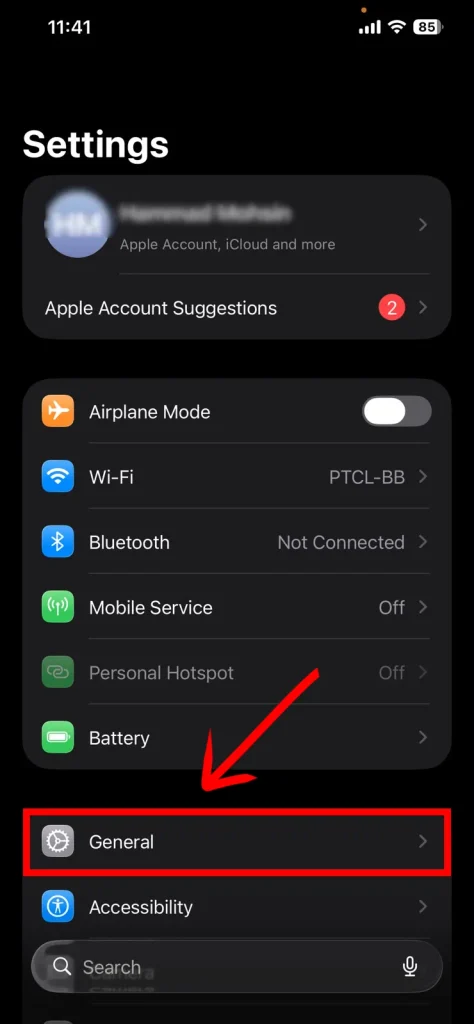
1. Open Settings
Open the Settings app on your iPhone. Scroll down and tap General.
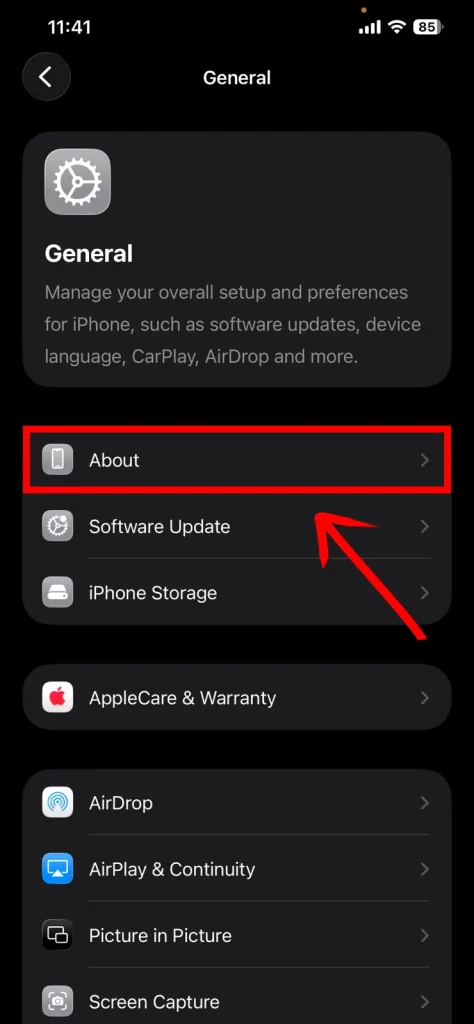
2. Open About
In General, tap About.
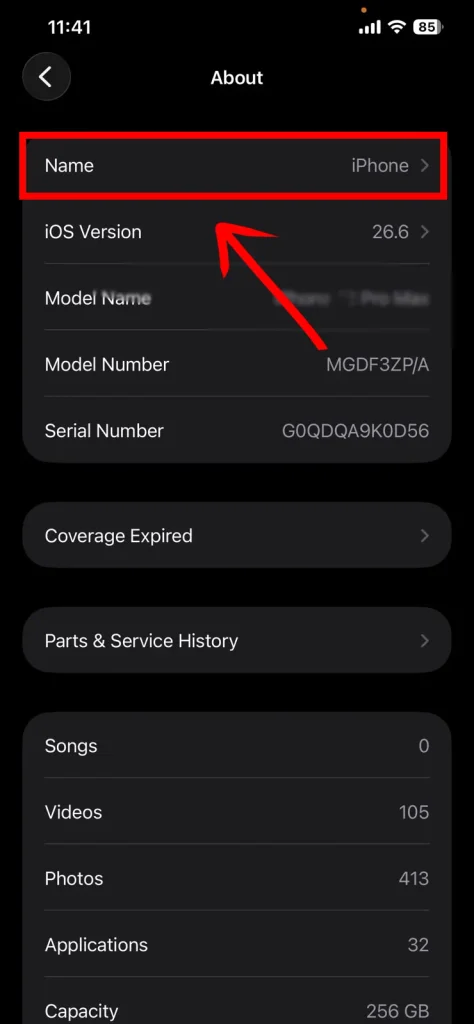
3. Tap Name
At the top of the About page, tap Name. You will see your current iPhone name there.
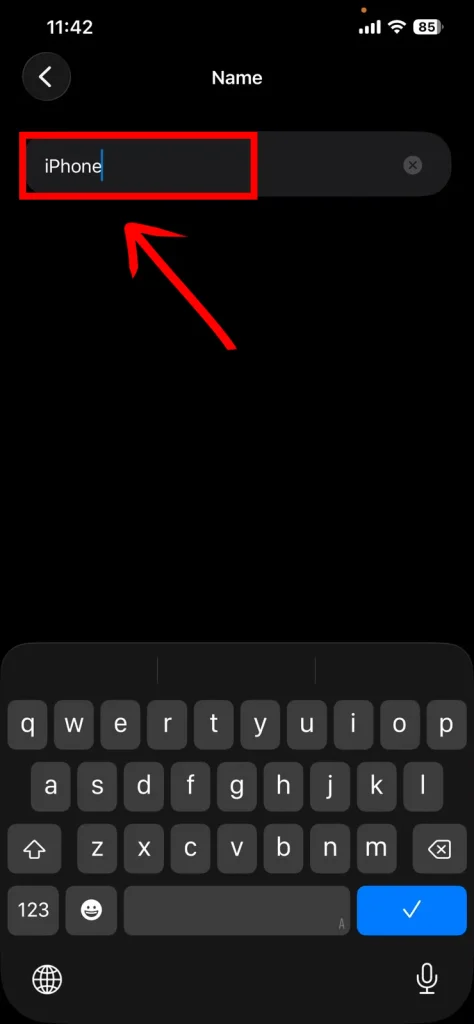
4. Enter Your New iPhone Name
Delete the existing name and enter the new name you want to use. Then tap the checkmark on the keyboard to save it.
Your new name will be saved immediately. You can return to Settings > General > About to confirm the change.
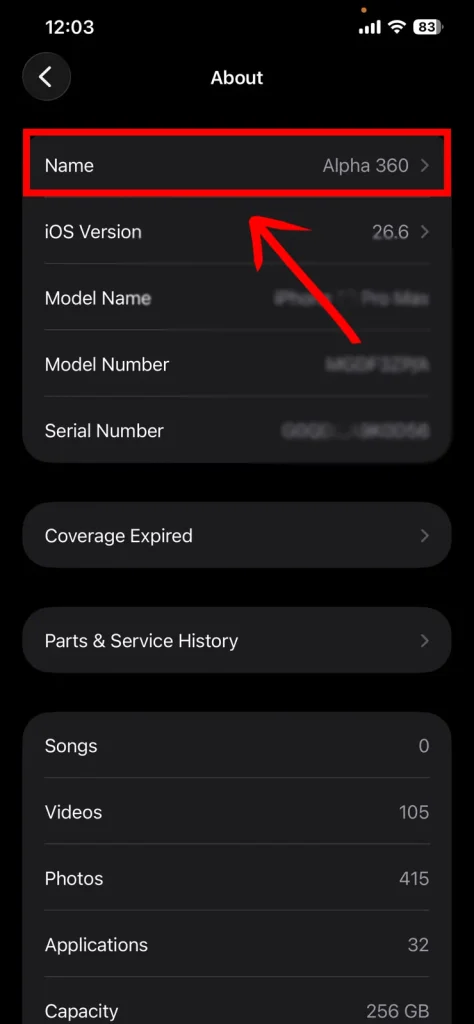
That’s all you need to do to change your iPhone name. By the way, some people prefer visuals rather than reading step by step, so no worries, here is also a visual guide from NogenTech that you can watch to change your iPhone’s name.
How Does Changing Your iPhone Name Affect Other Features?
Your iPhone’s device name is used in several places, including AirDrop, Bluetooth, Personal Hotspot, iCloud, and your computer. You don’t need to change the name separately for each service.
- AirDrop: AirDrop uses your iPhone’s device name to identify it when sharing files with nearby Apple devices.
- Personal Hotspot: If you want to change your iPhone hotspot name, you don’t need to look for a separate name setting. Your Personal Hotspot uses the same name as your device.
- Bluetooth: Your iPhone’s device name is also used to identify it through Bluetooth. You don’t need to set a separate Bluetooth name for the iPhone.
- iCloud and Your Computer: The same iPhone name is also used by iCloud and your computer when identifying your device.
Since your iPhone name can be visible when connecting or sharing with other devices, avoid using sensitive personal information in it. You can also review these essential iPhone privacy settings for better control over what your device shares.
FAQs About Changing Your iPhone Name
Can I change my iPhone name after setup?
Yes. You can change your iPhone name at any time. Go to Settings > General > About > Name, enter a new name, and tap the checkmark to save it.
Will Changing My iPhone Name Delete Anything?
No. Changing the device name only changes how the iPhone is identified. Your apps, photos, files, and other data remain untouched.
Why Is My Old iPhone Name Still Showing?
If another device or service still shows the previous name, give it a moment to refresh or reconnect the devices. The new name should be used after the device information updates.