How To Cancel LinkedIn Premium on Desktop, Android, and iPhone? (2026 Updated Guide)

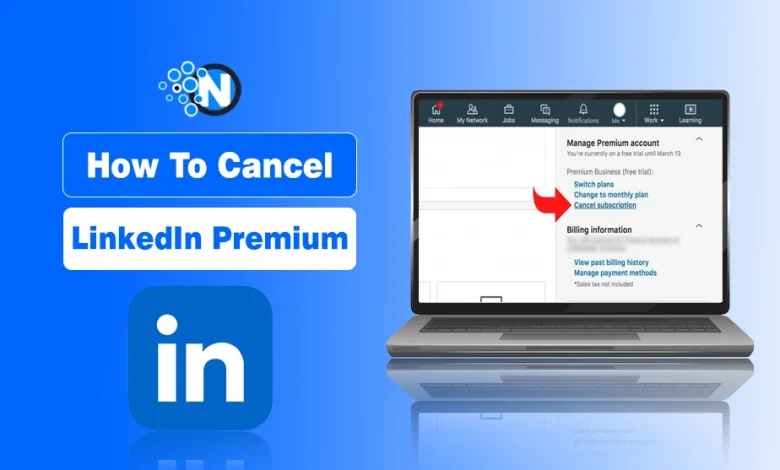
I have seen many users struggle with canceling LinkedIn Premium because LinkedIn does not place the cancellation option where you expect it to be. Whether you signed up for a free trial, no longer use the premium features, or simply want to stop the next charge, knowing the exact steps matters.
In this guide, I have mentioned the steps through which you can learn how to cancel LinkedIn Premium step by step on desktop and mobile, explain what happens to your account after cancellation, and clarify common billing and refund questions.
What is LinkedIn Premium?
LinkedIn Premium is a premium subscription service for professionals. Users may use its expanded job search, networking, and career development facilities. LinkedIn Premium has different tiers – each with a specific set of features. Generally, all tiers fall under two main categories.
- LinkedIn Premium Career: The career subscription is for job seekers. It provides features like Who viewed your profile, InMail, and ranking against other applicants.
- LinkedIn Premium Business: This plan is designed for salespeople and businesses and provides features like advanced lead generation tools, detailed company insights, and the ability to add a custom button to your profile that directs viewers to take a specific action.
Key Features of LinkedIn Premium
- InMail Credits: LinkedIn Premium members receive a monthly allocation of InMail credits, which allows them to send messages to people they are not connected with on LinkedIn. This is particularly useful for reaching out to potential employers or contacts.
- Job Insights: Premium members get access to detailed insights about job listings, including applicant data and how they compare to other applicants, which can be valuable for job seekers.
- Advanced Search Filters: Premium users can utilize advanced search filters to find specific people, companies, or jobs more efficiently.
- Profile Views: Members with a paid subscription may monitor profile views to learn more about the kind of people who are interested in their skillset.
- Learning and Development: Depending on the Premium subscription level, users may also have access to LinkedIn Learning, an online education platform, to enhance their skills and knowledge.
- Career Insights: Premium subscribers receive additional information on salary and company insights, which can be valuable for career planning and negotiation.
- Open Profile: Some Premium plans allow users to set their profile to “Open Profile,” which makes it easier for others to contact them, even without a connection.
LinkedIn Premium offers different subscription levels, each with varying features and pricing. It’s a valuable tool for professionals and brands to grow their presence on the platform and enhance their job search and networking capabilities.
How to Cancel LinkedIn Premium on Windows Desktop?
Follow the below steps to cancel your LinkedIn Premium Membership:
- Visit the LinkedIn site (https://www.linkedin.com/) and log in to your account.
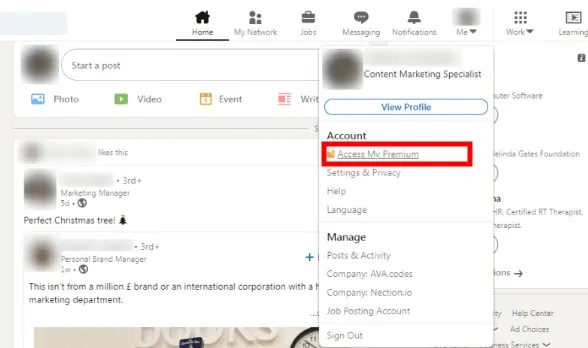
- Click on your profile photo in the top right corner and select “Access My Premium.”
- On the Premium web page, click on “Manage Premium account” on the proper facet.
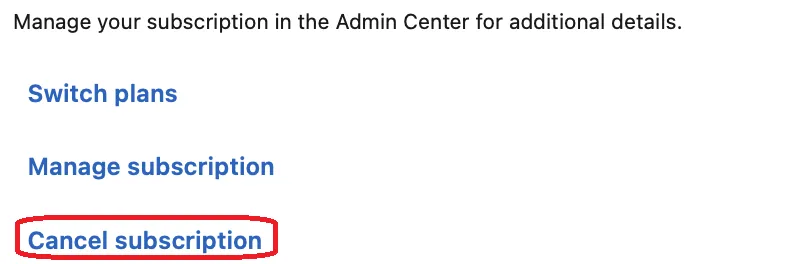
- Under the “Manage Premium account” segment, you will see an option that says “Cancel Subscription“.
- LinkedIn will ask for your feedback on why you’re canceling. Provide the information and proceed.
Follow the on-screen instructions to confirm the cancellation.
How to Cancel LinkedIn Premium on Android?
To cancel your LinkedIn Premium subscription on an Android device, observe these steps:
- Open the LinkedIn app on your Android device.
- Tap your profile image in the top left corner to get into your profile.
- Scroll down and choose “Premium Features” (previously referred to as “Premium Subscription“).
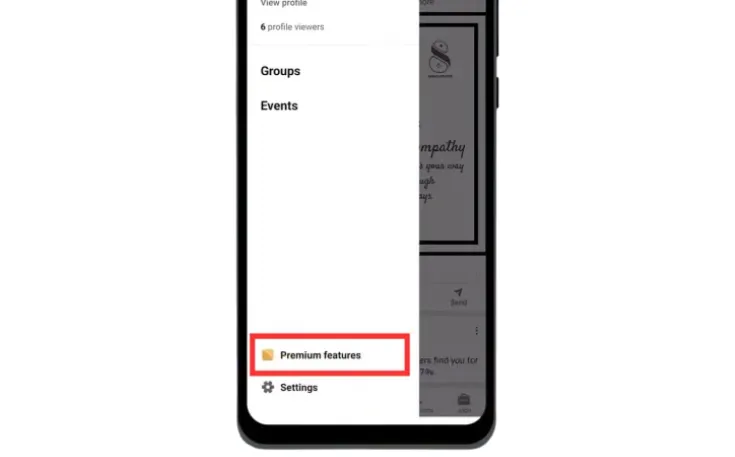
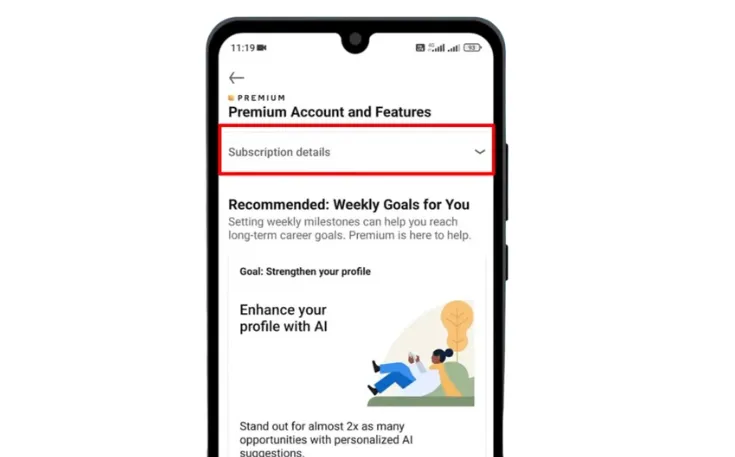
- In the “Premium Features” section, you’ll see your subscription details. Tap on “Subscription Details.“
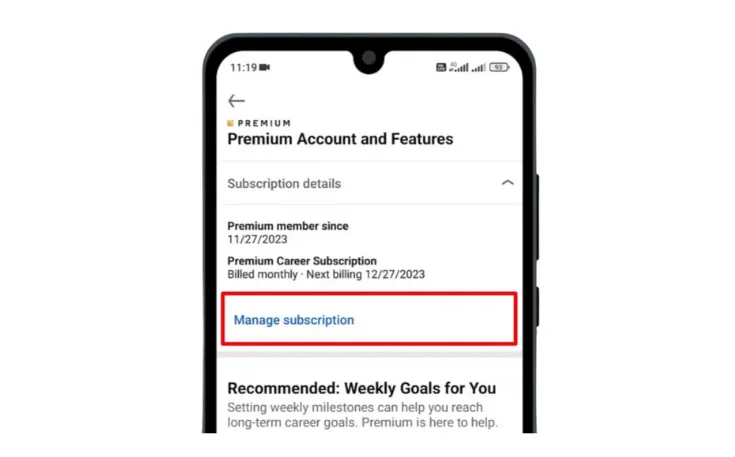
- You may be directed to the “Manage Premium Subscription” web page. Here, you can locate the choice to “Cancel subscription.” Tap on it.
- Follow the on-display commands to verify the cancellation.
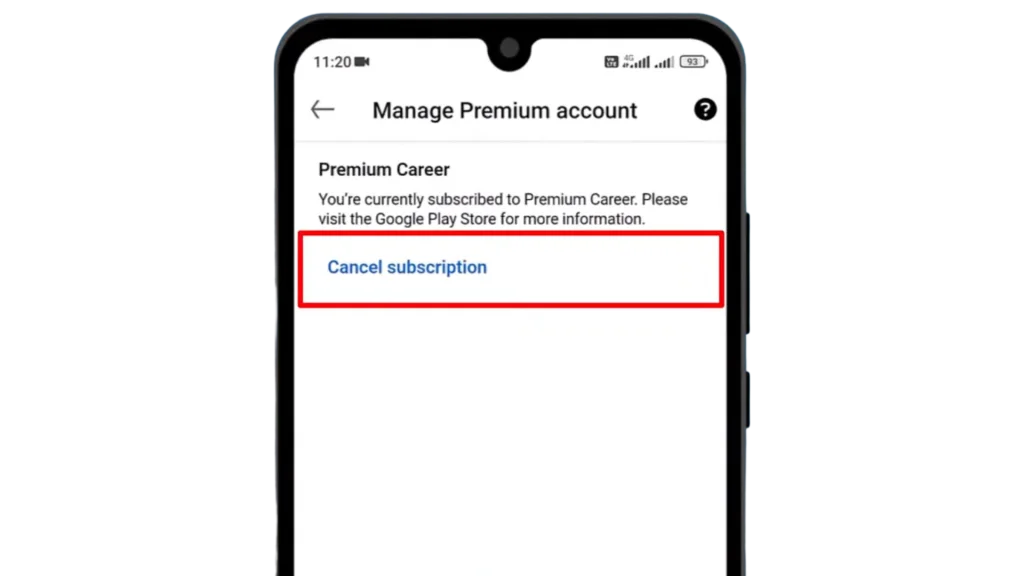
There are a few ways to terminate a paid LinkedIn Premium account on Android devices bought from the Google Play Store. Use the LinkedIn desktop website, LinkedIn mobile app, Google Play Store desktop website, or Google Play mobile app.
How to Cancel LinkedIn Premium on iPhone?
You need to use your Apple ID to cancel LinkedIn Premium on iTunes. Here’s a step-by-step guide:
- Open the “Settings” app on your iOS device.
- Scroll down and click on “iTunes & App Store.”
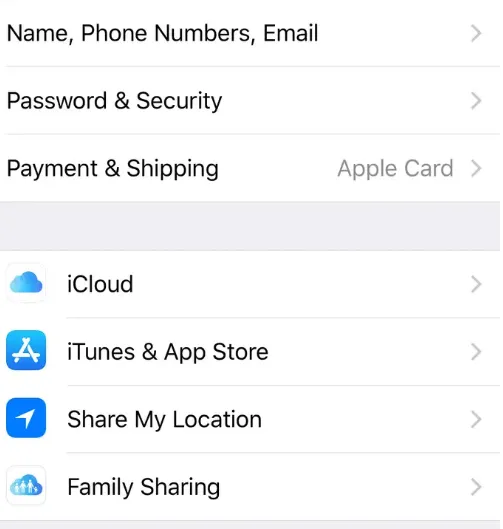
- Tap your Apple ID on the top of the display screen and pick “View Apple ID.”
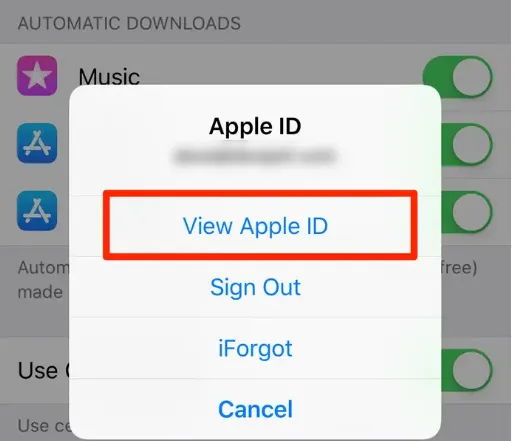
- Enter your Apple ID password or use Face ID/Touch ID to authenticate.
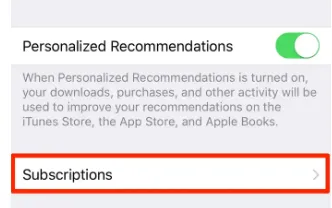
- Scroll down and tap on “Subscriptions.”
- Find “LinkedIn” in the list of your active subscriptions.
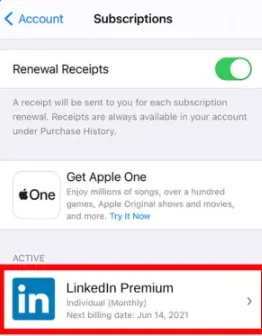
- Tap “LinkedIn” and then select “Cancel Subscription” to opt out Linkedin Premium.
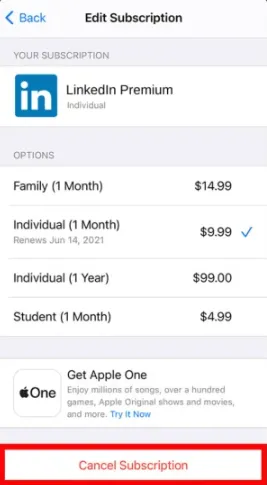
- Confirm the cancellation when prompted.
Your LinkedIn Premium subscription through iTunes should now be canceled. Remember, your Premium membership is valid until the current payment cycle ends.
For iTunes LinkedIn Premium purchases, contact Apple directly to cancel. Cancelling your Premium membership requires using either the desktop site or the LinkedIn mobile app, regardless of whether you initially subscribed through iTunes or the App Store. This is due to restrictions imposed by Apple on handling subscriptions that they manage. You won’t find an option to cancel it on the LinkedIn website or app in this case.
Final Thoughts
This article provides a complete process on how to unsubscribe from LinkedIn Premium account in a straightforward way. Professionals get InMail credits, job insights, and advanced search filters with LinkedIn Premium.
From a Windows desktop, visit LinkedIn, log in to your Premium account, and cancel. Launch LinkedIn for Android, visit your profile and adjust your Premium subscription. Cancel your iOS iTunes subscription in device settings using your Apple ID. Due to Apple’s privacy restrictions, iTunes subscription cancellations must be done through LinkedIn’s website or app.
People Also Ask
Why would I want to cancel LinkedIn Premium?
There are various reasons why you might want to cancel LinkedIn Premium, such as not needing the extra features, finding it too expensive, or having achieved your networking or career goals.
How to cancel Linkedin Premium membership website?
To cancel LinkedIn Premium on the LinkedIn website, go to “Me” > “Access My Premium” > “Manage Subscription,” then select “Cancel Subscription” and follow the prompts to confirm.
Can I re-subscribe to LinkedIn Premium after canceling?
Yes, you can re-subscribe to LinkedIn Premium at any time.
Will I lose my Premium features immediately after canceling?
After canceling LinkedIn Premium, you’ll keep Premium features until your billing cycle ends. Your account will thereafter become free.
Can I get a refund if I cancel LinkedIn Premium early?
Typically, LinkedIn does not offer refunds for partial months or unused time