Building your own gaming PC isn’t just about buying a powerful GPU and CPU. A processor can be incompatible with the motherboard, a graphics card may not fit the case, or the PSU may not provide enough power. Even the wrong RAM or cooler can cause problems before you play your first game.
A reliable gaming PC starts with components that work well together. You need a compatible CPU, GPU, motherboard, RAM, storage, power supply, case, and cooling system, chosen around your gaming needs and budget.
Here is a quick view of the role of each of these components in your gaming PC build:
| Component | Purpose |
|---|---|
| CPU (Processor) | Processes game logic and multitasking |
| GPU (Graphics Card) | Renders graphics |
| Motherboard | Connects all components |
| DDR5 RAM | Stores active data |
| NVMe SSD | Stores the OS, games, and apps |
| Power Supply (PSU) | Powers the system |
| PC Case | Houses components |
| CPU Cooler | Cools the processor |
You’ll also need a monitor, keyboard, mouse, and an operating system like Windows 11 to complete your setup. And if you prefer kicking back on the couch rather than sitting at a desk, don’t forget to grab one of the wireless controllers for PC gaming.
This guide walks you through the complete process from planning and choosing compatible parts to assembling, setting up, and testing your PC, so you can build a balanced system without wasting money on the wrong hardware.
What Should You Check Before Choosing PC Parts?
Before buying parts for your gaming PC, check that every component is compatible with the others. This helps you avoid parts that won’t fit, connect, or work together.
Make sure to confirm that:
- The CPU socket matches the motherboard.
- The motherboard supports your RAM type, speed, and capacity.
- The motherboard form factor fits your PC case.
- The power supply provides enough wattage and connectors for your components.
- The graphics card fits inside the case and is supported by the PSU.
- The CPU cooler supports your CPU socket and fits inside the case.
- The NVMe SSD is compatible with an available M.2 slot.
- The case has enough airflow and fan support to keep the components cool.
How to Assemble Your Gaming PC Step by Step
Once you have all the compatible components, you can start assembling your gaming PC. Keep your motherboard and component manuals nearby because connector locations and installation methods can vary between models.
Step 1: Prepare Your Workspace and Tools
Use a clean, flat, well-lit surface and avoid working on carpet. Keep a Phillips-head screwdriver, cable ties, and component manuals nearby. Take precautions against static electricity before handling components.
Step 2: Install the CPU
Open the CPU socket, align the processor using its alignment marks, and gently place it into the socket. Do not force it. Close the retention mechanism once the CPU is seated correctly.
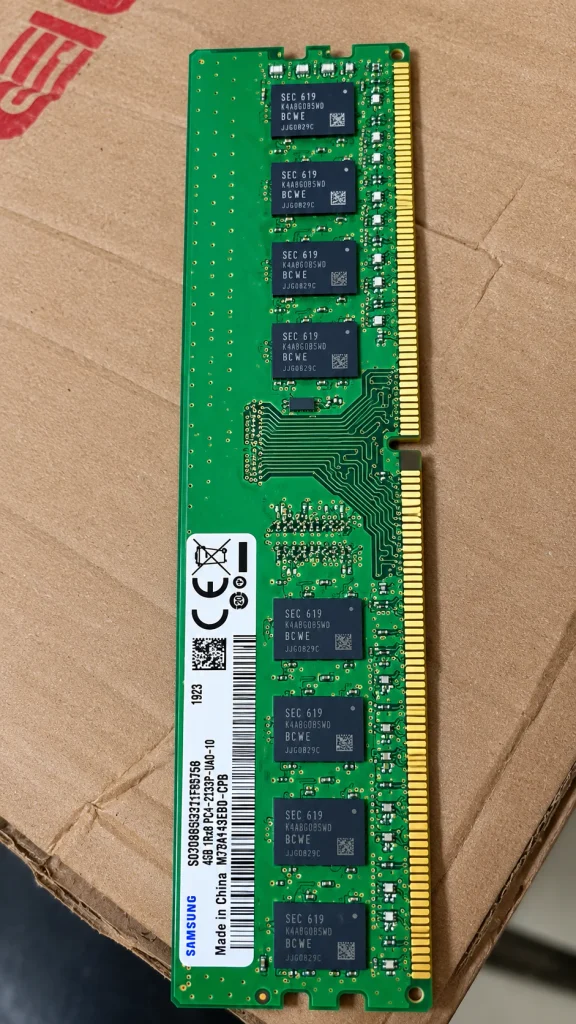
Step 3: Install the RAM
Align the notch on each RAM stick with the correct slot and press until it locks into place. For two sticks, check the motherboard manual for the recommended dual-channel memory configuration.
Step 4: Install the Storage
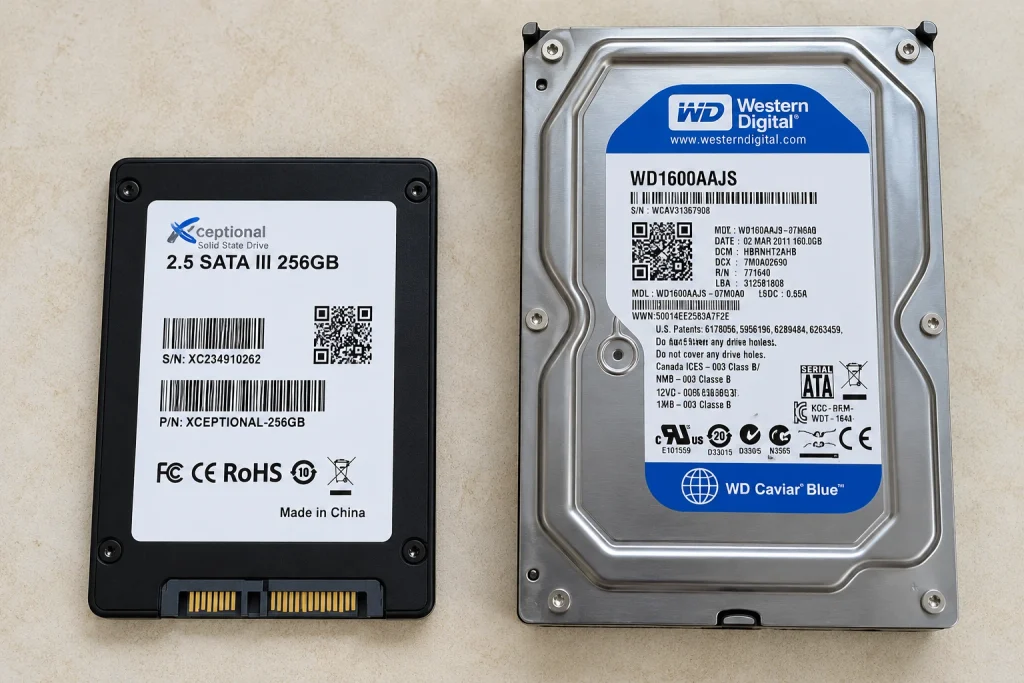
Install an M.2 NVMe SSD directly into a compatible M.2 slot on the motherboard.
For a 2.5-inch SATA SSD or 3.5-inch HDD, mount the drive in the appropriate case bay. These drives require SATA data to the motherboard and SATA power from the PSU.
Step 5: Install the CPU Cooler
Check whether the cooler already has thermal paste applied. If not, apply the recommended amount before mounting it. Secure the cooler and connect its fan cable to the CPU fan header on the motherboard.
Step 6: Prepare the PC Case
Remove the side panels and make sure the motherboard standoffs align with your motherboard’s mounting holes. Reposition them if necessary and plan your cable routing.
Step 7: Install the Motherboard
Lower the motherboard into the case, align it with the standoffs and rear I/O opening, and secure it with screws. Do not overtighten them.
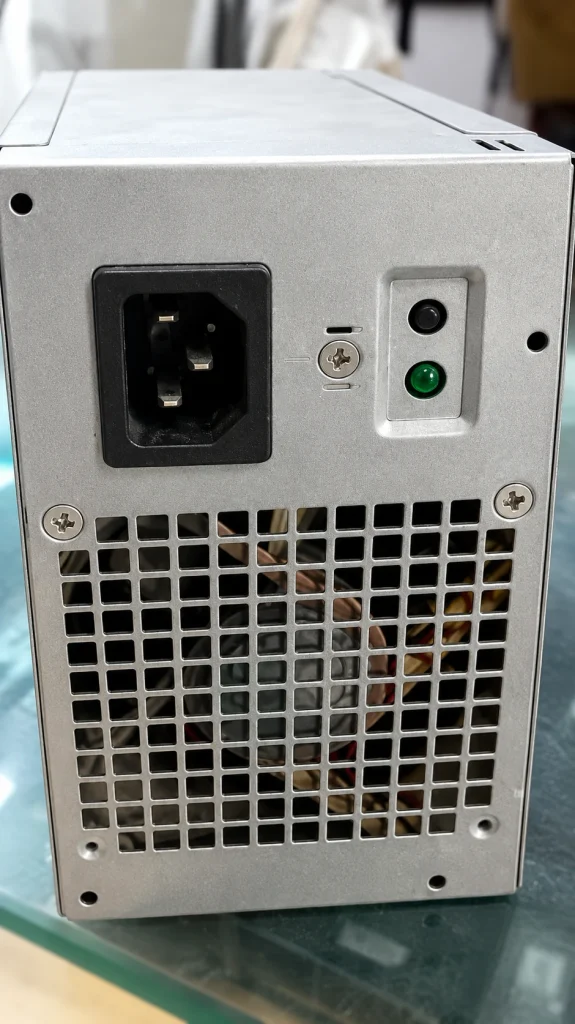
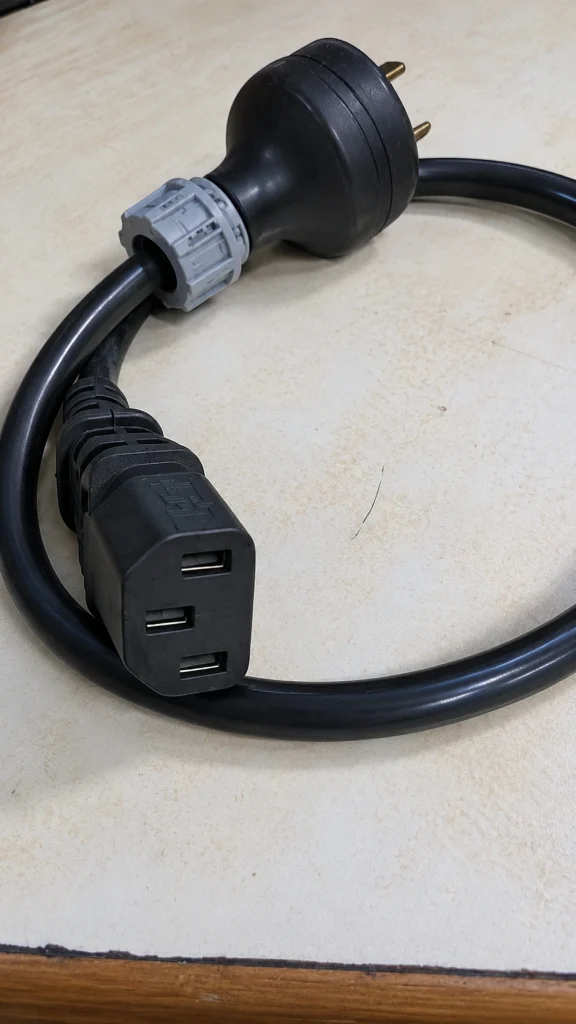
Step 8: Install the Power Supply
Mount the power supply (PSU) in its designated position with proper ventilation. Identify and route the cables required for the motherboard, CPU, GPU, and storage drives.
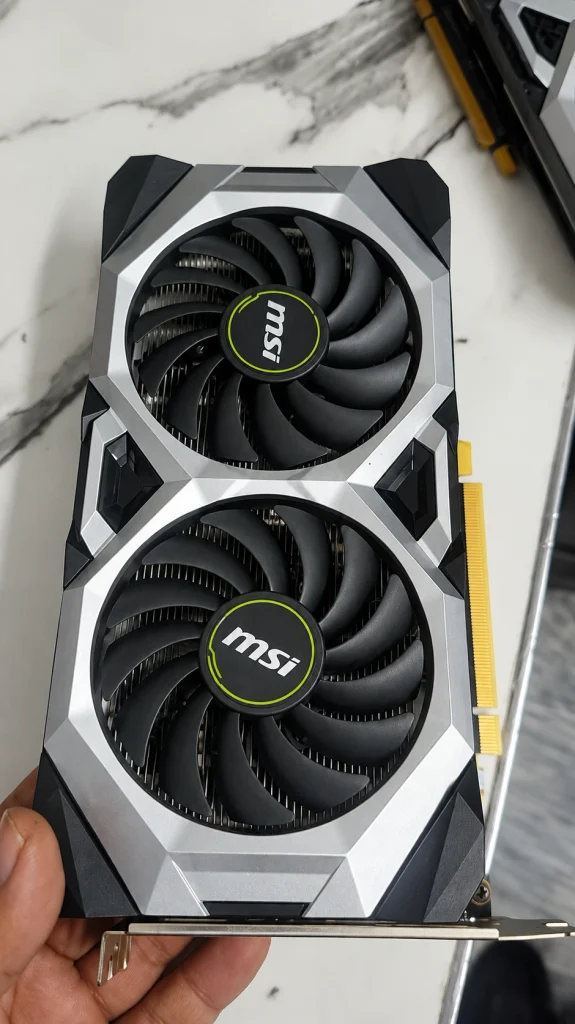
Step 9: Install the Graphics Card
Remove the required expansion-slot covers and insert the GPU into the appropriate PCIe slot. Secure it to the case and connect the required GPU power cables.
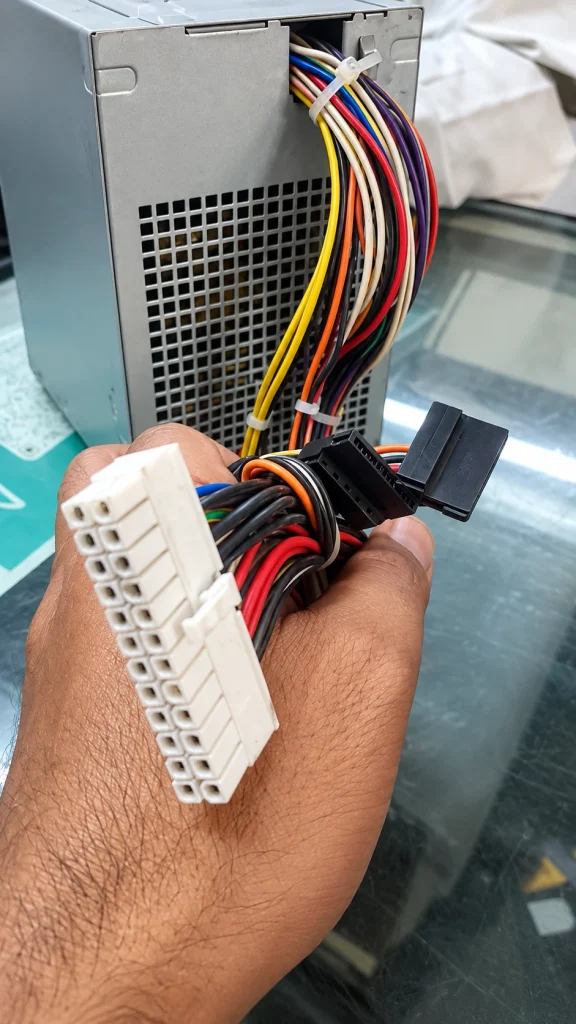
Step 10: Connect the Cables and Fans
Connect the motherboard and CPU power cables, GPU power, case fans, and front-panel connectors. For SATA SSDs and HDDs, connect both SATA data and power cables. Route excess cables away from fans to maintain airflow.
Step 11: Check the Build and Power It On
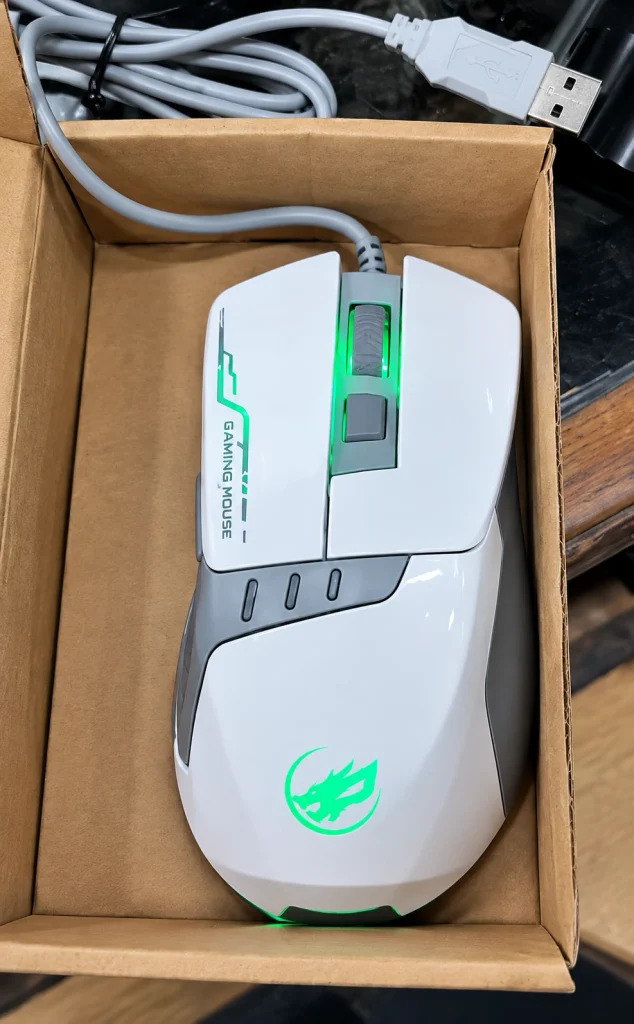
Check that the CPU cooler, RAM, GPU, storage, power cables, fans, and front-panel connectors are secure. Connect the monitor to the graphics card, then connect your keyboard and mouse. Attach the PSU power cable, switch on the PSU, and press the case power button.
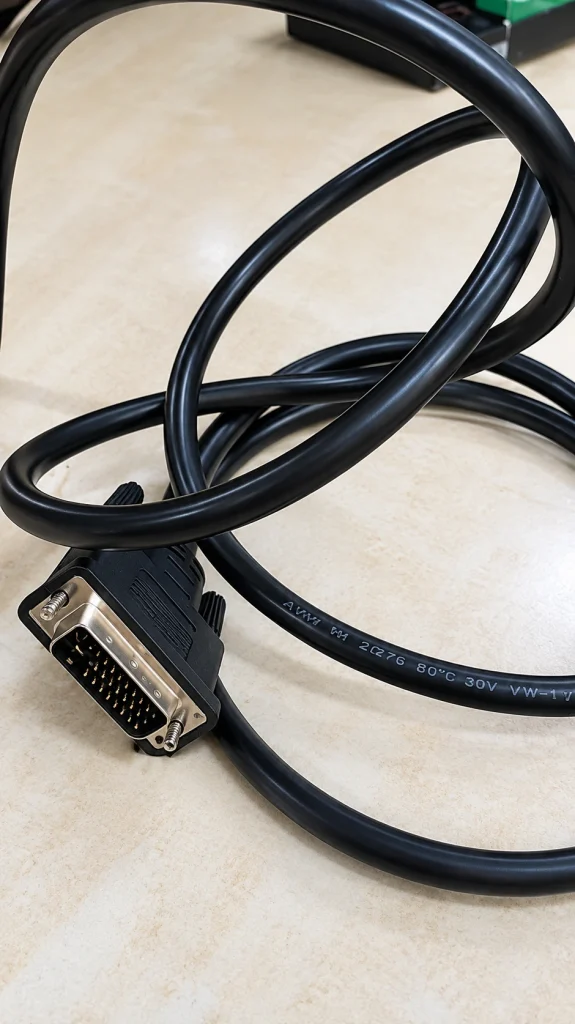
If the PC reaches the BIOS/UEFI screen, the hardware assembly is complete.
How Much Does It Cost to Build a Gaming PC Today?
Building a gaming PC in 2026 can cost around $700 to $3,000+, depending on your target resolution, frame rate, games, and whether you also need the PC for streaming or content creation.
| Budget | Best For | Target Performance |
|---|---|---|
| $700–$1,000 | Budget Gaming | 1080p Medium–High |
| $1,000–$1,600 | Mid-Range Gaming | 1080p Ultra / 1440p High |
| $1,600–$2,300 | High-End Gaming | 1440p Ultra / Entry-Level 4K |
| $2,300–$3,000+ | Enthusiast Builds | 4K, VR, Streaming & Heavy Workloads |
Your GPU and CPU usually have the biggest impact on gaming performance and overall cost. RAM capacity, storage, motherboard, cooling, PSU quality, and current hardware prices also affect the final budget.
How Should You Allocate Your Gaming PC Budget?
For a gaming-focused build, prioritize the GPU, followed by the CPU, while leaving enough budget for reliable supporting components.
| Component | Approximate Budget |
|---|---|
| GPU | 35–45% |
| CPU | 15–20% |
| Motherboard | 8–12% |
| RAM | 8–10% |
| Storage | 8–12% |
| PSU, Cooling & Case | 10–15% |
Treat these percentages as a starting point rather than fixed rules. A gaming-focused PC can put more of the budget toward the GPU, while streaming and content-creation builds may benefit from spending more on the CPU and RAM.uilds benefit from a stronger GPU, while streaming and content creation often require a faster CPU and more RAM.
Is It Cheaper to Build a Gaming PC Than Buying a Prebuilt?
Building a gaming PC can be cheaper than buying a comparable prebuilt PC, especially when you choose parts based on your budget and buy components at good prices. However, discounted prebuilts can sometimes cost the same or less.
A custom gaming PC gives you more control over component quality, performance, and future upgrades. A prebuilt PC offers easier setup, professional assembly, and system-level warranty support. The right option depends on your budget, available deals, and whether you want to assemble the PC yourself.
Still Have Questions About Building a Gaming PC?
Is It Hard to Build a Gaming PC?
No. Building a gaming PC is easier than most beginners expect with compatible parts, basic tools, and a step-by-step guide.
How Long Does a Gaming PC Last?
A well-built gaming PC typically lasts 5–7 years, with upgrades to the GPU, RAM, or storage extending its lifespan.
Is a Mini Gaming PC Good for Gaming?
Yes. A mini gaming PC handles 1080p and 1440p gaming well but offers less cooling and fewer upgrade options than full towers.