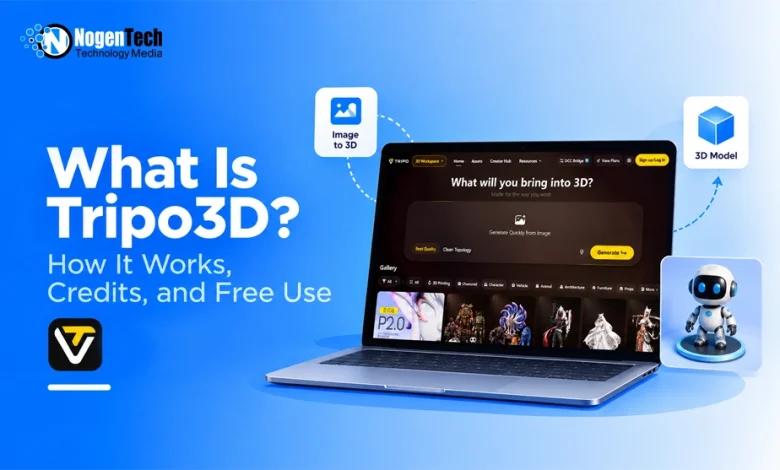
Tripo3D is an AI tool for creating 3D models from text prompts or reference images. You describe an object or upload an image; Tripo generates the 3D geometry, and you can then refine, texture, rig, or export the model depending on the tools and plan available to your account.
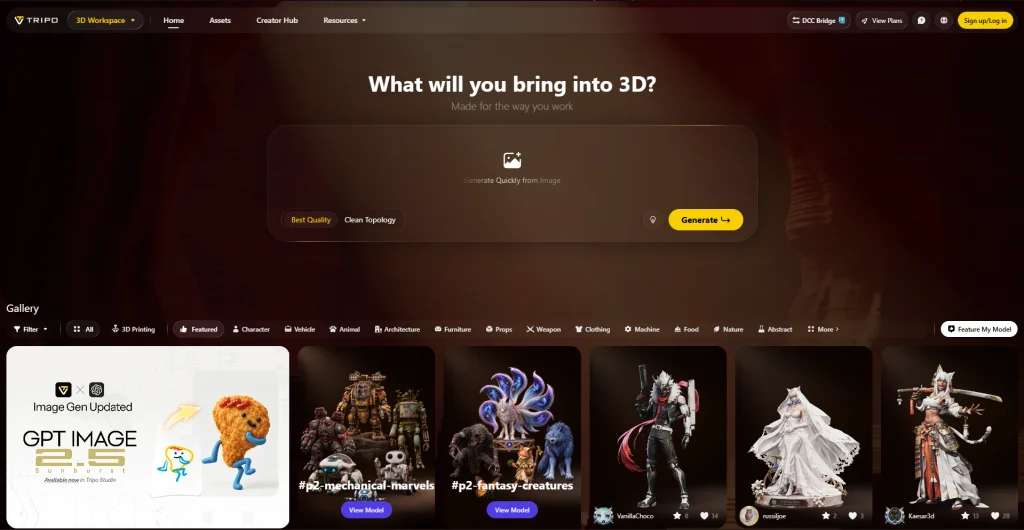
Tripo3D does have a free plan; however, free use comes with important restrictions:
- Models are public
- Commercial use is not included
- Editing, storage, and export options are more limited than on paid plans
That makes Tripo useful for trying AI-generated 3D models without starting from traditional modeling software, but the plan and export restrictions matter if you want to use the result in a game, client project, 3D-printing workflow, or another commercial project.
What Can You Make With Tripo3D?
Tripo3D can be used for:
- Game assets and environment concepts
- Product visualisation
- Characters and props
- Animation assets
- AR and VR projects
- 3D-printing prototypes
For example, you can describe a stylized wooden chair, upload a product concept, or use an image as a reference for a game asset.
A generated model is not necessarily production-ready. For games, animation, printing, or client work, check the geometry, topology, textures, and dimensions in your target software before using it.
Is Tripo3D Free?
Yes. Tripo currently offers a Free plan with 200 credits per month, estimated at around 13 models. The Free plan is suitable for learning, testing prompts, and experimenting with text-to-3D or image-to-3D generation.
Current Free-plan limitations include:
- One concurrent task
- Standard processing queue
- Public models
- Non-commercial use
- Limited editing history, storage, and exports
For commercial projects or paid client work, you’ll need an eligible paid plan, as Tripo does not grant commercial rights to Free users.
How Many Credits Does Tripo3D Use Per Model?
Tripo does not use one fixed credit cost for every operation. Based on its current pricing estimates, 3,000 credits generate approximately 200 models on the Pro plan, which works out to roughly 15 credits per model.
However, this is only an estimate. Generation, refinement, texturing, and export operations may have different credit requirements.
Also, Tripo Studio and the Tripo API use separate billing systems, so API credit costs should not be applied to a Tripo Studio account.
For the exact cost, check the credit requirement shown in Tripo before starting a task.
Should You Start With Text-to-3D or Image-to-3D?
Use text-to-3D when you have an idea but no reference image. Choose image-to-3D when you want the model to follow a specific shape or appearance.
For example, a prompt like “small medieval wooden treasure chest with metal corners” gives the AI freedom to interpret the design. If you already have concept art showing the proportions and style you want, use it as an image reference instead.
For better results, start with a clear subject. A single, visible object is easier to work with than an image containing multiple objects, complex scenery, or hidden details.
NogenTech’s guide to AI 3D tools and workflows provides more guidance on choosing between text-to-3D and image-to-3D and evaluating generated assets.
How Do You Create a 3D Model in Tripo3D?
The basic workflow is:
- Sign in to Tripo.
- Choose a 3D generation option.
- Enter a text prompt or upload a reference image.
- Check the settings and credit cost.
- Generate the model.
- Inspect it from multiple angles.
- Refine the texture, mesh, or rigging if needed.
- Export the model if your plan supports it.
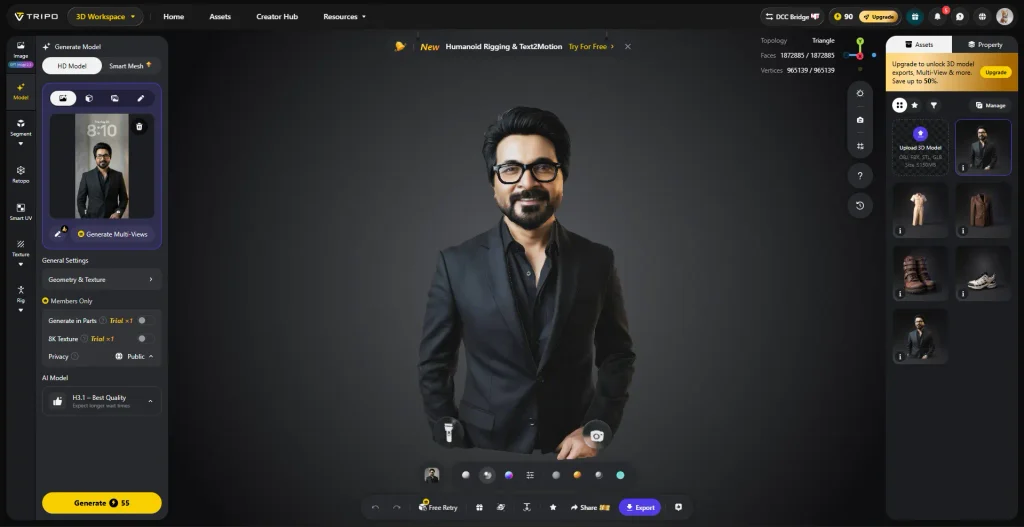
Before using the model, check it against the requirements of your project. For 3D printing, inspect the geometry; for games, check topology, textures, and performance; and for animation, make sure the mesh and rig are suitable for the intended movement.
The first generation may be a finished asset or simply a starting point, depending on how you plan to use it.
Why Can't You Download Your Tripo3D Model?
If you cannot download a generated model, check your subscription and export eligibility first. Tripo requires an eligible subscription for model exports, even if you still have credits available.
If your account supports exports, try these steps:
- Make sure the model has finished generating.
- Check whether the export requires additional credits.
- Try another supported browser or an incognito window.
- Clear your browser cache.
- Temporarily disable extensions that may interfere with downloads.
- Check the file size if the download keeps timing out.
According to Tripo’s troubleshooting guidance, models over 100 MB may time out on slower connections.
Which Tripo3D File Format Should You Download?
Choose the export format based on how you plan to use the model. Tripo currently supports six formats: GLB, USD, FBX, OBJ, STL, and 3MF.
- GLB: Best suited for web-based 3D, AR/VR, and compact workflows that include geometry and associated data.
- FBX: Commonly used for game development and animation.
- OBJ: Widely compatible with 3D editing software and suitable for basic 3D-printing workflows.
- STL: Primarily used for 3D printing and stores geometry rather than richer material data.
- 3MF: A more modern 3D-printing format that supports additional print-related information.
- USD: Useful for VFX, animation, and scene-based production workflows.
Your choice ultimately depends on the software or workflow where you plan to use the exported model.
Can You Use Tripo3D Models Commercially?
Yes, but commercial rights depend on your plan. Tripo’s Help Center states that paid users can use, modify, distribute, and commercially use their generated models, while Free users are not granted commercial rights.
Your input matters too. A paid Tripo plan does not give you rights to someone else’s character, product design, photograph, or artwork used as a reference. Make sure you own or have permission to use any input material.
For commercial projects, a practical workflow is:
Use an input you own or are licensed to use → generate under an eligible paid plan → inspect the output → retain the relevant licensing information.
Does a Tripo3D Model Still Need Editing?
It may. The amount of editing depends on the model and how you plan to use it.
Animation models may require suitable topology and rigging, while 3D-printing models need geometry that works when sliced and printed. Check:
- Shape from all sides
- Small or thin geometry
- Surface quality
- Mesh and topology
- Texture placement
- Scale and dimensions
- Rigging, if needed
- Compatibility with your target software
Generation speed alone does not determine how usable a model is. A quickly generated asset may still require significant cleanup.