SSD vs SD Card vs Cloud: The Smart Backup Setup for Content Creators in 2026
Use SD cards to capture footage, SSDs to edit active projects, and cloud storage to keep an offsite backup of important files.

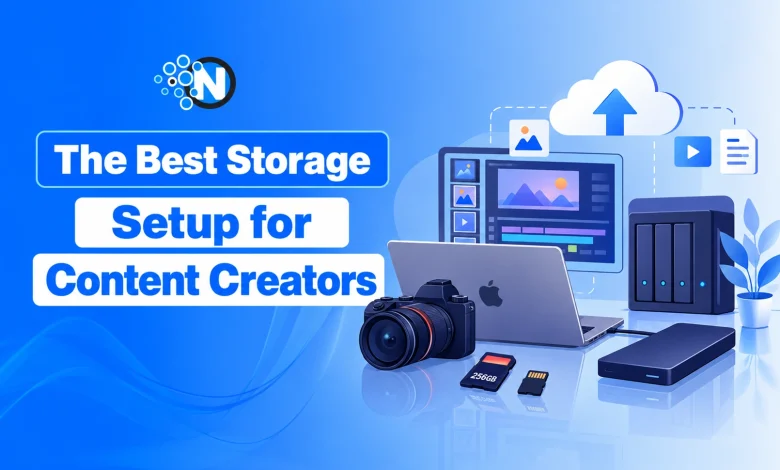
Every content creator has a storage horror story. An SD card fails before delivery. An external drive stops working. A cloud folder still syncs when the client needs the files.
Footage loss can mean missed deadlines, lost income, and work that can’t be recreated.
A reliable backup setup isn’t about buying one expensive drive. It’s about using SD cards for recording, SSDs for editing, and cloud storage for offsite protection. Here’s how they fit together.
SSD vs SD Card vs Cloud: What's the Difference?
Each storage option has a different job.
| Storage Type | Best Used For | Main Limitation |
| SD Card | Recording photos and videos | Easy to lose or damage |
| External SSD | Editing and storing active projects | Vulnerable to failure, damage, or theft |
| Cloud Storage | Offsite backups and archives | Limited by upload speeds and internet access |
| NAS | Centralized storage and shared archives | Requires maintenance and separate backups |
The goal is to use them together without relying on any single device to protect important files.
Your SD Card Is Not a Backup
An SD card must be able to capture frames without dropping. That is, selecting a rating for the bit rate at which the camera can record, not storage.
Refer to the SD card speed class standards when recording video to see what each grade offers:
- V30: Minimum sustained write speed of 30 MB/s, which can handle most 4K recording modes.
- V60: At least 60 MB/s for heavier formats of recording.
- V90: At least 90 MB/s at high bit rate recording if needed.
V60 or V90 isn’t a mandatory feature for every 4K camera. Take note of the camera’s specifications when purchasing. Select an SD card for content creators that fulfills those needs.
Avoid using an SD card for permanent storage. Copy to two different places, then check the files and format the card afterward.
The Working Drive: Why SSDs Matter
When the footage is removed from the SD card, an external SSD offers quick editing.
But advertised transfer speeds don’t tell the whole story. When transferring large video files and projects that demand high performance, it’s sustained performance that becomes more important.
Here are a few things to keep in mind for selecting an editing SSD:
- Fast speed: High performance in case of transferring large files.
- Connectivity: USB or Thunderbolt to the computer.
- File access: To access files in a responsive manner: previews, thumbnails, project files.
- Capacity: Space to accommodate active projects.
Maintain updated projects on a working SSD and transfer finished projects to an archive. Keep in mind: An editing SSD is not a backup. Store duplicate copies of vital records.
The Cloud: Slow, Boring, Essential
Local drives don’t offer something that the cloud does: Offsite copy.
In the event that equipment is stolen or damaged, cloud backups can assist with recovering the work. The compromise is upload speed, particularly in relation to large video files.
- The 3-2-1 Backup Rule is a good beginning:
- Important files (3 copies, including original).
- 2 different storage media or systems.
- 1 copy stored offsite.
Cloud storage is generally a good choice for completed work, key files, and archives for most creators. For photographers, check out features like file recovery, large file support, and backup. Typically, editing is faster on a local SSD.
Cloud sync isn’t necessarily backup. Files might also be accidentally deleted or corrupted, and sync services might replicate them. Select a service that includes file versioning and recovery, and check that backups complete without issue.
NAS vs External SSD: Choosing Your Home Base
If you’re a single person, you might only need another external SSD to back up. It is portable, simple, and doesn’t need a network.
When it comes to large archives, speed, capacity, and cost are some of the more common factors that may come into play with regard to whether it’s an SSD or an HDD.
Network Attached Storage (NAS) is useful when the archives are increasing, or multiple computers require access to the same files.
Will Your Files Be There When You Need Them? Final Thoughts
A backup setup only proves its worth when something goes wrong. A failed drive shouldn’t mean starting a project from scratch or explaining lost footage to a client.
Before the next important shoot, try restoring a few files from your backup. Make sure they open correctly and that older versions are recoverable. It’s a small check that can prevent a much bigger problem when a deadline approaches.