Android phones offer multiple methods to take screenshots, including using the side buttons of your device, the notification panel, and gesture settings.
They allow you to capture exactly what you see on your screen. These are helpful because you can save information, share content, or troubleshoot.
In this guide, we cover all these methods to capture your screen even if your side buttons fail, though steps may vary slightly across Android versions.
For a quick walkthrough, check out this video tutorial by NogenTech:
How to Capture a Screenshot on Android Phone?
1. Using the Hardware Buttons
One of the best methods to capture screenshots on Android devices is through the hardware buttons. The step-by-step method is:
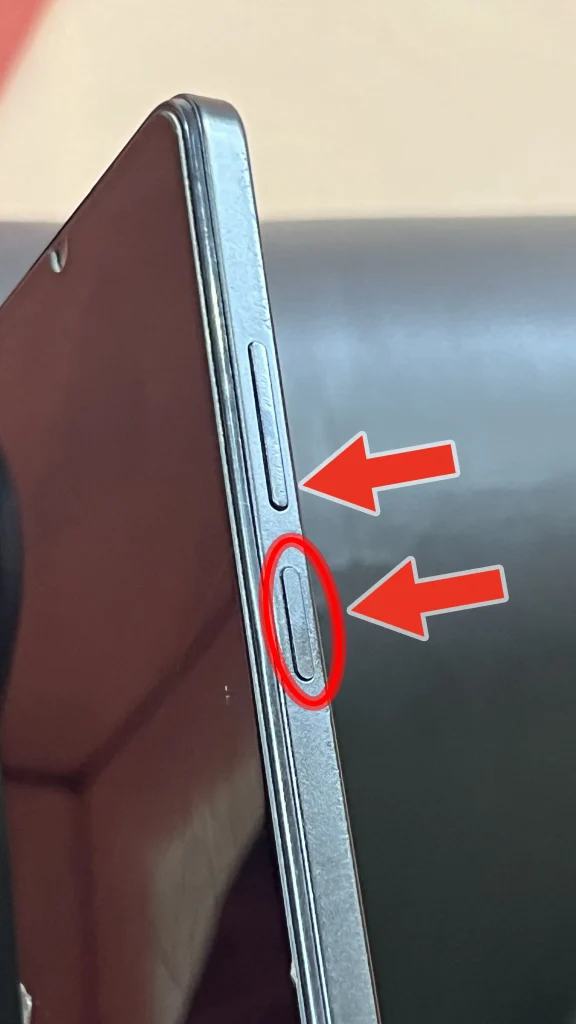
- Locate the power and volume down buttons. They are typically found on the sides of your phone.
- Simultaneously press and hold both buttons.
- An animation will appear to mobile screen alongside a shutter sound. Some Android phones also send a notification.
- You can access the image from your device gallery to determine if it ok or not.
Advantages
- Universally Applicable: This method works across almost all Android smartphones, regardless of the brand or model.
- Quick and Easy: Once you’ve mastered the timing, taking a screenshot with the buttons becomes second nature.
Disadvantages
- Potential for Error: Pressing the buttons incorrectly might result in locking the screen or adjusting the volume instead of taking a screenshot.
- Wear and Tear: Frequent use of physical buttons might contribute to wear over time.
2. Gesture Controls
Many modern Android devices offer gesture controls as an alternative to the traditional button method.
Some users consider this option to be more convenient. The complete method details are:
- Head to your phone’s Settings.

- Navigate to Advanced Features or Actions and Gestures (the exact name may vary).
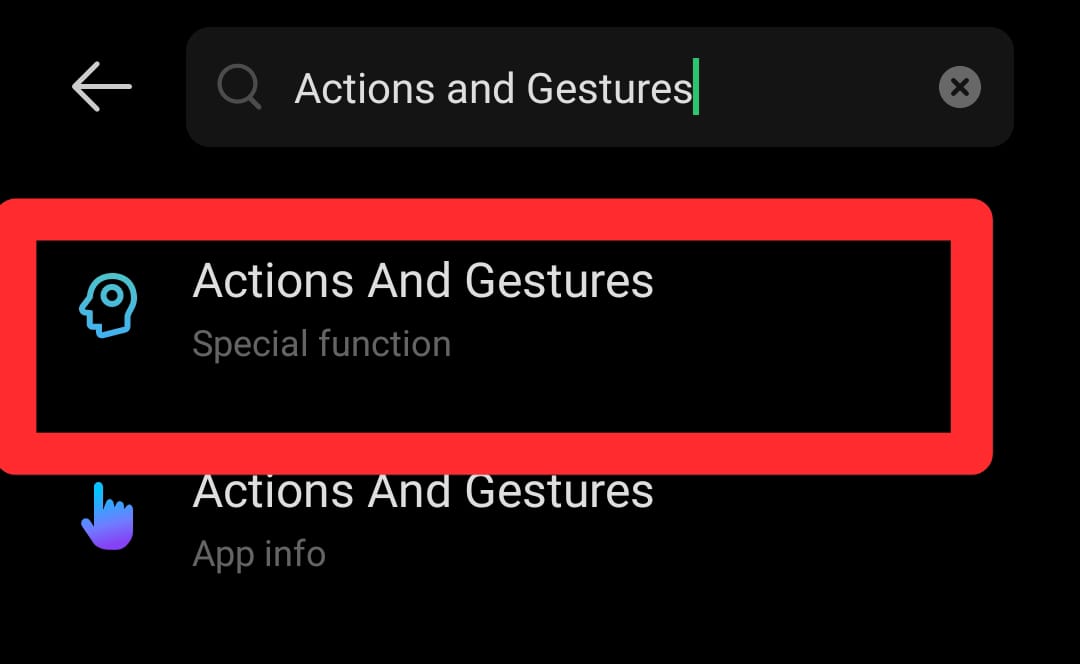
- Turn on Palm Swipe to Capture, or any other gesture-based feature.
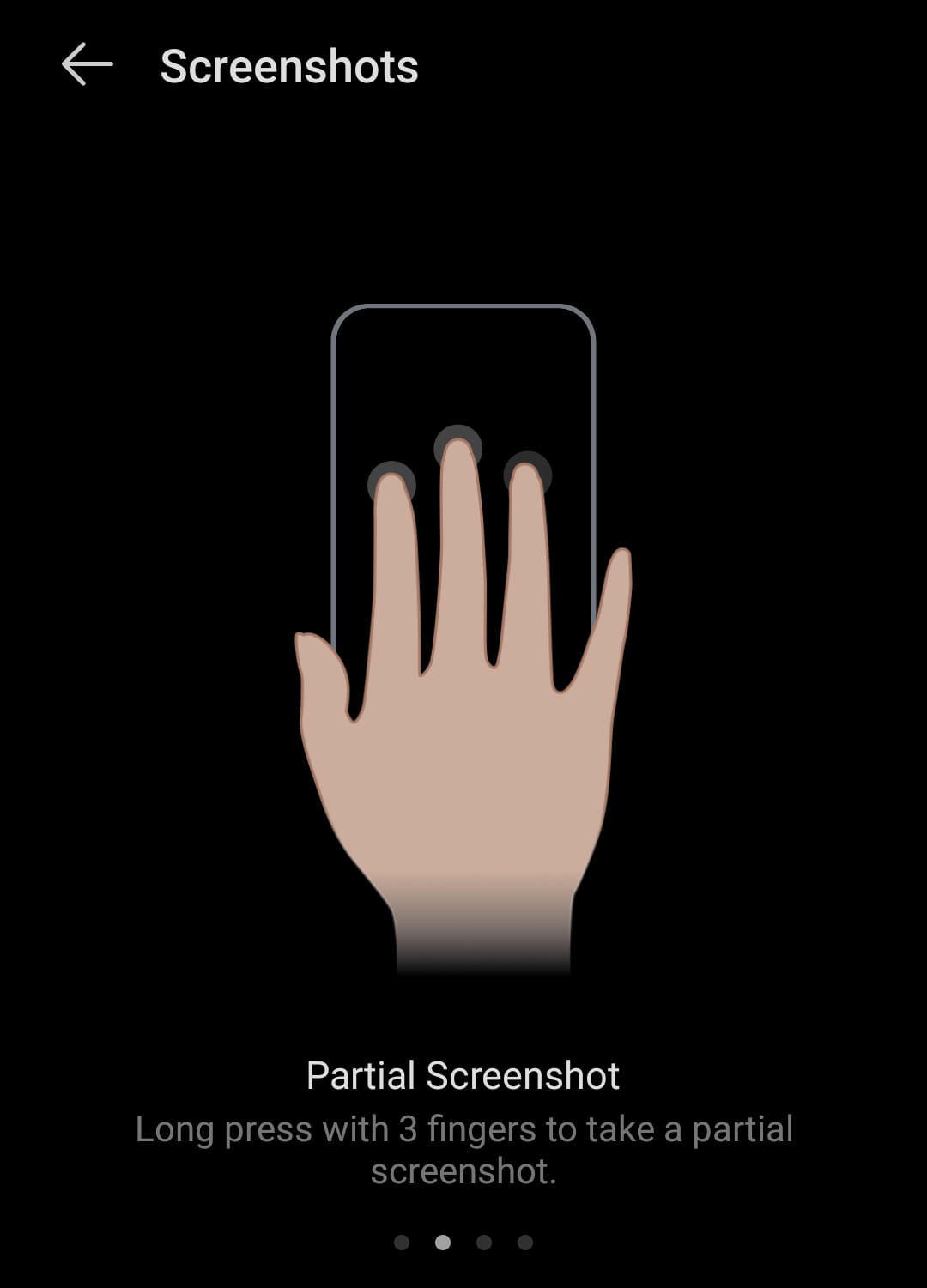
- Move your hand’s edge left to right or right to left across the screen.
- The screenshot should be recorded when you see the screen flash or hear the shutter sound.
The screenshot will be saved in the “Screenshots” folder in your gallery, just like when you use the button approach.
Note: Menu placement for gestures may differ slightly depending on your device manufacturer or Android Version.
Advantages
- Button-Free Operation: Eliminates the need for physical buttons.
- Intuitive: This method of capturing the screen may feel more natural to people who enjoy touch movements.
Negative aspects
- Compatibility: Not all Android smartphones can take screenshots using gesture controls.
- Learning Curve: Acquiring the gesture may require multiple attempts.
3. Access Notification Panel
Some Android devices include a screenshot button directly within the notification panel or quick settings menu, making it convenient to capture what’s on your screen.
The key steps to follow are:
- Open the screen you want to capture.
- Swipe down from the top of the screen to open the notification panel.
- Look for an icon labeled “Screenshot” or “Capture,” and tap it.
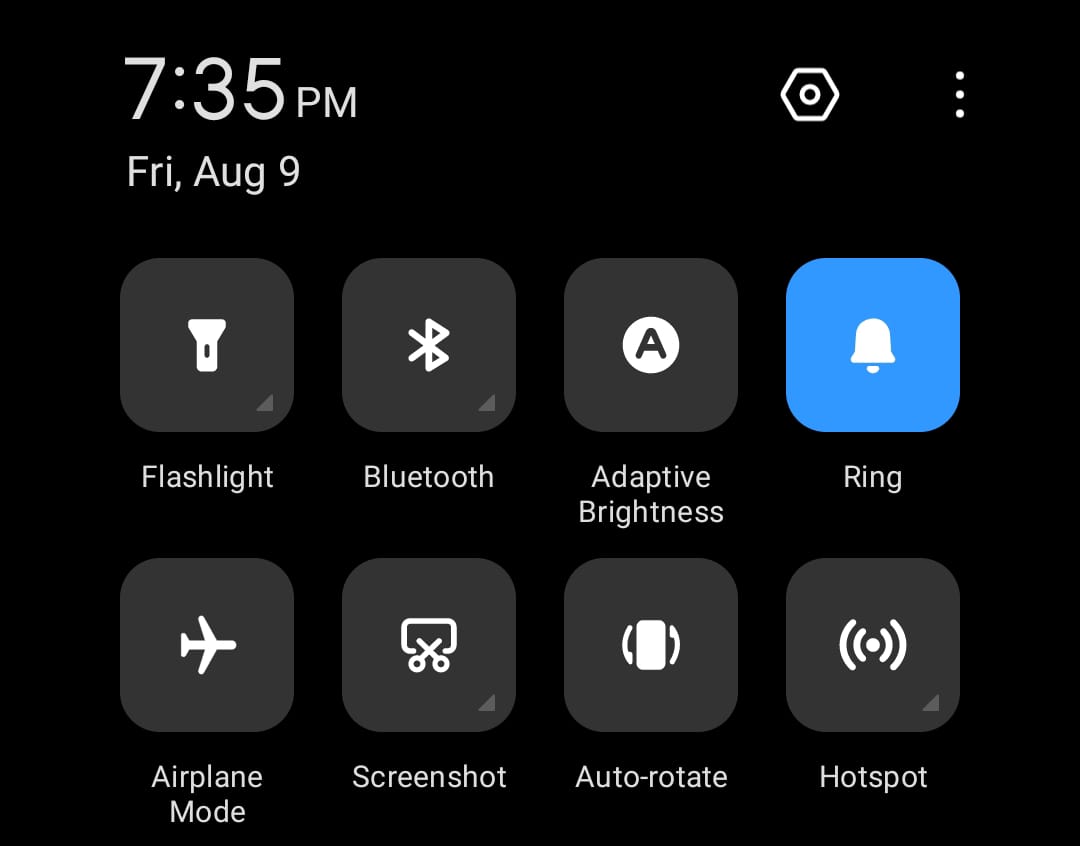
- The screen will flash, or you’ll hear a sound indicating that the screenshot has been taken.
Advantages
- Ease of Access: No need to memorize button combinations or gestures; simply tap the icon.
- Useful for Complex Screens: Ideal when you need to capture something quickly without disturbing the layout of your screen by pressing buttons.
Disadvantages
- Not Always Available: This feature is not present on all Android devices or may require customization.
4. Third-Party Apps
For those who require more advanced screenshot options, such as scrolling screenshots, editing, or instant sharing, third-party apps can be a valuable tool.
Here are the step-by-step details to carry out this process.
- Visit the Google Play Store and search for a screenshot app that suits your needs.
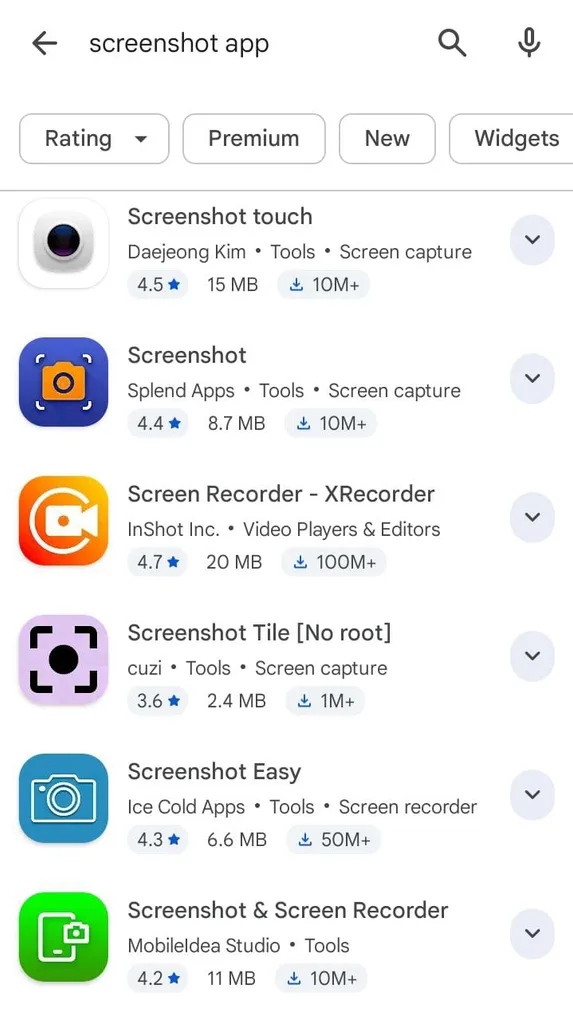
- Open the app and follow the on-screen instructions to set up your preferred screenshot method.
- Depending on the app, you might use a floating button, gesture, or notification bar to take the screenshot.
- Many apps offer editing options, such as cropping or annotating, before saving the screenshot.
Advantages
- Enhanced Features: Third-party apps often provide additional features like scrolling screenshots, instant sharing, and editing.
- Customization: Increased command over the location and method of screenshot storage.
Cons
- In-app purchases and advertisements: Some free versions of these apps can have limited features or in-app purchases.
- Security Issues: Exercise caution while allowing unaffiliated apps access to your storage and screen.
Anyhow, you can choose the method that best fits your needs and preferences. Whether you use hardware buttons, gestures, scrolling screenshots, or a trusted third-party tool, Android offers several simple ways to capture your screen.
Choose the option that feels most convenient, then edit and share your screenshots whenever needed.