Have you ever written an important text and thought, “I’ll send it later,” only to forget it completely?
Believe me, I’ve been there, and it’s a real headache. As someone who runs a digital marketing company, my day is usually filled with client calls, campaign updates, team discussions, and follow-ups.
Sometimes, I write a message with every intention of sending it, but another task gets my attention, and the message gets forgotten.
While looking for a solution, I discovered that my iPhone can schedule texts in advance without needing another app. Whether it’s a client follow-up, meeting reminder, birthday wish, or important update, sending messages later can save time and keep me organized.
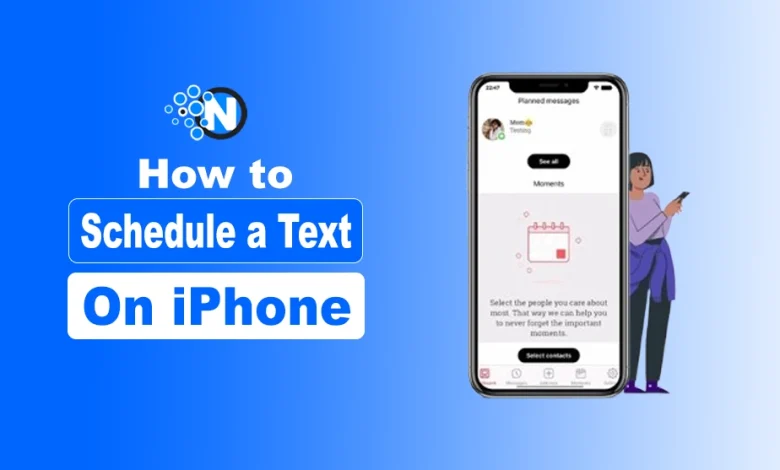
Here, I’ll show you how to schedule a text on your iPhone using built-in options and Shortcuts.
How to Schedule a Text on iPhone?
Apple provides you with a built-in Shortcuts app to automate tasks, which we can use for sending scheduled messages. Here is a step-by-step guide.
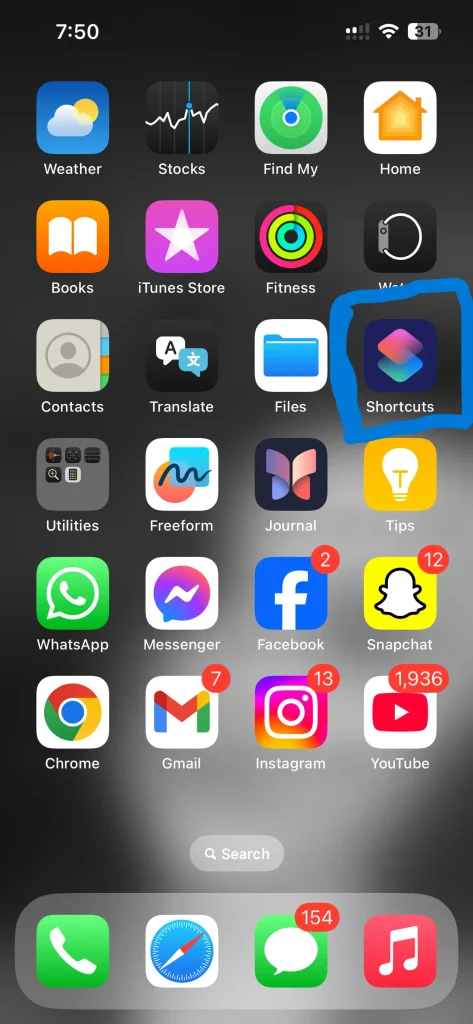
- Locate and launch the Shortcuts app. If it isn’t installed, download it from the App Store.
- Find the Automation tab and click on it. It is usually present at the bottom of the screen.
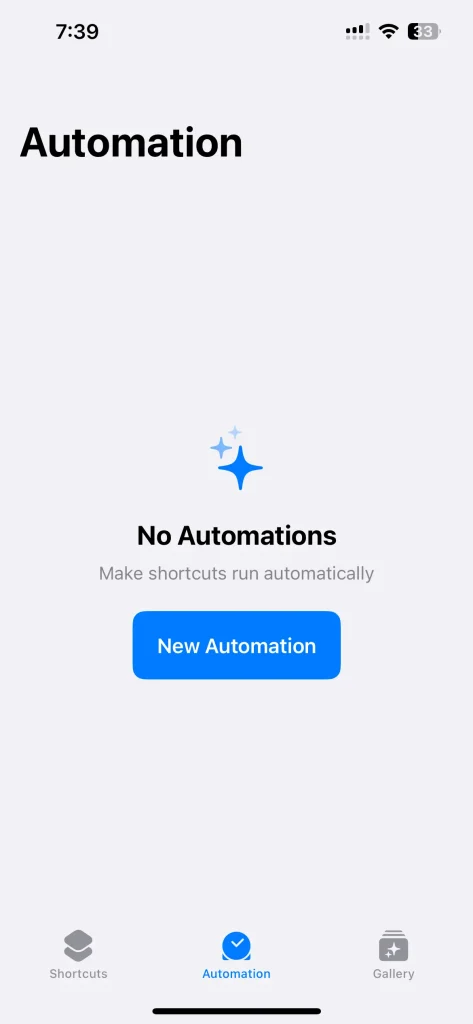
- Tap the + icon in the top-right corner.
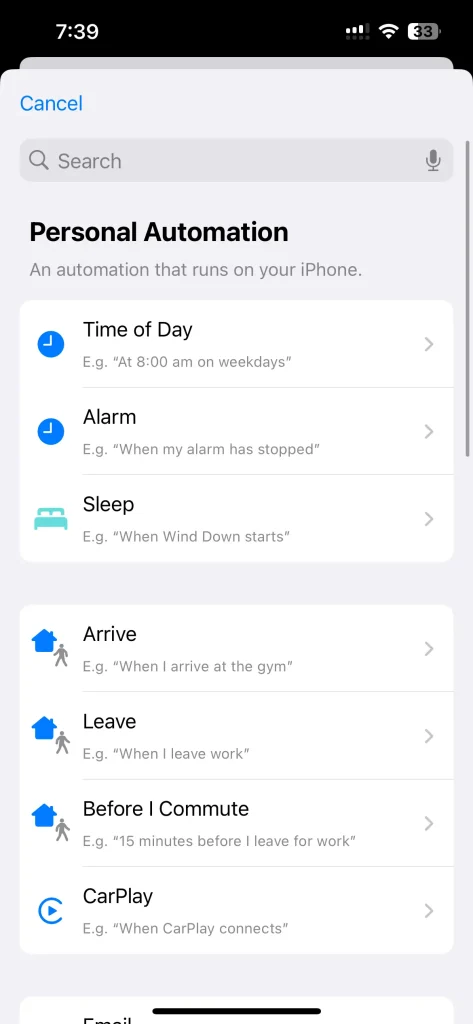
- Select a trigger, such as the Time of Day. Also, specify when the message should be sent, like daily or weekly.
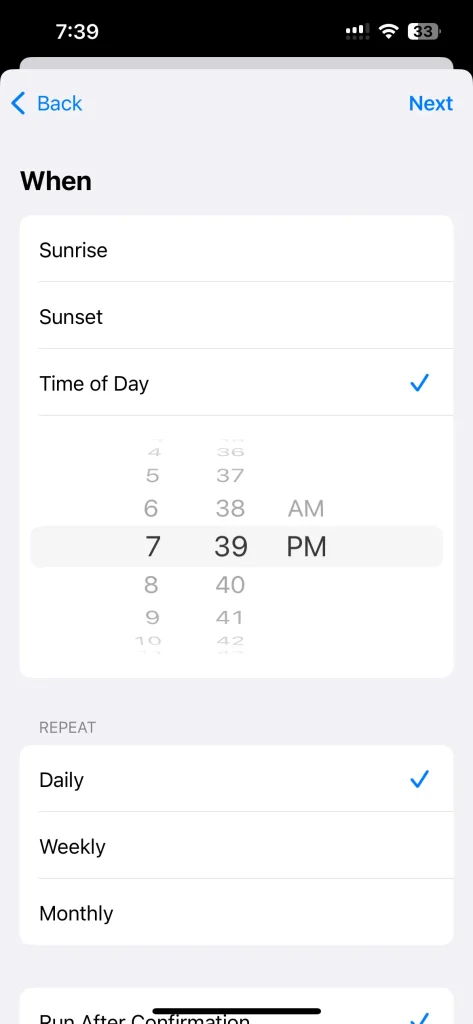
- Tap Next, then Add Action.
- Search for Send Message and select it from the options. Enter the contact details of the recipient or select from your saved contacts.
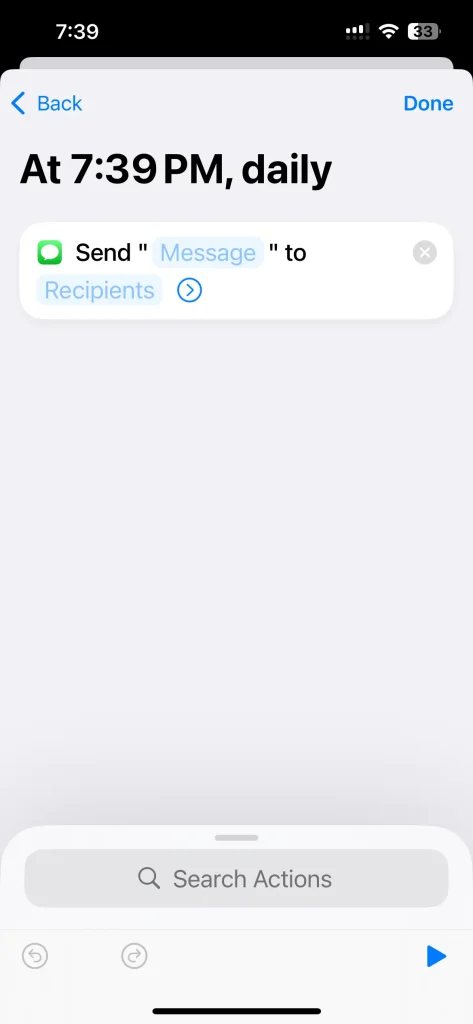
- Type the message you want to schedule.
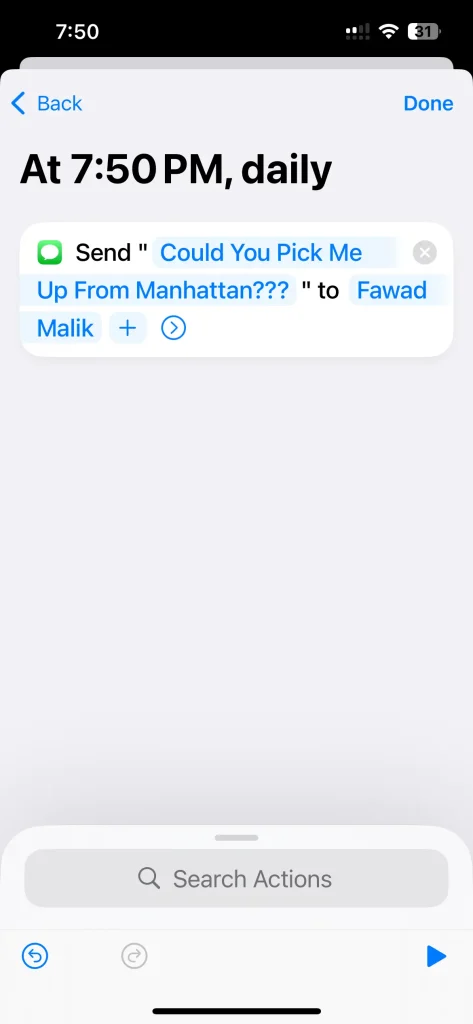
- Review the details of your automation.
- Select the Run Immediately option to allow the message to be sent automatically.
- Tap Done to save and activate your automation.
You should understand these iPhone features and implement these steps properly to get the desired outcomes. However, here are some pros and cons I noticed that I thought you should also be aware of.
| Pros | Cons |
| Free and built directly into iOS | Limited flexibility for one-time scheduling. |
| No need for additional apps |
You can also follow along with our visual walkthrough below to set up scheduled text messages on your iPhone.
Why Should You Schedule Text Messages?
Before we go deep into the methods of how to schedule a text on iPhone, let’s look at some of the benefits of scheduling text messages:
- Timely Delivery: Messages reach recipients precisely when needed, even if you are busy.
- Efficient Time Management: You can plan messages in advance, which will free up your schedule.
- Professional Communication: Follow up with clients, colleagues, or teams in a consistent manner.
- Convenience: Avoid forgetting important messages by setting them up ahead of time.
Best Practices for Scheduling Texts
Now, you have learned how to schedule a text on an iPhone. To make the most of scheduled texting, you should keep the following tips in mind.
- Consider Time Zones: If your recipient is in a different time zone, ensure your message is delivered at an appropriate hour.
- Verify Message Details: Double-check the content, recipient, and delivery time to avoid errors.
- Use Trusted Tools: Stick to native apps or highly rated third-party apps to ensure data security.
- Plan for Recurring Events: Use scheduling to automate reminders for birthdays, meetings, or follow-ups.
- Align with Notification Settings: Ensure your text schedules work alongside your active quiet hours or customized iPhone Focus Mode settings so alerts go through seamlessly
Troubleshooting Common Issues You May Face While Automating
Even with automation, users may encounter problems:
- Automation not running: Ensure the trigger is set to “Run Immediately” and the phone is awake.
- Send Later option missing: Requires iOS 18 and an iMessage recipient (blue bubbles). It will not appear for Android contacts or if you text yourself.
- Message delivery failure: Ensure correct contact information and active iMessage/SMS service.
- Recurring messages not sending: Recurrence must be set correctly in Shortcuts triggers.
Following these steps prevents common errors and ensures reliable message scheduling.
Device and iOS Compatibility
| iPhone Model | iOS Version | Method Available |
|---|---|---|
| iPhone XR / XS and later | iOS 18+ | Messages app “Send Later” & Shortcuts App |
| Most iPhones | iOS 12+ | Shortcuts App automation |
| Older iPhones | iOS <12 | Shortcuts App may be limited; Messages app unavailable |
Final Thoughts on Scheduling Text Messages for iPhone Users
These are the details about how to schedule a text on an iPhone. While it may require some creativity, you can pocket massive benefits with this feature.
You can use the Shortcuts app on all versions of iOS to schedule the texts. Additionally, iOS 18 users can schedule texts with the help of the built-in Messages app. I have mentioned their usage in this guide. Now, you should understand them properly and get the benefits.
FAQ: Scheduling Texts on iPhone
iMessage needs internet; SMS works over the cellular network. Offline iMessage sends when online.
Yes, but use trusted apps for privacy and reliability.
No. Shortcuts works on iOS 12+; Messages app Send Later requires iOS 18+ on compatible devices.
Check the recipient, message content, and disable Ask Before Running in Shortcuts. Test once if needed.