If you are wondering how to delete a page in Google Docs, the simple answer is this: you remove whatever is creating that page, such as a page break, section break, extra spacing, or overflowing content, and the page disappears automatically. Google Docs does not use a “delete page” button because pages are generated by formatting and layout, not by page numbers.
In this guide, i will show you exactly how to find and remove blank pages, page breaks, section breaks, spacing issues, and formatting elements that cause unwanted pages on both desktop and mobile. By the end of this article, you will know how to fix extra pages anywhere in your document, at the end, in the middle, or after tables, images, headers, or footers, quickly and permanently.
How to Delete a Page in Google Docs?
Before we jump into the steps, let me give you a quick overview. Google Docs does not have a built-in “delete page” button. That’s because Docs automatically generates pages based on your content and formatting. So when we say “delete a page,” we are really talking about removing the content, spacing, or formatting that’s causing it.
Why Extra Pages Appear in Google Docs?
Before deleting a page, you need to understand what is causing it. Google Docs automatically creates pages based on layout rules, not by page count. An extra page usually exists because of one of these:
| Page break | Forces a new page |
| Section break | Creates a separate page or layout |
| Extra paragraph lines | Pushes content onto a new page |
| Large margins | Reduce usable page space |
| Line spacing | Makes content overflow |
| Tables or images | Expand beyond page height |
| Headers and footers | Occupy page space |
| Footnotes | Push content down |
1 – Remove Unnecessary Blank Lines or Spaces
A common cause of extra pages is empty lines or spaces at the end of your document. Let’s fix that first.
Use Backspace or Delete Keys
I know it sounds too simple, but many times, just pressing backspace does the trick.
- Open your Google Docs file.
- Scroll to the page you want to remove.
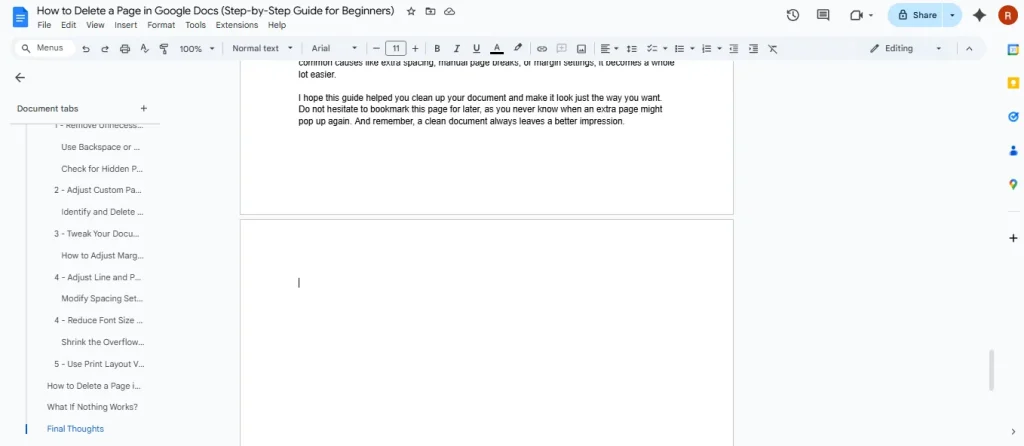
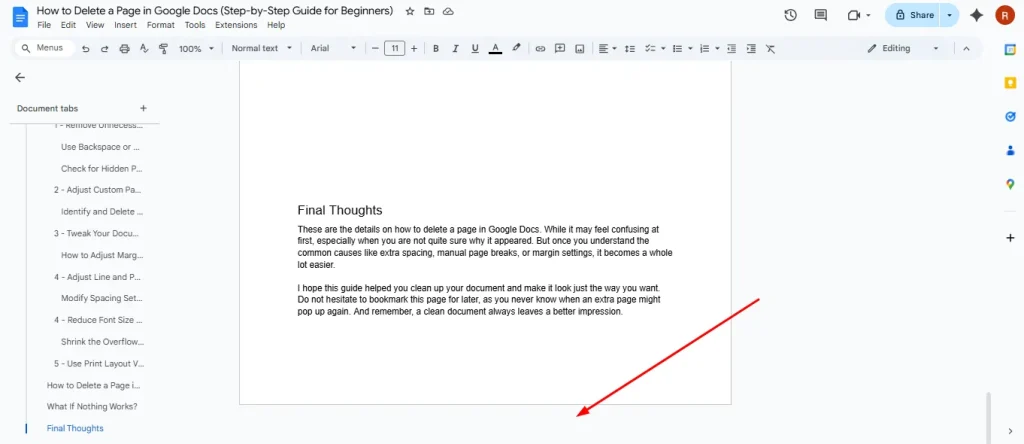
- Click at the very end of your content (right before the unwanted page starts).
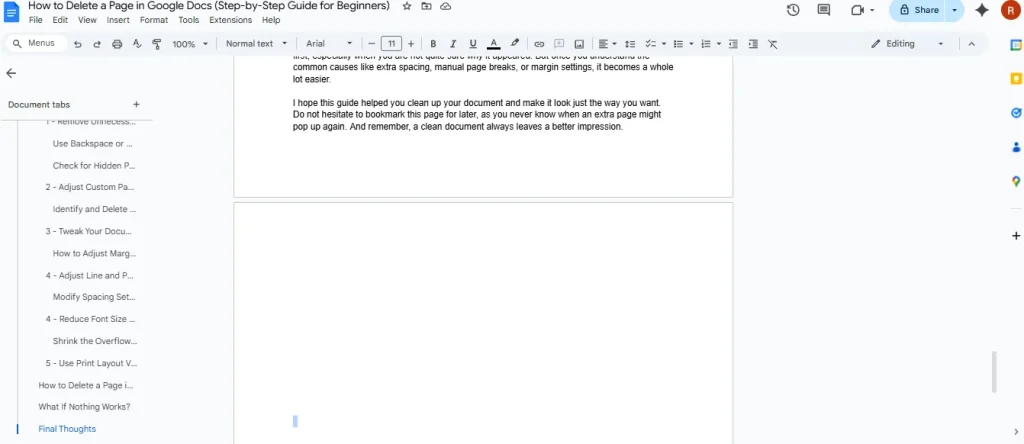
- Now press Backspace (or Delete on Mac).
- If the page disappears, you are done.
Check for Hidden Paragraph Breaks
Sometimes you can’t see what is causing the problem because it is a hidden break. Under such situations, the following steps will help you a lot.
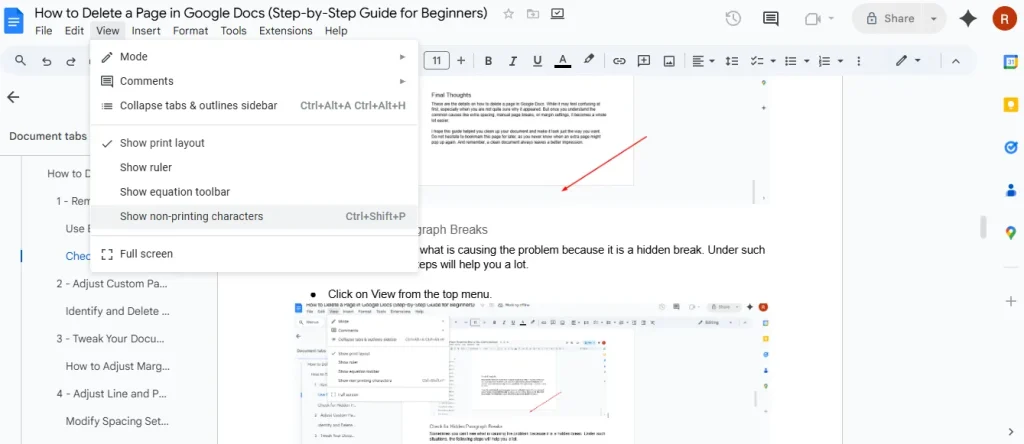
- Click on View from the top menu.
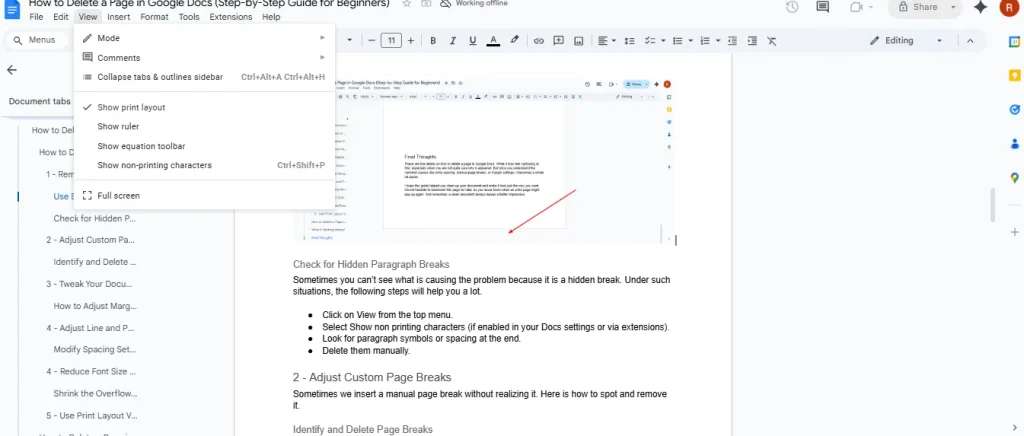
- Select Show non printing characters (if enabled in your Docs settings or via extensions).
- Look for paragraph symbols or spacing at the end.
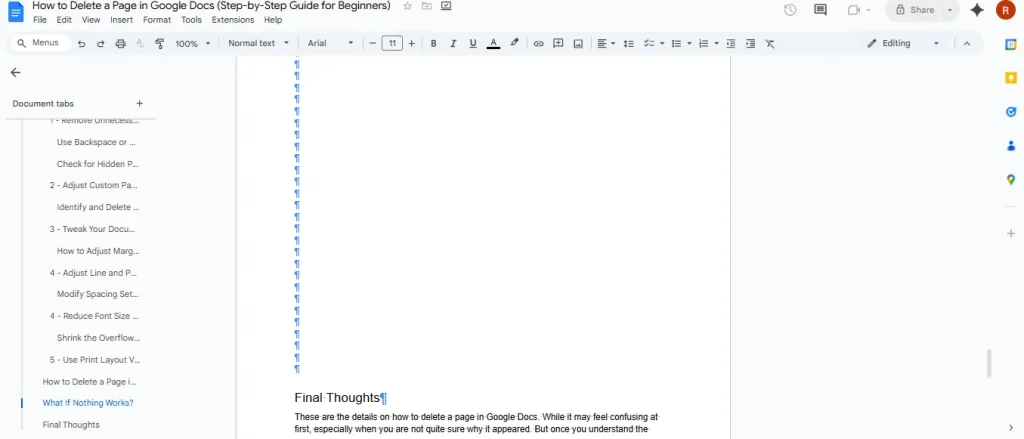
- Delete them manually.
2 – Tweak Your Document Margins
Have you ever changed your margins and suddenly found a blank page at the end? Yeah, that can happen. If a blank page is appearing because your content does not fit within the current layout, adjusting the margins can often fix it, and this detailed guide on how to change margins in Google Docs explains exactly how to do that properly.
How to Adjust Margins Properly?
- Click on File in the menu bar.
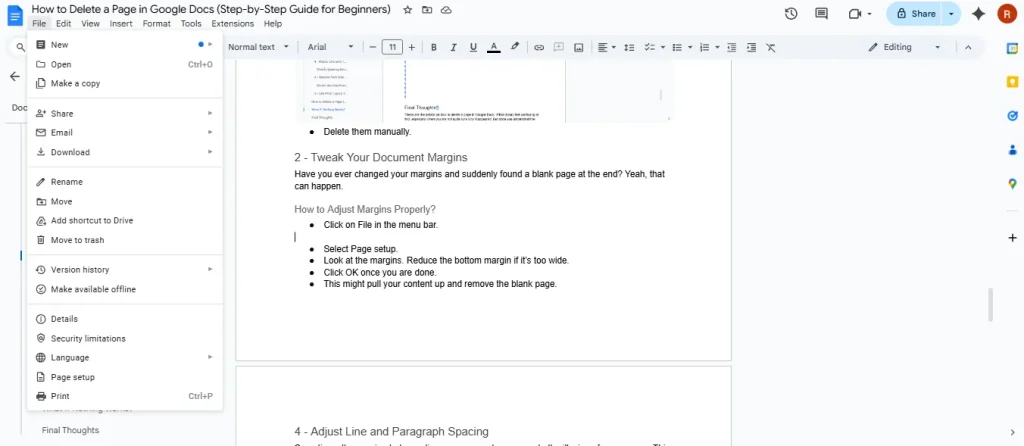
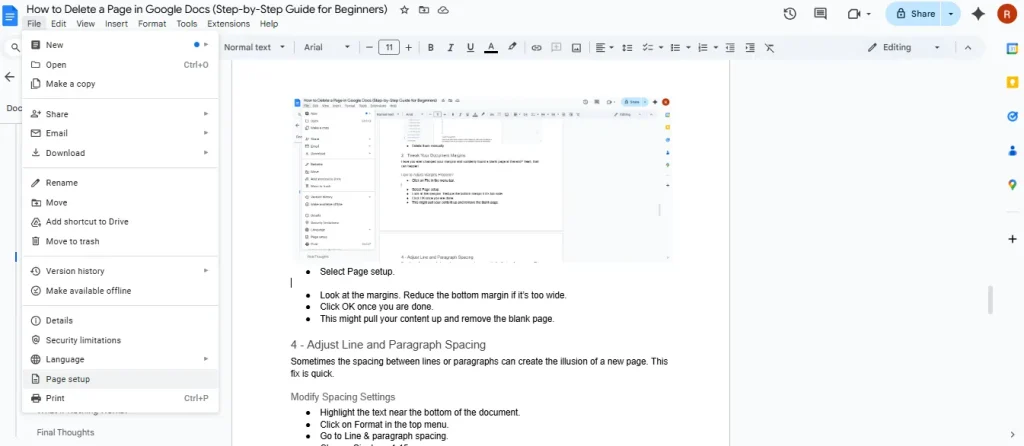
- Select Page setup.
- Look at the margins. Reduce the bottom margin if it’s too wide.
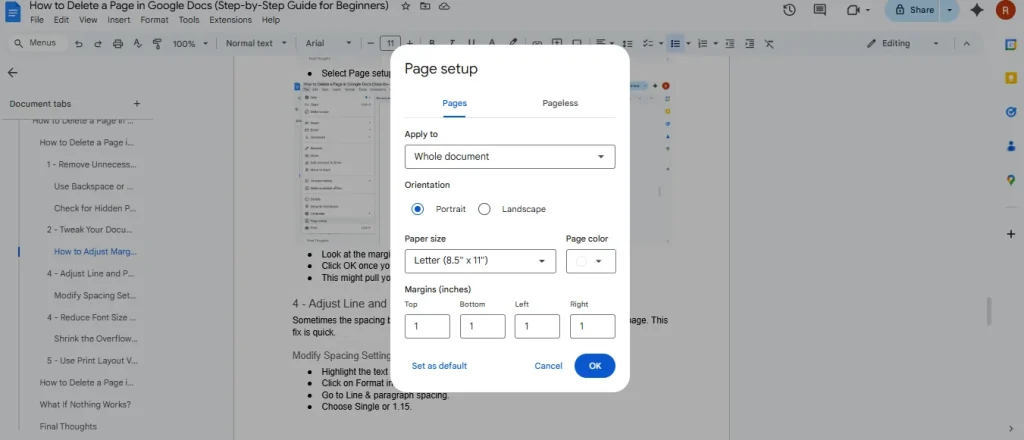
- Click OK once you are done.
- This might pull your content up and remove the blank page.
3 – Adjust Line and Paragraph Spacing
Sometimes the spacing between lines or paragraphs can create the illusion of a new page. This fix is quick.
Modify Spacing Settings
- Highlight the text near the bottom of the document.
- Click on Format in the top menu.
- Go to Line & paragraph spacing.
- Choose Single or 1.15.
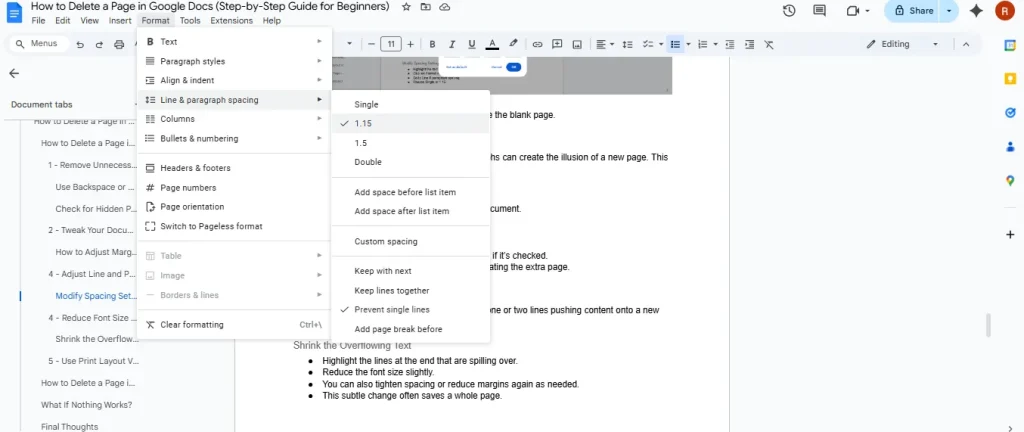
- This should pull everything back up, eliminating the extra page.
4 – Reduce Font Size of Extra Content
This is a trick I sometimes use when there is just one or two lines pushing content onto a new page.
Shrink the Overflowing Text
- Highlight the lines at the end that are spilling over.
- Reduce the font size slightly.
- You can also tighten spacing or reduce margins again as needed.
- This subtle change often saves a whole page.
5 – Use Print Layout View for Better Control
Seeing your document in a clear format helps catch these issues faster. Therefore, you should turn on the Print Layout. Here is how to do it.
- Click on View in the menu.
- Make sure the Print layout is enabled.
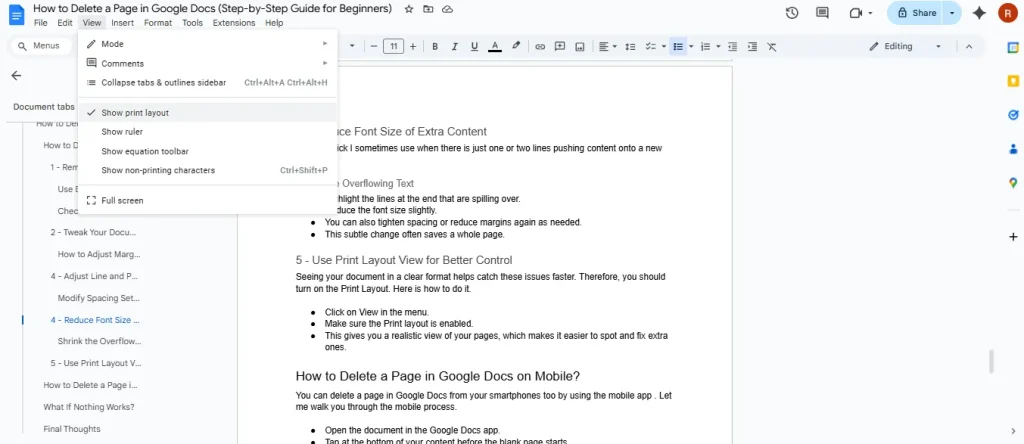
- This gives you a realistic view of your pages, which makes it easier to spot and fix extra ones.
How to Delete a Page in Google Docs on Mobile?
You can delete a page in Google Docs from your smartphones too by using the mobile app . Let me walk you through the mobile process.
- Open the document in the Google Docs app.
- Tap at the bottom of your content before the blank page starts.
- Use your keyboard to tap Backspace or delete any extra lines.
- If there is a page break, delete it the same way.
This method is nearly identical to the desktop one, just a bit more compact. Keeping your document clean and well structured also helps prevent layout problems in the future, and these practical ways to organize documents in Google Docs can make managing long files much easier.
What If Nothing Works?
Now, if you have tried everything and that page still won’t go away, don’t panic. A solution is always there whenever a problem exists. Below, I have provided you with that.
- Select all the content except the blank page.
- Copy it (Ctrl+C or Command+C).
- Open a new Google Doc and paste it in.
- That stubborn page should be gone.
It is like giving your document a fresh start.
Final Thoughts
These are the details on how to delete a page in Google Docs. While it may feel confusing at first, especially when you are not quite sure why it appeared. But once you understand the common causes like extra spacing, manual page breaks, or margin settings, it becomes a whole lot easier.
I hope this guide helped you clean up your document and make it look just the way you want. Do not hesitate to bookmark this page for later, as you never know when an extra page might pop up again. And remember, a clean document always leaves a better impression.