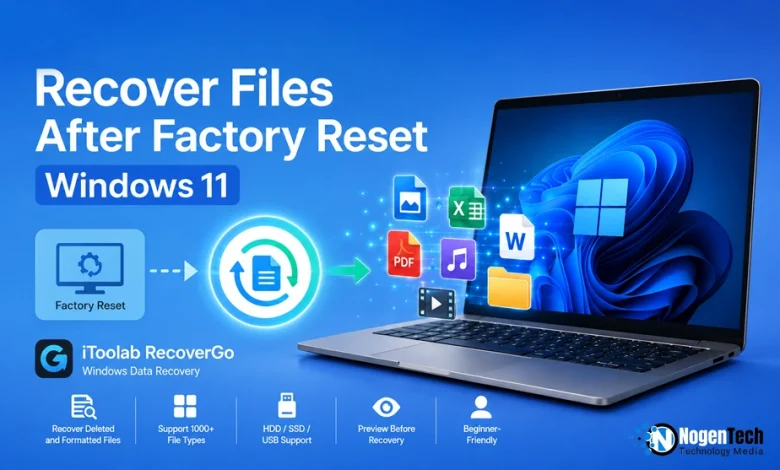
Reset your Windows 11 PC and your files disappeared? Don’t assume they’re gone forever.
If you reset a Windows 11 PC, losing your photos, documents, and project files can feel like everything is gone. But a reset does not always erase your data permanently.
Depending on whether you chose “Keep my files” or “Remove everything” in Reset this PC, your files may still exist on the drive but no longer appear in Windows.
In this guide, you will explore how to recover files after a Windows 11 reset, where to check for backups like OneDrive and Windows Backup, and what recovery options you can try before your data gets overwritten.
Can You Recover Files After a Factory Reset on Windows 11?
You can often recover files after a factory reset on Windows 11, but the recovery outcome depends on the reset option you selected, how much you used the drive afterward, and whether new data has overwritten the lost files.
Recovery chances depend on:
- Reset option: “Keep my files” usually leaves more recoverable data than “Remove everything.”
- Drive activity: New installs, downloads, and updates can overwrite deleted files.
- Storage type: Recovery results may differ between HDDs, SSDs, and external drives.
While here I am focusing primarily on your internal system drive, the core principles remain similar if you need to recover data from an external hard drive. If your files matter, stop using the affected drive and begin recovery quickly. iToolab RecoverGo Windows Data Recovery can scan drives to find deleted, formatted, or lost files without needing a backup.
Common Windows 11 recovery situations include:
- Missing photos, documents, or project files after Reset this PC
- Lost work files after system repair or reinstall
- Files removed after selecting the wrong reset option
The earlier you start recovery, the better your chances of restoring files before they are overwritten.
How iToolab RecoverGo Can Help Recover Files After a Factory Reset?
iToolab RecoverGo Windows Data Recovery can help recover deleted, formatted, or lost files after a Windows 11 factory reset by scanning your drive and letting you choose which files to restore. It works without command-line steps or complex settings: select a drive, start the scan, and review the results.
iToolab RecoverGo is useful for factory reset recovery because it can:
- Recover deleted and formatted files: A factory reset can make files disappear from Windows, but they may still exist on the drive until overwritten.
- Support 1,000+ file types: Recover photos, documents, PDFs, videos, compressed folders, and other common file formats in one scan.
- Work with multiple storage devices: Scan HDDs, SSDs, USB drives, external hard drives, and memory cards.
- Preview files before recovery: Check whether files are intact before restoring them.
- Offer a beginner-friendly process: The interface guides users through recovery without requiring technical knowledge.
For users recovering files after a Windows 11 reset, iToolab RecoverGo provides a simple way to scan storage and find data that is no longer visible in Windows.
How to Recover Files with RecoverGo?
iToolab RecoverGo uses a read-only scanning process, meaning it does not write new data to the drive while searching for lost files. It can scan internal drives, external hard drives, USB drives, and SD cards while allowing you to preview files before recovery.
Follow these steps to recover your files:
1: Install RecoverGo on a different drive than the one containing your lost files to avoid overwriting recoverable data.
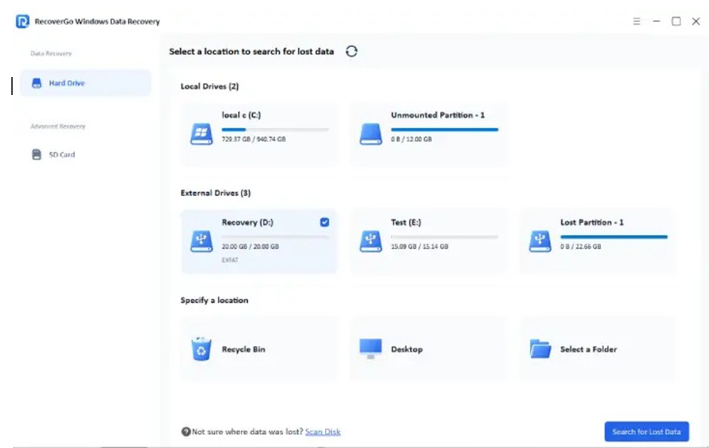
2: Open the software, select the drive or device that stored your files, and click “Search for Lost Data” to start the scan.
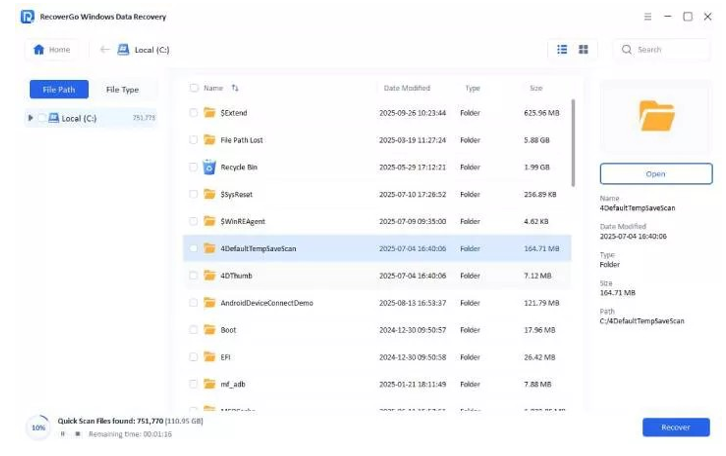
3: RecoverGo starts with a quick scan and performs a deeper scan if needed. Larger drives may take longer, so avoid using the computer during the process.
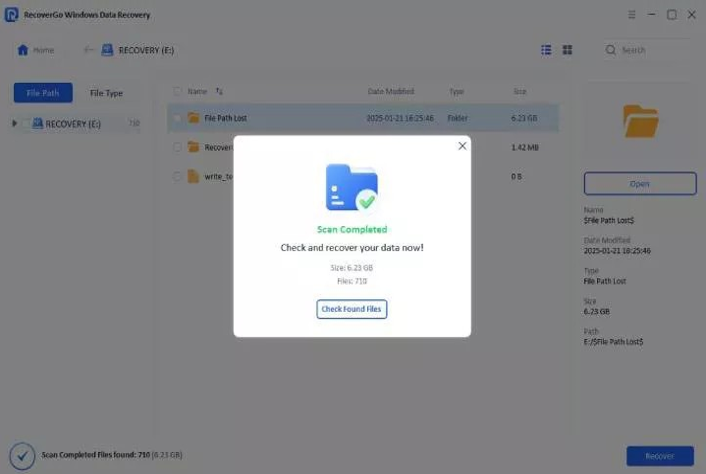
4: Use filters like file type, location, and modified date to quickly find the files you need.
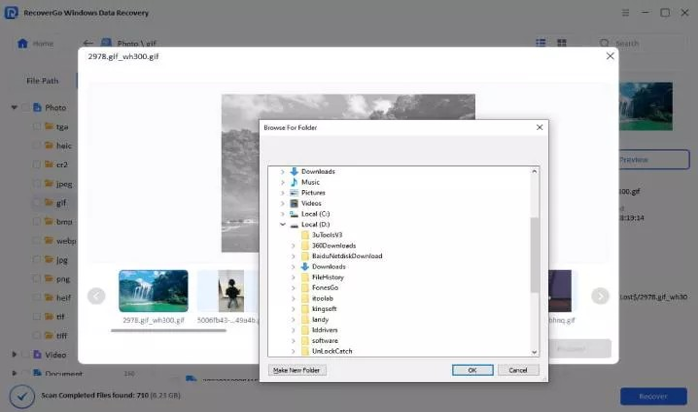
5: Check the files first to confirm they are recoverable before restoring them.
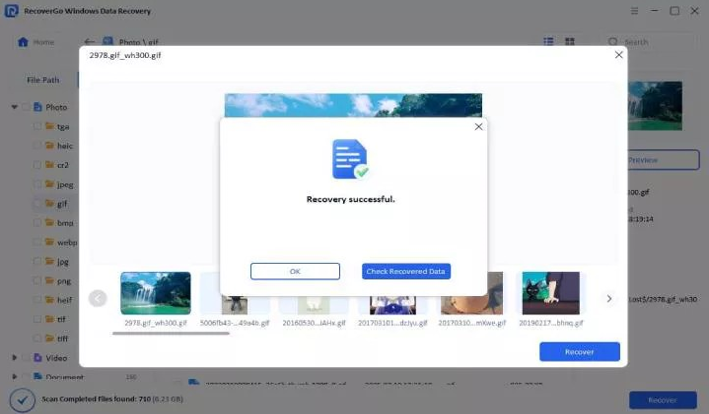
6: Select your files, click recover, and save them to a different drive. Then use “Check Recovered Data” to verify the restored files.
Quick tip, and it’s an important one: Stop using the affected drive as soon as you notice missing files. New downloads, installations, or updates can overwrite the deleted data and reduce recovery chances.
What Other Recovery Options Can You Try After a Windows 11 Reset?
Before using professional data recovery software, check built-in recovery options that may already contain your missing files.
Can You Restore Files Using Windows Backup or File History?
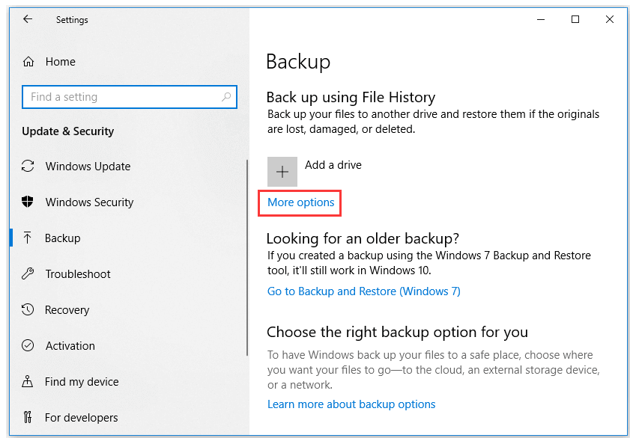
If you enabled Windows Backup or File History before the reset, you may be able to restore your files without installing additional recovery tools.
- Restore the files you need from an existing backup.
- Open Settings and go to the Backup section.
- Select More Options to view available backup files.
Can You Recover Reset Files From OneDrive?
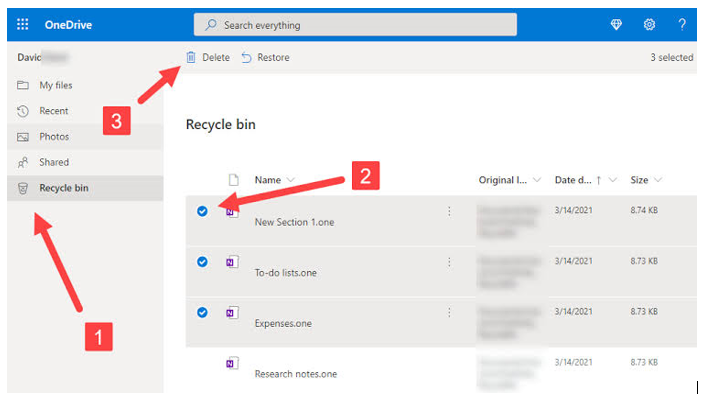
If you synced your Desktop, Documents, or Pictures folders with Microsoft OneDrive, you may still find your files available because OneDrive stored them in the cloud instead of only on your local drive.
- If files were deleted from OneDrive, check the OneDrive Recycle Bin, where they may remain for up to 60 days.
- Sign in to OneDrive and check your synced folders.
If these options do not work, iToolab RecoverGo Windows Data Recovery can help because it does not depend on a previously created backup. It scans the storage drive directly to find recoverable files that may still exist after a reset.
Tips to Improve Your Recovery Success Rate
Acting quickly is the most important step after losing files. New data written to the drive can overwrite deleted files, making recovery more difficult.
Follow these tips to improve your recovery success rate:
- Stop using the affected drive: Avoid downloading files, installing apps, or creating new data after discovering missing files.
- Start recovery as soon as possible: The longer you wait, the higher the chance that new data will replace recoverable files.
- Save recovered files elsewhere: Restore files to a different drive or external storage instead of the drive being scanned.
- Create regular backups: Use tools like Windows Backup, File History, or OneDrive to protect files from future resets, formatting, or system failures. Taking proactive steps is the best way to prevent data loss before your family photos disappear.
Frequently Asked Questions About Windows 11 Reset File Recovery
Can You Recover Files After a Windows 11 Reset Without a Backup?
Yes. Recovery software can scan your drive directly to find lost files even when no backup copy exists.
Does Windows 11 Create a Backup Before a Factory Reset?
No. Windows 11 does not automatically create a full backup before resetting. You must use Windows Backup, File History, or cloud storage.
Are Files From a Reset Windows 11 PC Recoverable From an SSD?
Sometimes. SSDs may be harder to recover from because features like TRIM can permanently remove deleted data faster.
Where Are Files Stored After Resetting a Windows 11 PC?
Files may remain in the same drive space but are marked as available for new data until overwritten by Windows.
Can a Professional Data Recovery Service Recover Reset Files?
Yes. Professional services can help with severe data loss, but software recovery is usually the first option for accessible drives.
How Long Do You Have to Recover Files After a Windows 11 Reset?
There is no fixed time limit. Recovery chances decrease as new data overwrites the old files.
Does Resetting Windows 11 Remove Files From an External Drive?
No. A Windows 11 reset usually affects the selected system drive, not separate external storage devices.
Final Thoughts: Don’t Let a Windows 11 Reset Turn Into Permanent Data Loss
A Windows 11 factory reset does not always mean your files are gone forever. In my experience, the biggest mistake users make is continuing to use the drive after losing data.
Check OneDrive, Windows Backup, and File History first, then use tools like iToolab RecoverGo Windows Data Recovery if backups are unavailable.
Acting quickly, avoiding new writes, and maintaining regular backups are the best ways to protect your files from future resets or crashes. Beyond backups, understanding why to use data security methods can keep your entire digital setup secure from unexpected errors.