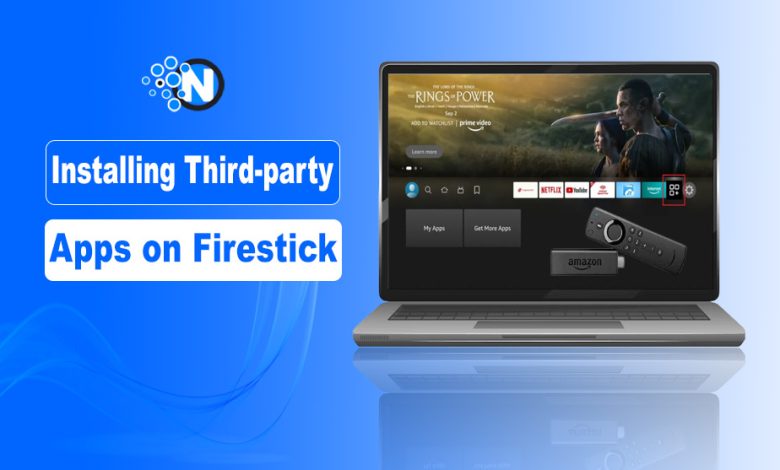
Amazon Firesticks are used by various streaming enthusiasts worldwide. These devices operate on an Android version. It means that apps compatible with your Android devices are also supported by Firestick.
The Amazon App Store contains Android apps that give you access to various content across diverse categories. However, there are still several apps that you cannot find in this store.
There are numerous third-party apps found on external websites and app stores. Interestingly, you can still get them on your streaming stick.
Keep reading to learn all about it.
Is It Safe to Install Third-party Apps on Firestick?
Yes, it is safe to install external apps on Firestick. The process is called sideloading apps. It is safe because while sideloading, you don’t modify the device’s operating system. It does not negate your Firestick’s warranty. Moreover, Amazon itself permits you to sideload apps.
However, staying vigilant is important. This is because sideloading unlocks access to unverified apps whose security isn’t as robust as those on the Amazon store. It is for this reason that downloading them from trusted third-party sources is crucial. Some examples of reliable stores are Aptoide and Mobilism. As long as you aren’t installing apps for piracy reasons, they are safe.
Preparing Firestick to Download Third-party Apps
The first step is to enable Developer Options. Implement these instructions.
- Navigate to the Settings of your Firestick.
- Choose My Fire TV followed by About.
- Tap the device name seven times. You should see the message ‘You are now a developer.’
- The Developer Options menu will appear. You can see it under the About section on the My Fire TV tab.
That’s it. Your Firestick is now prepared to sideload apps.
Allow Apps from Unknown Sources on Firestick
Allow Apps From Unknown Sources is a setting on Firestick. It enables the installation of third-party apps. To turn on this setting, follow the steps below.
- Head to the Settings on your Firestick.
- Select the option, My Fire TV.
- Now, choose Developer Options.
- From the menu, select Apps from Unknown Sources. Doing so will activate the setting.
- You can also enable ADB Debugging to ON. This lets you install apps remotely on your Firestick.
Use the Downloader App to Sideload Apps
Using the Downloader app is one of the easiest ways to install third-party apps on Firestick. Just type Downloader in the search space on your Firestick, then tap on the relevant result. The Downloader app is available on the Amazon store, so you shouldn’t have much trouble downloading it.
When the app is installed, visit the browse section. Downloader is a specialized web browser. It lets you download APK files of third-party apps. Just input the app name and then ‘apk.’ Use this format to search for the APK file of the desired name: [App name] [apk]. Choose the first official link of the app to download the latest apk.
The downloaded APK file will open in the installer window. Downloader app will begin the installation of your chosen app when you select its APK. Just tap the install button to begin the process and tap ‘Done’ when it is complete.
Now, visit the home page of your Firestick. Look below the Apps section to find the app.
Using a VPN after Downloading Third-party Apps on Firestick
Third-party apps give you access to diverse content. However, you can further improve streaming with a VPN. A VPN also shields your security while streaming. Here’s why you must use a VPN after downloading apps from external sources.
Increased Privacy
VPN encrypts your internet connection. It means that all the data transferred between your Firestick and the server is secure and hidden from prying eyes. This is important when using third-party apps because you use your personal information while signing into them.
Online Anonymity
VPN hides your IP address. This obscures your online identity. Your traffic is routed through a secure server. So, your online activities cannot be tracked by government, ISPs, or anyone else. Thus, with a VPN, you can get past issues like targeted ads and data tracking.
Avoid Internet Throttling
Throttling is a term used for when your ISP intentionally reduces your internet speed due to high data use. This happens with those who stream HD content on Firestick. Several third-party apps give you access to high-quality content for free. You can stream for hours without getting bored. But if your ISP sees this (which they can do if you don’t use a VPN), chances are they will slow down your internet speed. You’ll experience buffering and loading issues, ruining your streaming.
VPN encrypts your IP address and your online activities. So your ISP cannot see what you are doing. You may be streaming movies in HD quality for hours. But your ISP wouldn’t know of it, thanks to the VPN.
Protects Against Cyberattacks on a Weak Wi-Fi Network
Many people use a public Wi-Fi network to stream content from third-party apps on Firestick. These networks are very weak compared to private networks. Exchanging your data on third-party apps on them is risky. It can expose you to cyberattacks like man-in-the-middle.
Using a VPN can be a life-saver. It codifies all the data passed between Firestick and the net. So, it becomes useless for a hacker. It isn’t possible to do anything with data in a jumbled form. Thus, a VPN ensures the integrity of whatever you do online. It does not matter whether you use a secure or unsecured Wi-Fi network. You always remain safe.
Final Words
Installing third-party apps on Firestick isn’t very complicated. Once done properly, it opens access to so much more content than you can get through Amazon-approved apps on the official store. However, it is important to install apps from reliable sources. Using a VPN will further help you enhance streaming. With better privacy, you can stream with confidence. As long as you sideload apps safely and don’t use them to stream copyrighted content, you are good to go!