Ways to Fix ‘DNS Server Not Responding’ Error Quickly
A quick way to fix the “DNS Server Not Responding” error is to start by restarting your router or modem, as this often clears temporary network glitches. If the issue persists, try switching to a different browser to rule out browser-related problems.

When you are browsing the internet on a desktop or mobile and are unable to access any website, there might be the ‘DNS server not responding’ error. It is a common error that can prevent you from accessing your favorite websites.
In this post, you will learn different ways to fix the DNS Server Not Responding error on different devices to enjoy a flawless internet browsing experience without getting the services of an expert.
'DNS Server Not Responding' Error
The “DNS Server Not Responding” error means your device is unable to connect to the Domain Name System (DNS), which is responsible for translating website names (like example.com) into IP addresses that computers use to locate servers.
How to Fix 'DNS Server Not Responding' Error
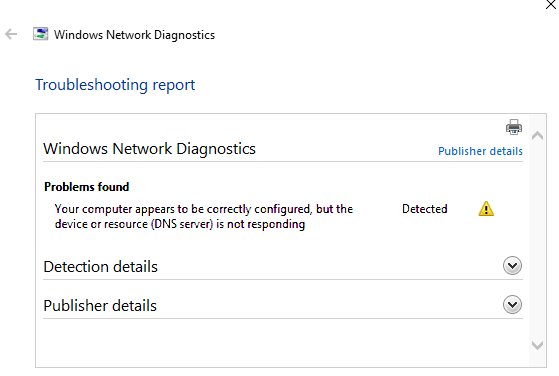
Troubleshooting report may show this message on your screen when you are suffering from DNS Server Not Responding issue;
Below are some methods to fix this error on your devices:
How to Fix DNS Server Not Responding Error on Windows?
Fixing the error on Windows OS is simple.
Go to settings via start menu > then control panel > and then Network and Internet.
Hit the Change Adapter Settings tab on the screen to find the Local Area Connection icon. Then, reach the properties by right-clicking on the Local Area Connection.
- Here you need to choose the Internet Protocol Version 4 (TCP/IPv4) to find the DNS settings you want to change.
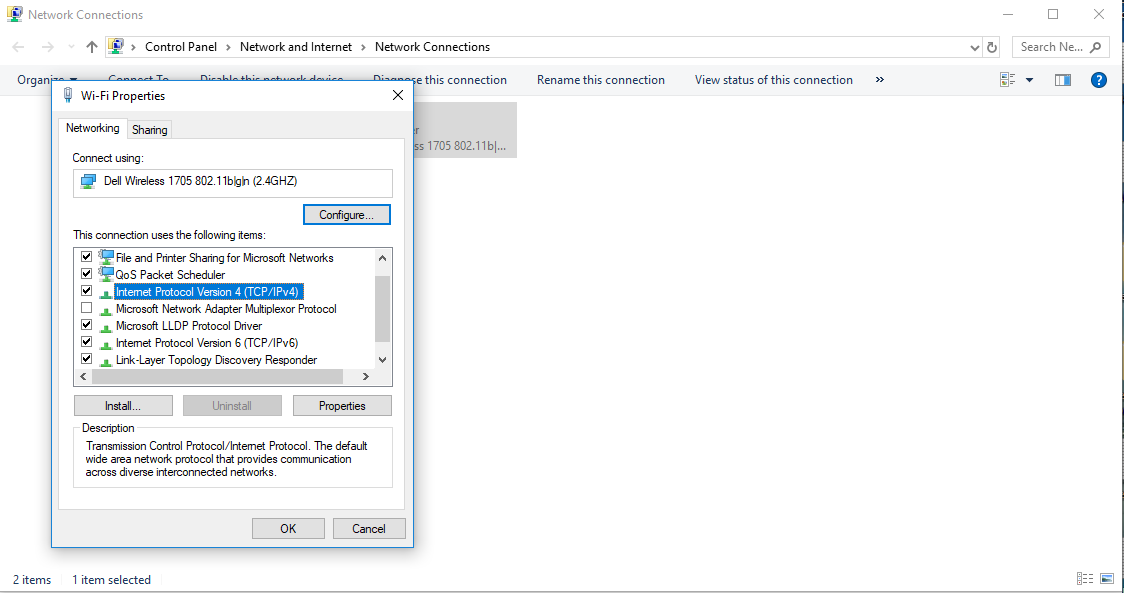
- It is the place where you can add a new DNS server in order to access the internet easily
- Click on the “Use the following DNS Server addresses” option and you will get a screen with blank fields where details can be added accordingly
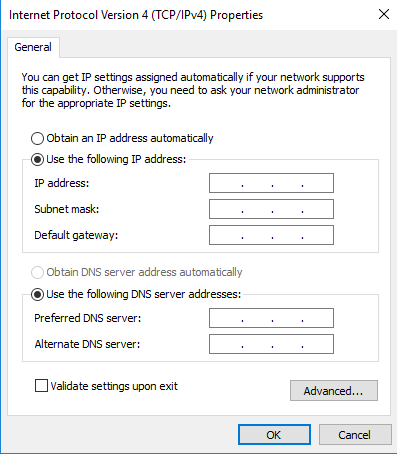
- Enter: 208.67.222.222 in the field of Preferred DNS Server
- Enter: 208.67.220.220 In the field for the Alternate DNS Server
- Once all done, you will need to tick the option “Validate settings upon exit” and close the all the open windows
It is most effective and easy to use method to resolve “DNS Server is Not Responding” issue.
How to fix DNS Server Not Responding error Mac OS?
- Hit the Apple menu on screen and find “System Preferences”
- By double-clicking on the network icon, you will be able to find “TCP/IP” tab that will lead you towards internet settings
- Here you will be able to find an option of change DNS settings to add new settings in order to access the internet without facing any trouble
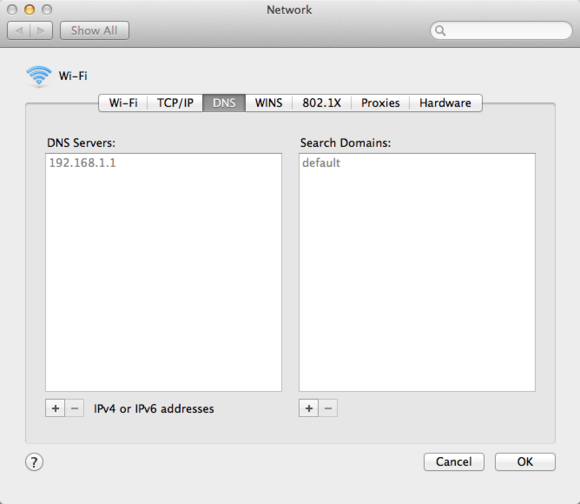
- In that box, you will need to add appropriate DNS server details and click on the “apply now/ok tab” to make newly added settings work for you
Once all settings are carefully altered and saved as well, you will be able to experience continuous internet services. hence, system restart will also be recommended to apply the newly saved changes successfully.
How to fix DNS Server Not Responding error in Android Smartphone?
- Restart phone & router – clears temporary glitches.
- Toggle Airplane Mode – off/on to refresh network.
- Change DNS –
Settings → Wi-Fi → your network → Advanced → IP Settings → Static
Set DNS 1: 8.8.8.8, DNS 2: 8.8.4.4 (Google) or 1.1.1.1 / 1.0.0.1 (Cloudflare).
- Reset Network Settings – Settings → System → Reset Options → Reset Wi-Fi, mobile & Bluetooth.
- Disable VPN/Firewall apps – test if they block DNS.
- Try another network – switch to mobile data or different Wi-Fi
How to Fix DNS Server Not Responding Error in iOS?
If you are suffering from the ‘DNS Server Not Responding’ error on iOS, then you can get it fixed quickly by following the below-listed settings;
- Go to settings and then tap on Wi-Fi
- Select the Wi-Fi network connection
- Then find the (i) sign in a circle and tap
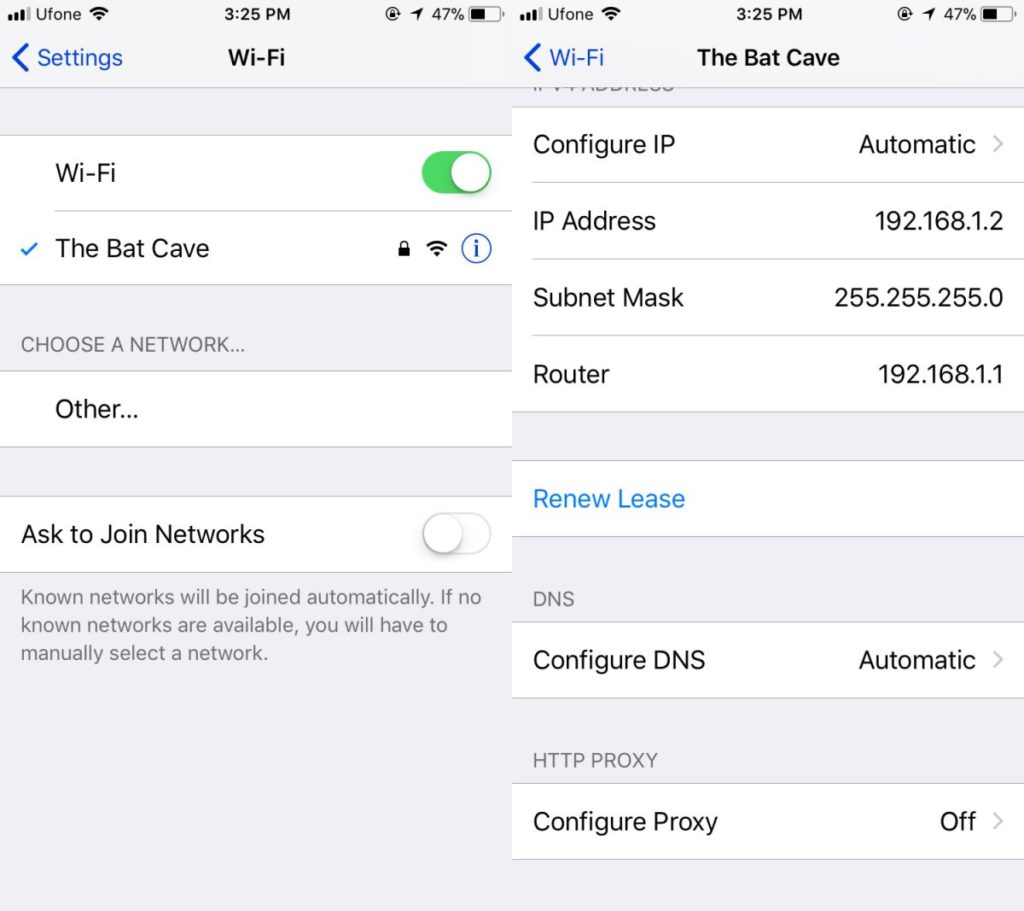
- You will find a text field next to the DNS label where you can enter and save new DNS address
- New settings will be saved automatically
Once all done, exit the settings and restart the device to enjoy seamless internet browsing.