Android users rely on apps like WhatsApp, Instagram, and Messenger for communication, but most of these require an active internet connection. This is where Google Messages becomes a lifesaver for Android devices.
Some users have already downloaded it by default, who don’t know about its benefits, and some hear about it from their friends and then download it in excitement to check out what Google offers here.
You may also notice it on your phone if you’re an Android user, whether using Samsung, Google Pixel, or Motorola; it’s like a blue messaging icon appearing on a white background. Based on real usage and testing, it simplifies everyday communication without needing multiple apps.
What is Google Messages on Android?
Google Messages is the official messaging app for Android devices developed by Google. It comes pre-installed on many Android phones and allows users to send text messages (SMS), multimedia messages (MMS), and advanced chat messages using Rich Communication Services (RCS).

The primary aim of this app is to provide an all-in-one messaging solution, making it easier for people to connect with friends, family, and businesses. It supports standard cellular text messaging, using basic cellular voice channels without needing an active internet connection.
By the way, as we are discussing this Android app from Google, you may have also noticed other unfamiliar features on your phone. Samsung devices also include tools like DECO PIC, which are built in for camera effects just like that.
Key Features and Benefits of Google Messages that Make Everyday Chat Easier
Other than an iPhone, I am also using an Android phone, specifically to have real-time experience to give clarity on Android-related topics to NogenTech users.
Here I have mentioned the key features of the Google Messages app that help a lot daily. These include
1 – SMS and MMS Support
Google Messages supports traditional SMS and MMS for users who rely on cellular networks for messaging. You can send simple text messages or multimedia messages, including images, videos, and audio files.
2 – Rich Communication Services (RCS)
RCS is a modern messaging protocol that enhances traditional SMS. Google Messages has incorporated it for its advanced features, such as:
- Read receipts
- Typing indicators
- High-quality image and video sharing
- Group chats
- End-to-end encryption
3 – Cross-Platform Compatibility
Google Messages works seamlessly across devices such as smartphones, tablets, and desktops. As a result, you can access and send messages from any device by syncing your Google account.
4 – Spam Protection
The app includes a comprehensive spam detection feature that automatically flags suspicious or unwanted messages. Hence, you can detect and block unwanted interactions that will help you maintain a clean inbox on your smartphones.
5 – Business Messaging
Google Messages allows businesses to send verified messages, share updates, and provide customer support directly through the app. These verified business profiles ensure legitimacy and improve trust with the audience.
6 – Smart Replies
Using AI, Google Messages offers contextually relevant quick replies. This aspect makes it faster and easier to respond to messages. You can input a single word, and this app provides you with suggestions to create a reply.
7 – Search Functionality
The search bar in Google Messages lets you quickly find specific messages, photos, or videos by typing keywords or contact names. Hence, you can find anything quickly instead of scrolling through the complex and long chats.
8 – Dark Mode and Customization
Google Messages supports dark mode. Ultimately, it reduces eye strain in low-light conditions. Users can also customize chat bubbles and themes to personalize their experience.
9 – Gemini Integration
Now Google Messages directly integrates Gemini, Google’s AI assistant, as well. It allows you to brainstorm ideas, draft quick messages, or get answers without switching apps. You can access Gemini directly within your chat list to ask questions, summarize content, or generate creative responses on the fly.
10 – Voice Message Transcriptions
Google Messages automatically transcribes incoming voice messages into readable text. This feature is particularly useful when you are in a noisy environment or somewhere you cannot play audio, allowing you to quickly read the message instead.
11 – Photomoji and Emoji Reactions
Beyond standard emoji reactions, Google Messages lets you turn your own photos into custom stickers using on-device AI. You can create personalized Photomojis from photos of yourself, pets, or objects to react to messages in a fun way.
12 – Scheduled Message
If you want to send a text at a specific time, such as a late-night birthday wish or a morning reminder, you can draft it ahead of time. Google Messages allows you to schedule the exact date and time for your message to be sent automatically.
13 – Tap to Draft
If you start writing a message but are not ready to send it, Google Messages can keep that unfinished text as a draft. The Tap to Draft feature makes it easier to return to an incomplete message and continue writing when you are ready, so you do not have to start the conversation from scratch.
14 – Group Mentions
In group conversations, Google Messages lets you mention a specific person by using @ followed by their name. This can be useful when a group chat is busy, and you want to direct a question or message toward one particular participant instead of addressing everyone.
How to Set Up Google Messages?
After explaining what Google Messages is and its different features, let’s discuss how you can set up the Google Messages app yourself to send and receive messages.
- Most Android devices come with Google Messages pre-installed. If it isn’t available, download it from the Google Play Store.
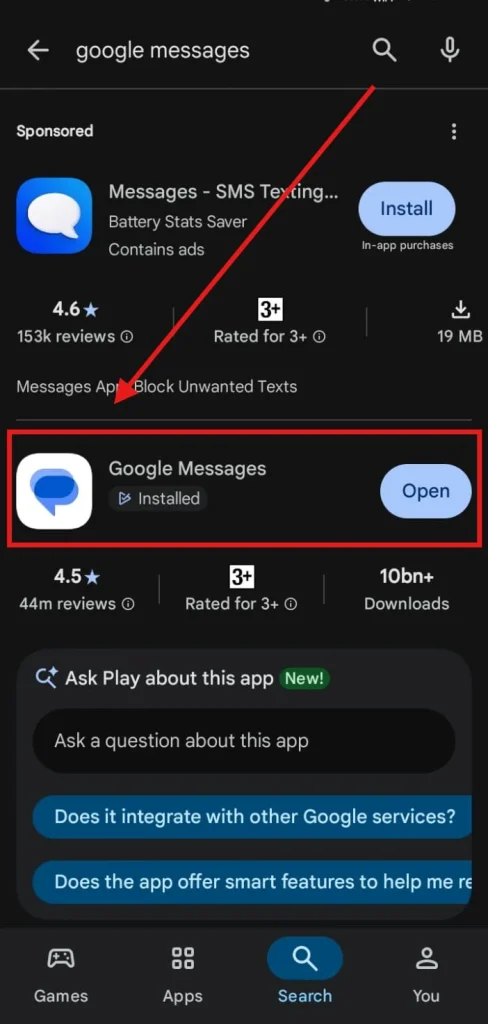
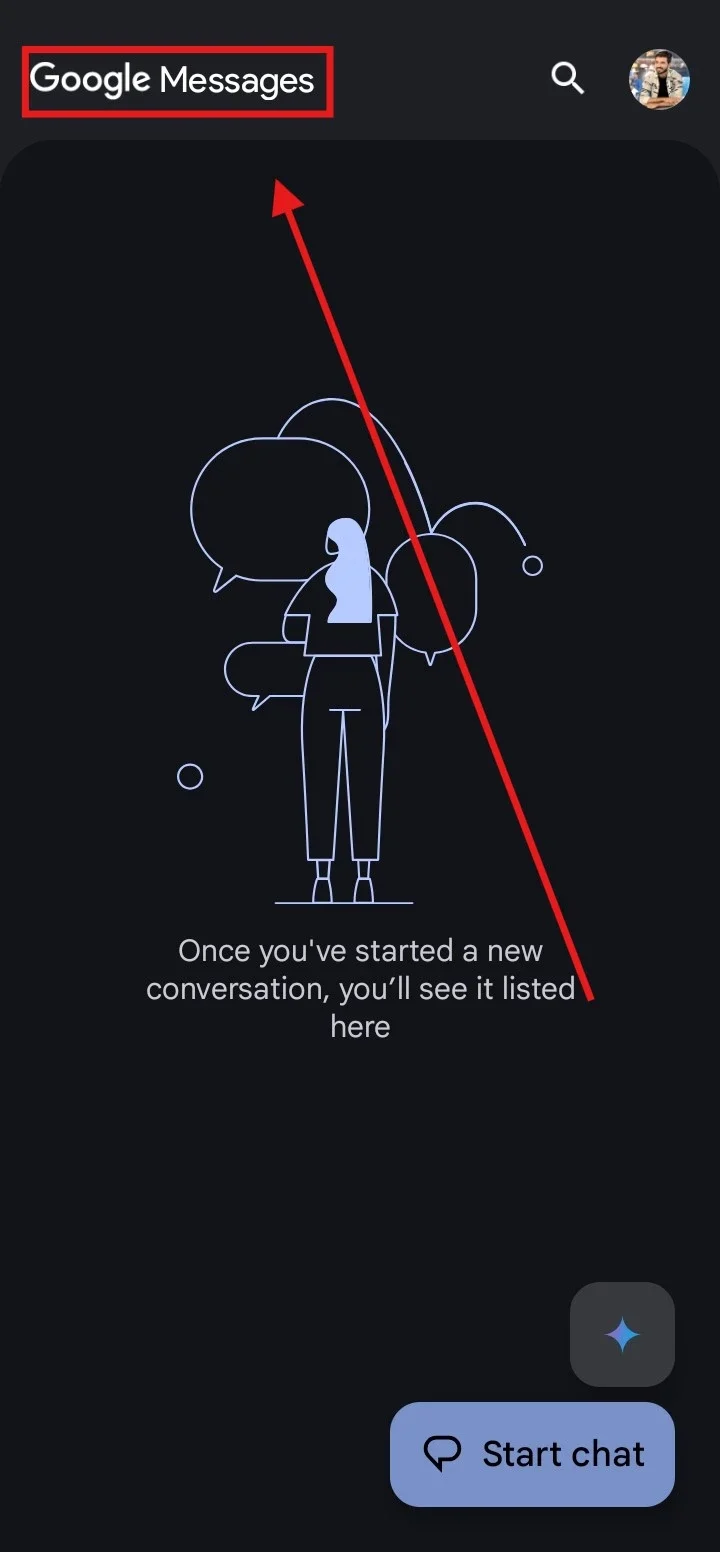
- After installation, open the app.
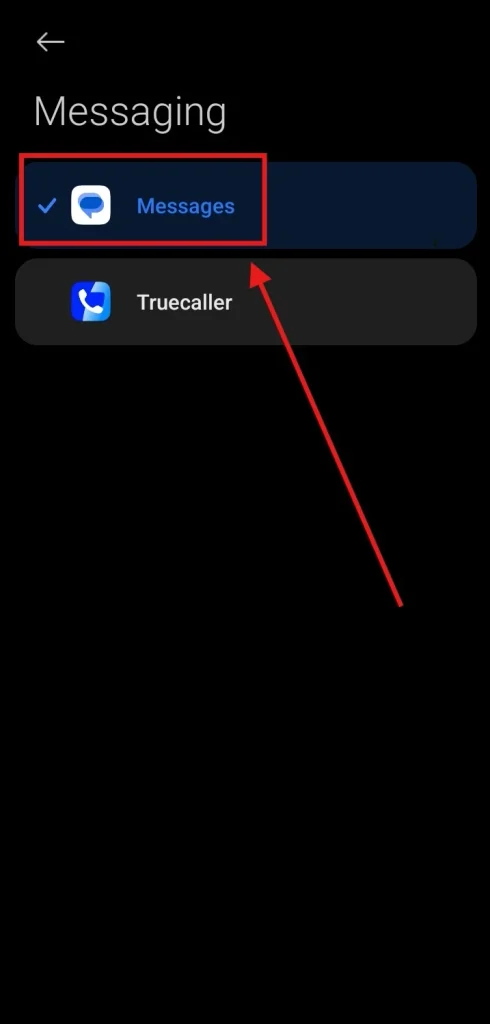
- After that, follow the on-screen prompts to set Google Messages as your default messaging app. And if you have already installed it, then simply search for default apps in settings, and from there, you can switch to it easily.
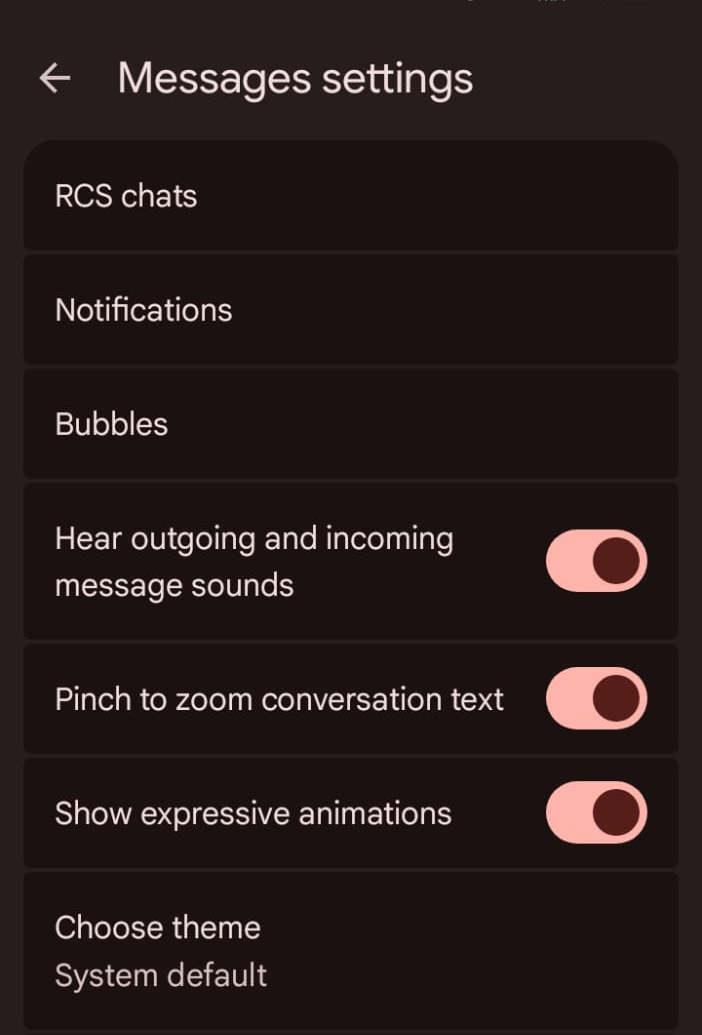
- Then go to Messages Settings within the app. The first option you will see is RCS chats. Verify your phone number to enable advanced RCS functionalities.
Surprisingly, in most cases, mobile messaging apps are not available for desktop use unless you are using WhatsApp or Messenger-type apps, but the Google Messages app is also available to use as a web version.
Comparing Google Messages to Other Messaging Apps
Now that you have learned what Google Messages is, along with its features and benefits, it’s time to compare it with other trending messaging platforms. In this way, you can determine how it can be more useful for you.
1. Google Messages vs WhatsApp
- End-to-End Encryption: Both apps offer encryption, but WhatsApp applies it universally, while Google Messages limits it to RCS chats.
- Cross-platform: WhatsApp works on Android, iOS, and the web, while Google Messages is primarily for Android and desktop users.
- Features: WhatsApp has voice and video calling, whereas Google Messages relies on direct integration with Google Meet for video calls.
2. Google Messages vs iMessage
- Platform Availability: iMessage is exclusive to Apple devices, whereas Google Messages is for Android users.
- RCS Features: Both apps now support RCS, allowing Android and iPhone users to text each other with typing indicators and high-quality media, though iMessage still offers deeper exclusive features between Apple users.
Frequently Asked Questions About Google Messages
Is Google Messages free to use?
Yes, the app is free to download and use. However, SMS and MMS charges may apply depending on your carrier plan.
What is a chat Message in Google Messages?
A chat message is an advanced message sent using RCS that includes features like read receipts, typing indicators, and better media quality.
Can I use Google Messages on an iPhone?
No, Google Messages is designed for Android devices, although you can use the web version on any device with a browser.
What Do the Check Marks Mean in Google Messages?
A single check means your message was sent, while two checks mean it was delivered. Filled checks mean the message has been read.
What Are Bubbles in Google Messages?
Bubbles are floating notifications that let you quickly open and reply to messages without opening the full app.
How Do You Turn Off Read Receipts in Google Messages?
Go to Messages Settings > RCS chats and turn off Send read receipts. This only applies to RCS chats.
Is Google Messages secure?
Yes, RCS chats are encrypted end to end, which ensures secure communication.
So, What Can You Actually Do With Google Messages? Final Verdict
Google Messages is a simple yet useful messaging app for Android users, combining traditional SMS and MMS with modern RCS features.
From sharing media and reacting to messages to spam protection and scheduled texts, it covers most everyday communication needs in one place.
If you already have it on your phone, exploring its features can make messaging more convenient. Overall, Google Messages is a practical choice for anyone looking for a straightforward and feature-rich way to stay connected.