I carried over my habits in Query Analyzer to SQL Server Management Studio (SSMS) when it launched with SQL Server 2005. Yes, I’m an old timer in SQL Server, and like me, a number of database developers still use old tricks on new tools.
Yet, we spend a lot of hours navigating database objects, creating scripts, and debugging, all without realizing there’s a better way to save time. The work is not going to lessen by the day. That’s why I realize that I need to adapt to new SSMS tips and tricks.
Do you think so too?
I have created this guide for practical, real-world SSMS tips and tricks. Some of them are now habits, but some are still a work in progress. Unlike Query Analyzer, SSMS supports add-ins that extend the editor and workflow. I use tools like dbForge SQL Complete as one example, so I’ll also touch on add-ins later in this guide.
Why SSMS Productivity Matters More Than Ever
When I started working with SQL Server 6.5, I worked on just one database per app. There are around two or three apps. And if you’re a one-man team in a small company, you’re the developer and the DBA at the same time. There were only development and production environments at best.
Today, the workload is heavier, even with team members helping you. More apps are being integrated, databases are more, and there’s a strict SLA. Then, there’s the cloud and some hybrid setups.
When workflows are slow and stress catches up, mistakes happen. I remember I ran a script in the wrong environment – several times. There’s a workflow problem. SSMS keyboard shortcuts alone won’t cut it. You need layers of productivity, so you stack up one or more tricks in a task.
5 SSMS Tips to Improve SQL Server Productivity
In this SSMS tips and tricks guide, I’ll share some practical ways I learned over time to stack these productivity layers in SSMS:
1: Optimize Your SSMS Environment for Faster Work
At first, the SSMS default settings work for me. I didn’t change a thing. Maybe you, too. But as my database work increases by the day, sometimes it feels like the defaults are against you. Good thing, SSMS is not a fixed environment. You can change it to fit your preferences, much like changing your desktop wallpaper and colors.
Then, this SQL Server IDE will fit how you actually use it. Consider the key points below.
Customize SSMS Layout, Fonts, and Color Themes
SSMS used docked toolbars and windows, and a customizable layout. You can change the layout that works best for you: where you place toolbars and windows, the font type and size, and the background and foreground.
Dark Theme
I love dark theme – less strain to the eyes, and the script is easier to read. Good for my eye comfort. Like you, I stare at the screen for hours, and a light theme is not for that.
It’s easy to do it in SSMS 22.
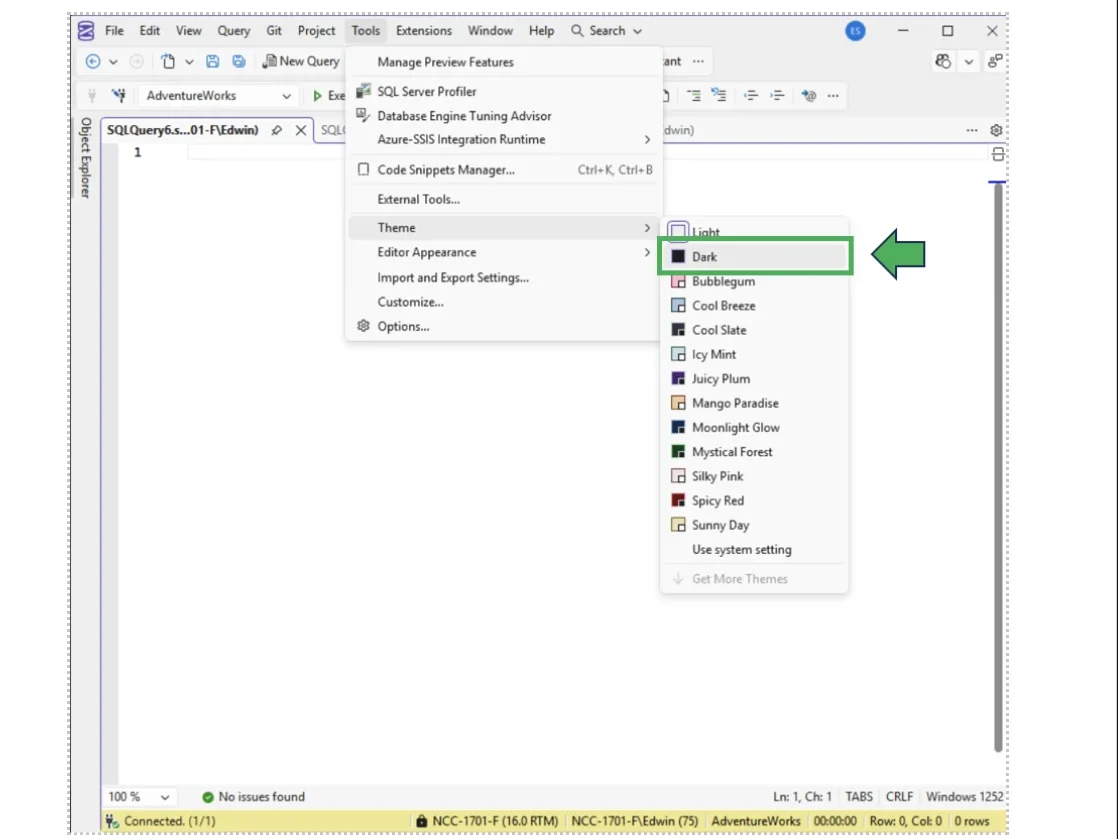
Now, open SSMS. Then, click Tools -> Theme. Then, select Dark, see below:
The result is as you expect, as seen below:
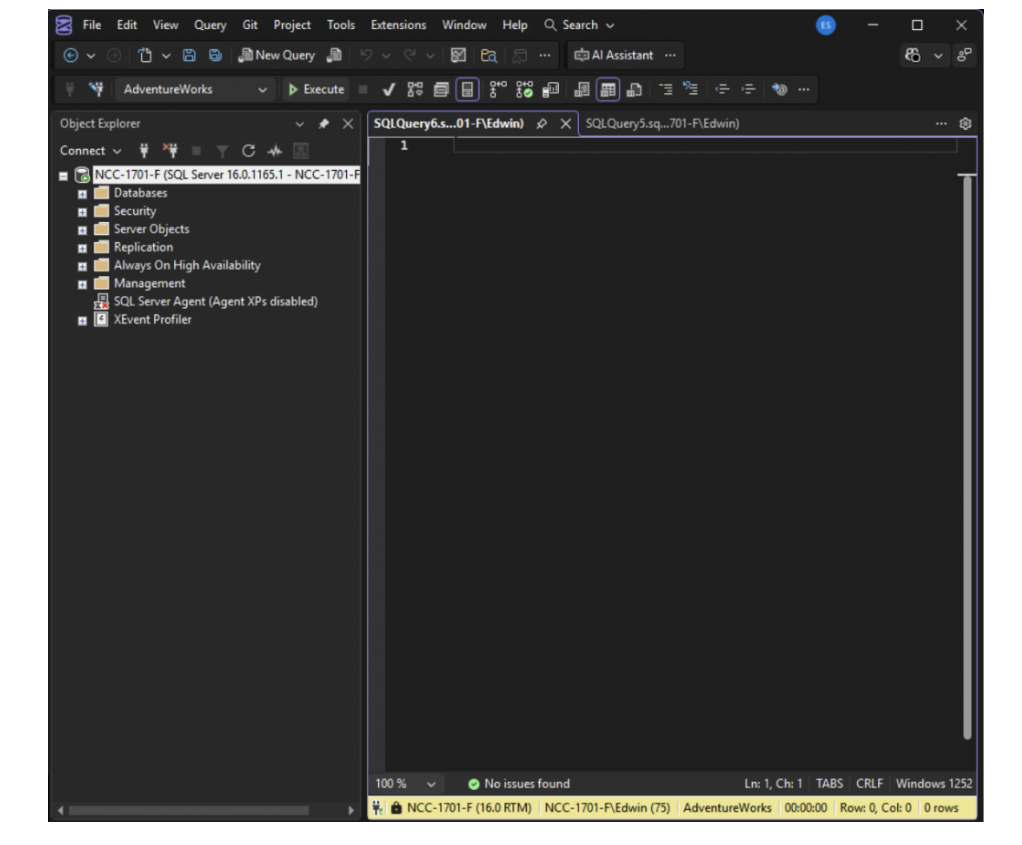
Alternatively, you can choose Use system setting, so if your desktop is already set to Dark, it just follows.
I also noticed that for best results, you need to restart SSMS. Sometimes, some sections won’t go Dark if you don’t restart, such as the Messages pane below the Query window. Now these are my settings. If you like the Bubblegum or Mango Paradise, it’s your call.
Fonts
As I get older, the default font size becomes difficult for me. The font type is fine, though. But that’s me.
Here’s a comparison between the default and my settings:
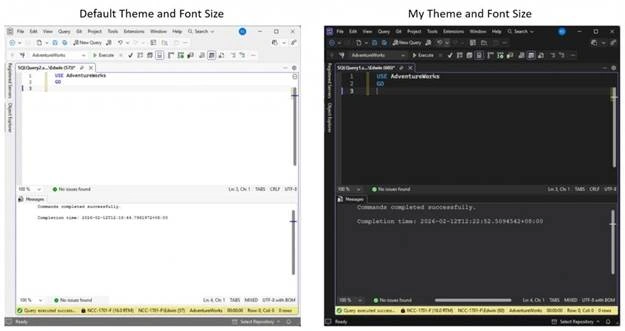
My font size is 12 versus the default 9 or 10.
The point here: You can change the font and font size that’s comfortable for you.
Status Bar Color
This one is small but very important. Sometimes, you have many open query windows. A few are from Development, and another is for Test. Still, another for Production. If you need to run a script in all environments, you need to know where your query window points – every time. So, you don’t run a script in the wrong environment.
You can set a different color in your Query window’s Status Bar to know if you’re pointing to production or otherwise. The Status Bar is where you see the server name, account used, rows affected, etc.
SSMS 22 has red, green, blue, yellow, and orange. I just follow the color settings available, but you can use a custom color to your liking. See my Status Bar for development vs. production:
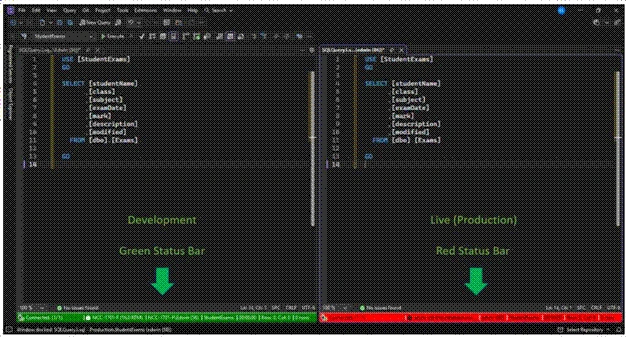
I set the Status Bar color upon connecting to a SQL Server, and SSMS will remember my setting even if I close it. See the color setting below placed in Custom Properties:
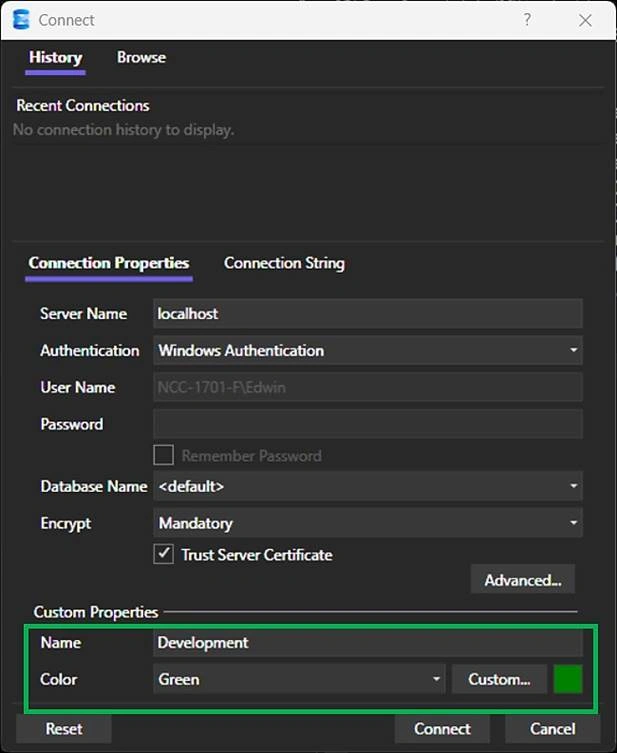
It’s simple. Under the Connection Properties, select a color, then name the setting (like Green color for Development). The Query window’s Status Bar will use that color.
None of these settings changes how SQL runs. They change how safely and comfortably you work when you’ve been staring at queries for hours.
Make Tab Navigation More Effective
Tabs can get messy, like these query windows below:
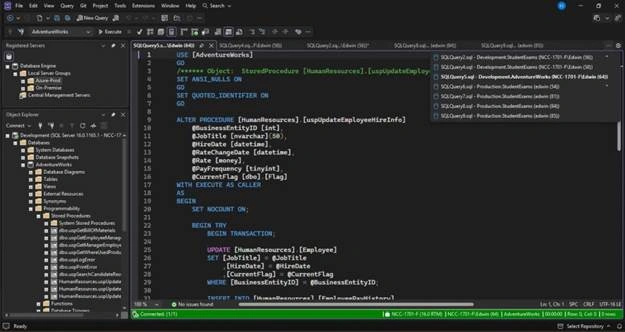
Many query window names are like SQLQueryx.sql. Though this is an exaggeration, I saw a few people working like this after several hours of scripting.
Instead of clicking each tab to change and compare, you can vertically (or horizontally) group tabs. For example, one group of tabs for production and another for development. Take a look at a vertical tab grouping below:
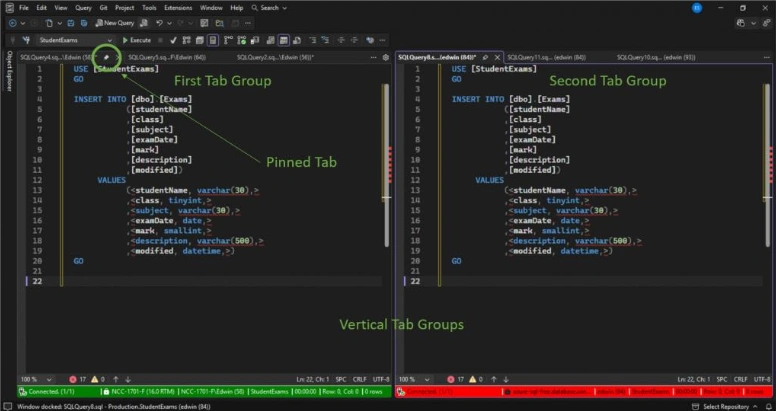
And the same one below, but horizontal:
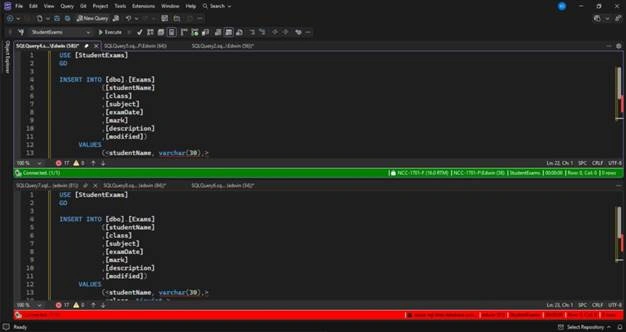
There’s no right or wrong here. Use whatever feels right in a given situation.
Clean Up Your Toolbars and Add Custom Buttons
Default toolbars include the Standard and SQL Editor. If you think this is lacking or the opposite, you can show or hide toolbars, or even show or hide toolbar buttons. Again, it’s your choice.
I keep the default toolbar setting most of the time, but add some depending on what I’m doing. For example, I show the Database Diagram toolbar when I’m designing a database. Otherwise, this is hidden.
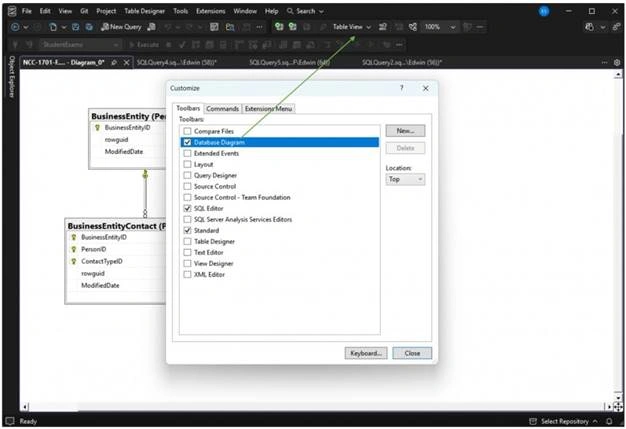
The above adds the Database Diagram toolbar at the top beside the Standard toolbar.
None of these SSMS tips and tricks deal with automation or tuning yet. It simply removes friction so shortcuts, scripting, and tuning tools can do their job better in the layers above.
Yours can be different, but you get the point.
2: Use SSMS Keyboard Shortcuts and Editor Tricks
There’s a long list of keyboard shortcuts for SSMS. I can’t memorize them all, but there are SSMS shortcuts that I can’t live without. You probably have the same.
The point here is to cut hand and finger movements and the shifting between the mouse and the keyboard. If you can save 1 to 2 seconds per action, then it’s gold.
You can also replace the keyboard shortcuts in Tools -> Options -> All Settings -> Environment -> Keyboard, so you can match the shortcut to your habits.
Let’s start with the essentials.
Power Up with Essential Shortcuts for Query Execution and Navigation
If you mostly use the mouse for navigating across many SSMS windows, panels, and code, try these:
- CTRL+TAB: Navigate through windows and Query tabs.
- F6: Toggle or navigate between the Query window, the Results, Messages, and Execution Plan Panels.
- CTRL+K, CTRL+K: Make a bookmark in the Query window for the current line. Repeating the same keystrokes cancels the bookmark. Then, navigate across all your bookmarks using CTRL+K, CTRL+N (next bookmark) and CTRL+K, CTRL+P (previous bookmark). To remove all bookmarks, press CTRL+K, CTRL+L.
This is good for going through long scripts faster with selective temporary markers.
- CTRL+F: Quick Search for a text in the Query window. CTRL+H adds replace text to the search action.
Better than clicking Edit -> Find and Replace or clicking the search box in the toolbar.
- CTRL+U: If your cursor is in the Query window, pressing these keys will take you straight to the databases dropdown list to change the current database. If you have fewer than 10 databases in the current SQL Server instance, this is good. But if you already have more, using the mouse might be faster. In any case, use your better judgment.
Along the way, you will run your statements and fine-tune your queries. So, here are the essential shortcuts:
- F5 or CTRL+E: Run the highlighted statement(s). If nothing is highlighted, it runs the whole script.
This one I mostly use along with highlighting tricks.
- Alt+Break: Cancels query execution. Some laptops and external keyboards don’t have a Break key. You can reconfigure this in SSMS keyboard options. Or if your keyboard has a remapping software, use it to configure an alternative Break key.
- CTRL+L: Display the estimated execution plan.
- CTRL+M: Include the Actual Execution Plan when running your queries. More about execution plans later.
- CTRL+R: Make the Results, Messages, and Execution Plan panels appear or disappear after running your statements. I use this to hide the Results for a while and have a wider view of my code. That avoids more scrolling.
Move, Select, and Edit Code Quickly
This will cover moving around the code window, highlighting text, and editing code. Shall we?
Moving the Cursor Around
Before you highlight or select text, you need to place the cursor at your desired position or at least know where it is. The arrow and page keys are obvious, but combining them with other keys does wonders. Below are the useful SSMS shortcuts I use:
- CTRL+Right/Left Arrow: Move the cursor one word to the right or left.
- Home/End: Move the cursor to the beginning or end of the current line.
- CTRL+Home/End: Move the cursor to the beginning or end of your script.
- CTRL+Page Up/Down: Move the cursor to the top-left or bottom-left of the visible screen
Selecting Text
Now that the cursor is in position, selecting or highlighting text is next.
- Shift+End: Highlights a line of text from the cursor to the end of the line.
- Shift+Home: Highlights a line of text from the cursor to the beginning of the line.
- Shift+Up/Down Arrow: From the cursor, select a line or lines of text upwards or downwards.
- Shift+Left/Right Arrow: From the cursor, highlight text per character to the left or right and extend if the end of the line is reached. Long press the arrow keys and it will speed up the highlighting.
- Shift+CTRL+Left/Right Arrow: Highlight text per word to the left or right, and extend.
- CTRL+W: This is supposed to highlight the closest word from the cursor based on official documentation. It works in SSMS 20, but in SSMS 22, it closes the current tab. You can assign a keyboard shortcut for this action in Keyboard options. Look for Edit.SelectCurrentWord and assign a keyboard shortcut you like. Mine is CTRL+Shift+W.
- Shift+CTRL+Home: Highlights text upwards to the beginning of the script.
- Shift+CTRL+End: Highlights text downwards to the end of the script.
- CTRL+A: Highlights the entire script. No need to bother where the cursor is.
- Alt+drag: Now this one is a combination of keyboard and mouse. This is a box selection of text. Start from your desired line and column by clicking it, pressing Alt, then dragging the mouse downwards and to the right, forming a box. This is good if you want to change column aliases at once.
Editing
This goes beyond CTRL+C, CTRL+V, CTRL+X, Delete, and the common ones. Check out my favorites below:
- Alt+Up/Down Arrow: Move a highlighted text up or down one line.
- CTRL+K, CTRL+C: Mark as a comment the highlighted text. If there’s no selection, comment out the current line.
- CTRL+K, CTRL+U: Uncomment the highlighted, commented text. Nothing happens when the current selection is not commented.
- TAB: Increase the indent of the current selected text.
- Shift+TAB: The opposite of TAB. This will decrease indentation.
How About a Select Current Statement?
Ever wish you can highlight an entire statement in one shortcut, like a SELECT statement in multiple lines because of JOIN, WHERE, and more?
SSMS does not have a shortcut for selecting an entire statement no matter the format is. You need an SSMS add-in for that.
Speed Up Formatting and SQL Cleanup
Have you thought of a properly formatted T-SQL code as a shortcut?
It is for me, so hear me out. With unformatted SQL, reviews, debugging, and editing become slower. You spend more time reading and comprehending than writing and editing code.
Consider this edited portion of [HumanResources].[uspUpdateEmployeeHireInfo] stored procedure from the AdventureWorks sample database:
![Consider this edited portion of [HumanResources].[uspUpdateEmployeeHireInfo] stored procedure from the AdventureWorks sample database](https://www.nogentech.org/wp-content/uploads/2026/04/Consider-this-edited-portion-of-HumanResources.uspUpdateEmployeeHireInfo-stored-procedure-from-the-AdventureWorks-sample-database.webp)
Looking at this right now makes me move closer to the monitor. Where each parameter goes to what table column needs careful reading. Some parts are also hidden, so scrolling to the right is a must.
But when it’s formatted like this:
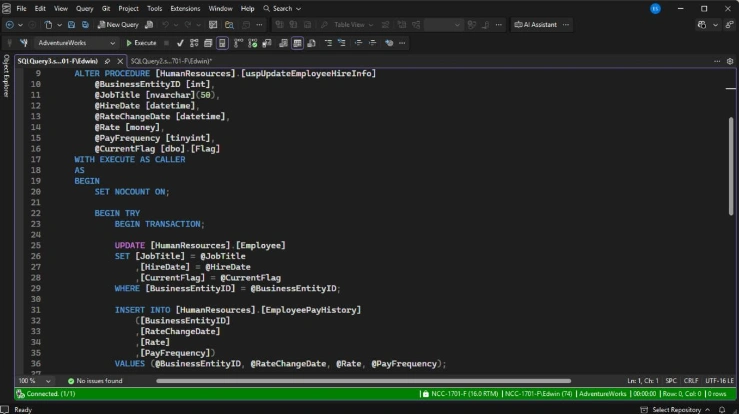
It’s easier on the eyes. You can only scroll downward or upward too.
But there’s a sad part: I notice that SSMS has limited formatting features. Mostly, it’s manual. We covered indentation earlier using TAB and Shift+TAB. Here are two more:
- CTRL+Shift+U: Make the selected text uppercase.
- CTRL+Shift+L: Make the selected text lowercase.
I also find limited formatting in Tools -> Options -> All Settings -> Languages -> Transact SQL -> Tabs. This includes automatic indentation. Mine is set to Block, so when I press Enter, the cursor moves to the same level as the previous line.
That’s it. Beautifying SQL needs an SSMS add-in. The point: Beautiful SQL is not about style. It’s about spotting problems faster.
It’s about muscle memory for me – the shortcuts, editor tricks, and formatting beautiful SQL. It can be for you too. This set of SSMS tips and tricks doesn’t make SQL run faster, but it lets you get there sooner with quicker movement.
3: Navigate Databases and Scripts Like a Power User
Databases grow. One of my projects had fewer than 70 tables from the start. In two years, it became hundreds. With that, navigation can be a painful hundred scrolls and clicks.
That is, before I knew the tricks.
Let me share 3 more SSMS tips and tricks that my team is using, so you can start doing and fixing right away instead of burning energy with scrolls and clicks.
Use Object Explorer Efficiently
Below are some Object Explorer efficiency tricks that I learned along the way.
Filtering Objects
My colleague told me about filtering. Just right-click the Tables folder and select Filter -> Filter Settings (1). The Filter Settings window will appear (2). Then, set your filter conditions, like Name. In my example below, I filtered the tables with ‘address’ in the table name. Then, clicking OK will filter the list (3).
See below:
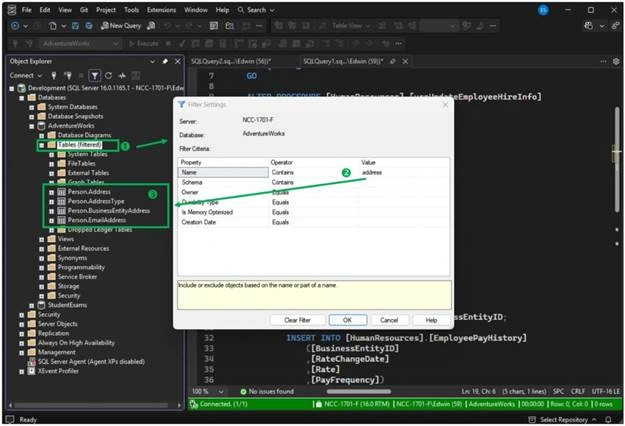
And the result?
The long list becomes a manageable short list. So, the Object Explorer filter is there for a reason.
Object Explorer Details
Another trick is to change your view from Tree to Table using the Object Explorer Details. When you’re in Object Explorer, click any level of the tree and press F7.
It felt better for me. In addition to filtering, I can also sort, see object details (like table row count and the space it used), and multi-select objects.
Script As
I used sp_help to get a table’s definition. It’s kind of cluttered and overwhelming me with the output. A better view for me is the CREATE TABLE script.
In Object Explorer, you can use Script As for individual objects. For tables, it can generate CREATE or ALTER TABLE, SELECT, INSERT, UPDATE, and more. With the CREATE TABLE scripted into a New Query Editor Window, I can see a table’s definition clearly, including defaults, indexes, and more.
There are other ways to use Script As. Mainly, it’s to reverse engineer many database objects. The output is clean, and the syntax is error-free. I leave the imagination to your capable hands for its other uses.
Organize Your Work with Projects, Solutions, and Registered Servers
Organizing your work is a shortcut, too. This will prevent you from just saving any SQL file anywhere, then hunting for them and reopening them one by one when you need to go back after weeks or months.
Let me share to you SSMS tips and tricks for organizing work.
Solutions and Projects
There was never a Solution and Projects in Query Analyzer. It used to be in the Visual Studio territory for front-end developers. So at first, I never organized SQL files like I do in Visual Studio projects.
But gone are the ways of Query Analyzer.
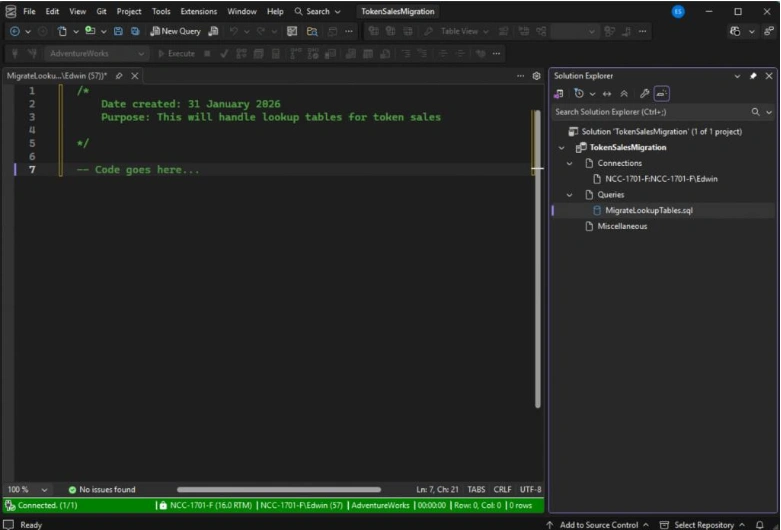
We can now do the same in SSMS. You can organize scripts into projects inside a solution. I use this feature when an SQL task will span for days or weeks. Then, it’s easy to reopen the whole stuff anytime. I don’t have to hunt for a lost SQL file in some folders.
To create one, click File -> New -> Project/Solution or press CTRL+Shift+N. Pick a project type, then name your Solution and Project. From there, you create Connections and SQL files.
See a sample solution with a scripting project below. An open SQL file for a new script is also shown.
Registered Servers
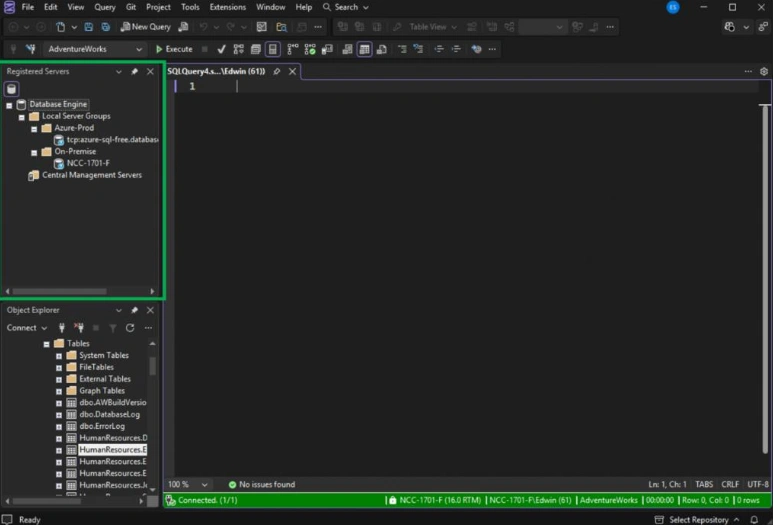
If you have multiple environments like Development and Test, you can organize and manage their SQL Server connections within Registered Servers in SSMS. You can organize them with folders like Development, Test, or Production (if you also manage that too).
Save the different SQL Server connections under them with credentials and the connection color we discussed earlier. So, when you need to connect to any of them, the Status Bar is ready with the proper color for the Query window.
I find this good when I need to run the same script in different environments. I don’t need to retype all the required connection info every time. Used well, this saves tons of repeat work.
See a sample below with two folders, Azure-Prod and On-Premise:
Use SSMS Scripting Tools Instead of Manually Typing Everything
You already saw what Script As can do. That’s a one-by-one action if you only need a few objects for common DDL and DML commands. But when I need to script multiple tables in a database, I use Generate Scripts.
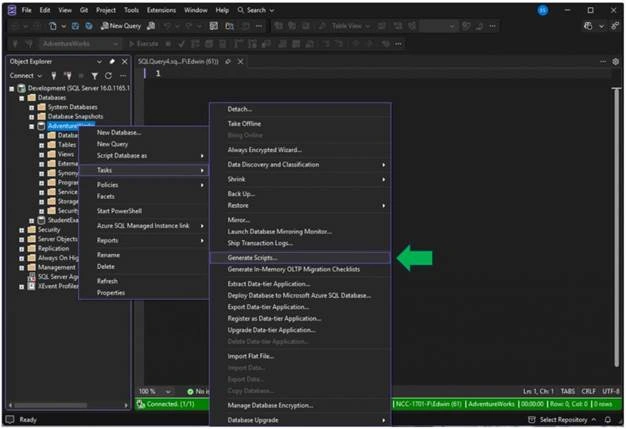
Generate Scripts allows you to script an entire database at once or select the objects you need. I use this for migrations, schema backups, and version control. This is much better than manually getting each database definition and including it in one script.
As a precaution, I make sure to open the generated script file in a new Query window. I want to see if the options I chose are what is intended. If there are minor quirks, I can edit them.
This set of SSMS tips and tricks reduces friction in how you move and retrieve information. Once navigation becomes automatic, you can focus on logic instead of logistics. That’s how small setup choices stack into real, everyday speed gains.
4: Debug and Tune SQL Queries More Effectively
Back in the day, we used sp_who or sp_who2 to see connected users and processes running in Query Analyzer or the Current Activity in Enterprise Manager. Today, both sp_who and sp_who2 are still available in SSMS. If you’re stuck in these, you’re missing out.
Also, back then, I isolate the offending query, add PRINT statements in between queries, and adding elapsed times to identify the slow part of a script or stored procedure. Then, once I zero in on the slow query, I will isolate portions of it to debug the problem.
The many sentences you read in describing what I did back then mean it’s slow. Time will just fly and disappear. How do we handle it today? Built-in tools and a simple process can cut that loop way down.
Leverage SSMS for Monitoring and Troubleshooting
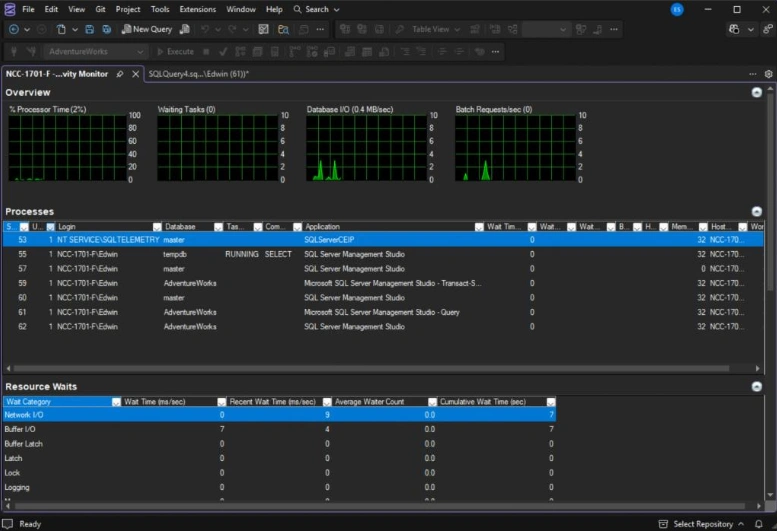
It starts when the phone rings, and the most you hear is “it’s slow!” From there, the go-to place in SSMS is the Activity Monitor. You can spot processes with long waits, blocking processes, and more.
The Processes pane shows who is waiting on whom, not just what they’re waiting for. Meanwhile, the Resource Waits and Data File I/O panes help confirm if the server is under pressure. Finally, the Recent Expensive Queries and Active Expensive Queries panes are like your server’s “police report” on “arrested” slow queries.
Here’s what Activity Monitor looks like for my personal SQL Server:
What’s the point?
When users say “it’s slow!”, we can’t guess why. We have to pinpoint the cause. Only then can we start debugging and tuning the offending query.
Use Actual Execution Plans and Statistics Tools
When I have the slow query, I’ll run it with Include Actual Execution Plan (CTRL+M from earlier). Then, I’ll look for table scans, missing indexes, clues for outdated statistics, and more. I rarely use Estimated Execution Plans because the Actual Execution Plan makes more sense, and I’ll use it eventually.
For newbies, the Estimated Execution Plan is what SQL Server thinks will happen in a query. The Actual Execution Plan is what did happen in the query against the current volume of data. I have a separate post on that explaining how to use it to tune slow queries.
Below is a sample query with an actual execution plan. There’s a warning in SELECT and 2 expensive clustered index scans:
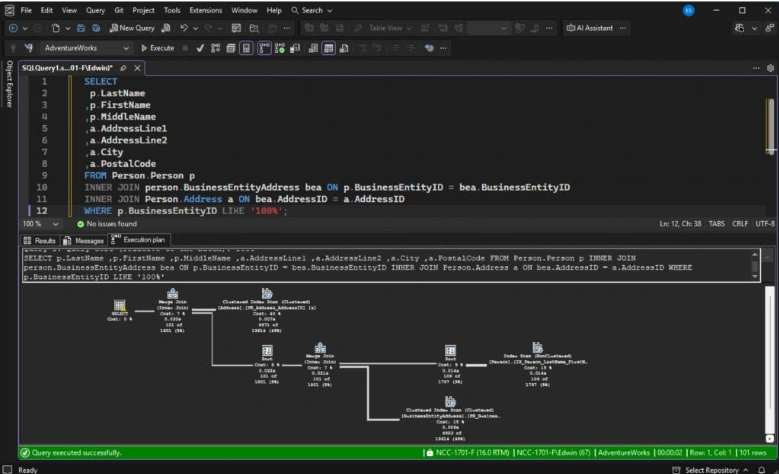
With execution plans, you are not blind to the cause of “It’s slow!”
Speed Up Debugging with AI SQL Tools
AI assistance is already in database tools. AI can analyze your schema and queries, make index recommendations, suggest query fixes, and explain stuff for you. Some tools even stream answers while still generating them, like dbForge AI Assistant.
Used well, it’s like having a second pair of eyes during long sessions with your database. It shortens the time when you need to answer “what is wrong here?”
But this is only to help you, not replace you. You have the final call if you’re going to apply the fix it is suggesting.
When feedback is fast and clear, tuning stops being guesswork. Stack that with other SSMS tips and tricks, and the whole workflow gets lighter.
5: SSMS Add-ins + AI: How dbForge SQL Complete + AI Assistant Improve Productivity
Many SQL developers extend SSMS with add-ins to cover gaps in editing, formatting, and navigation. SSMS, like Visual Studio, allows extensions to integrate directly into the editor and menus, so they become part of the normal workflow instead of a separate tool.
Add-ins like dbForge SQL Complete and dbForge AI Assistant won’t replace SSMS. They sit inside it to smooth out the daily work.
Let’s talk about these add-ins next.
dbForge SQL Complete
dbForge SQL Complete focuses mainly on editor productivity. It expands object names, suggests joins, and helps complete long column lists. This is useful when table schemas are large and similar-looking, and you don’t want to keep switching back to Object Explorer.
It also adds shortcuts that SSMS does not provide by default, such as:
- CTRL+Shift+A: Highlights or selects an entire statement.
- CTRL+K, CTRL+F: Format your T-SQL code with consistent rules.
Features like these don’t change how SQL runs, but they reduce manual editing and reformatting during daily work.
dbForge AI Assistant
dbForge AI Assistant can integrate directly into editors so it can see errors, explain stuff, and suggest fixes to your query.
Let’s take, for example, the warning in the SELECT statement execution plan earlier. Here’s what dbForge AI Assistant gave after I provided that part from the Execution Plan XML:
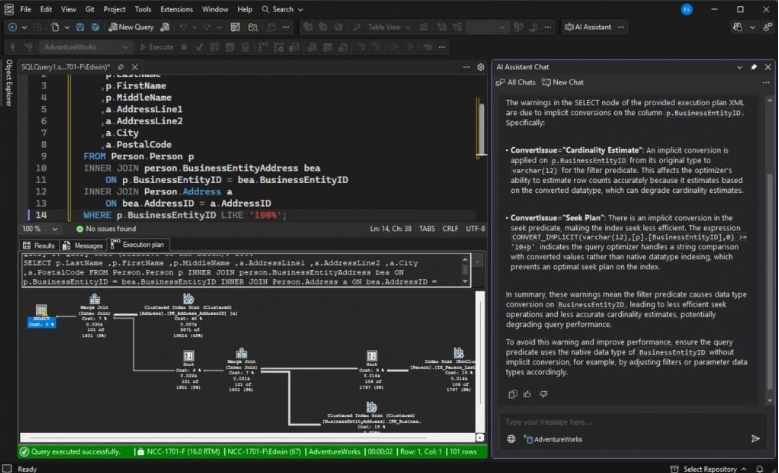
It explained why the warning appeared and suggested possible causes, such as implicit conversions. That gave me a clearer direction before applying changes.
It can also read from the Error List and suggest fixes, like the example below, when I used a non-existent text function:
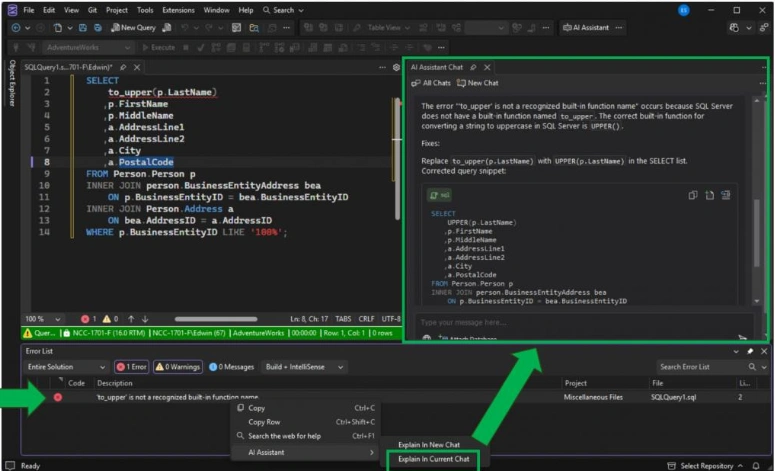
Like any AI suggestion, this still needs verification. I treat it as a shortcut to understanding, not as a final answer.
Add-ins add an intelligent layer on top of shortcuts and navigation. Stacking together all the SSMS tips and tricks we discussed turns small time savings into steady daily momentum.
Conclusion
SSMS doesn’t have to feel slow or heavy, and the workflow is not fixed and forced to us.
Tinker a few small changes add up to productivity. Shortcuts cut clicks. Better navigation saves hunting time. Clean formatting keeps bugs from hiding in messy code. Built-in scripting tools remove repetitive typing. And Add-ins + AI can speed up understanding when queries misbehave. Together, these form simple productivity layers you can stack over time.
You don’t need to change everything today. Pick two or three SSMS tips and tricks from this guide and try them this week. Let them settle into muscle memory. Then add a few more. Little by little, SSMS turns from just a query window into a faster, calmer place to work.