Netflix is one of the most popular streaming apps for Android as well as for iOS and smart TV users. And usually, it is incredibly reliable, but like any piece of complex technology, it hits a snag every now and then.
There is nothing more frustrating than settling in with a bowl of popcorn, ready to binge-watch your favorite series, only to be met with a spinning red circle or a cryptic error code. Whether you are dealing with a blurry screen, a slow WiFi, or a “connection error” that makes no sense, most issues are surprisingly easy to fix.
In this guide, I will take you through the most common Netflix streaming issues and provide practical, step-by-step solutions. As a result, you can get back to your movie marathon in no time.
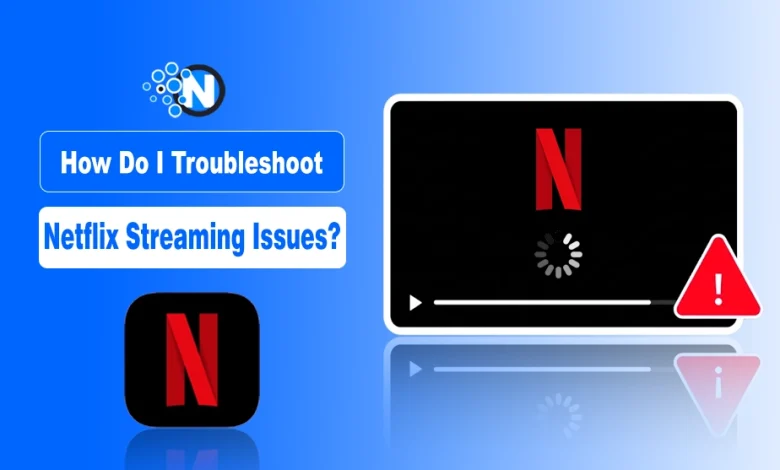
How do I troubleshoot Netflix streaming issues?
Troubleshooting Netflix isn’t just about turning it off and on again (though, honestly, that works more often than not). To fix the problem for good, you need to identify where the “break” is happening, like
- Is it your internet signal?
- A glitch in the app?
- Or perhaps your device is just feeling a bit overwhelmed?
Below, I have broken down the most frequent streaming issues associated with Netflix into categories with clear, actionable steps for each.
1. Endless Buffering and Slow Loading
It is the classic “spinning wheel of death.” Usually, this happens when your internet connection isn’t fast enough or stable enough to keep up with the high-quality video Netflix is trying to deliver.
- Check your internet speed. Use a site like Fast.com (which is owned by Netflix) to see your actual internet speed. You need at least 5 Mbps for High Definition (HD) and 25 Mbps for 4K/Ultra HD.
- Power cycle your router. Unplug your modem and router from the power outlet for at least 30 seconds. Plug them back in and wait for the lights to stop blinking before trying Netflix again.
- Improve your Wi-Fi signal. If you’re on Wi-Fi, move your WiFi router closer to your TV or device. Keep it off the floor and away from other electronics like microwaves or cordless phones that might interfere with the signal.
- Use an Ethernet cable. If your Smart TV or console has a LAN port, plug it directly into the router. A wired connection is always more stable than wireless for 4K streaming.
I have created a comprehensive guide on improving home WiFi speed, which you can check for a better streaming experience.
2. The App Keeps Crashing or Freezing
If the Netflix app closes suddenly or the image freezes during streaming while the audio keeps playing, you’re likely dealing with a software conflict or a “clogged” app memory.
a. Clear the App Cache or Force Close the App
On a phone, swipe up and clear Netflix from your recent apps. To clear the app caches and force close, follow the steps below:
- Go to Settings.
- Tap on the App Management.
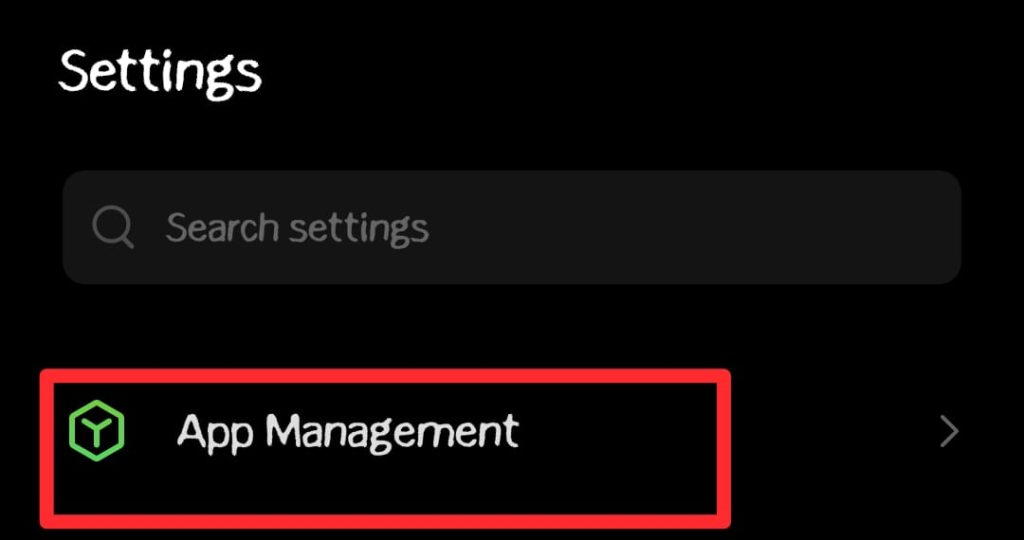
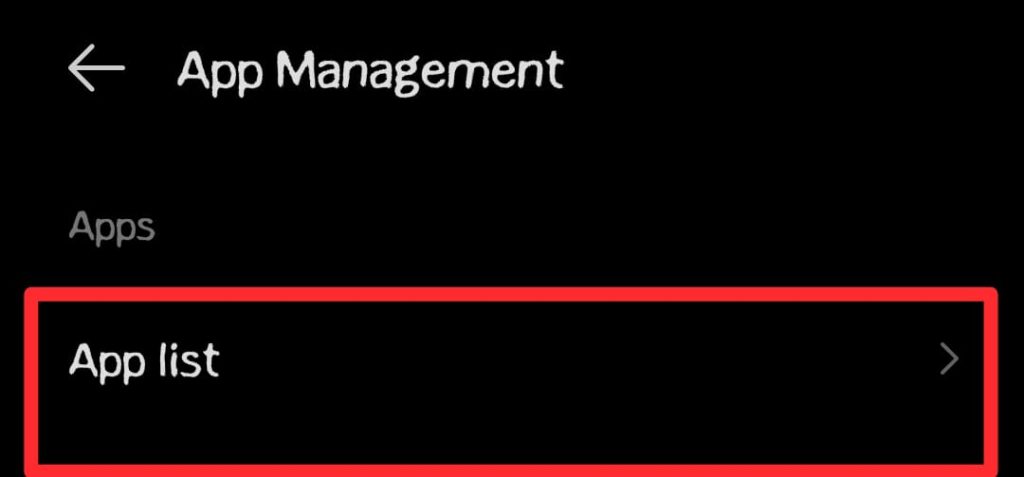
- Select Apps List.
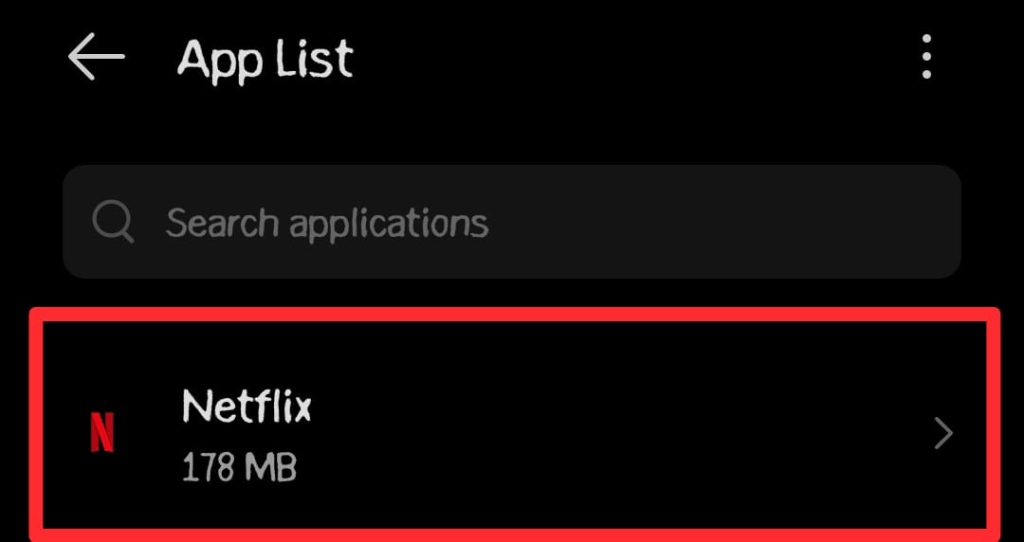
- Find Netflix.
- Tap Force Stop.
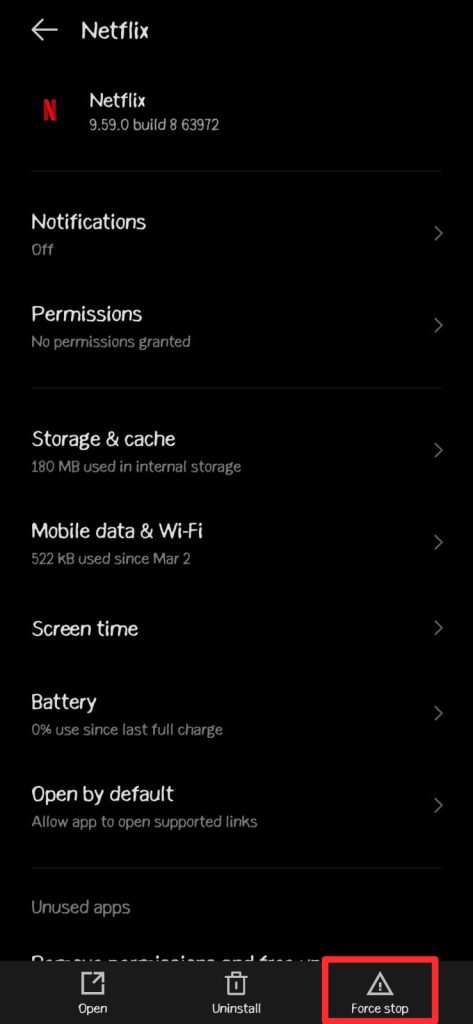
- Also, find the Clear Storage and Caches options.
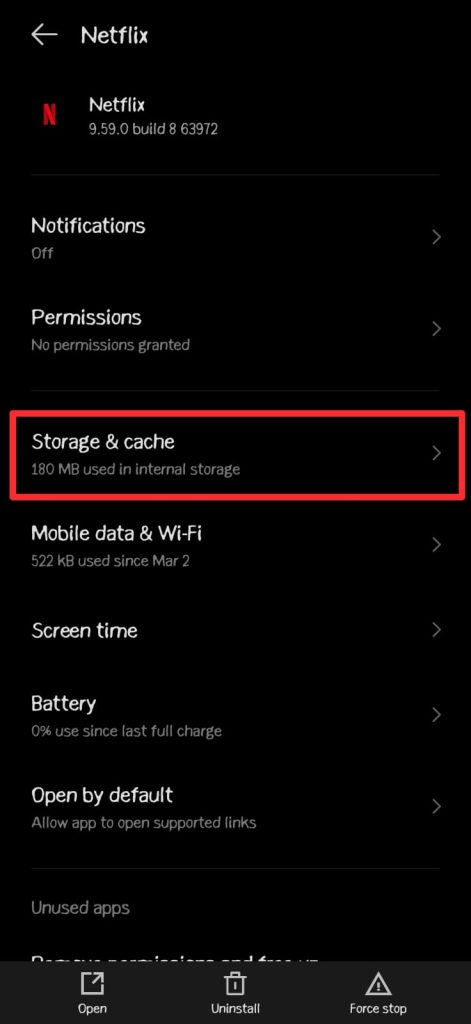
- Choose the Clear Caches.
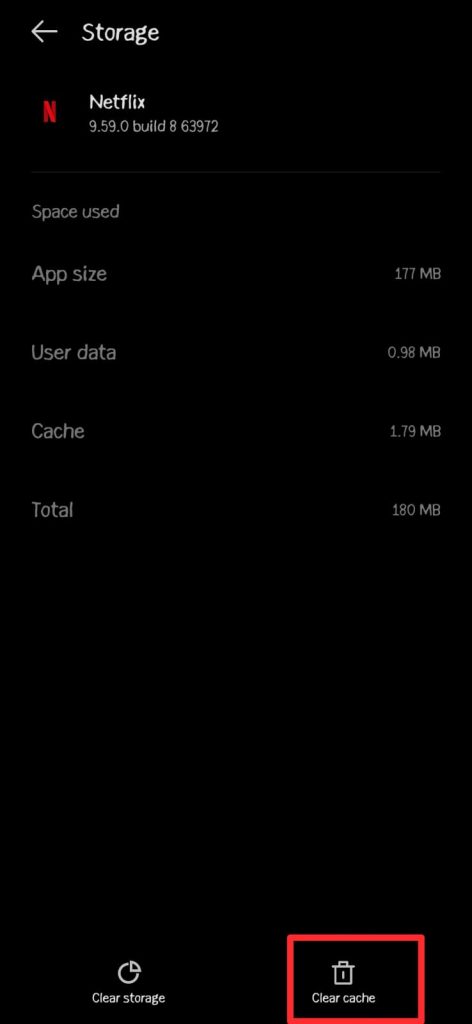
When you clear the app caches, it removes temporary files that might be corrupted without deleting your login info.
If you want a thorough cleanup, read this article on how to clear caches on Android. It will further smooth your mobile performance.
b. Reinstall the App
- If clearing the cache doesn’t work, uninstall Netflix entirely.
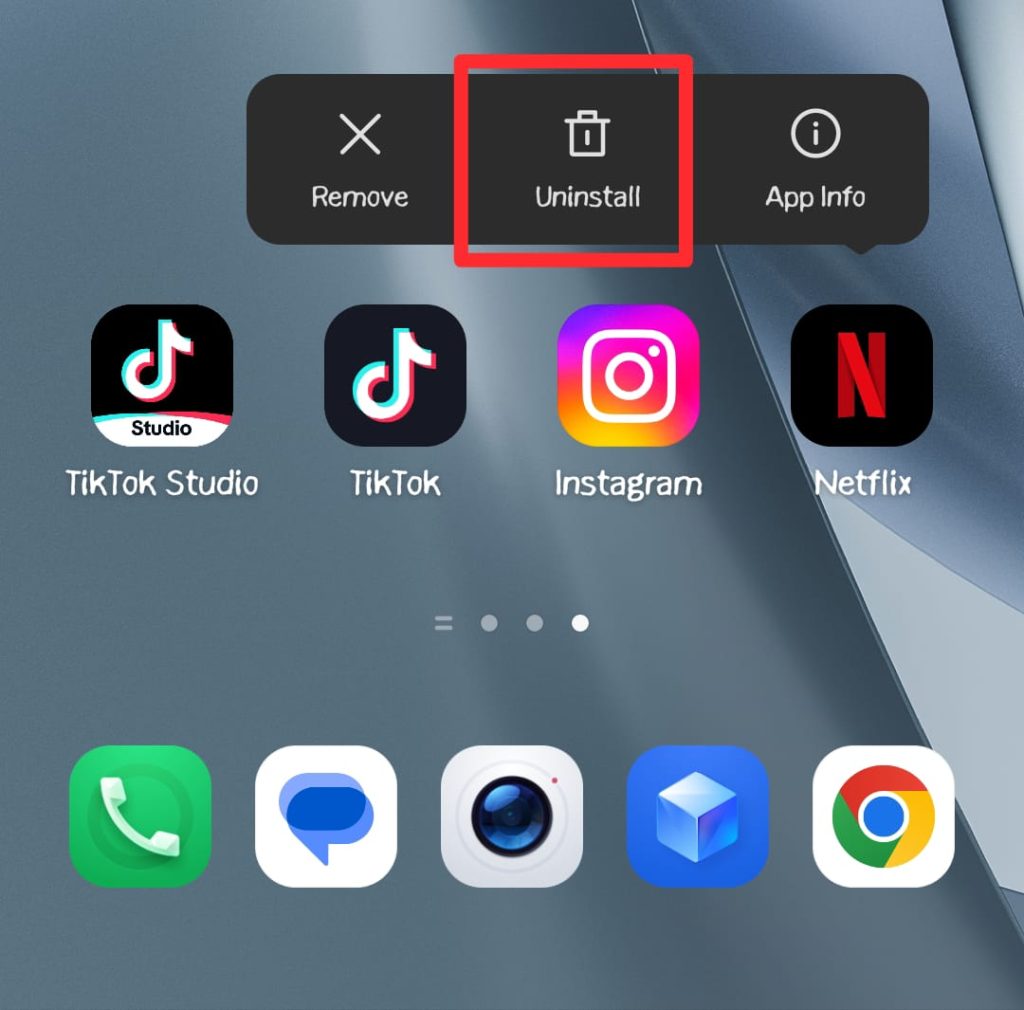
- Press the Netflix app icon.
- An Uninstall button will appear, and you have to tap on it.
- Restart your device.
- Then download and install the app fresh from the App Store or Google Play Store.
c. Check for System Updates
Ensure your TV, phone, or streaming stick (like Roku or FireStick) is running the latest software. An outdated OS can often cause apps to behave badly.
3. Error Codes (Like NW-2-5 or UI-800-3)
Netflix uses specific codes to tell you exactly what’s wrong. Most of these (especially those starting with NW or UI) point to a communication problem between your device and Netflix’s servers.
- Restart your device properly. Don’t just put it in “sleep” mode. Unplug your TV or streaming device from the wall for 60 seconds, then plug it back in. This performs a “hard reset” of the hardware memory.
- Sign out of Netflix. Go to the Netflix home screen, open the menu, select Get Help, and click Sign Out. Sign back in with your credentials to refresh your account’s link to the server. If you are having issues in this procedure, you can check my complete guide on how to sign out of Netflix.
- Disable VPNs or Proxies. If you see an error like M7111-5059, Netflix has detected you are using a VPN. Turn it off, as Netflix often blocks these to enforce regional licensing.
Pro Tip: Reset your Network Settings
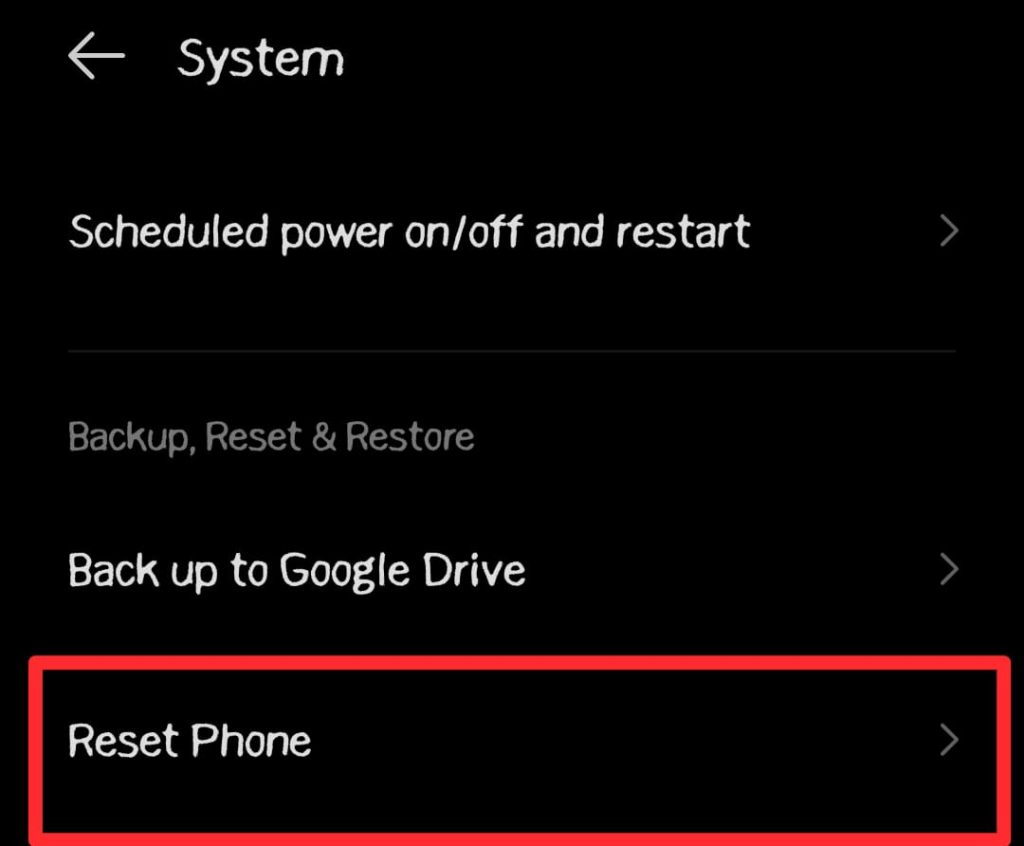
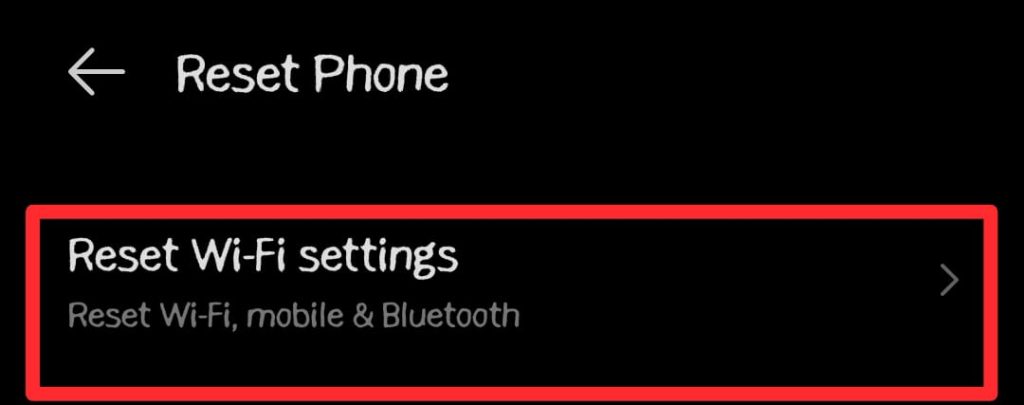
Resetting your network settings will make your phone forget your WiFi passwords and remove the streaming errors when you reconnect to the Internet. For this purpose:
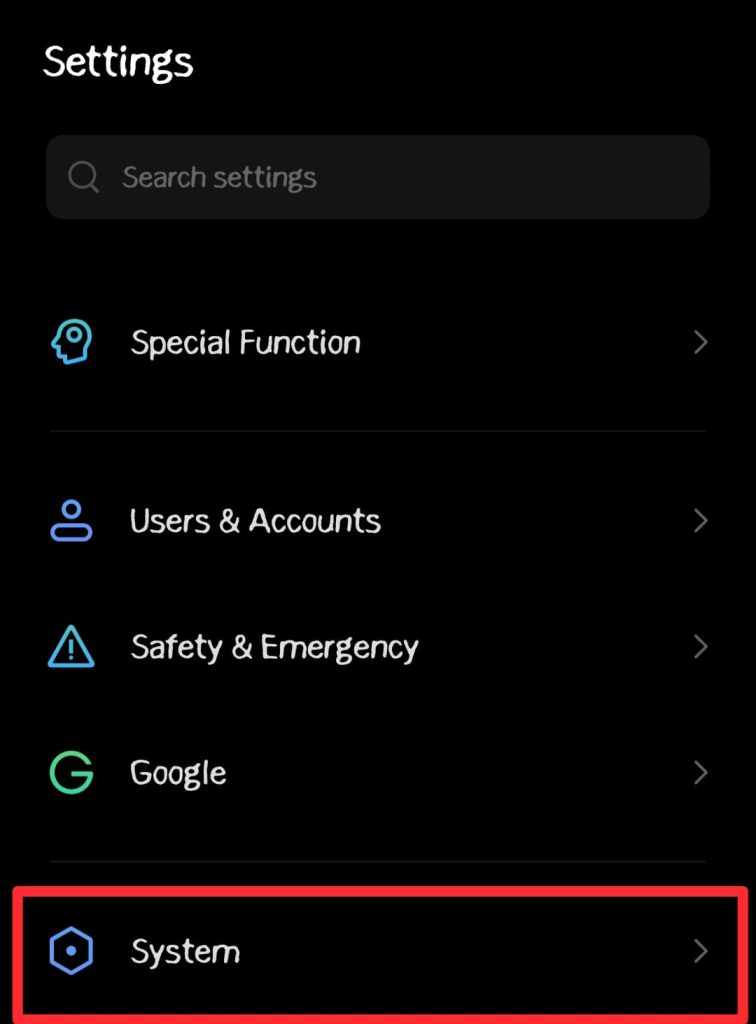
- On mobile devices, go to Settings.
- Choose System.
- Tap on the Reset Phone option.
- Select Reset Wi-Fi Settings.
4. Poor Video Quality (Blurry or Pixelated)
If your show looks like a 1990s home video, the issue is usually related to your data settings or a sudden drop in bandwidth.
a. Check your Netflix Playback Settings
- Log into Netflix on a web browser.
- Go to your Account.
- Look for Playback Settings.
- Ensure it is set to High or Auto rather than “Low” or “Medium.”
b. Check for Background Downloads
If someone else in your house is downloading a large file or having an online gaming session, they might be hogging the bandwidth. Ask them to pause for a moment to see if your quality improves.
c. Inspect Your HDMI Cable
If you are using a streaming box, make sure the HDMI cable is pushed all the way in. A loose or damaged cable can sometimes cause the resolution to drop or the screen to flicker.
Final Thoughts
Troubleshooting Netflix doesn’t have to be a tech-heavy headache. Most streaming issues, from the dreaded “spinning wheel” to pixelated video, happen due to simple connectivity glitches or app hiccups that are easily cleared with a quick reset.
When you follow the practical steps mentioned in this guide, like power cycling your router, clearing your app cache, or adjusting your playback settings, you can eliminate the most common roadblocks to your entertainment and avoid searching for Netflix alternatives.
Now that you have optimized your setup and cleared those pesky error codes, there is nothing left to do but settle back in. Grab your popcorn, hit play, and enjoy your seamless movie marathon!