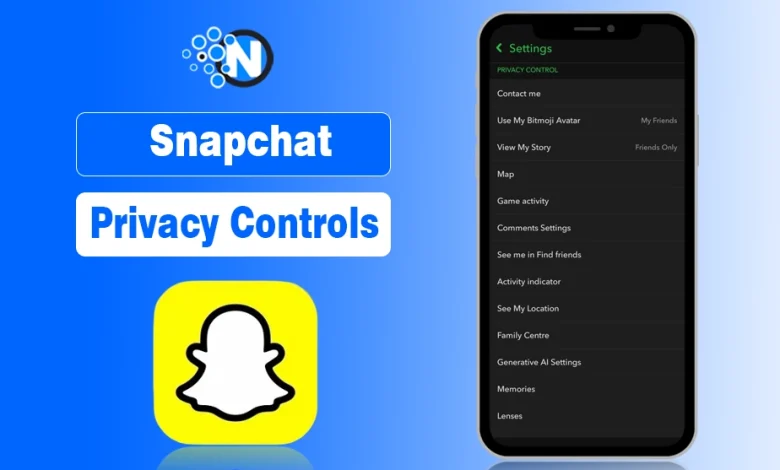
Yesterday, while scrolling through Snapchat, I realized I’ve already covered many topics about the platform on NogenTech, like what is Snapchat Plus, Snapchat planets, its AI algorithms, and love stickers. But despite exploring these features, I had never discussed Snapchat’s privacy controls.
That made me realize many users probably overlook their privacy settings too.
I remember the first time I checked my Snapchat privacy settings. I had been posting snaps, maintaining streaks, and playing Snapchat games without realizing who could see my location, contact me, or find my profile.
When I opened Privacy Controls, several settings were more open than expected. Let’s discuss every Snapchat privacy setting exactly as it appears in the app and how to use it.
How to Access Snapchat Privacy Settings
Here are the straightforward steps you must follow to access your Snapchat Privacy settings:
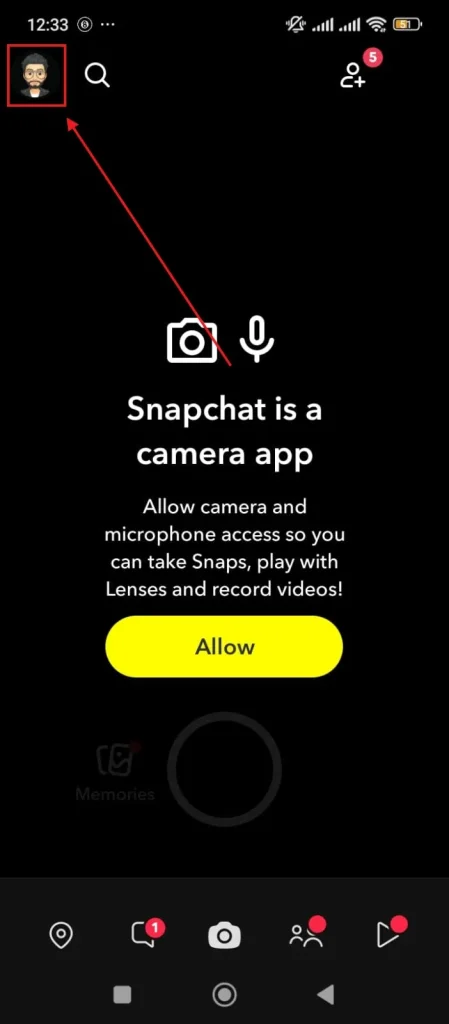
- Open Snapchat and tap your Profile icon (top-left corner)
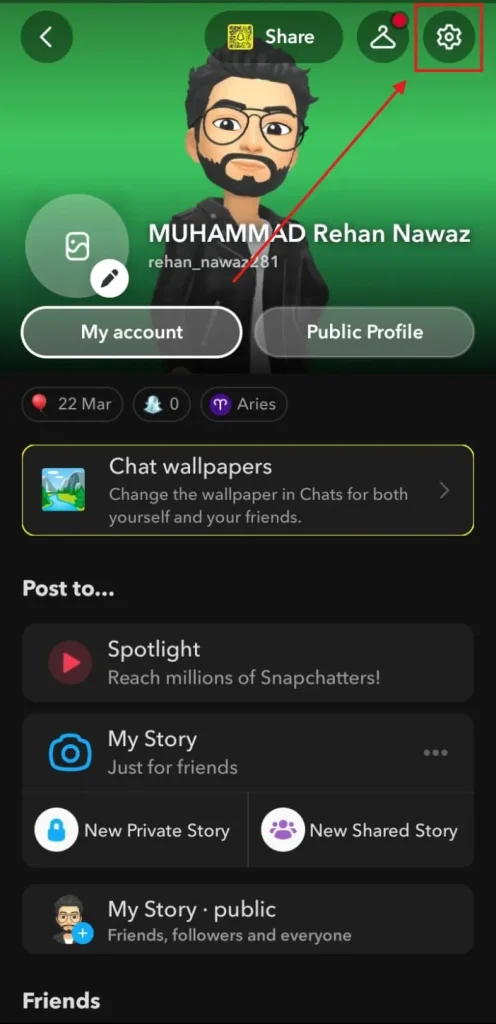
- Tap the Gear icon (top-right corner)
- scroll down until you see “PRIVACY CONTROL” written in green text
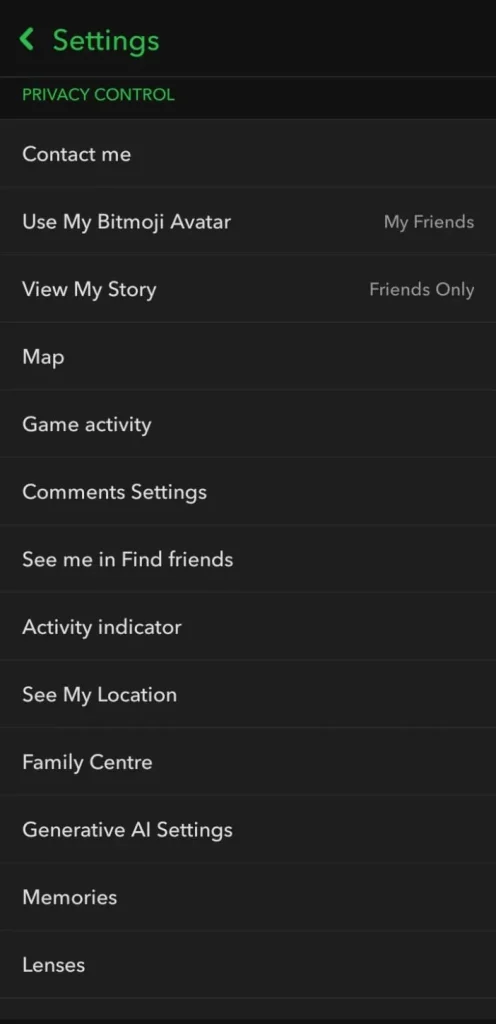
Every setting in this guide lives right there.
What is Your Privacy Risk Level
Before jumping into individual settings, it helps to know where you stand:
🟢 Low Risk: Contacts limited to Friends, Story set to Friends Only, Find Friends disabled, Ghost Mode on, Activity Indicator off. This is how you control your privacy.
🟡 Medium Risk: Some settings are configured, but others, like Activity Indicator, Find Friends, or “Friends and contacts” on Contact Me, are still open. This is a partial exposure.
🔴 High Risk: Mostly default settings. Strangers may see your profile, your location could be visible on Snap Map, and friends can track your activity patterns.
Snapchat Privacy Controls You Should Be Aware of
Now I will discuss in detail all of the Snapchat privacy settings that it features to provide maximum security:
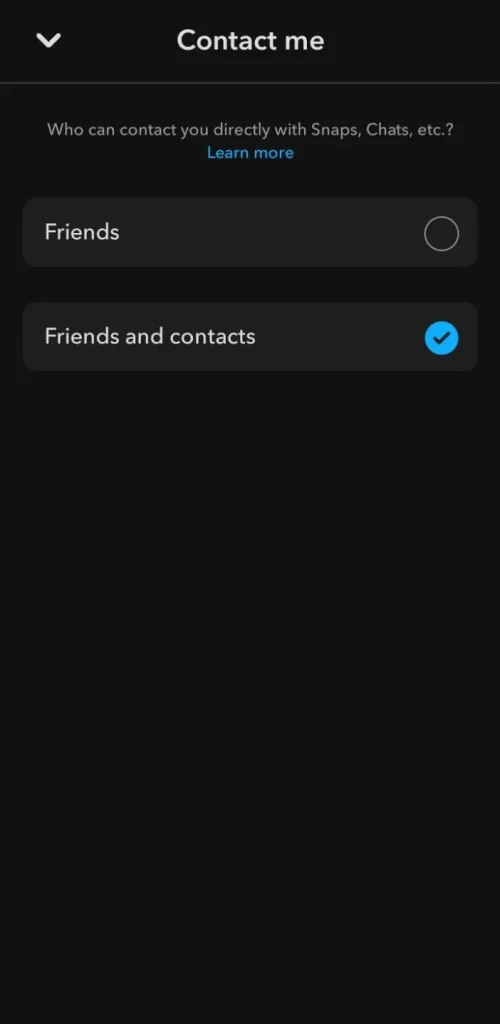
1. Contact Me — Who Can Send You Snaps and Messages
What the app says: “Who can contact you directly with Snaps, Chats, etc.?”
The two options are:
- Friends: Only people you’ve mutually added on Snapchat
- Friends and contacts (default): Includes anyone with your phone number, even if you haven’t added them.
Recommended setting: Switch to Friends immediately.
The default “Friends and contacts” allows anyone with your number to message you.
Important: Even on Friends, group chat members can still message you. Be selective about the groups you join.
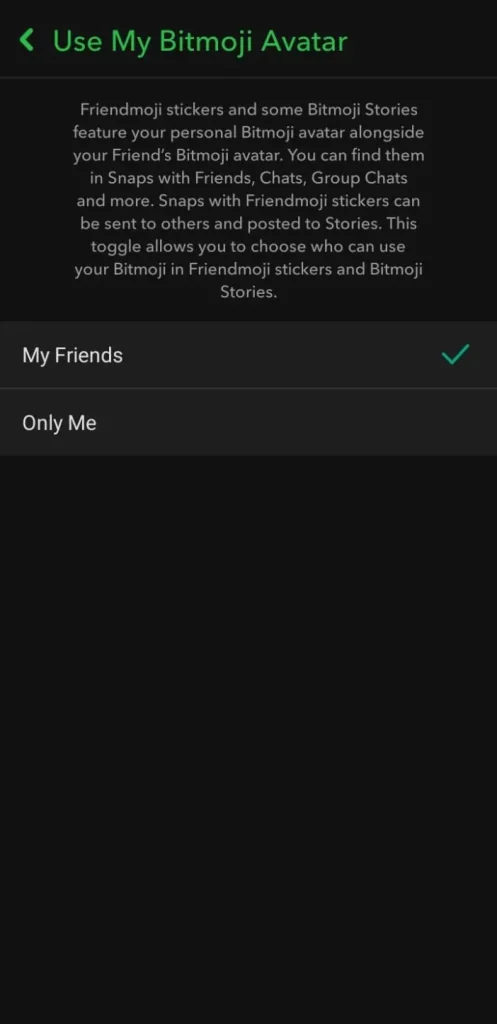
2. Use My Bitmoji Avatar — Control Your Digital Identity
What the app shows: Shows “My Friends” in the Privacy Control list.
This controls who can use your Bitmoji in Friendmoji stickers, animated flirty stickers featuring your Bitmoji with a friend in Snaps, Chats, and Group Chats.
What to do with it: Keep My Friends, unless you want tighter control.
This setting matters more if you create a Snapchat Public Profile, as your Bitmoji becomes a bigger part of your public identity.
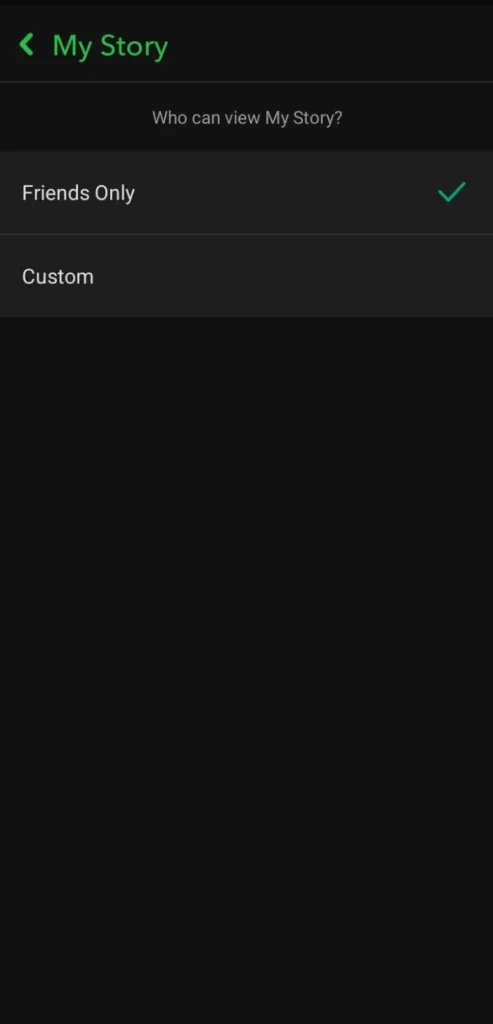
3. View My Story — Who Sees Everything You Post
What the app says: “Who can view My Story?”
The app shows you two options:
- Friends Only: Default and recommended
- Custom: Block specific friends without unfriending
- What you should set it to: Keep Friends Only at a minimum. Use Custom to exclude certain friends from specific Stories.
Note: Don’t forget that Public Profile Stories have separate visibility settings; this controls your personal Story only.
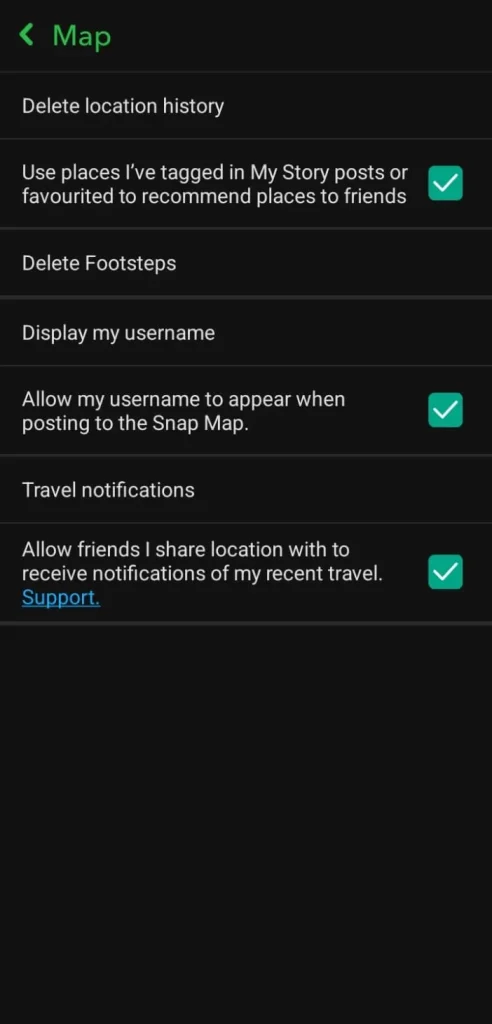
4. Map — Location History, Footsteps, and Snap Map Identity
The Map section contains multiple sub-settings, all directly visible in the app:
- Delete location history: Permanently erase stored location data.
- Use places I’ve tagged in My Story or favorited (Enabled): Suggests tagged places to friends.
- Delete Footsteps: Clears your Snap Map travel log.
- Display my username (Enabled): Shows your username on Snap Map posts.
- Travel notifications (Enabled): Notifies friends when you travel.
What to do with each:
- Turn off Story tag recommendations if undesired.
- Hide your username on Snap Map posts.
- Disable Travel notifications if you don’t want friends notified.
- Periodically delete location history and Footsteps.
Note: These settings are separate from live location sharing controlled by See My Location. You can also opt for Snapchat Ghost Mode if you require deeper Snap Map control.
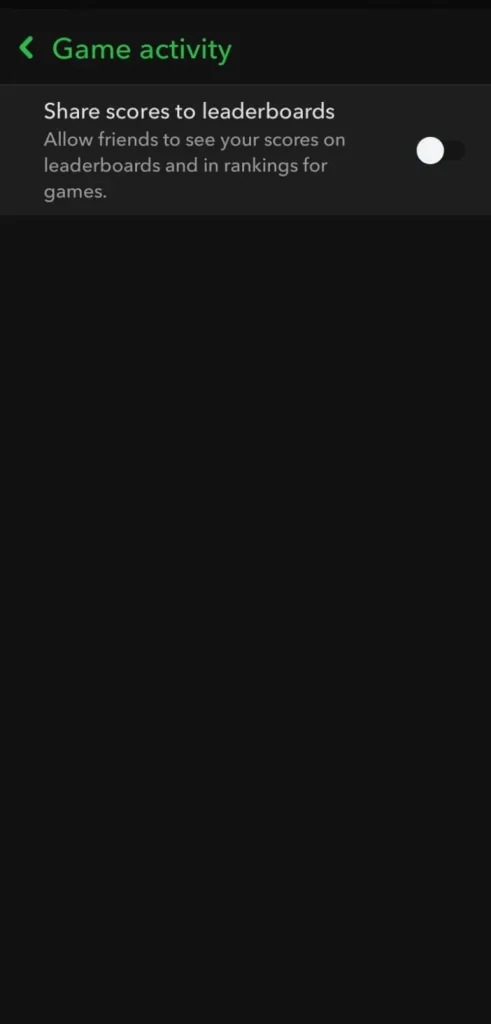
5. Game Activity — Your Scores on Friend Leaderboards
What the app says: “Share scores to leaderboards. Allow friends to see your scores and rankings in Snapchat games.“
This is a single on/off toggle. When enabled, friends can see your rankings on in-app Snapchat game leaderboards.
Recommended setting: Turn it off if you want your gaming activity to stay private. When enabled, your scores are visible to your entire friends list.
6. Comment Settings — Approve Before They Go Public
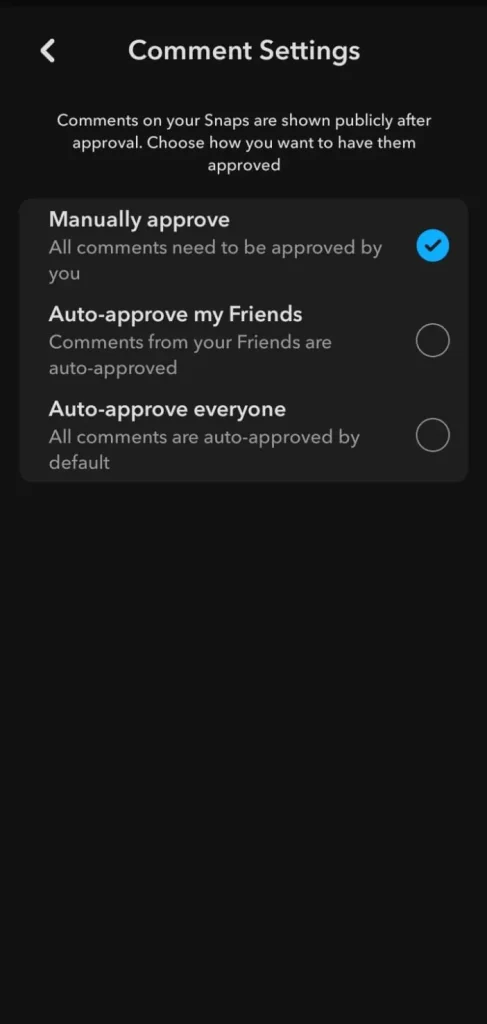
What it says: “Comments on your Snaps are shown publicly after approval.”
Your three exact options are:
- Manually approve (Enabled): All comments need your approval before posting.
- Auto-approve my Friends: Friends’ comments are posted automatically.
- Auto-approve everyone: All comments post automatically.
What to set it to: Keep manually approving for full control over what appears publicly, especially important for creators, brand accounts, and teens.
7. See Me in Find Friends — Your Discoverability Switch
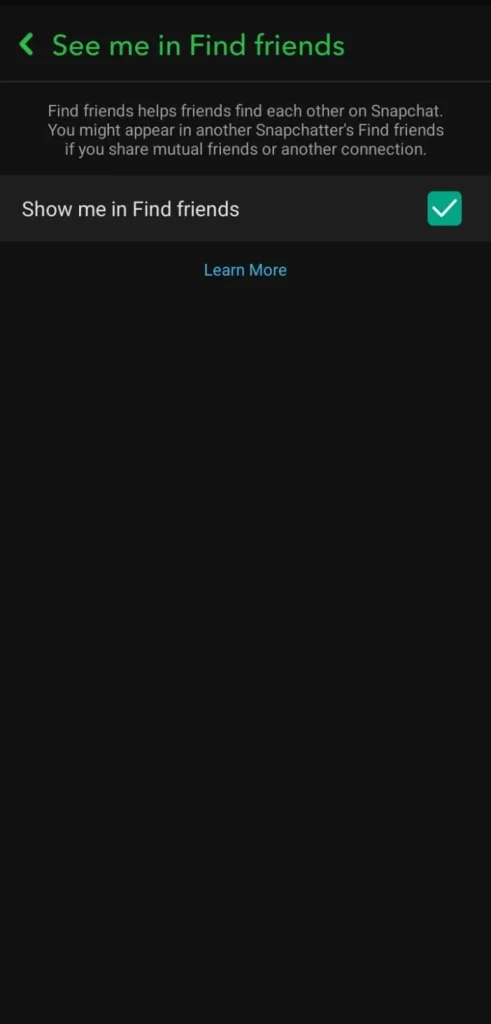
What the app says: “Find friends helps friends find each other on Snapchat. You might appear if you share mutual friends or another connection.”
There is one checkbox:
- Show me in Find friends: Always on.
What is recommended: Untick to turn it off.
When enabled, your profile can appear in strangers’ Find Friends lists through mutual connections or phone numbers. Turning it off makes you undiscoverable to anyone you haven’t added.
For Parents: This is the most critical setting to disable on a child’s account for a secure browsing experience. Also, review the Family Centre section for added control.
If you’re managing Snapchat privacy settings for kids, also look at the Family Centre section below.
8. Activity Indicator — Your Online Status
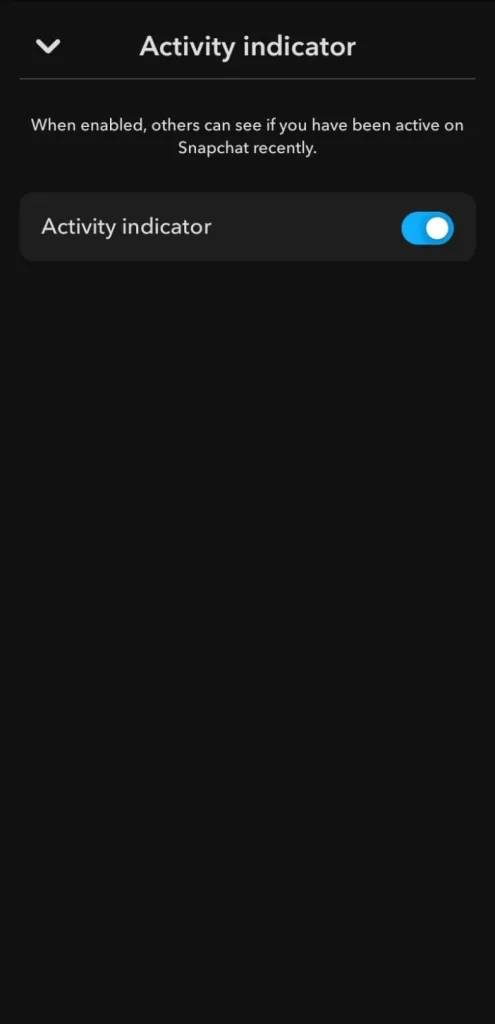
What your app says: “When enabled, others can see if you have been active on Snapchat recently.”
There is one toggle:
- Activity Indicator: ON by default.
Recommended Settings: Turn it off. When enabled, friends (and anyone who can view your profile) can see your recent activity, including when you’re online and what times you use the app. Turning it off hides all of this.
9. See My Location — Real-Time Location on Snap Map
This controls who sees your live location on Snap Map.
Your four options are:
- Ghost Mode: Hides your location completely.
- My Friends: All friends see your location.
- My Friends, Except…: Share with all but exclude specific friends.
- Only These Friends: Share only with selected friends.
What you should opt for: Use Ghost Mode for maximum privacy. If sharing with a small group, use Only These Friends and keep the list limited.
10. Family Centre — Full Parental Supervision Toolkit
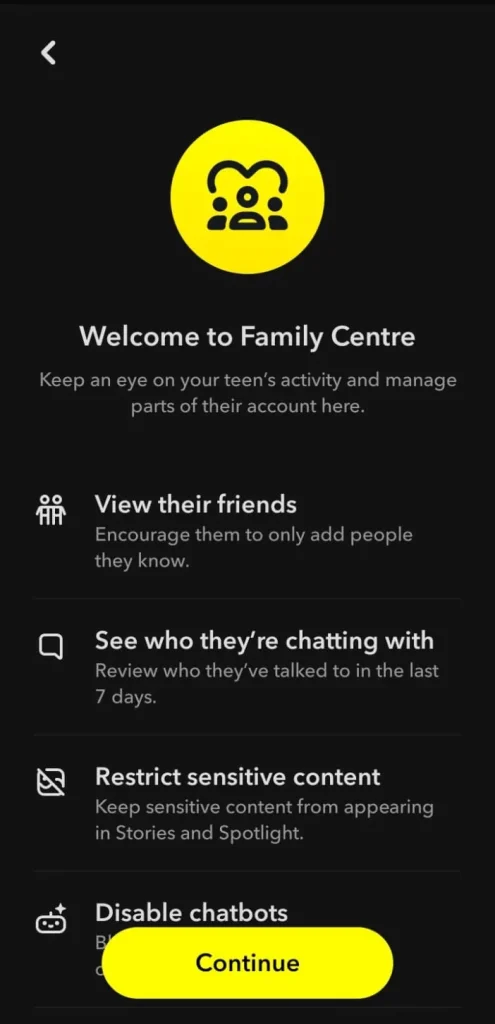
What settings show you: “Keep an eye on your teen’s activity and manage parts of their account here.”
The features listed directly in the app are:
- View their friends: Encourage adding only people they know.
- See who they’re chatting with: Review contacts from the last 7 days.
- Restrict sensitive content: Block Stories and Spotlight with sensitive material.
- Disable chatbots: Restrict AI features, including My AI.
- View their privacy settings: Check key privacy selections.
Recommended use: Set up Family Centre with your teen. They must accept the invitation to link accounts.
Important: Family Centre shows you who your teen chats with, not the message content, preserving privacy.
11. Generative AI Settings — Your Public Content and AI Training
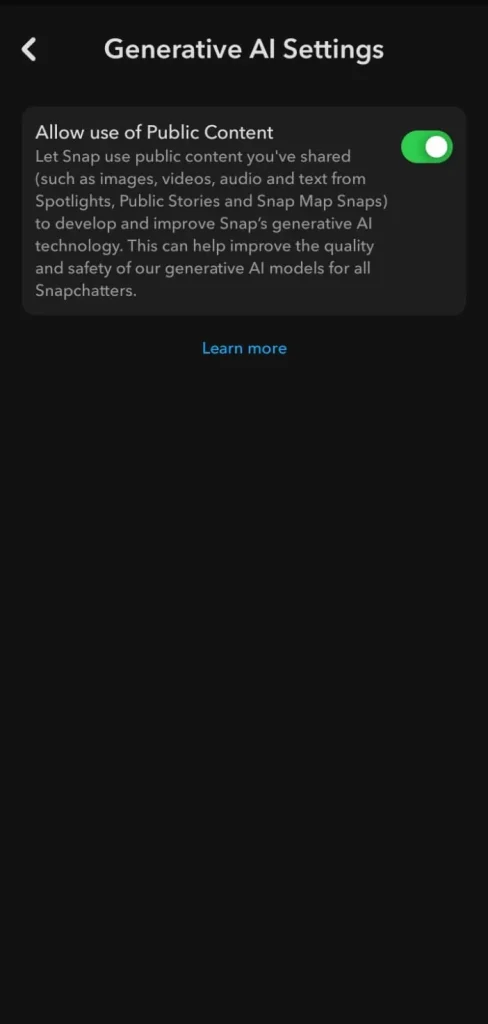
What settings say: “Allow use of Public Content and let Snap use public content you’ve shared to improve Snap’s generative AI.”
There is one toggle:
- Allow use of Public Content: ON by default.
What this actually controls: Only applies to content you’ve shared publicly (Spotlights, Public Stories, Snap Map). Private Snaps and messages are not included.
Recommended setting: Turn it off if you post publicly but don’t want your content used to train Snapchat’s AI. It is relevant for both Snapchat Premium users and Public Profile creators.
12. Memories — How Your Saved Snaps Are Backed Up
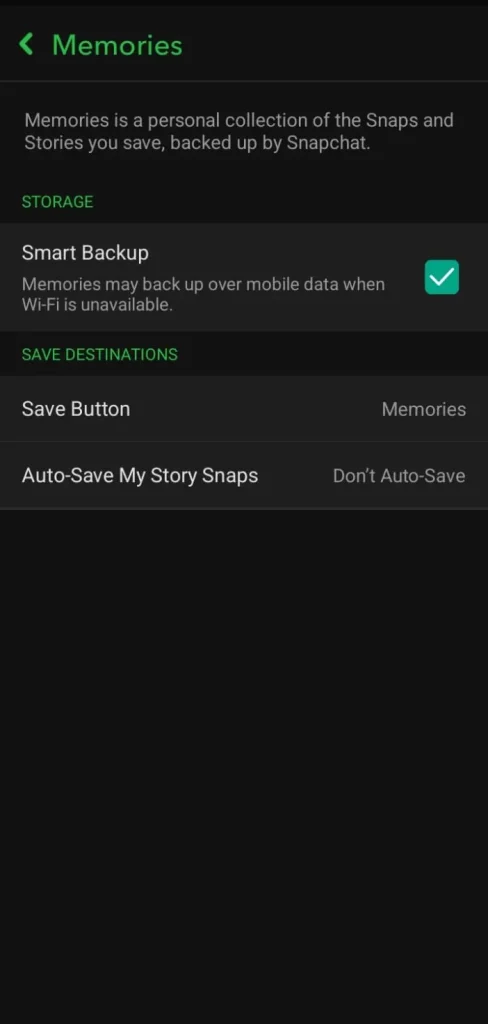
App shows: “Memories is a personal collection of Snaps and Stories you save, backed up by Snapchat.“
Sub-settings:
- Smart Backup (Enabled): Backs up over mobile data if Wi-Fi is unavailable.
- Save Button: Saves to Memories.
- Auto-Save My Story Snaps: Set to Don’t Auto-Save.
Why this matters for privacy: Snaps saved to Memories persist on Snapchat’s servers. Keep Auto-Save My Story Snaps off to avoid unintentionally saving Story content.
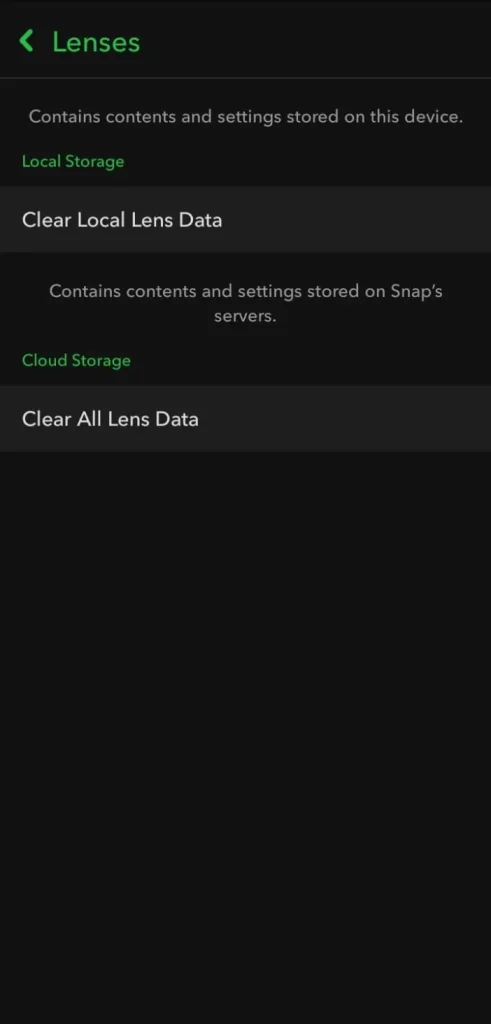
13. Lenses — Clearing Stored AR and Biometric Data
What the app shows is:
- Local Storage: This includes local lens data and removes lens content and settings on your device.
- Cloud Storage: This includes all lens data and removes lens content and settings on Snapchat’s servers.
It matters because: Lens data includes facial recognition and AR usage. Clearing Cloud Storage periodically reduces the data Snapchat holds about your face and AR activity. It’s recommended every few months.
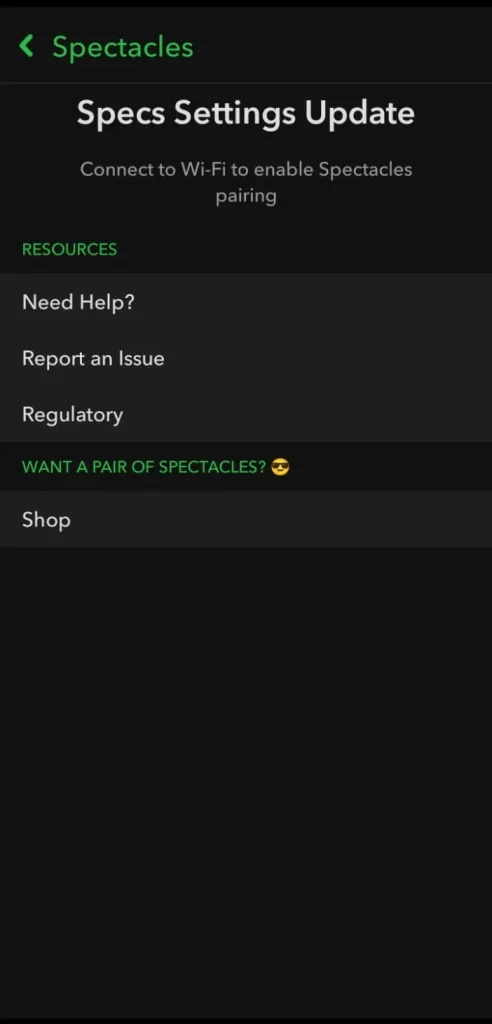
14. Spectacles — Hardware Pairing
The Spectacles section is for pairing Snap’s augmented reality camera glasses with your account. It requires Wi-Fi to enable pairing.
It’s a hardware integration menu, and most people don’t even consider it for privacy control, and they won’t even need to touch this at all.
15. Customize Emojis — What Friend Emojis Actually Mean
App shows: Each Friend Emoji and when it appears. These are visible only to you; no privacy action is needed, but they help track Snapchat activity.
Emoji meanings:
- 🔴❤️ #1 BFF: You both pinned each other as #1 BFF
- 💕 Super BFF: #1 BFF for two months
- ❤️ BFF: #1 BFF for two weeks
- 💛 Besties: #1 Best Friend
- 😊 BFs: One of your Best Friends
- 🤙 Top group: Frequent Snap/Chat group
- 🤖 My AI: Next to your My AI chatbot
- 😬 Mutual Besties: Your #1 BFF is also theirs
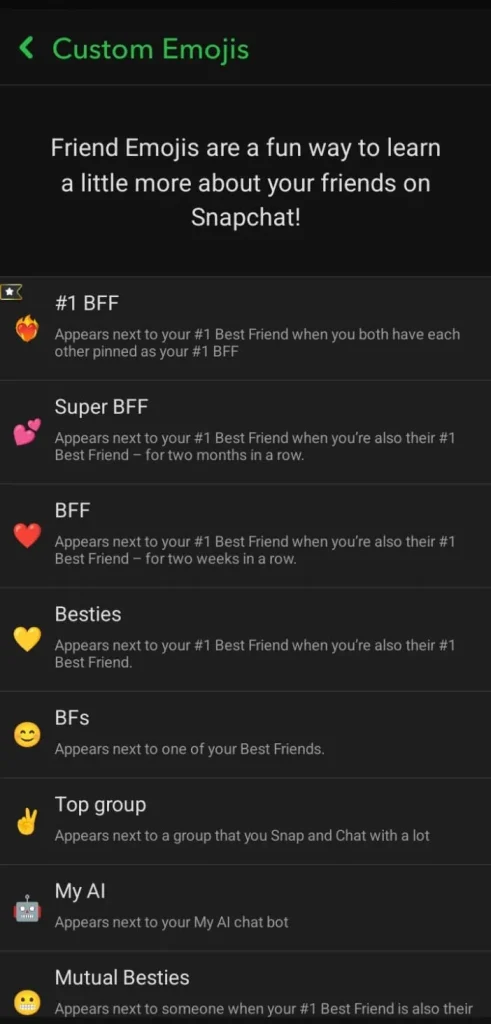
These emojis reflect Snapchat Streaks and interaction levels, with Snap Score growing alongside.
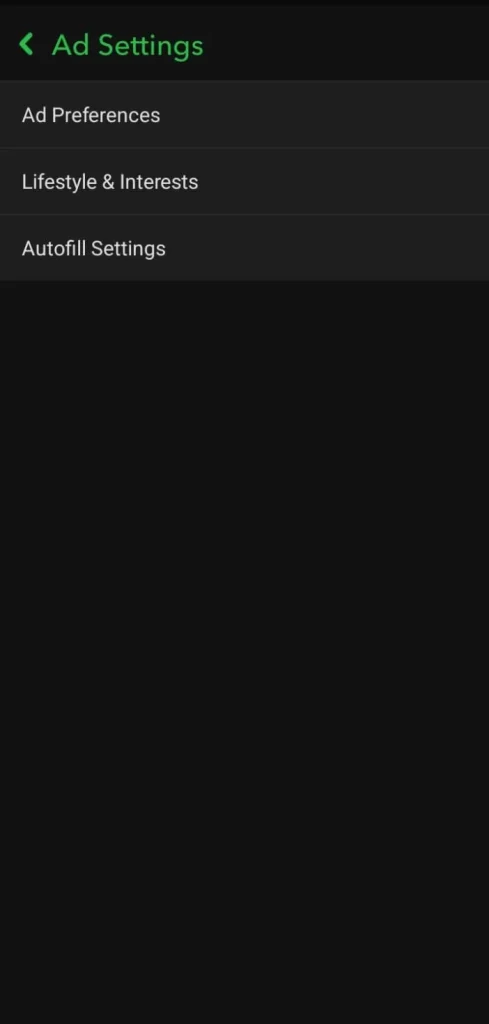
16. Ads — Limiting How Snapchat Targets You
What the app shows inside Ad Settings:
- Ad Preferences
- Lifestyle & Interests
- Autofill Settings
What to do: Review Ad Preferences to see what data Snapchat uses. In Lifestyle & Interests, remove or edit categories assigned based on your activity.
This won’t stop ads, but it reduces how precisely they’re targeted based on your behavior.
17. Data Saver — Not Considered a Privacy Setting, But Worth Knowing
What the app says: “Reduces Snapchat’s mobile data usage. You’ll need to manually load content like Lenses and Snaps.”
This setting does not affect privacy. Enable it if your mobile data is limited; skip it if you’re mostly on Wi-Fi.
When Settings Aren't Enough: Take Immediate Action
Privacy settings protect against passive exposure but can’t stop active threats. Act immediately if you notice:
- Strangers are messaging you despite the Contact Me set to Friends check for unauthorized access.
- Real-time location is being referenced without your consent, review linked apps and location permissions.
- Harassment, threats, or explicit content report via Snapchat’s Safety Centre and contact authorities if needed.
- Unrecognized login activity resets your password, enables 2FA, and revokes third-party access.
- A minor contacted by unknown adults should use Snapchat Trust & Safety and contact NCMEC if necessary.
Take Control of Your Snapchat Privacy: Stay Safe and Confident
Snapchat offers countless features such as Snapchat Plus, love stickers, Streaks, and Memories, but privacy often gets overlooked.
After exploring every setting, I realize how simple adjustments like Ghost Mode, Contact Me, and Family Centre can make a huge difference.
Taking control of your Snapchat privacy ensures you enjoy the app safely and confidently.
People Also Ask
Does Snapchat notify someone if I screenshot their Story?
No. Snapchat only sends screenshot notifications for direct Snaps and Chats, never for Stories.
If I turn off Find Friends, can people still search my username?
Yes. Find Friends controls discovery through mutual connections. Anyone who knows your exact username can still search and add you directly.
Can my teen hide their privacy settings from Family Centre?
No. Once linked, parents can view their teen’s key privacy setting selections directly through Family Centre.
Does deleting a Snap delete it from the other person’s phone too?
Not if they’ve already saved it to Memories or screenshotted it before you deleted it.
Does turning off Activity Indicator affect my Streaks?
No. Your Snapchat Streaks continue normally Activity Indicator only controls your visible online status.