It is 2026, and yet I still see people treating their expensive computers like they are indestructible appliances that never need a bit of love. I get it because life is busy, and your working or gaming laptops or desktops usually work until they suddenly do not.
But here is the thing that I have learned over the years of tinkering with tech. A little bit of proactive care goes a long way in preventing that dreaded blue screen or the agonizingly slow boot times that make you want to pull your hair out.
You do not need to be a software engineer or a hardware guru to keep your machine running like it just came out of the box. Let’s get into the easy computer maintenance tips beginners should follow.
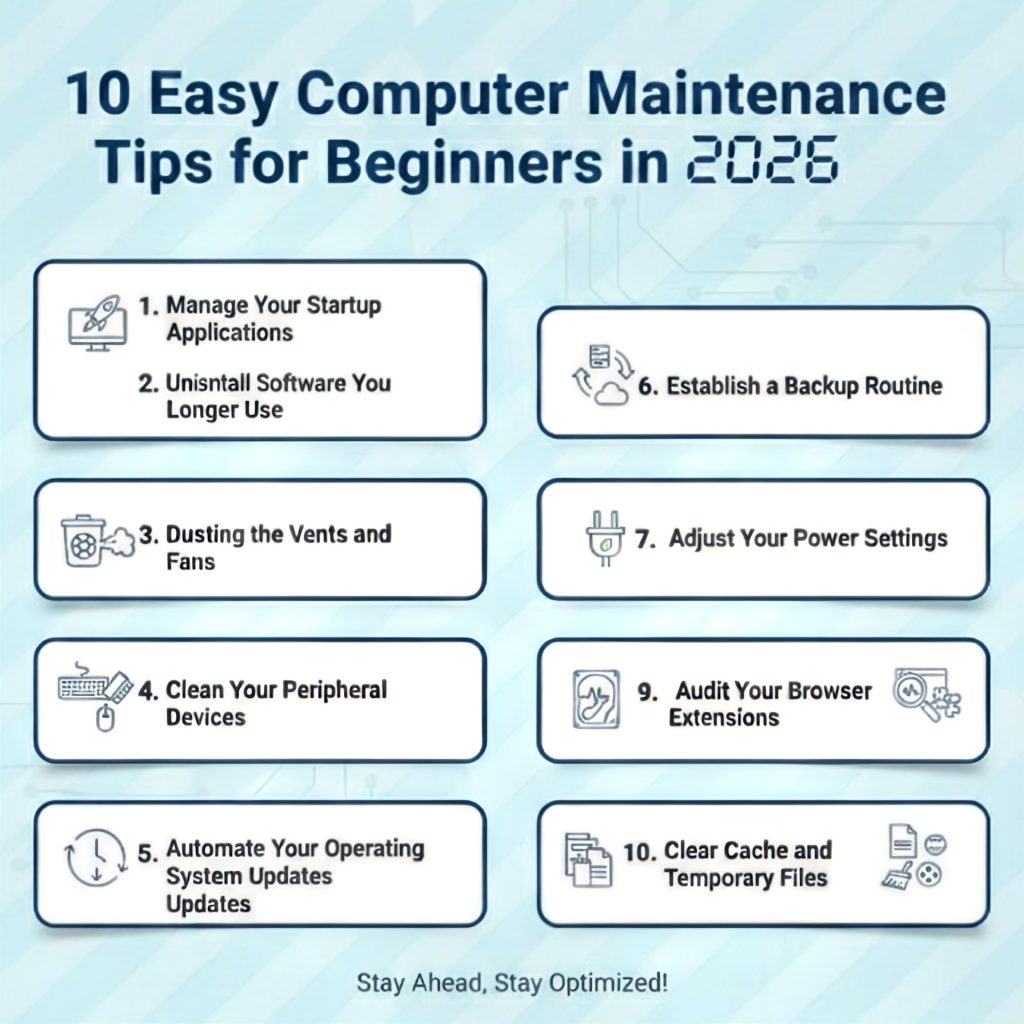
10 Easy Computer Maintenance Tips for Beginners in 2026
In the under section, I am going to take you through 10 simple habits that will extend the life of your computer and keep your digital life running smoothly without any technical headaches.
1. Manage Your Startup Applications
Every time I sit down at a friend’s computer and see twenty different icons pop up in the taskbar the moment they log in, I cringe a little. Each one of those programs is fighting for a piece of your system’s memory and processing power.
I recommend opening your Task Manager or Activity Monitor once a month to see what is permitted to start automatically. If you see a music player or a game launcher that you only use once a week, disable its right to start at boot.
You can still open it manually when you need it, but your computer will start much faster without those anchors weighing it down.
2. Uninstall Software You No Longer Use
I am guilty of this, too, where I download a trendy new productivity and innovative software, app, or game, use it for three days, and then forget it exists. Those programs take up valuable space and often run background services that you do not need.
You make it a point to go through my “Add or Remove Programs” list every season. If you have not opened it in three months, it goes into the trash. Keeping your drive lean helps the operating system find files faster and ensures you have plenty of room for critical updates.
3. Dusting the Vents and Fans
Dust is inevitable regardless of how clean you keep your home. It gets sucked into the intake vents and settles on the sensitive components inside.
I suggest buying a can of compressed air or a small electronic blower. Every few months, shut down your machine and give the vents a good blast. If you use a desktop, pop the side panel off and blow out the dust from the CPU cooler and the graphics card.
Just make sure you hold the fans still while you do this so they do not spin too fast and cause damage. Keeping the airflow clear ensures your components stay within safe temperature ranges.
4. Clean Your Peripheral Devices
Your keyboard and mouse are the parts of the computer you interact with the most. They also happen to be breeding grounds for bacteria and grime.
I have seen keyboards with so many crumbs under the keys that they stop registering presses correctly. Use a microfiber cloth with a tiny bit of isopropyl alcohol to wipe down your mouse and the surfaces of your keys.
For the screen, never use harsh household glass cleaners. A dry or slightly damp microfiber cloth is usually all you need to get rid of fingerprints and smudges without damaging the protective coating of the display.
5. Automate Your Operating System Updates
I know those “Update and Restart” notifications always seem to arrive at the worst possible moment. However, these updates often contain critical security patches that fix holes hackers love to exploit.
I personally set my computer to install updates during my typical sleep hours. This way, the machine handles the heavy lifting while you are away, and you wake up to a secure system. Never let those updates sit for weeks because the longer you wait, the more vulnerable your private information becomes to modern cyber threats.
6. Establish a Backup Routine
Imagine waking up tomorrow and every photo, document, and saved password on your computer is gone.
It is a terrifying thought, but it happens to people every single day due to a drive failure or malware. You should follow the simple rule of having your data in at least two places. You can use cloud storage services for your active files and an external physical drive for a full system image.
In 2026, cloud services are incredibly affordable, and they do the work for you in the background. If your hardware fails, you can simply log in on a new device and pick up right where you left off.
7. Adjust Your Power Settings
Most computers ship with a “Balanced” power plan which is fine for general use. But if you find that your laptop is lagging when you are working on something intense, you should check your power slider.
Switching to “Best Performance” when plugged in allows the processor to run at its full potential. Conversely, if you are traveling, switching to “Power Efficiency” can give you an extra hour of screen time.
I always tell beginners to match their power plan to their current environment to get the most out of their hardware without wasting energy.
8. Check Your Drive Health
Modern Solid State Drives are incredibly fast but they do have a lifespan. You can use simple free tools to check the “Health” or “S.M.A.R.T.” status of your drives once or twice a year.
This gives you a heads up if the drive is starting to wear out before it actually crashes. If you see the health percentage dropping significantly, it is a sign that you should move your important data immediately.
Being proactive about drive health is the difference between a controlled upgrade and a catastrophic data loss emergency.
9. Audit Your Browser Extensions
Extensions are great for adding functionality like ad blockers or grammar checkers, but they all run in the background.
I often find that beginners have ten different extensions installed that they don’t even remember adding. Each one uses a bit of memory and can potentially track your data. I suggest looking through your extension list and removing anything you do not recognize or use daily.
Keeping your browser lightweight will make pages load faster, improve your browsing experience, and reduce the strain on your system memory.
10. Clear Cache and Temporary Files
As you browse the web, your computer saves bits of websites to help them load faster the next time you visit. Over time, these files can become corrupted or simply take up too much space.
I recommend that you should clear browser cookies and cache every month to keep things fresh. It forces the browser to download the latest version of the sites you visit and often fixes weird glitches or loading errors. It is a simple maintenance task that takes thirty seconds but can solve a variety of annoying browsing issues.
Final Thoughts
Maintaining a computer in 2026 does not have to be a daunting task that requires a degree in information technology.
If you can commit to these 10 simple habits, you will find that your technology stays fast and reliable for much longer than you expected. Most of these tips only take a few minutes of your time, but the payoff is a stress free digital experience.
I always tell my friends that a little bit of prevention is worth more than a hundred dollars at a repair shop. Take care of your machine, and it will take care of you.