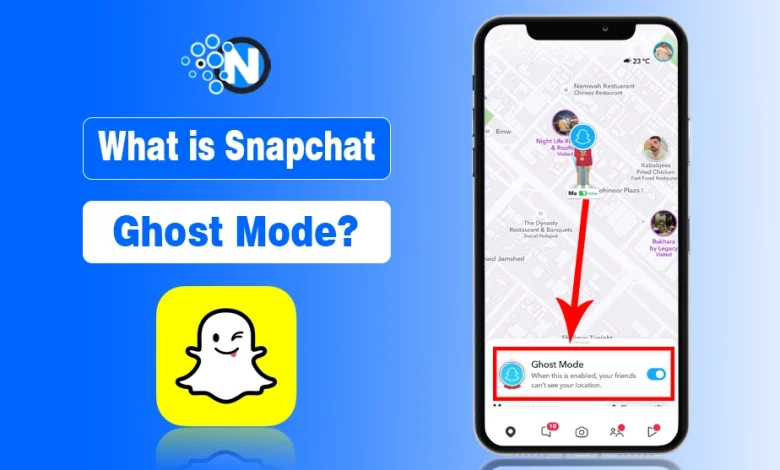
Snapchat Ghost Mode is a privacy setting that hides your real-time location on Snap Map. When it’s turned on, your Bitmoji no longer appears on the map, so friends can’t see where you are or track your movement.
I open Snap Map knowing it updates location automatically, but that doesn’t mean I always want my whereabouts visible. Whether I’m at home, traveling, or just taking a break, Snap Map shares first and asks later. That’s exactly why Ghost Mode matters, it puts location control back in my hands.
It lets me disappear from the map or decide exactly who gets to see where I am. Now, I walk you through how Ghost Mode works and how to turn it on and off on both iOS and Android, so your location stays on your terms, not Snapchat’s.
How You Can Turn on Snapchat Ghost Mode?
Turning on Ghost Mode is simpler than it sounds, and it gives you full control over who can see your location.
Here’s how to do it in a friendly, step-by-step way.
Follow these steps:
iOS Steps to Turn On Ghost Mode
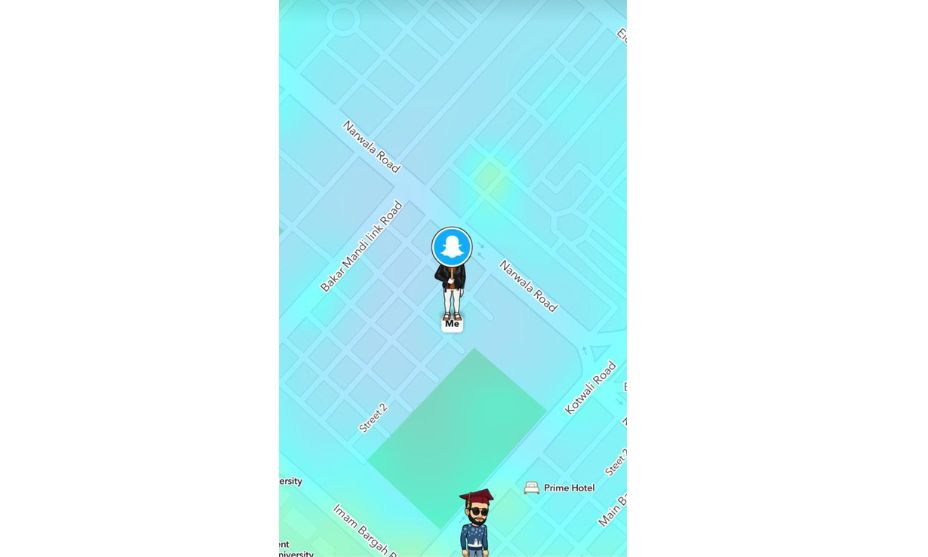
- Open Snapchat and tap your Bitmoji in the top-left corner.
- Tap the Settings icon (gear) in the upper-right corner.
- Scroll to Who Can… and select See My Location.
- Enable Ghost Mode and choose the duration:
- 3 hours
- 24 hours
- Until turned off
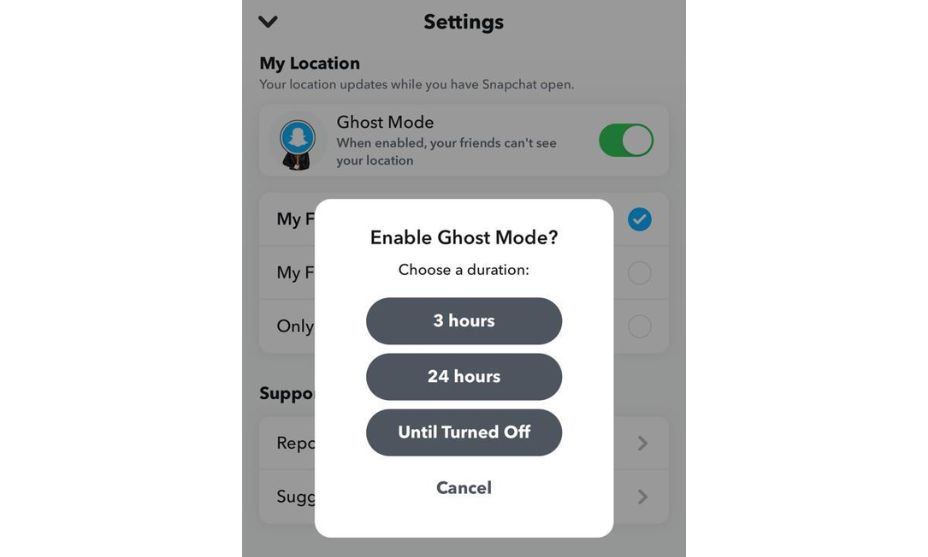
Snapchat allows you to set Ghost Mode for 3 hours, 24 hours, or until turned off. If you have Snapchat Plus, you can access additional options and features for Ghost Mode to customize your location privacy even further.
Even when Ghost Mode is on, your daily interactions continue normally. Features like streaks remain active.
Android Steps To Follow For Snapchat Ghost Mode
- Open Snapchat and tap your profile icon.
- Tap the Settings gear and navigate to See My Location.
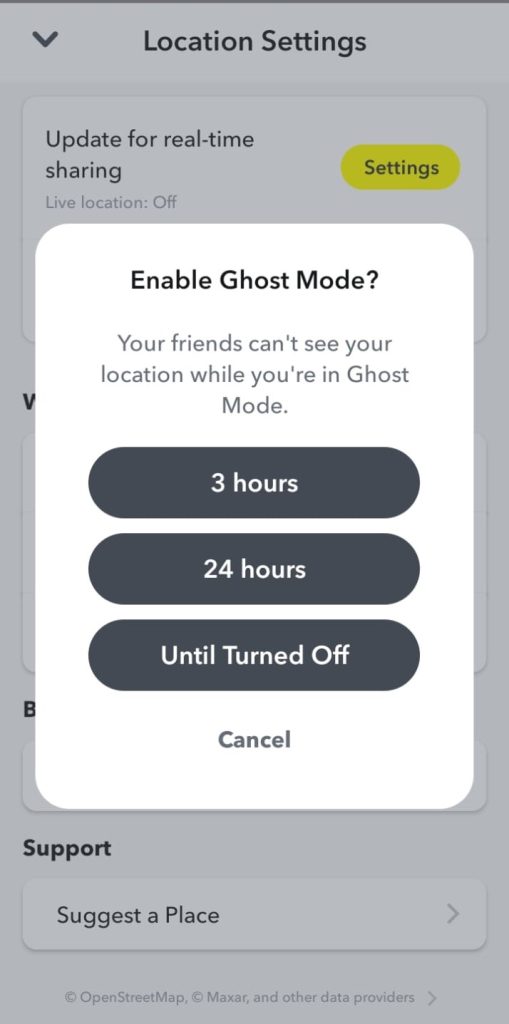
- Turn on Ghost Mode and select the desired duration.
How to Turn off Ghost Mode on Snaptchat
In case you want to share your location publically or with your friends then everyone can know where are you. To turn off ghost mode on snapchat, there is the same procedure of turning on and off to this mode.
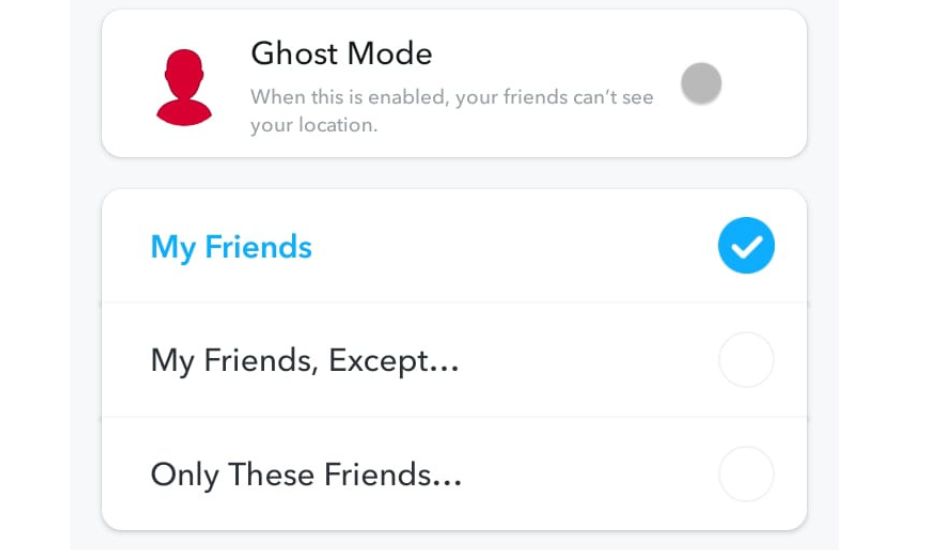
In the same menu, when you turn off the Ghost mode, you get access to select the friends who can see my location,
- My Friends, except those you select
- My Friends, to show all your friend list
- Only these Friends, you select on the app
Change Location Access on Your Mobile for Snapchat
Snapchat requests location access during installation, but you can change it anytime in your device settings. But later, if you feel that the app is viewing your location, you can change it by going to the mobile settings.
Here is the method you can use to turn off the app location from the mobile to hide your location from friends.
- Open the Settings app on your iOS
- Choose the Snapchat option by scrolling down
- Tap on the Location option
- Now you should select Never from Location Access
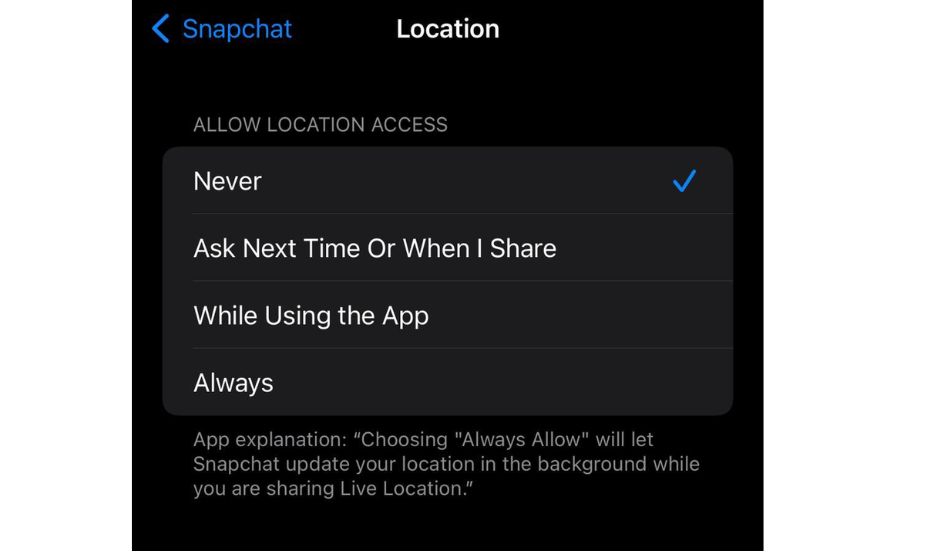
Disabling Snapchat’s location will affect geofilters and local story features. On iOS, you can allow location access only while using the app to stay on Snap Map without sharing your location.
Importance of Snapchat Ghost Mode
Ghost Mode matters because it puts you in control of your location. With it, your friends can’t see where you are unless you allow them. This is useful if you want privacy at home, at work, or when traveling.
It also helps manage who can reach you, you won’t get unwanted location requests, and you can choose exactly which friends, if any, can see where you are.
In short, Ghost Mode lets you use Snapchat freely without worrying about being tracked, while staying connected only with the friends you choose.
FAQs
What happens when you turn on ghost mode on Snapchat?
Ghost mode is the privacy feature and when you turn on ghost mode on Snapchat your location will hide from Snapchat and no one can track where are you now.
Does Ghost Mode show the last location?
After you turn on ghost mode on Snapchat your location identity will disappear from Snapchat and sometimes it takes 24 hours however no one will be able to see your last locati
Does Ghost Mode hide your Snap score?
No, ghost mode does hide the snap score it only hides the location of the user.
Can we see friends’ locations on Ghost mode?
Ghost mode only hides the user location who have turn on ghost mode but you are still able to see other friends locations who have not turn on the ghost mode.