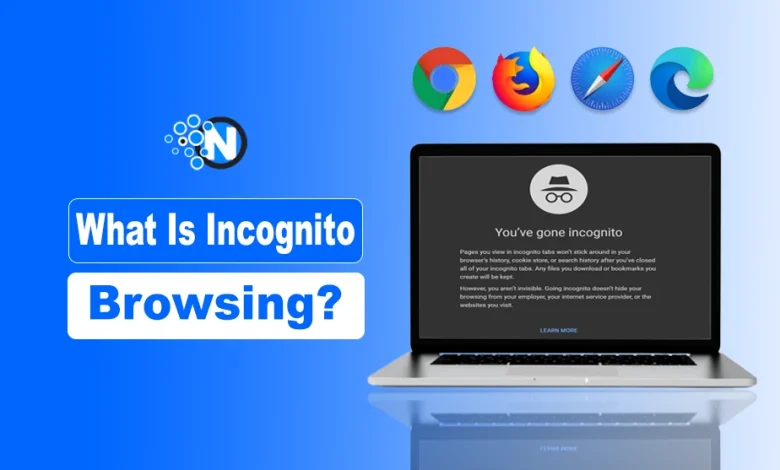
Incognito browsing, also known as private or in private mode, is a web feature that lets users surf the Internet without leaving traces of their browsing history, cookies, or temporary files. When you browse incognito, your browser doesn’t save your history, cookies, or search queries. Incognito Mode protects your web activity from unauthorized access, preventing anyone from seeing your visited websites or search results.
This mode is available across major browsers including Google Chrome, Mozilla Firefox, Safari, and Microsoft Edge, making it accessible for all users seeking privacy.
Therefore, if privacy and security are important to you – this is an ideal option for keeping your activities hidden!
In this article, I’ll show you how to start browsing incognito in Google Chrome, Safari, Firefox, and Edge, its pros and cons, and its differences from the VPN.
Let’s start with what does inprivate browsing mean (Incognito Browsing)!
What is Incognito Browsing?
Incognito browsing provides a layer of privacy for online users, preventing browsers from storing search history, cookies, and site data, while helping maintain anonymity on shared devices. Also known as private or in private browsing, this feature makes it possible to traverse the web without leaving a single trace of your digital footprint. Now everyone has the opportunity to protect their data and remain anonymous while surfing the internet by utilizing an incognito browser window.
The feature was first introduced by Google in 2008 as a part of their Chrome web browser and has since been adopted by other popular web browsers like Mozilla Firefox, Safari, and Microsoft Edge.
Incognito browsing is a straightforward concept. With this feature enabled, your browser will never store any data or files associated with your web sessions. No search history, cookies, or temporary documents will remain intact. As a result, any website you visit won’t be able to track your online activity or collect any information about you.
How Does Incognito Browsing Work?
Let’s explain how does private browsing work!
Incognito browsing is enabled by using your browser’s privacy mode. When it’s activated, your browser won’t save any cookies or other data on your computer that could be used to track you. It also prevents websites from recording your activities and collecting information about you.

During normal browsing, websites store information like browsing history, cookies, and temporary files. Incognito mode prevents your browser from saving this data locally, ensuring that websites cannot track your activity through stored cookies or cache files. With this information, you can personalize your web browsing experience by remembering your preferences and permitting features like auto-fill.
Nevertheless, it is critical to remember that while incognito mode can provide some measure of privacy, it cannot guarantee complete anonymity. Your internet service provider (ISP) or network administrator may still be able to track your activity, and any websites you visit can still collect information about you if they have the means to do so.
1. Privacy:
The most obvious benefit of incognito browsing is that it allows you to browse the web without leaving any trace of your online activity. This can be particularly useful if you’re using a shared computer or are concerned about others seeing your browsing history.
2. Security:
Incognito browsing can also provide an extra layer of security. It can help protect your online identity by not storing any cookies or other data and making it more difficult for malicious websites to track your activity.
3. Testing:
Incognito browsing can also be useful for testing websites. You can ensure that your browsing history and cookies don’t interfere with the website’s functionality by browsing in incognito mode.
Limitations of Incognito Browsing
While incognito browsing can be useful in many situations, it’s important to note that it’s not a complete solution for online privacy. Here are some limitations to keep in mind:
1. ISP and Network Monitoring
Even in incognito mode, your ISP, network administrator, or organization can monitor your online activity. Incognito browsing does not provide full online anonymity or hide IP addresses. This means that if you’re browsing on a public or work network, your activity may still be monitored.
2. Website Tracking
While incognito browsing prevents websites from storing cookies and tracking your activity, it doesn’t prevent other forms of tracking like IP tracking or browser fingerprinting.
3. Third-Party Tools
Some third-party tools like keyloggers and spyware can still track your activity, even if you’re browsing in incognito mode.
Does Incognito Browsing Hide IP Addresses?
Incognito browsing does not hide your device’s IP address; it only prevents the browser from saving history, cookies, or site data locally. For IP masking, use a reputable VPN or proxy server. When you browse the internet, your computer or device is assigned a unique IP address, which is used to identify your location and device. Incognito browsing only prevents your web browser from storing information about your browsing history, cookies, and temporary files on your device.
Your internet service provider (ISP) and other third parties can still see your online activities even when you use this VPN. If you want to hide your IP address, you would need to use a virtual private network (VPN) or a proxy server.
<strong>How to Incognito Browsing into different browsers?</strong>
Here’s a step by step guide to enable incognito or private browsing across major web browsers including Chrome, Firefox, Safari, and Edge.
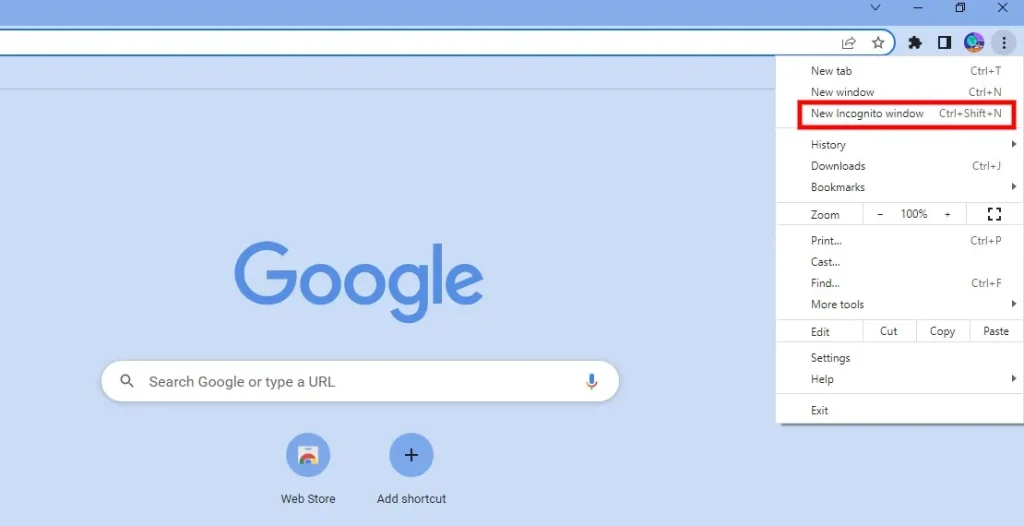
1. Google Chrome:
- Open Chrome and click on the three dots in the top right corner of the window.
- Select “New incognito window” from the drop-down menu.
- A new window will open with a message indicating that you are browsing in incognito mode.
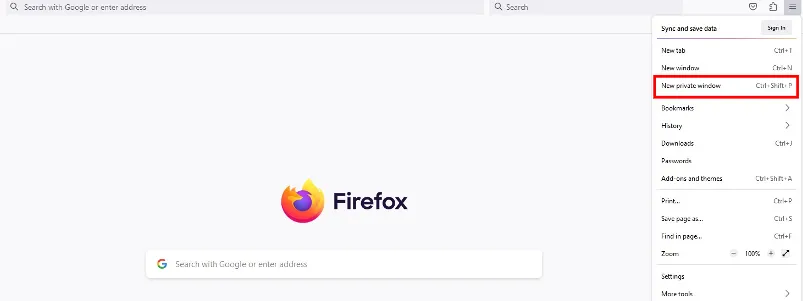
2. Mozilla Firefox:
- Open Firefox and click on the three lines in the top right corner of the window.
- Select “New Private Window” from the drop-down menu.
- After clicking the privacy button, you will be directed to a new window that confirms your private browsing mode.
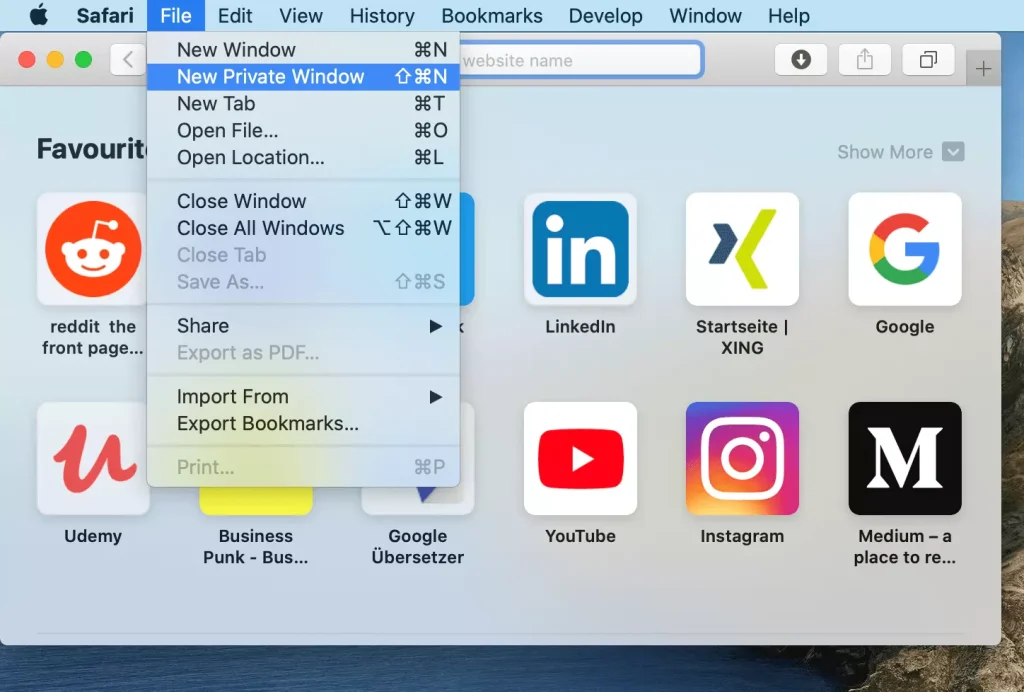
3. Safari:
- Open Safari and click on “File” in the top left corner of the screen.
- Select “New Private Window” from the drop-down menu.
- A new window will open with a message indicating that you are browsing in private mode.
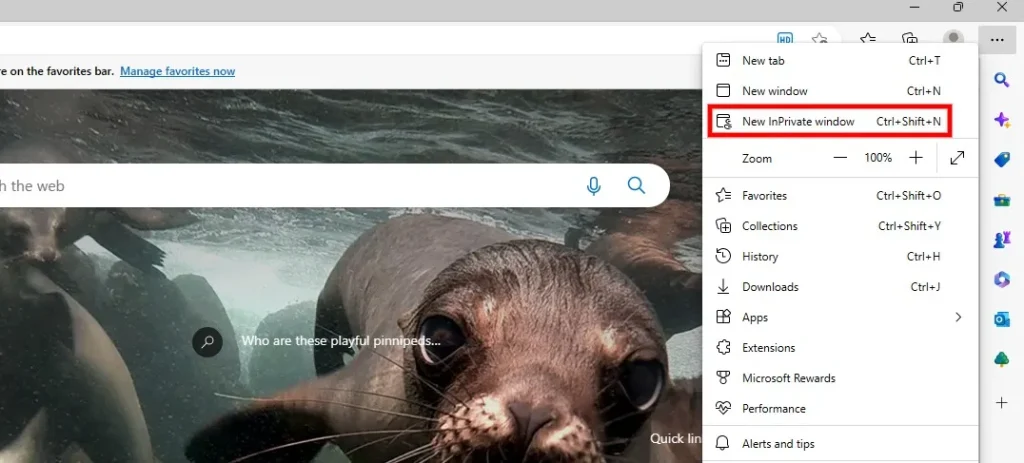
4. Microsoft Edge:
- Open Edge and click on the three dots in the top right corner of the window.
- Select “New InPrivate window” from the drop-down menu.
- A new window will open with a message indicating that you are browsing in InPrivate mode.
Note that the exact steps for enabling incognito mode may vary depending on the version of the web browser you are using. In general, you can also use keyboard shortcuts to open an incognito window. For example, in Google Chrome, you can press Ctrl+Shift+N (Windows) or Command+Shift+N (Mac) to open a new incognito window.
<strong>VPN Vs Incognito Browsing</strong>
VPNs and incognito browsing serve different privacy purposes: while incognito mode prevents local storage of cookies and browsing history, a VPN encrypts your internet traffic and hides your IP address for enhanced online anonymity.
Incognito browsing is a feature available, into many web browsers, including Chrome, Firefox, Safari, and Edge. When you browse in incognito mode, your browser does not store information about your browsing history, cookies, or temporary files on your device.
A VPN, or virtual private network, is a service that allows you to create a secure, encrypted connection to the internet. Virtual private networks (VPNs) encrypt all of your data transmissions and mask your IP address by redirecting them through a distant server.
While incognito browsing can be useful for protecting your privacy on a shared device, it is not a reliable way to protect your online activity from being monitored by your ISP or other third parties. A VPN is a more comprehensive tool for protecting your online privacy and security and can be particularly useful if you frequently use public Wi-Fi networks or need to access sensitive information while traveling.
Keep in mind that no matter how good your VPN is, it won’t be able to shield you from every online threat or ensure ultimate anonymity. It’s important to choose a reputable VPN provider and to follow best practices for online security, such as using strong passwords, keeping your software and security tools up to date, and avoiding suspicious or untrusted websites.
Summing Up
Incognito or private browsing provides local privacy by not storing browsing history, cookies, or site data on your device, but it does not protect against ISP monitoring or website tracking. While it’s a handy feature for minimizing traces on your device, it’s not a shield against tracking, websites, employers, or internet providers may still monitor your activity.
Summing Up
What does private browsing do?
Private browsing or “Incognito Mode” prevents your browser from saving your search history, cookies, site data, and form inputs. It helps when using shared computers or checking sensitive information.
What does incognito browser mean?
An incognito browser refers to a browser session that operates in private mode. It lets you surf the web without:
- Keeping track of cookies once the window is closed
- Saving browsing history
- Retaining login credentials (unless manually saved)
How safe is incognito browsing?
Incognito browsing provides local privacy, but not full online anonymity. For greater protection, consider VPNs, tracker blockers, and secure search engines.
How to stop incognito browsing on Chrome?
To stop Incognito browsing in Google Chrome, simply restart the browser. It will close the incognito window and take you back to normal browsing.
Is incognito browsing completely anonymous?
Incognito browsing prevents local data storage but does not guarantee complete online anonymity. A VPN is recommended for full privacy.
Which browsers support incognito mode?
Google Chrome, Mozilla Firefox, Safari, and Microsoft Edge all support incognito or private browsing modes.
Can I use incognito browsing on mobile devices?
Yes, most modern smartphones and tablets support private browsing through their respective browser apps.