How to Hide Your Facebook Friends List in a Few Simple Steps

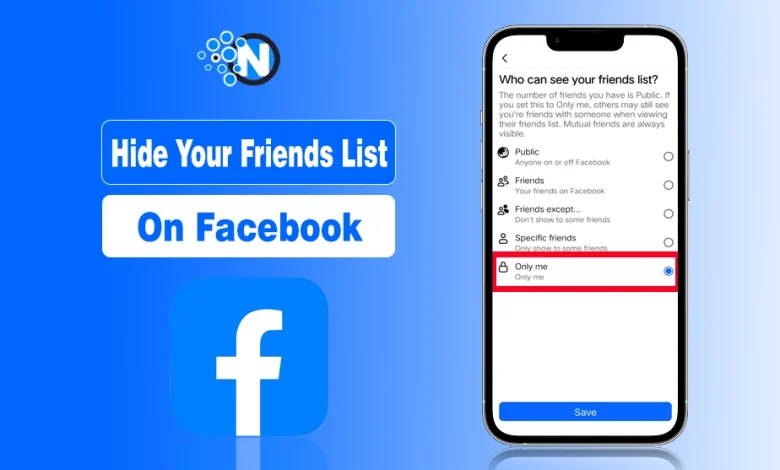
You can easily hide your friend list on Facebook by navigating to “settings and privacy” and changing the option under “Who can see your friends list” to “Only me”.
Facebook offers different visibility options for your friend list. For instance, you can hide it from everyone or from specific friends. However, the exact steps to do so depend completely on your privacy preferences.
This step-by-step guide will show you how to do this on the Facebook mobile and desktop apps. Let’s get straight into it.
Why Need To Hide Your Friends on Facebook?
Facebook users might want to hide their friendlist from the public eye due to several personal and privacy related issues. The most common reasons include:
- Protection of their privacy: Some users want their personal connections and social circles to remain hidden from strangers.
- Prevent Identity Theft & Scams: Scammers can create fake profiles and send friend requests to your connections, pretending to be you.
- Professional Boundaries: People don’t want their coworkers or business contacts to see who they’re friends with outside of work.
- Protect Friends’ Privacy: At times, your Facebook friend might not want their profile to be visible to your whole network.
- Control Your Digital Footprint: The less information is visible, the more control you have on your online presence.
How to Hide Your Friends on Facebook Using Privacy Settings
By default, your Facebook friend list is publicly visible. So anyone on the internet can see with whom you are socially connected, and you may want to hide it. However, you can use the privacy settings of your Facebook account to get the job done.
You can hide your friend list from everyone, and if you want, you can just hide it from a specific friend or group of friends. Below are the step-by-step breakdown of each method, and you can choose the desired one. If you also want more privacy while browsing, learning how a Facebook Story Viewer works can help you watch stories without notifying the other person.
Hide Your Friends List on Facebook Using Mobile App
If you are using the Facebook mobile app and want to make your friends list private from everyone, just follow the simple steps mentioned below:
- Open the Facebook App: Launch the app and ensure you are logged into your account.
- Open the Menu: Tap your Profile Picture or the three horizontal lines (Menu icon) in the corner of the screen.
- Go to Settings: Scroll down to Settings & Privacy, then tap the Settings option.
- Find Audience and Visibility: Scroll down to the Audience and Visibility header.
- Select Contact Preferences: Tap on How people find and contact you.
- Locate the Friends List Setting: Tap the section Who can see your friends list?
- Set to Private: Then select Only Me to hide your list from everyone.
Pro-Tip: If you want to hide it from specific people only? Then, in the final step, instead of selecting “Only Me,” choose “Friends except…” This allows you to select specific individuals who will be restricted from seeing your friends list.
Hide Your Friends List on Facebook Using Desktop
For those who are accessing Facebook from desktops, below is the simple method you need to follow to hide your friend list from everyone on the internet:
- Open Profile: Click your Profile Picture in the top right, then click your name.
- Go to Friends: Select the Friends tab from the menu bar below your cover photo.
- Manage Settings: Click the three dots (…) icon on the far right of the Friends section.
- Select Privacy: Select the Edit Privacy option from the dropdown menu that appears.
- Lock the List: Find the section Friends List and click the audience selector button.
- Choose Only Me: Select Only Me from the list of options
- Save: Click Done to apply your changes instantly.
Pro-Tip: To hide the list from certain people only, you can choose “Friends except…” or “Specific friends” in the audience selector. This allows you to filter specific friends from viewing your social connections.
Effects of Hiding Facebook Friends on Reach or Engagement
Many users worry that tightening their privacy settings will “shadowban” their account or lower their post views. The simple answer is no. Hiding your friends list is a private display setting and has almost zero impact on the Facebook algorithm.
- Your reach stays the same: Your posts will still appear in your friends’ feeds exactly as they did before.
- Engagement is unaffected: You will still receive likes, comments, and shares based on your individual post privacy settings.
- Safety without sacrifice: You get the benefit of privacy from strangers without losing any visibility with your actual friends.
Troubleshooting: Friends List Still Visible After Hiding
If your list still appears after changing your settings, it is usually due to one of these four reasons:
- Mutual Friends: Facebook always shows mutual connections. Even if your list is hidden, people will still see the friends you both have in common.
- “View As” Check: You will always see your own friends list. To see the truth, click the three dots on your profile and select View As to see what the public sees.
- Active Professional Mode: If Professional Mode is on, your “Followers” list may still be public. You must adjust follower visibility separately in your settings.
- App Sync Delay: Privacy changes can take a few minutes to update across all servers. Try logging out and back in to force a refresh of your profile settings.
Final Thoughts
Hiding your friend list on Facebook is indeed a great move for maintaining your online privacy. Whether you are using the mobile app or the desktop version, you can easily hide your social connections by following the simple steps covered above.
Remember, while this setting hides your full list, mutual friends will always remain visible. Staying on top of these small settings ensures you can enjoy social media without compromising your personal security. Users who hide their friends list for privacy often also want to control their identity, and this guide on how to post anonymously on Facebook explains how to share without revealing personal details.
<strong>People Also Ask</strong>
Can I make my Facebook private from friends?
Yes, you can customize your privacy settings to “Only Me” or “Specific Friends” for almost everything you post, including your profile details and friends list.
Why can’t I see someone’s friend list on Facebook?
If you can’t see their list, it means they have set their “Who can see your friends list?” privacy setting to “Only Me” or a restricted group.
Can I see who unfriended me on Facebook?
Facebook does not send notifications for unfriending; you can only find out by manually checking your friends list or visiting that person’s profile.
Can you tell if someone keeps looking at your Facebook profile?
No, Facebook does not allow you to see who views your profile, and any third-party app or “hack” claiming to do so is likely a scam.
Can everyone see my Facebook friends?
By default, your friends list is usually Public or set to “Friends,” but you can change this at any time in your privacy settings.