How to Fix Fatal Device Hardware Error Easily and Quickly [Full Guide]

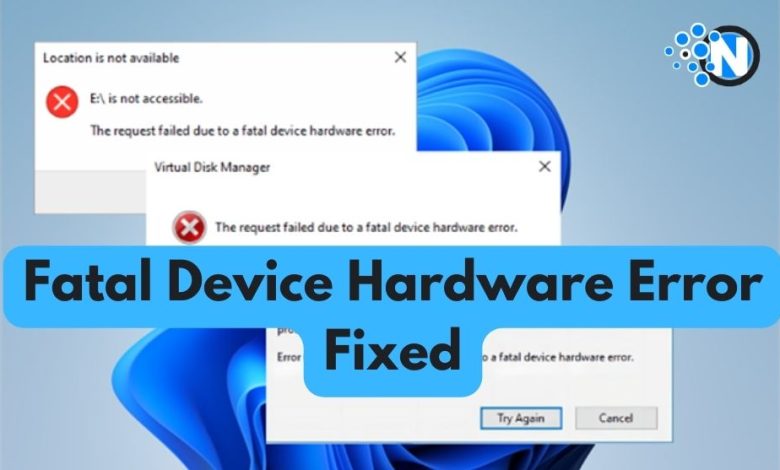
A ‘fatal device hardware’ error on your WD or Seagate external hard drive indicates a hardware issue. This problem often occurs during file transfers or OS installations on a malfunctioning internal/external storage device. You might also encounter messages like ‘X: is not accessible’ or ‘error 0x800701e’ accompanied by this hardware issue.
However, if your drive isn’t physically damaged, you can fix this error on your own using the solutions covered in this article. There’s also a bonus tip to recover lost data from the drive with the fatal hardware error. So, keep reading till the end!
Part 1: Quick Fixes for the Request Failed Due to a Fatal Device Hardware Error
When you encounter the ‘the request failed due to fatal device hardware’ error, first perform some basic checks. It might just save you some time. Here they are:
Fix 1: Check the USB Cables and Ports
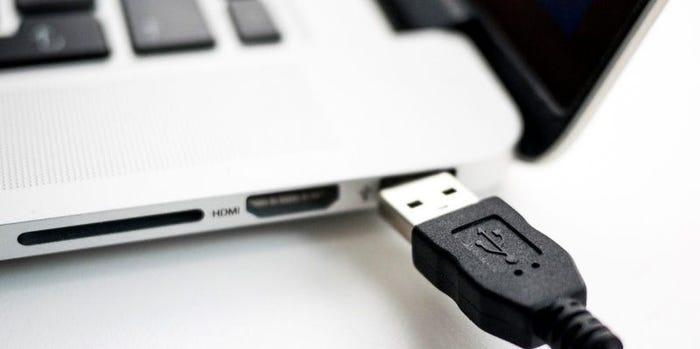
If your hard drive shows a ‘fatal hardware error has occurred,’ it might be due to loose connections or faulty cables. Make sure the device is connected correctly, and the cable is snug. If connections are loose, push them back in firmly.
But if the cable is damaged, swap it out for a new, high-quality USB cable. Test different ports to rule out port issues. Also, connect the drive to another computer to check whether the problem is with the PC or the disk.
Fix 2: Check the Drive’s SMART Status
To determine if error 0x800701e3 is due to a physically damaged drive and to gauge the issue’s severity, you can examine a drive’s SMART attributes. Follow the steps below to help you through it:
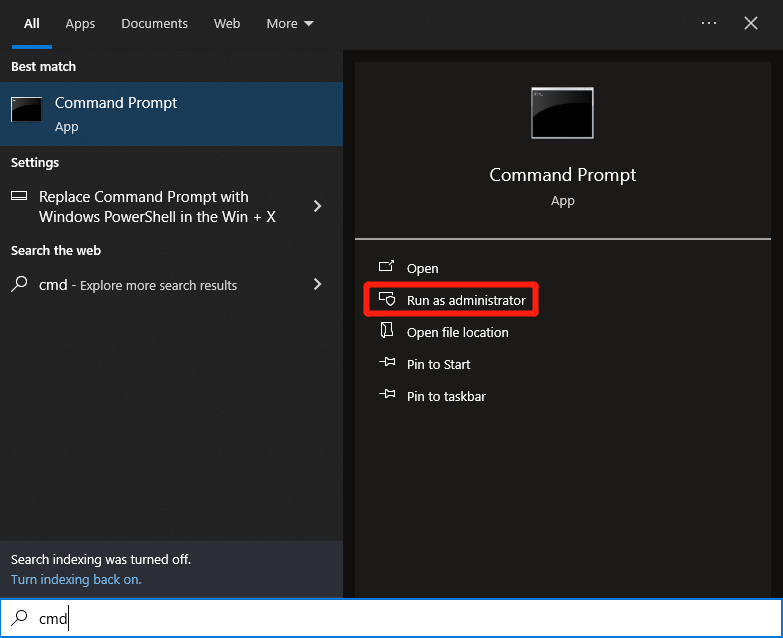
Step 1: Type “cmd” in the search box, right-click, and open the “Command Prompt” as admin.
Step 2: Type in “wmic diskdrive get status” and press “Enter.
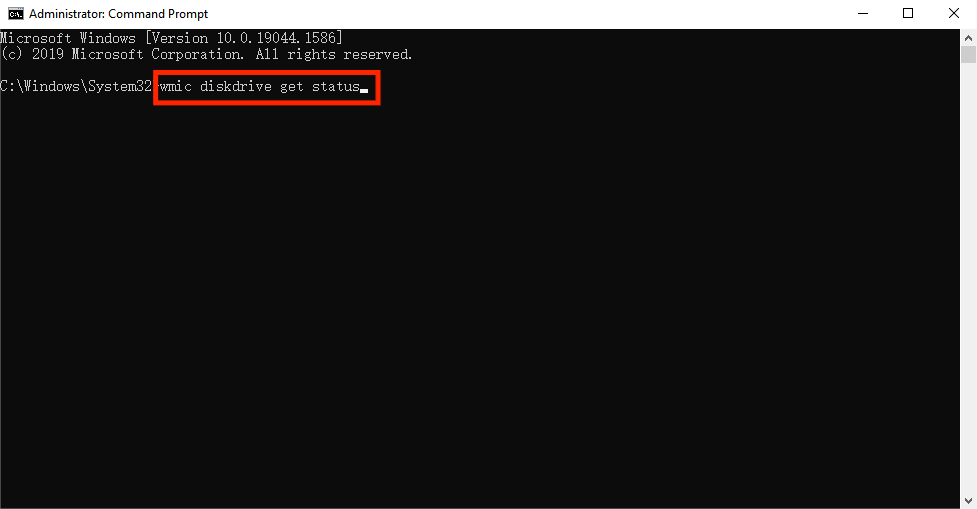
If everything comes back as “OK,” your device has no issues and is not physically damaged. But if the results come back as “Bad” or “Caution,” we strongly advise sending your drive for manual repair to fix the ‘fatal device hardware’ error.
Bonus Tip: Recover Lost Data From the Drive With a Fatal Device Hardware Error
As we know from above, a ‘fatal device hardware’ error makes the storage device inaccessible. If that happens, this means you can no longer access your data. So, how do we recover it? The good news is a third-party tool like 4DDiG Data Recovery can retrieve data from corrupted, damaged, or formatted internal/external storage devices. Be it audio, videos, documents, images, or archives, it can recover them regardless of their condition. This tool offers:
- Retrieve files from lost partitions, crashed, unbootable, or virus-infected systems.
- Recover data from digital cameras, drones, NAS storage, USBs, SD cards, hard disks, etc.
- Retrieve permanently deleted, inaccessible, unsaved, or hidden files.
- Supports recovery of 2000+ file types.
- It offers a high recovery rate, maintains data integrity, and prevents loss.
- Search filters and categories for targeted search and recovery.
- Free version available and easy to use.
Check out the steps below to use this tool to recover data lost from your drive due to ‘the request failed due to a fatal device hardware’ error:
Step 1: Download, install, and launch the tool on your PC and choose the disk with the fatal hardware error. Click “Start.” You can also select target file types before scanning.
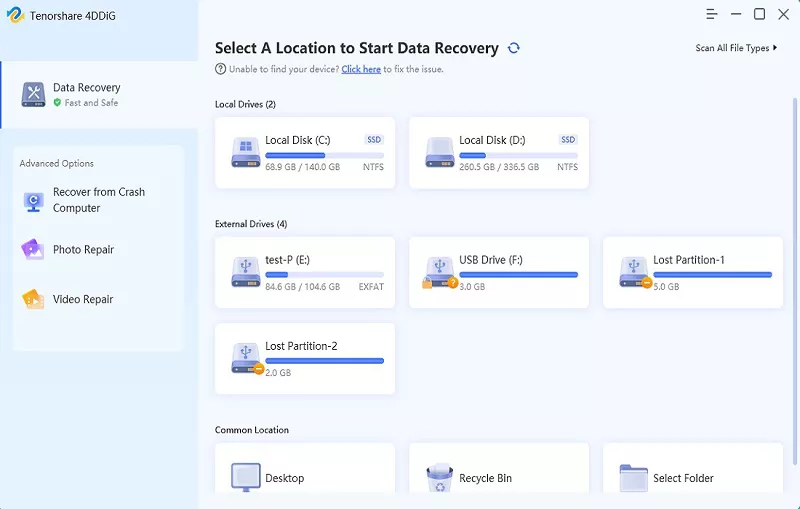
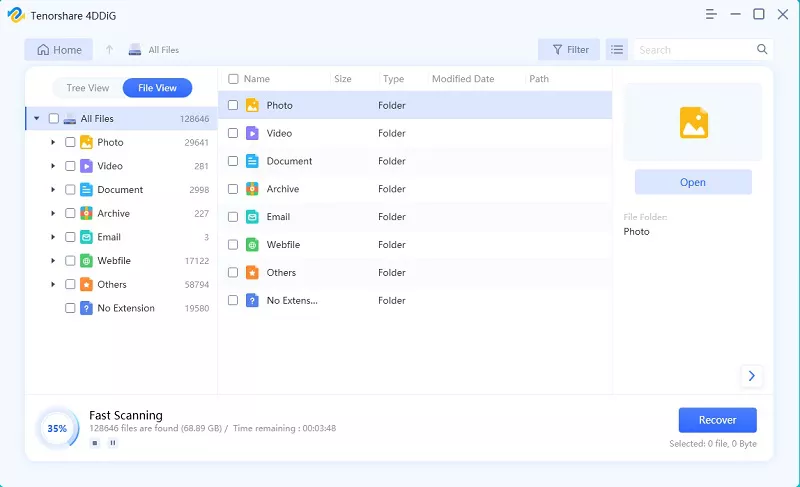
Step 2: The tool will scan the chosen drive for lost data, and you can pause or stop the process anytime. You can preview Deleted Files, Lost Location, etc, in the “Tree View.” Switch to “File View” to check specific file types, or use the search or filter options to narrow your search.
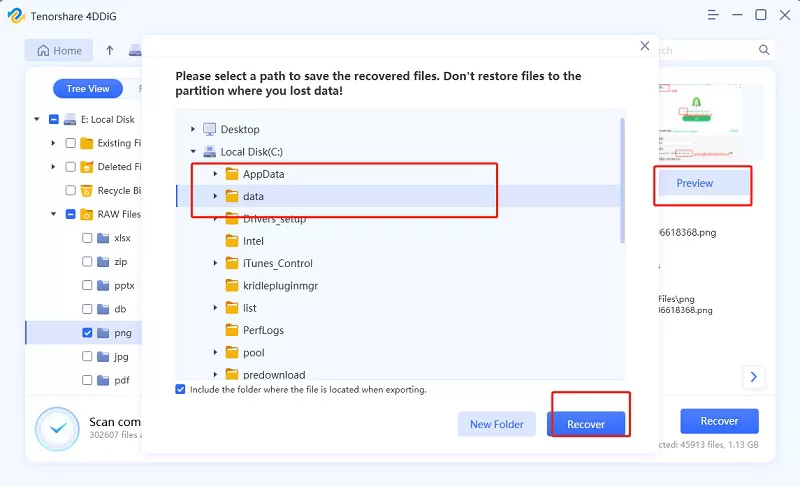
Step 3: Once you find the lost files, preview and recover them to a safe location. Avoid saving them to the same partition to prevent overwriting and permanent data loss.
Part 2: Advanced Solutions for the Request Failed Due to a Fatal Device Hardware Error
Quick fixes might not always resolve the ‘fatal device hardware’ error. Once you’ve recovered data from the problematic disk, if you’re comfortable with advanced tech solutions, give them a shot.
But keep in mind these methods could result in data loss. However, if you’ve recovered the data, you can try them without worries. Here are six solutions to fix the ‘the request failed due to a fatal device hardware’ error:
Fix 3: Change the Drive Letter
When the OS tries to access a storage device using a drive letter already assigned to another device, it could result in a ‘fatal hardware error has occurred.’ Although the OS changes the letter to prevent conflicts, sometimes it fails to do so. If that happens, you can change the drive letter manually to resolve this issue:
Step 1. Press the “Win + X” keys and right-click on “Disk Management” to launch it.
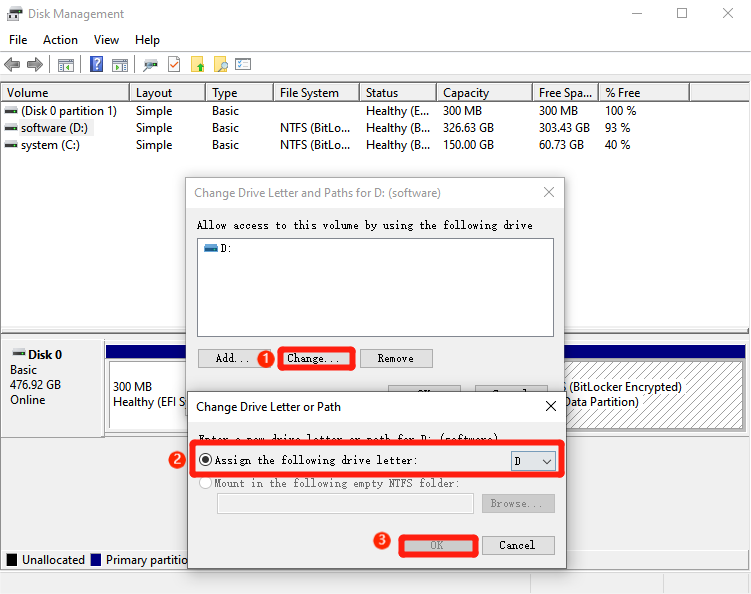
Step 2: Right-click on the partition whose drive letter you wish to change. Choose “Change Drive Letter and Paths…,” select the drive name, and press “Change.”
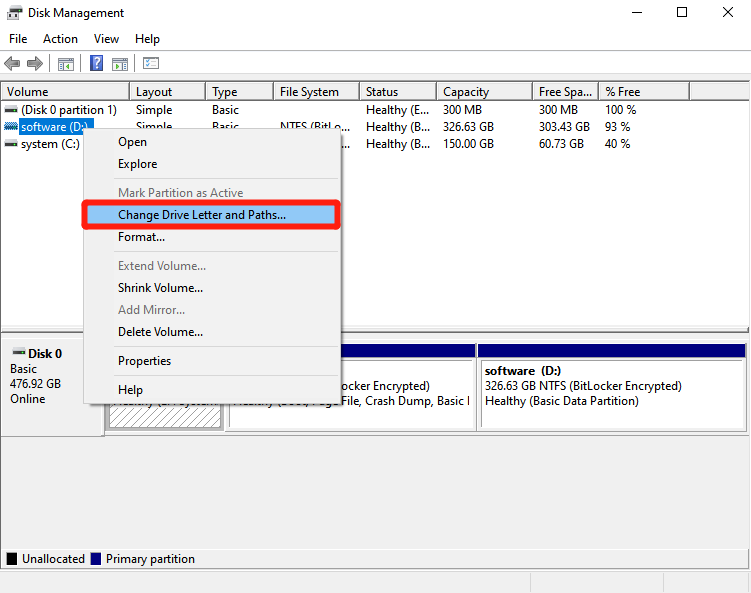
Step 3: Pick an available drive letter, tick the “Assign the following drive letter” box, and click “OK” twice.
Fix 4: Update Disk Driver
Update your disk driver if the ‘the request failed due to a fatal device hardware’ error is caused by an outdated driver. Here’s what to do:
Step 1: Hold the “Win + X” keys and right-click on the “Device Manager” to launch it.
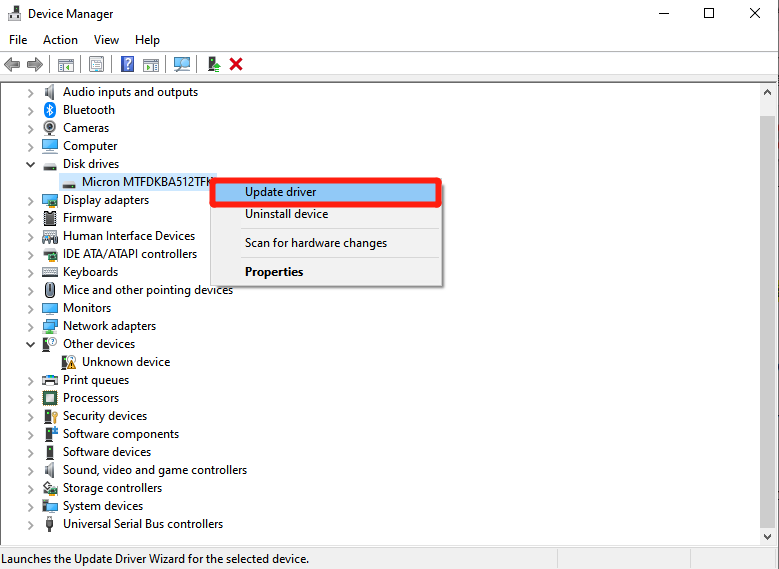
Step 2: Find your drive, right-click, and pick “Update Driver.”
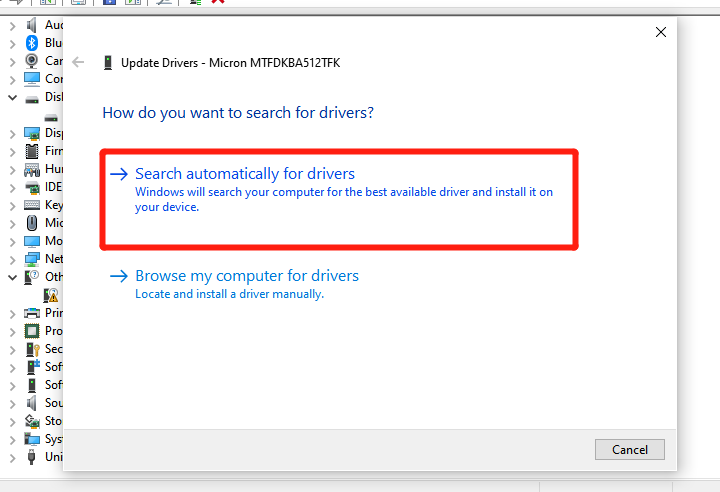
Step 3: Opt for “Search automatically for updated driver software” for Windows to download and install the driver automatically.
Fix 5: Run CHKDSK
Bad sectors all over your hard disk can also lead to the ‘‘the request failed due to a fatal device hardware’ error. To inspect and fix file system corruption and bad sectors, you can employ CHKDSK. This tool is worth a shot for most hard drive accessibility problems. Here’s how to run it:
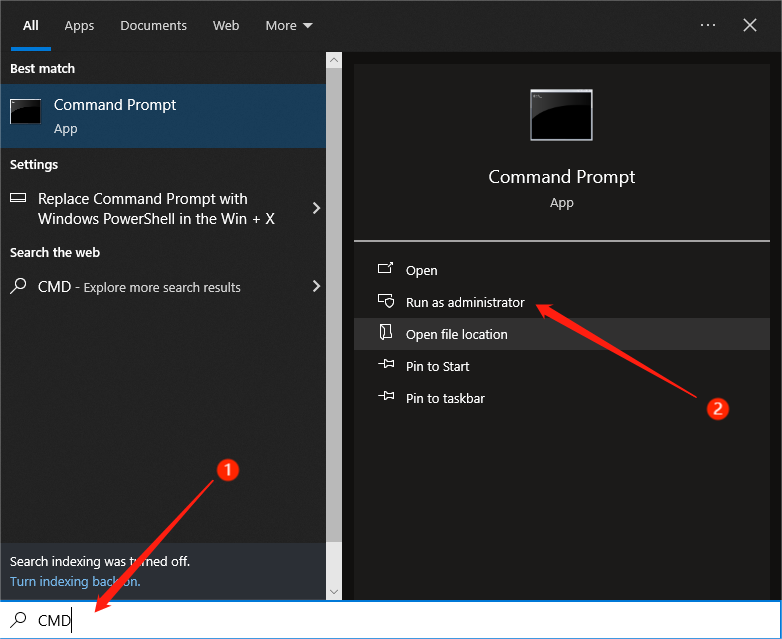
Step 1: Type “cmd” in the search box, right-click, and open the “Command Prompt” as admin.
Step 2: Type “chkdsk F: /f/r” and press “Enter.” Here, replace “F” with the drive letter of your disk.
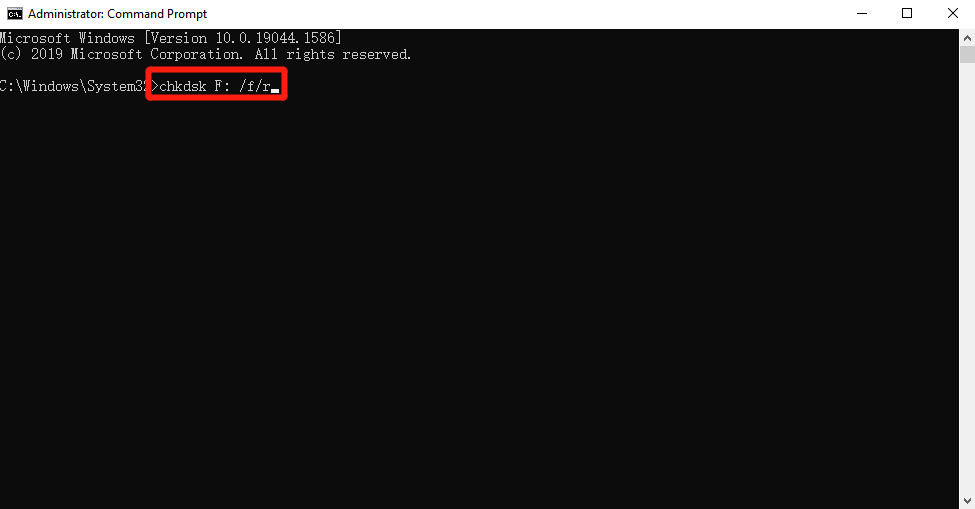
The CHKDSK tool will detect any bad sectors and try to mend file system errors. But any data in those sectors may be lost unless you’ve already recovered it.
Fix 6: Initialize the Drive
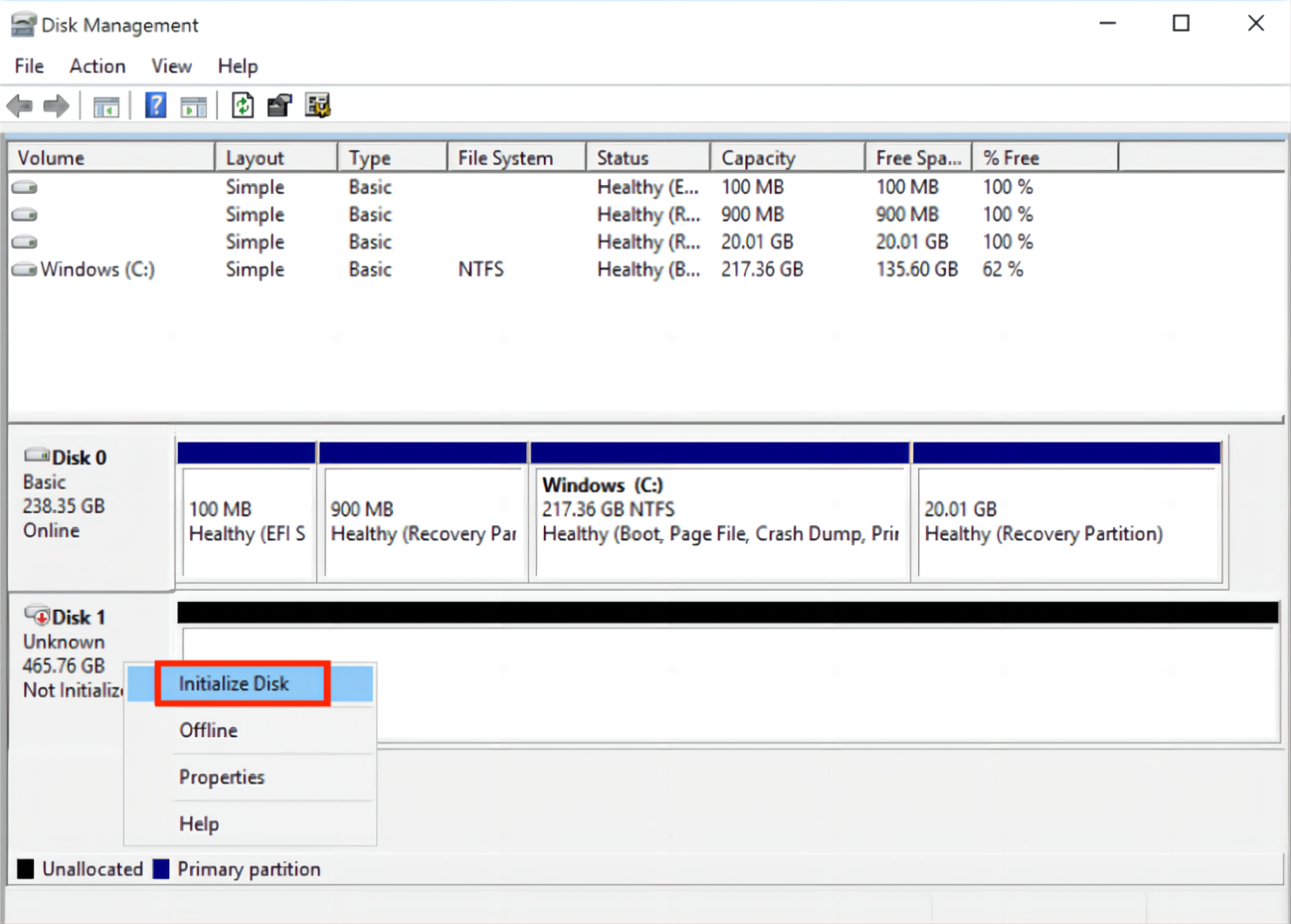
When your drive displays ‘fatal hardware error has occurred,’ check if it appears as “Unknown” in Disk Management. If yes, go ahead and initialize it with the following steps to resolve the fatal hardware error:
Step 1: Press the “Win + X” keys and right-click on “Disk Management” to launch it.
Step 2: Right-click the disk displaying the hardware error and pick “Initialize Disk” or “Unknown & Not Initialized.”
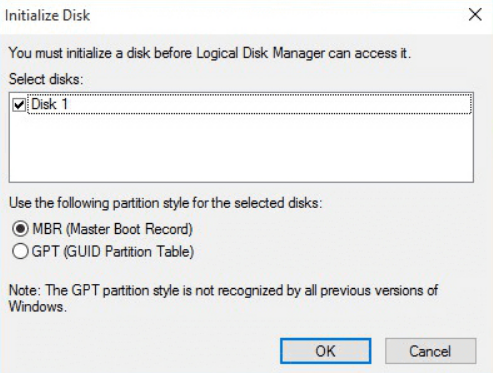
Step 3: Select the partition style (MBR or GPT) for the drive and click “OK.” Once done, create a partition on the disk.
Fix 7: Format the Disk
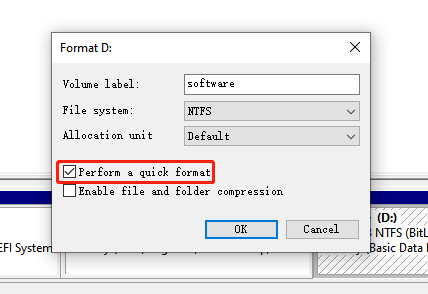
If none of the earlier fixes worked, your last option is to format the hard drive. It can effectively resolve the ‘error 0x800701e.’ But be aware that it wipes out all your data unless you use a recovery tool like 4DDiG Data Recovery to retrieve it first. Here’s how to format the disk with the hardware error in “Disk Management:”
Step 1: Press the “Win + X” keys and right-click on “Disk Management” to launch it.
Step 2: Right-click on the drive with the fatal device hardware error and select “Format.”
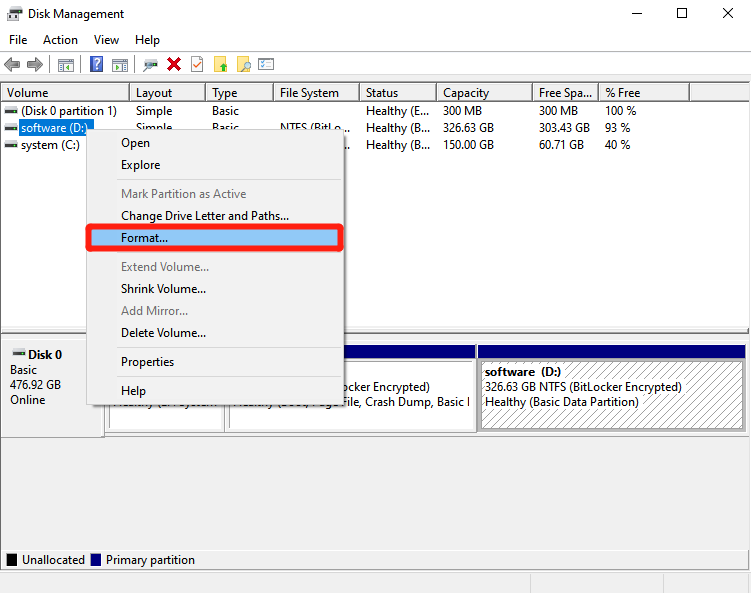
Step 3: Choose a suitable volume label, file system, and allocation unit size (or stick with the system defaults).
Step 4: Check “Perform a quick format” and hit “OK” twice to initiate the formatting.
Fix 8: Hire Professional Services
In case your disk is physically damaged and you can’t fix the ‘fatal device hardware’ error or retrieve data, it’s best to seek professional help. Reach out to your disk hardware manufacturer or locate a local repair and recovery center to send your device for resolution.
Part 3: How to Maintain Your Hard Drive Health?
Once you’ve sorted the ‘fatal device hardware’ error, you can take steps to prevent it from happening again by maintaining the health of your disk. Here’s how:
- Back up your data regularly to prevent its loss due to hardware failures, malware, or accidental deletions.
- Use a disk cleaner to remove unnecessary files.
- Regularly defragment your hard drive to boost its performance and lifespan.
- Keep an eye on your hard drive’s health using tools like Hard Disk Sentinel.
- Ensure your computer stays cool to avoid hard drive damage from overheating.
- Guard against power surges with surge protectors.
The Request Failed Due to A Fatal Device Hardware Error FAQs
Q1: What is a fatal device hardware error?
A ‘fatal device hardware’ error means your computer can’t access an external disk or hard drive because of a hardware problem. It happens when the external drive isn’t properly connected or is facing health issues.
Q2: Why does a fatal device hardware error occur?
A fatal device hardware issue happens due to the following causes:
- USB cable problems.
- Bad sectors.
- File system issues.
- Loose USB connections.
- Physical damage to the drive.
- There’s an issue with the drive letter.
- Outdated disk drivers.
Conclusion
The ‘fatal device hardware’ error makes your disk inaccessible. However, you can regain control by trying the eight methods mentioned earlier. But first, consider using 4DDiG Data Recovery, a reliable solution for recovering your data, no matter the drive’s condition, without any losses. With the ability to recover 2000+ file types, including videos, audio, images, documents, and archives, this tool ensures your files are always secure.