Struggling to find free music for your videos without getting hit by copyright claims?
After years of creating content on YouTube, I’ve realized that great visuals alone are not enough; audio can make or break your video. That’s where the YouTube Audio Library becomes a game-changer.
It offers a wide collection of royalty-free music and sound effects that you can safelyl use, all accessible through YouTube Studio. But many creators struggle to find it or use its featured copyright-free YouTube background music tracks.
So instead of guessing or wasting time searching around, let me walk you through exactly how to access and navigate the YouTube Audio Library step by step.
What is YouTube Audio Library?
The YouTube Audio Library is a built-in feature inside YouTube that lets creators find and download free music and sound effects for their videos.
It helps you use audio without worrying about copyright issues or licensing confusion. You can browse tracks, filter them by genre, mood, or duration, and quickly match them to your video style.
In short, it’s a simple way to improve your video’s sound quality while keeping your content safe and compliant.
Read Also: Is It Legal to Use a YouTube Converter in 2026?
Steps to Access and Navigate the YouTube Audio Library
Here’s a simple step-by-step process to access the YouTube Audio Library without confusion:
- Open Chrome or any browser on your device and sign in to your Google account. If you’re not logged in, you won’t be able to access the Audio Library.

- After that, search “YouTube” or open it directly through the URL. Once you reach the homepage, make sure you are signed in.

- Then click your profile icon at the top right corner and select YouTube Studio from the menu.

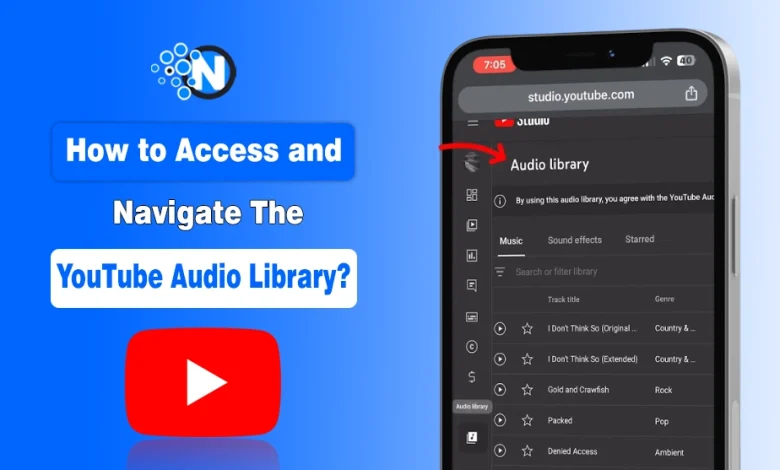
- Inside YouTube Studio, go to the left sidebar and scroll down. Click on Audio Library to open it.

Read Also: How to Start a YouTube Channel for Kids – Become a Kid YouTuber
- Once opened, you’ll see a full collection of music and sound effects that you can use in your videos.

- Use filters like:
- Genre
- Mood
- Duration
- Attribution requirement
This helps you quickly find the right track for your video.

- After that, explore the Music and Sound Effects tabs, where you can switch between:
- Music tracks
- Sound effects
This helps you add both background music and audio effects
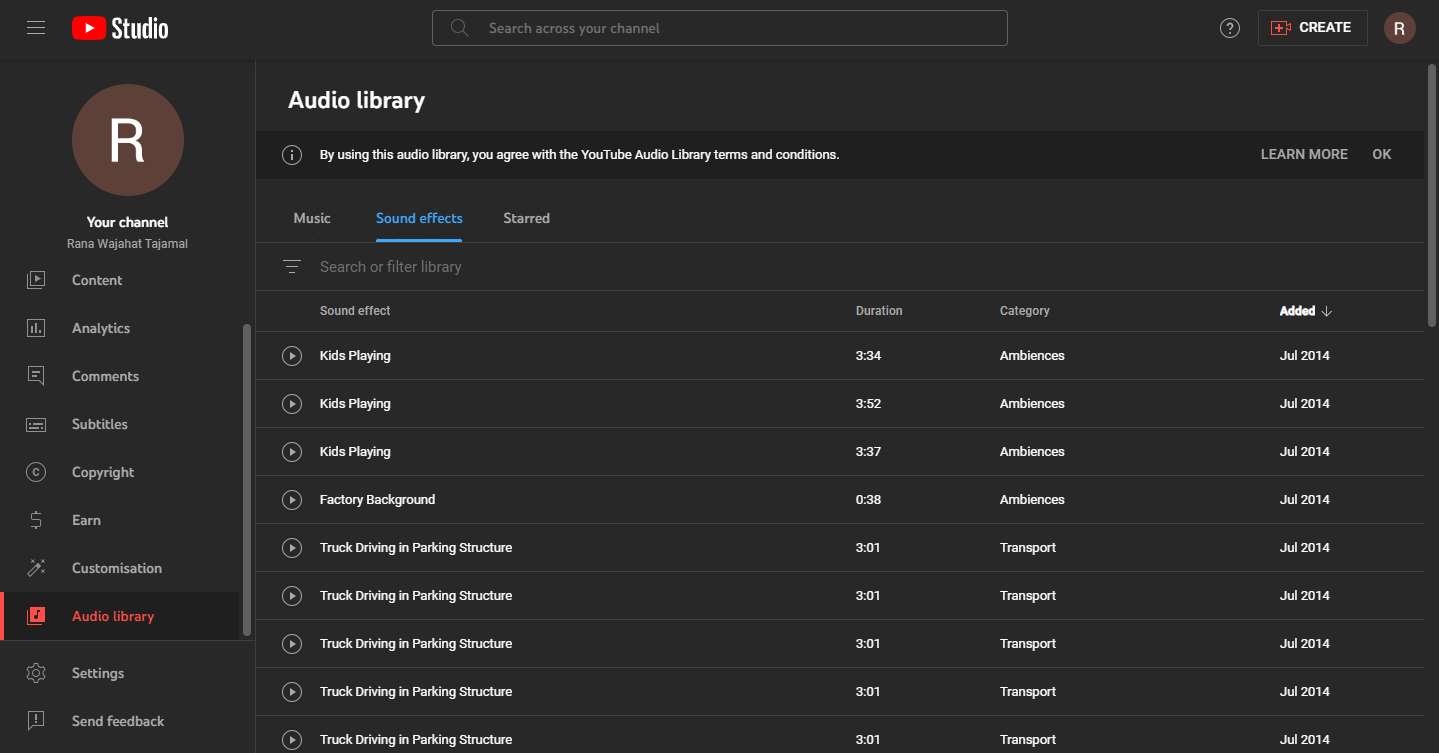
- When you select your desired audio, click the download icon next to that track and save it for your video editing.

So, What’s the Easiest Way to Actually Use the YouTube Audio Library?
The YouTube Audio Library is one of the most practical tools for creators who want safe, copyright-free audio without stress.
After personally working on the YouTube Studio for years, I’ve realized most beginners overlook how simple it actually is when accessed through the YouTube dashboard.
In my opinion, every creator should start here because it removes the fear of copyright issues and makes the whole editing process feel much more professional and controlled.