Google Drive: Everything Users Should Know Before Using It
Google Drive is a cloud storage platform that makes storing, sharing, and collaborating on files simple and secure. It works on any device, helping users stay organized and productive wherever they are.

Ever struggled to find, share, or work on a file at the right time? Google Drive is useful for anyone who needs easy and secure access to files from any device. It works well for students, professionals, businesses, and everyday users who want to store, share, and manage files without hassle.
With real-time collaboration on Docs, Sheets, and Slides, automatic backup, and file syncing across devices, Google Drive makes teamwork simple. It also helps users handle large files safely, support remote work, manage projects, and keep their digital files organized in one place.
In this guide, I am going to tell you about Google Drive, its key features, pricing plans, pros and cons, and how to use it.
What is Google Drive?
Google Drive is a cloud storage service offered by the world’s largest search engine, Google. It allows user to store their files more securely and safely and access them from any device with an internet connection.
It is seamlessly integrated with Google’s suite of productivity tools like Docs, Sheets, and Slides for enhanced usage. Thus, Google users can easily access it from their browser or through the Android app and can enjoy its perks. You can directly upload your files into it to store them for an extended period.
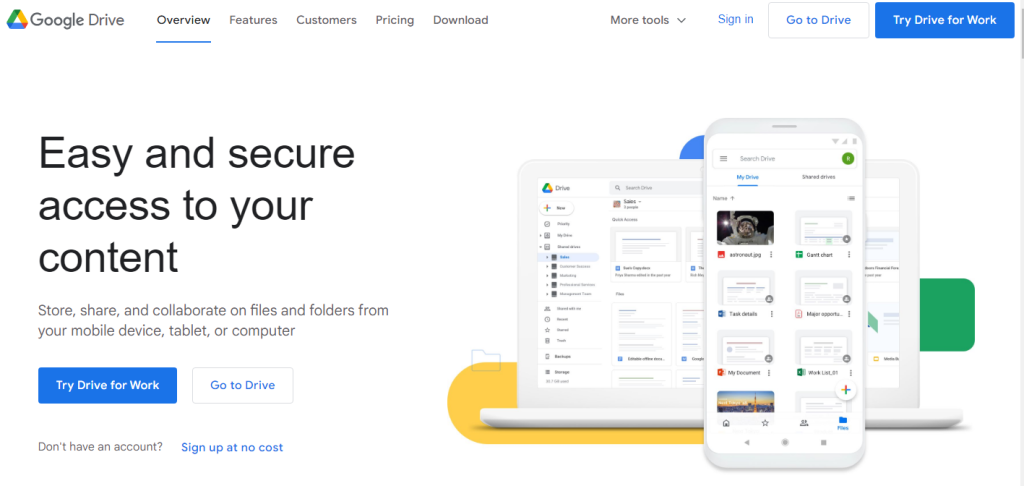
What is Google Drive For Business?
While Google Drive is commonly used for personal file storage, Google Drive for Business is designed specifically to meet the needs of teams and organizations.
The business version, which comes as part of Google Workspace, goes beyond basic storage by adding tools for collaboration, control, and security at a company level. It allows businesses to manage user access, protect sensitive data, and keep all work files under one shared system.
How Google Drive for Business is different from regular Google Drive:
- Provides shared team drives instead of individual-only storage
- Offers admin controls to manage users, permissions, and data
- Includes stronger security features for business data protection
- Supports real-time collaboration across teams and departments
- Designed to scale as the business grows
In simple terms, regular Google Drive works well for individuals, while Google Drive for Business is built for structured teamwork, better control, and professional use.
Key Features of Google Drive
Google Drive offers a simple and reliable way to store, manage, and share files online. Its features are designed to make everyday file handling easy for both individuals and teams.
- Cloud Storage: Store documents, photos, videos, and other files securely online and access them from anywhere.
- 15 GB Free Storage: Every Google account comes with free storage shared across Drive, Gmail, and Google Photos.
- Easy File Sharing: Share files or folders using links and control who can view, comment, or edit them.
- Real-Time Collaboration: Work on files together using Google Docs, Sheets, and Slides with live edits and comments.
- Automatic Sync: Files stay updated across all devices, including desktop, mobile, and tablet.
- File Version History: View and restore older versions of files when needed.
- Strong Security: Data is encrypted and protected by Google’s security systems.
- Integration with Google Apps: Works seamlessly with Gmail, Docs, Sheets, Slides, and other Google services.
Advantages and Disadvantages of Google Drive
Google Drive has both strengths and limitations. Understanding these can help you decide if it’s the right option for your needs.
Advantages of Google Drive
- Easy to Use: Simple interface that works well for beginners and non-technical users.
- Free Storage: Comes with 15 GB of free space for Drive, Gmail, and Google Photos.
- Access Anywhere: Files can be accessed from any device with an internet connection.
- Real-Time Collaboration: Multiple users can work on the same file at the same time.
- Seamless Google Integration: Works smoothly with Gmail, Docs, Sheets, and other Google tools.
- Automatic Backup & Sync: Keeps files updated across devices automatically.
- File Sharing Controls: Allows you to manage who can view, comment, or edit files.
Disadvantages of Google Drive
- Limited Free Storage: The 15 GB free space is shared across multiple Google services.
- Internet Dependency: Most features require a stable internet connection.
- Privacy Concerns: Some users may be cautious about storing sensitive data online.
- File Size Limits: Large files may take time to upload or sync.
- Fewer Advanced Features: May lack advanced storage or workflow tools needed by some businesses.
How to Use Google Drive?
In the under-section, we have elaborated on the complete features and processes to utilize the benefits of Google Drive.
1 – Get Started With Drive
You must create a Google account to get started with Google Drive. The process is quite simple. You only have to sign up or log into your account by adding the credentials like username and password.
2 – Explore the Interface
Next, you must explore the user-friendly interface of Google Drive to learn about its features. The left sidebar is specialized for navigation. While the whole interface is user-friendly, you must know the tactics to create folders and transfer your files to the desired section.
3 – Upload Files and Folders
Next, it is essential to learn how to upload files and create folders in Google Drive. The developers have made this process easy, as you can click on the “+” button to create a new folder.
A single right-click on it will open a menu box. From here, you can rename it easily. On the other hand, uploading folders and files like audio, videos, and images is convenient.
Simply click on the “+” button again and choose the “File Upload” or “Folder Upload” button. Alternatively, you can directly drag the folder or files from your primary storage to Google Drive.
4 – Organize the Drive
Now, after uploading the files and folders, you must organize your drive and keep the data in place. It will not only help you have enhanced functionality of Drive but also keep your required files in place.
You can also use the renaming option to mark the files’ names, which will further assist you in sorting and filtering. Color coding is another tremendous option used for enhanced accessibility.
5 – Sharing Files and Folders
Next, you have to understand the various sharing options available. Google Drive 101 provides you with several options to customize visibility and collaboration. You can change from view-only access to everyone to make sure all the participants or team members can view the documents or files.
6 – Real-time Collaboration
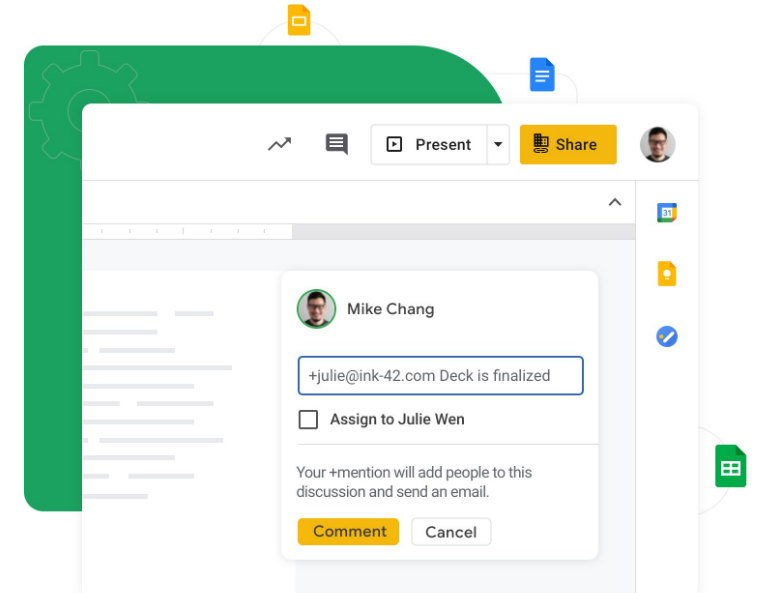
Next, it is necessary to explore the real-time collaboration feature of Google Drive. The developers have launched this feature to allow multiple users to edit the document simultaneously.
7 – Comments and Suggestions
Comments and suggestions section is also present in the Google Drive 101. With the help of this feature, you can communicate the essential details required for editing or dealing with the files and folders. Also, it enables the users to gather feedback.
8 – Google Drive Applications
We explained previously that Google Drive allows the integration of several high-end applications available in Suites. In the under-section, we have explained some of them.
a. Docs
Google Docs is one of the most efficient word processing tools, which showcases enhanced collaboration features that integrate seamlessly with Google Drive. Hence, you can directly store your files in the cloud storage to keep them safe for longer and use them from anywhere.
b. Sheets
Sheets tremendously emerged as Microsoft Excel’s biggest competitor. Over the years, this tool has experienced numerous improvements, and now, it can easily integrate into Drive.
c. Slides
Like the other two Google Suite applications, Slides is also accessible directly via Google Drive. You can use its potential to create visually appealing and dynamic slides for your presentation.
9 – Advanced Features
Google Drive exhibits several advanced features, like version history, to know about the changes made to the required file in the timeline. Similarly, the advanced search option allows you to locate the file quickly to save enough time.
Now, the developers have introduced an offline mode into the platform to make sure that users can save their files for online viewing. This has reduced the need for continuous Internet connectivity and helps you to save your data.
10 – Security and Privacy
Security and privacy are the foremost requirements in this fast-paced world, as they allow you to have a secure web experience. You can customize the settings to change the security option.
By shifting the option from view only to edit, you can allow all the users to make changes in your folder when you share the link of that specific folder with them. Additionally, two-factor authentication will add an extra layer of security.
Pricing Plan of Google Drive
Google Drive offers both free and paid storage options, so you can choose a plan based on how much space you need for your files, backups, photos, and emails.
Personal Plans (Google One – for individuals & families)
These plans upgrade your Google Drive storage and can be shared with family members (up to 5 people) depending on the tier.
- Free Tier: 0 USD/month — 15 GB free storage
- 100 GB Plan: $1.99/month or $19.99/year
- 200 GB Plan: $2.99/month or $29.99/year
- 2 TB Plan: $9.99/month or $99.99/year
- Higher Storage Tiers (optional for very large storage needs)
- 10 TB — $49.99/month
- 20 TB — $99.99/month
- 30 TB — $149.99/month
(Note: prices are averages and may vary by region.)
These paid options fall under Google One, which expands your total Drive storage and adds benefits like family sharing and premium support.
Business Plans (Google Workspace – for teams & companies)
If you’re using Drive as part of a business or organization, storage comes bundled into Workspace plans with extra collaboration tools like Gmail business email, shared team drives, and admin controls.
- Business Starter
- Around $7/user/month — Includes 30 GB pooled storage per user.
- Business Standard
- Around $14/user/month — Includes 2 TB pooled storage per user.
- Business Plus
- Around $22/user/month — Includes 5 TB pooled storage per user.
- Enterprise
- Custom pricing — Flexible storage and advanced security features.
Workspace plans include Drive storage plus business email, advanced meetings, admin controls, and other collaboration tools.
Is Google Drive Secure to Use?
Yes, Google Drive is secure for storing and sharing files. Google uses strong encryption and security measures to keep files safe both while they’re being uploaded/downloaded and while they’re stored on their servers.
Security features of Google Drive include:
- Encryption: Files are encrypted in transit (SSL/TLS) and at rest on Google servers.
- Two-Factor Authentication (2FA): Adds an extra layer of security to your Google account.
- Permission Controls: You can control who can view, comment, or edit files you share.
- Regular Security Updates: Google constantly monitors for vulnerabilities and updates systems automatically.
- Advanced Protection for Business: Google Workspace users get additional controls, such as audit logs, data loss prevention, and admin-managed security settings.
👉 Important Tips for Users:
*Avoid sharing sensitive information publicly; use restricted links.
*Enable two-factor authentication on your Google account.
*Regularly review shared files and permissions to ensure only intended people have access.
Final Thoughts
Google Drive has emerged as one of the most powerful tools to provide individuals, small teams, and businesses with a complete set of solutions to carry out vital activities and acquire the next level of performance.
It is necessary to master its interface and understand all the components for enhanced functionality and usage. Otherwise, it would be challenging to pocket its complete perks. You can buy a membership to optimize its storage for saving a maximum number of files and folders.
Frequently Asked Questions
Can I access Google Drive from my phone?
Yes, Google Drive works on mobile devices through its app for Android and iOS, as well as on any web browser.
Is Google Drive safe and secure?
Yes, Google Drive uses encryption and security measures to protect your files. Enabling two-factor authentication adds extra security.
How do I recover deleted files?
Deleted files go to the Trash folder for 30 days. You can restore them during this time if needed.
Can I work offline with Google Drive?
Yes, you can enable offline mode to view and edit files without an internet connection.
Can Google Drive handle large files?
Yes, Google Drive allows uploading files up to 5 TB, as long as you have enough storage space available in your account.