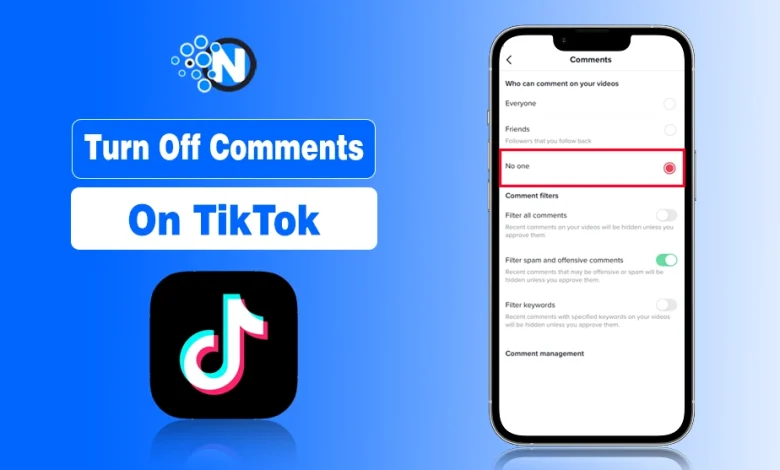
TikTok allows creators to turn off comments by disabling the “Allow comments” option from your video’s settings or from TikTok’s privacy controls.
This option appears both when you’re posting a video and after a video is already live, which means you can restrict comments on a single post, your entire account, or during a TikTok Live.
However, the exact steps depend on where you want to apply the restriction. Below, we break down each method clearly so you can choose the right one. Let’s dive in.
Why Would You Want to Turn Off Comments on TikTok?
By default, TikTok allows comments on all content you post. But, at times, creators may want to disable comments to protect themselves, their brand, or their audience. If you want even more control over your content, you can also delete TikTok videos that are attracting unwanted comments Here are the most common reasons:
- Avoid spam or irrelevant comments
- Prevent the spread of false information
- Protect brand reputation
- Reduce risk with controversial content
- Block trolls and harassment
- Safeguard mental health
- Avoid endless debates
How to Turn Off Comments on All TikTok Videos
To disable comments on all your TikTok videos, follow these simple steps in your privacy settings:
- Open TikTok: Tap the Profile icon at the bottom right.
- Go to Menu: Tap the three-line icon at the top right.
- Open Settings: Select Settings and privacy.
- Access Privacy: Tap the Privacy tab under Account.
- Find Comments: Under Interactions, tap Comments.
- Disable Comments: Tap Allow comments from and select No one.
- Done: Your account is now comment-free.
This will restrict comments on all future videos and hide comments on previous posts. To prevent harassment or troll comments, you might also consider blocking specific users who repeatedly leave harmful messages.
Note: Existing comments are hidden but not deleted. To remove them permanently, delete each comment manually.
How to Turn Off Comments on a Single TikTok Video
At times, creators may want to hide comments on a single TikTok video instead of the entire account. To disable comments on one TikTok video, follow these steps:
- Open Your Video: Go to your Profile and tap the video you want to manage.
- Open Menu: Tap the three dots (…) or the Share icon.
- Access Privacy Settings: Scroll to the padlock icon labeled Privacy settings.
- Disable Comments: Toggle Allow comments to OFF.
Note: Existing comments on this video will be hidden, and future comments will be restricted.
How to Turn Off Comments on TikTok LIVE
To hide comments during a TikTok Live stream, follow these steps before you go live:
- Open LIVE Screen: Tap the (+) button at the bottom and swipe to LIVE.
- Access Settings: Tap the gear icon on the right side.
- Open Comment Settings: Tap Comment settings.
- Disable Comments: Toggle Allow comments to OFF. Now, viewers cannot type in the chat.
How to Turn Off Comments for Mid-Stream
- Open More Options: Tap the three dots (…) or More at the bottom.
- Go to Settings: Select Settings.
- Access Comment Settings: Tap Comment settings.
- Disable Comments: Toggle Allow comments to OFF. The chat is immediately hidden without stopping your stream.
Does Disabling Comments Affect Your Reach?
Turning off comments protects your peace of mind, but it can impact your video’s performance. Here’s what TikTok’s 2026 algorithm says:
- Reduced Engagement: Disabling comments can lower engagement since viewers cannot interact.
- Impact on Watch Time: Videos with high watch time can still perform well even without comments.
- Indirect Reach Effects: Fewer interactions may limit how often TikTok pushes your video to the For You Page (FYP).
- Best Use Cases: Ideal choice for informational content, announcements, or content that requires focused viewing.
How to Re-enable Comments on TikTok?
To turn comments back on, simply navigate back to the same privacy menus used to disable them. This will allow new interactions to appear immediately across your content.
- Single Video: Open the video, tap the three dots (…) icon, select Privacy settings, and toggle Allow comments to ON.
- Live Stream: While live, tap More (…) or Settings and toggle Allow comments back ON.
- Entire Account: Go to Settings and privacy > Privacy > Comments and select Everyone or Followers.
Note: Comments posted while comments were disabled will not appear.
Final Words
TikTok provides flexible privacy options so creators can control public interactions. Whether broadcasting on TikTok Live or posting content, you decide who can comment. While this feature doesn’t significantly affect reach, it should be used intentionally to protect your community and focus, not just using it randomly.
People Also Ask
Can TikTok users remove comments?
Yes, you can delete any comment on your own videos or remove your own comments on others’ posts.
How do I turn off comments on TikTok?
You can toggle “Allow comments” to OFF in your “Privacy Settings” to turn off comments on a single video or your entire account.
Does someone know if you delete their comment?
No, TikTok sends no notification, though the user may notice the comment is gone if they check.
Why do people turn off commenting?
Most creators do this to stop spam, avoid “trolls,” or keep focus on a specific announcement.
What happens when you hide a comment?
It remains visible to you and the writer of the comment, but it gets hidden from the public until you approve it.