Microsoft Word is the most popular standard for documents, but it lacks a duplicate page button. Word functions as a continuous flow of text, unlike PowerPoint slides or designing tools like Canva. This is why the page duplication process is manual, but manageable as well.
Whether you are designing some flyers or creating standardized invoices, you should be aware of how to duplicate a page in Word.
In this blog post, you will learn how to duplicate a page in Word. This includes four methods you can use to ensure that your duplicated content retains integrity without disrupting the flow.
4 Methods to Duplicate a Page in Microsoft Word
Method 1: The Select and Copy Method
The manual selection method is the most popular word page-duplicating method.
To do this, you should:
- Highlight: Click and drag or use Shift + Click to select the entire page.
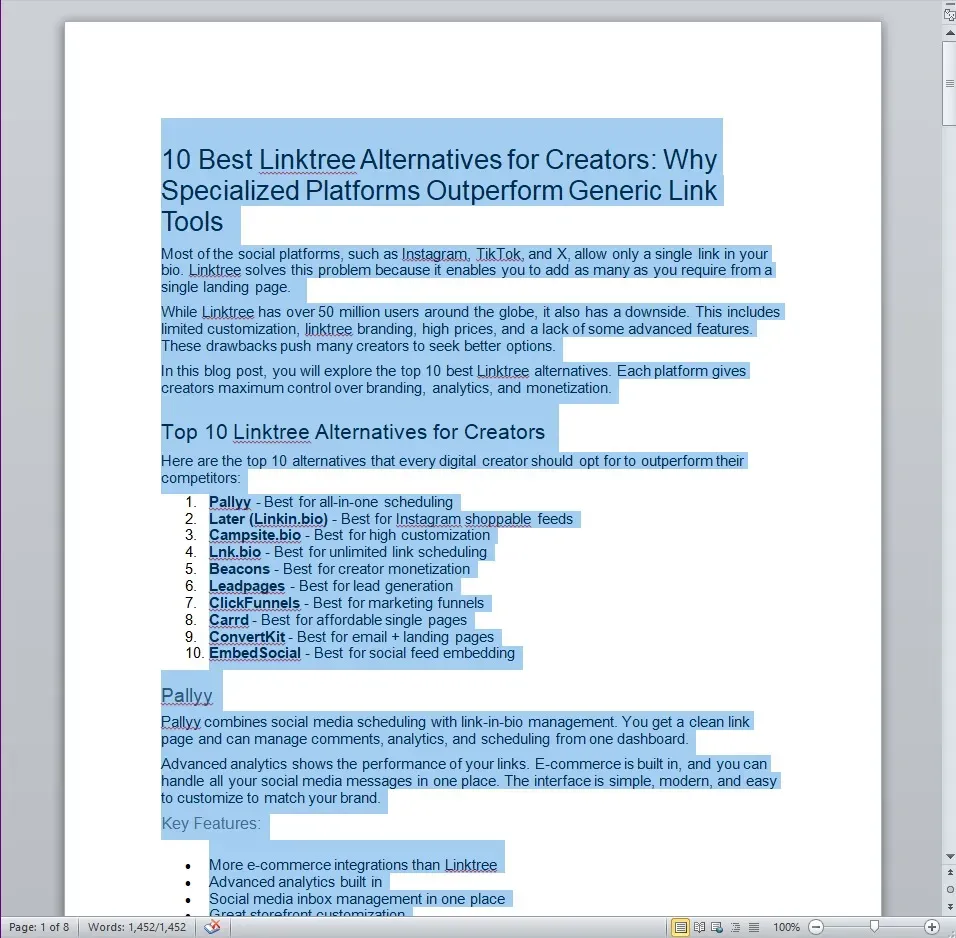
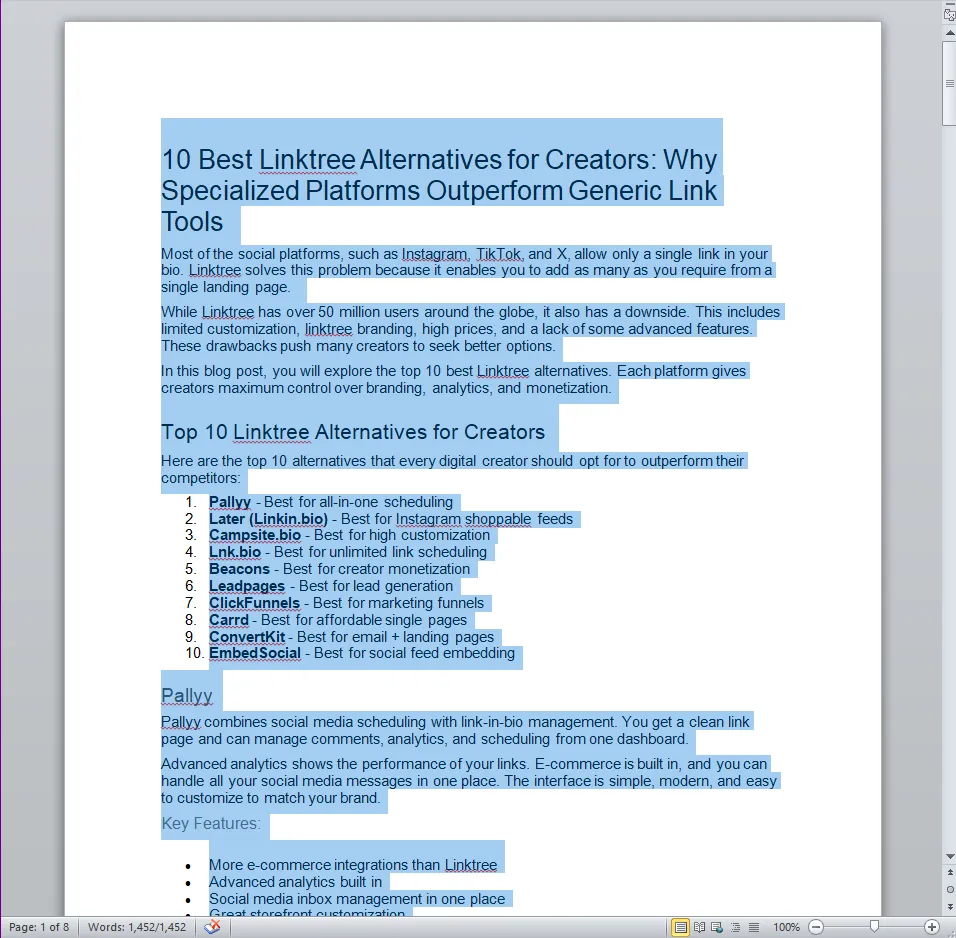
- Copy: Use the keyboard shortcut Ctrl + C (Windows) or Cmd + C (Mac).
- Insert Space: Place your cursor at the target location and press Ctrl + Enter to create a clean break.
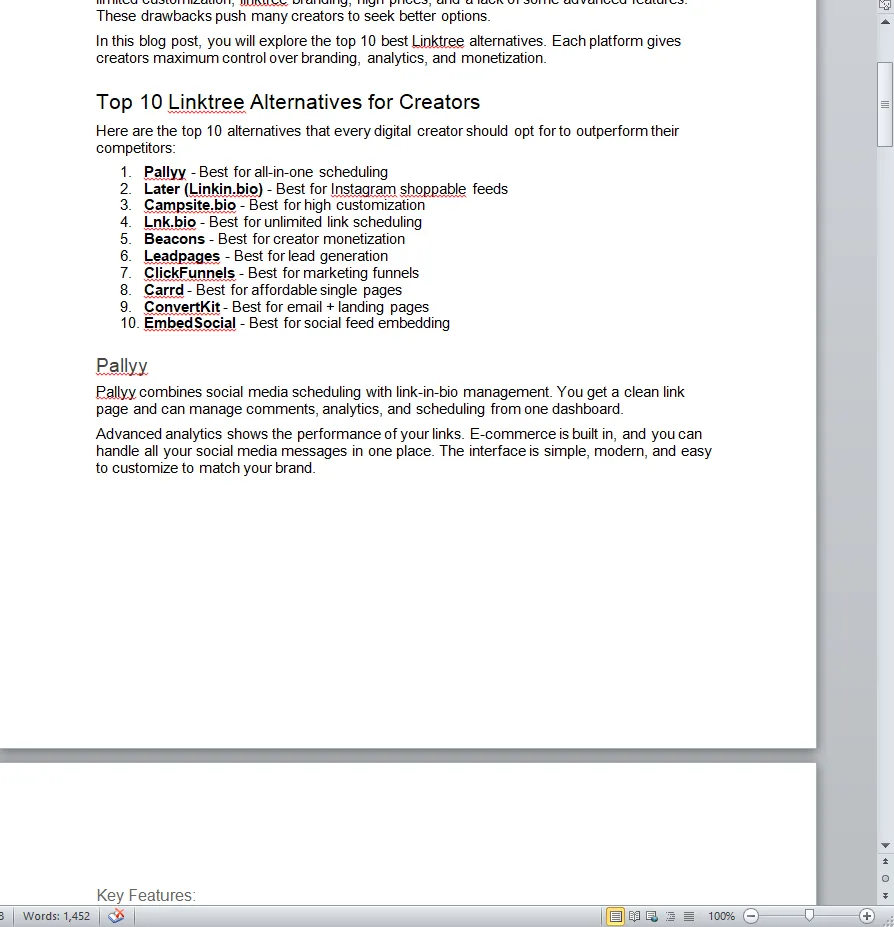
- Paste: Press Ctrl + V to drop the content into the new space.
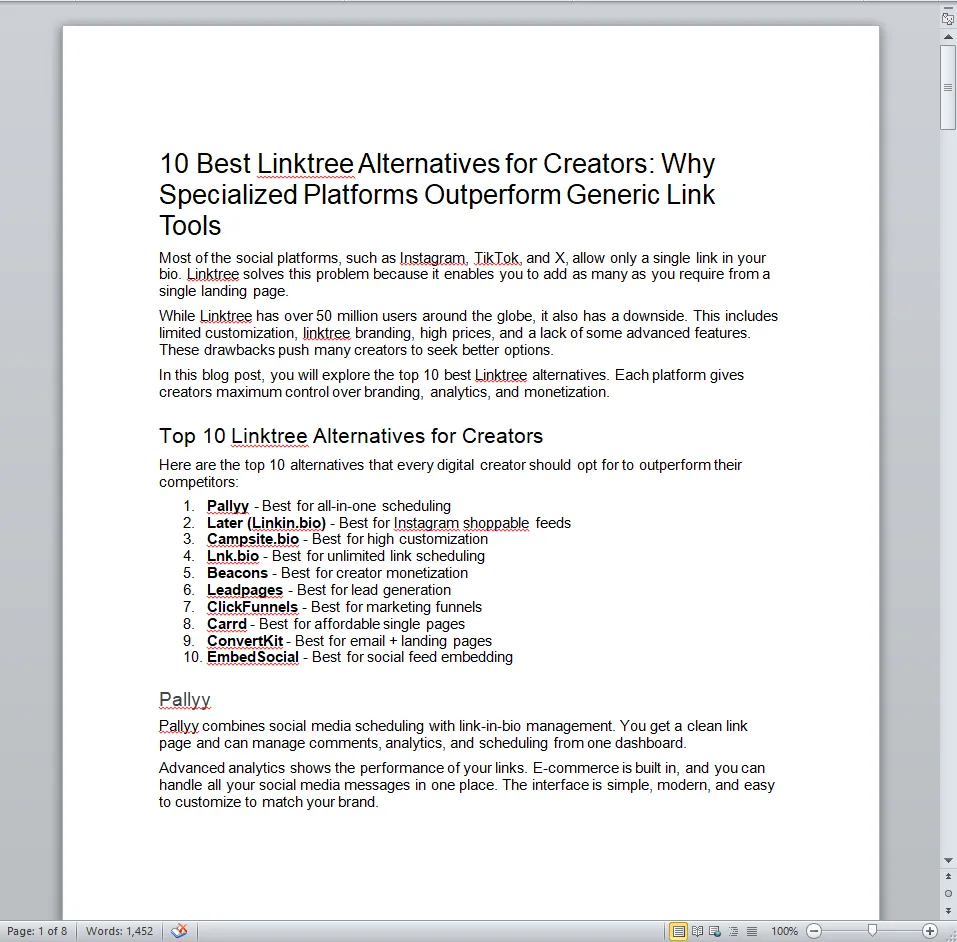
Method 2: Using the Navigation Pane for Headings
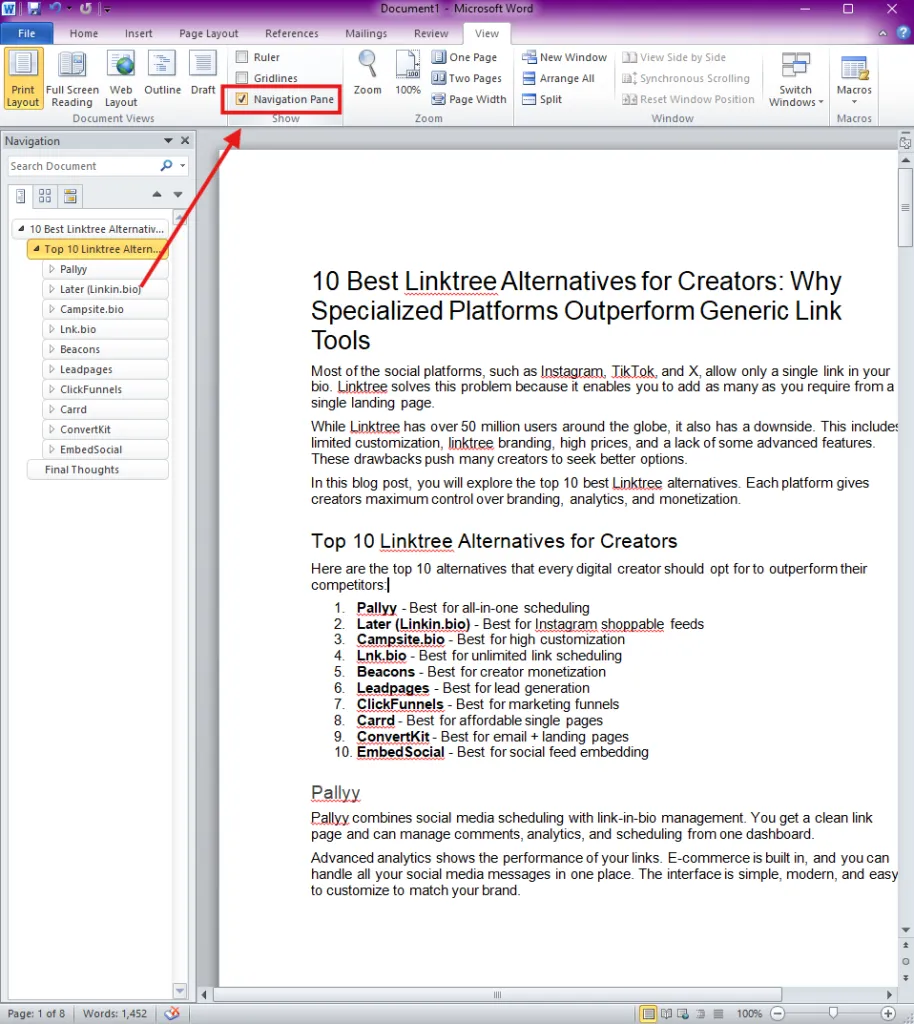
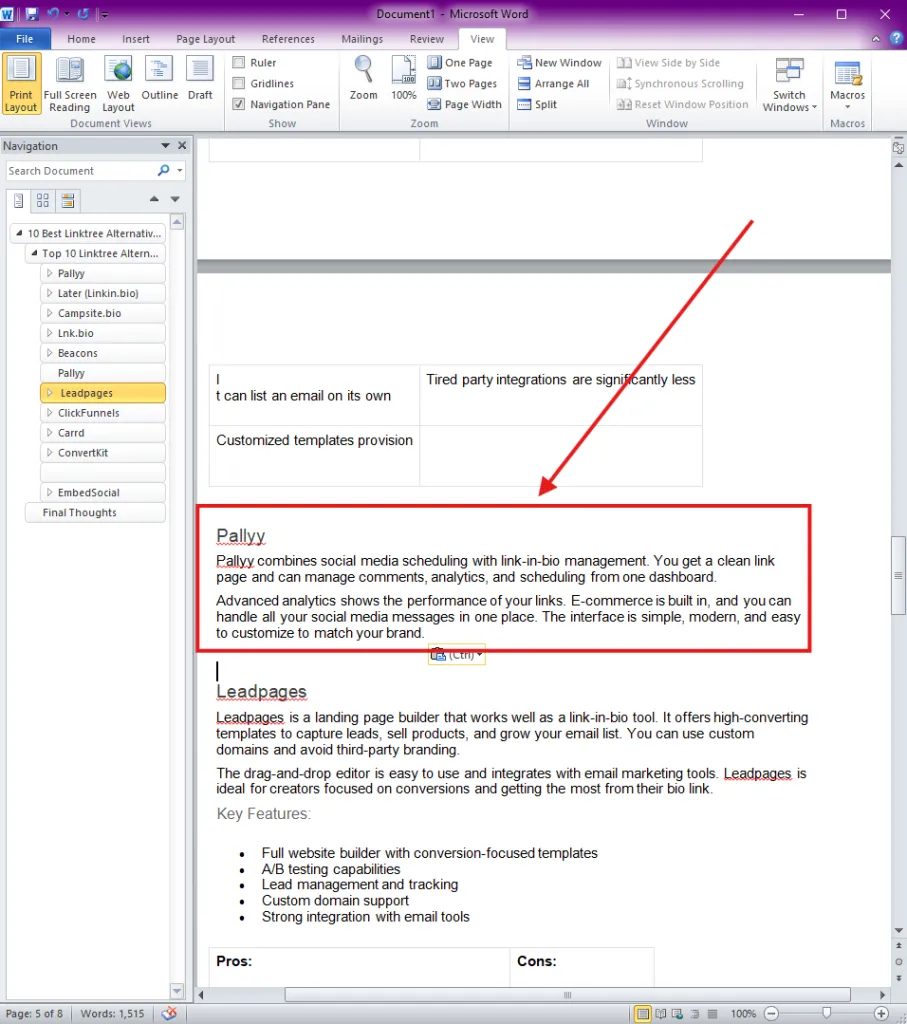
The Navigation Pane is the quickest method of moving or copying several paragraphs if your document includes the heading styles.
- Open Pane: Go to the View tab and check the box for Navigation Pane.
- Select Heading: Right-click the heading representing the page you want to copy.
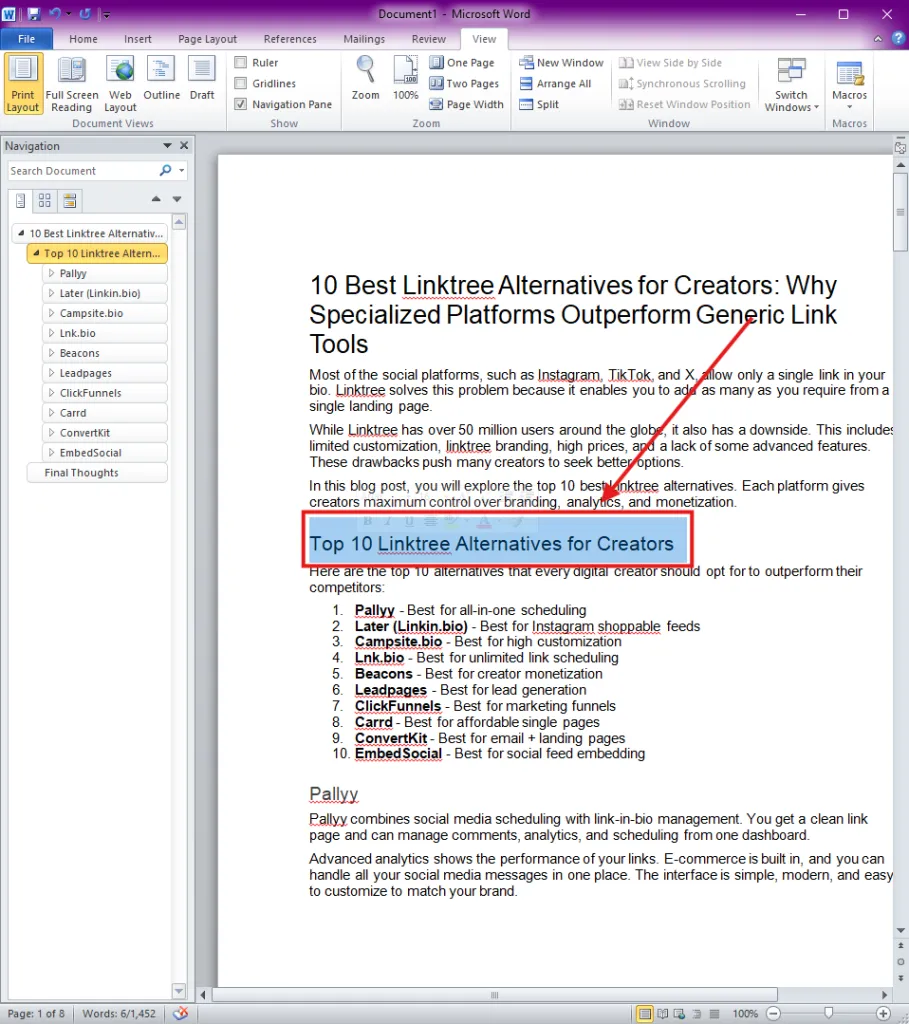
- Select Content: Choose “Select Heading and Content” from the context menu.
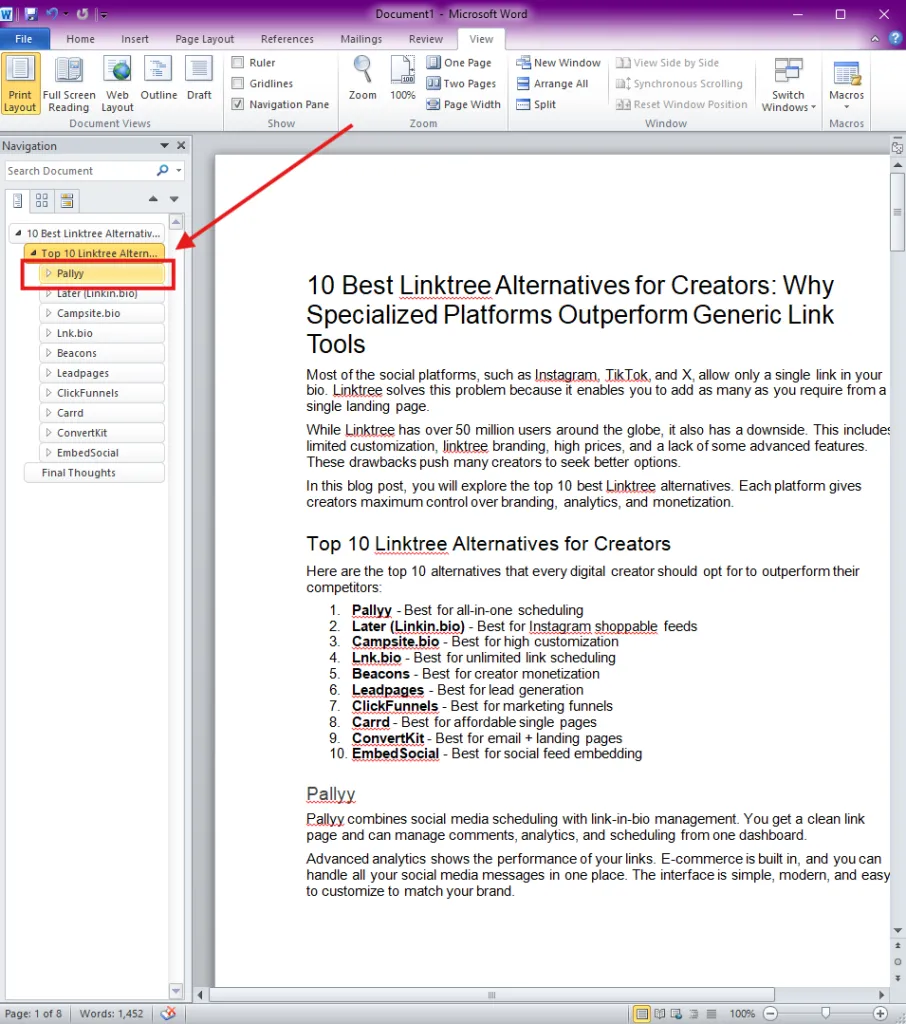
- Duplicate: Copy the selection and paste it after a page break in your desired location.
Method 3: Duplicating Through the Macros Tool
A VBA Macro makes the process effortless as a single keystroke for users who constantly repeat the page duplication process. This is very effective when you may have to create ten copies of a form at a time.
It requires a one-time set-up, and this will save hours of manual labor regarding repetitive documentation.
- Developer Tab: Enable the Developer tab in your Ribbon settings.
- Record Macro: Click “Record Macro” and assign it a button or keyboard shortcut.
- Input Script: Use a VBA script to “SelectCurrentPage” and “PasteAfter.”
- Run: Execute the macro whenever you need an instant page clone.
Method 4: Utilizing the Object Insertion Feature
There is also another method, which is not very well known. It is particularly helpful in case you need to copy a page with complex layouts, such as text boxes, floating pictures, and certain types of WordArt.
To do this:
- Separate File: Save the page you want to duplicate as a separate, small Word file.

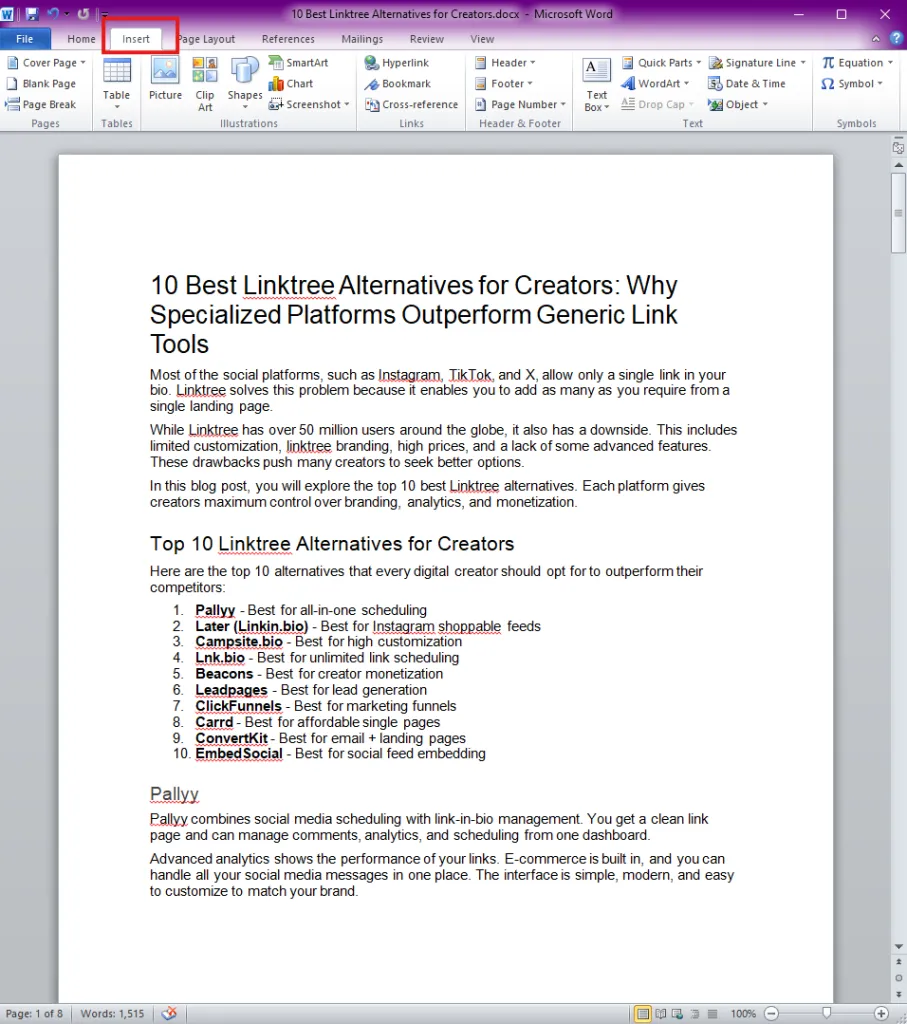
- Insert Tab: In your main document, go to the Insert tab.
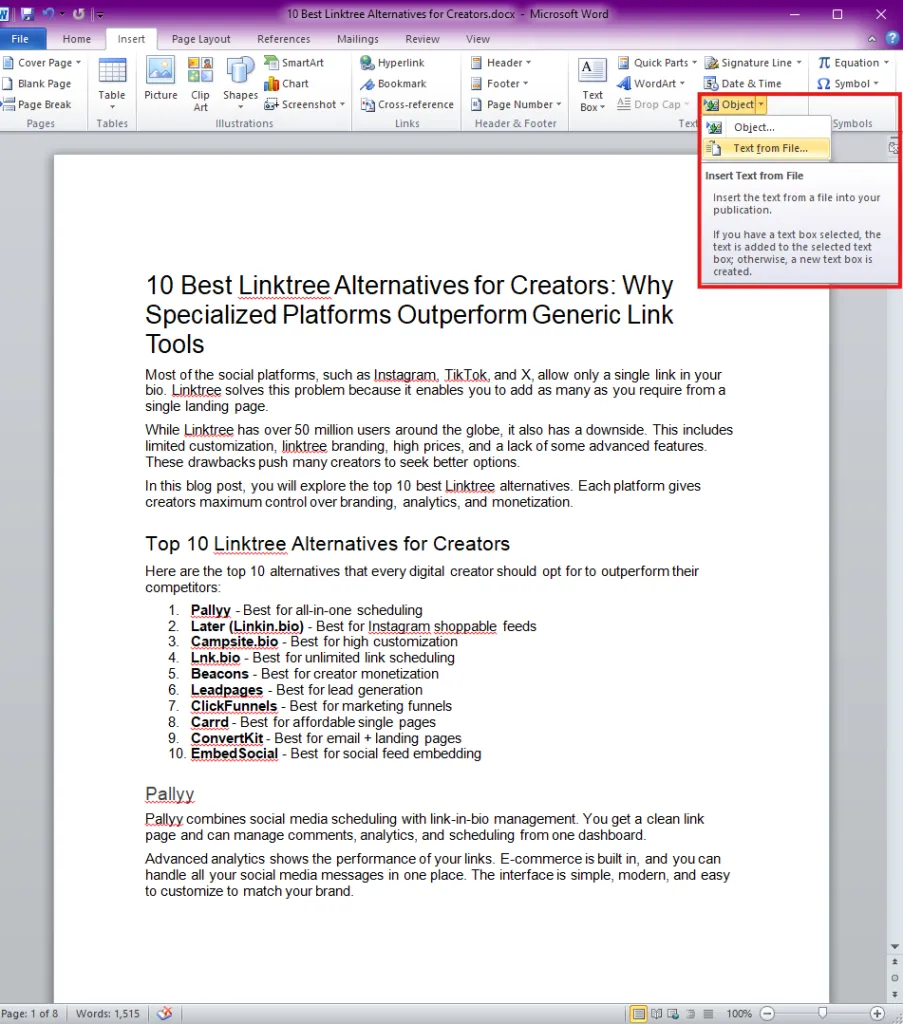
- Object Menu: Click the “Object” dropdown and select Text from File.
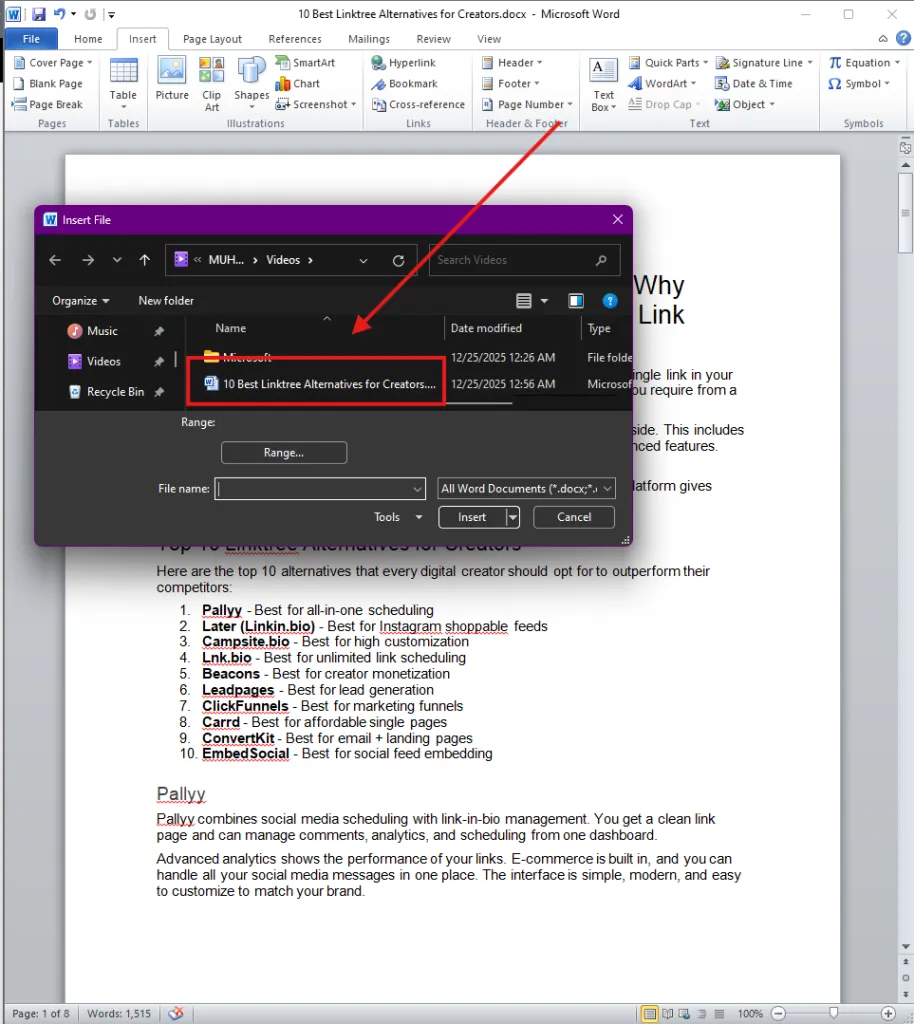
- Select File: Choose the small file you saved to “duplicate” its contents into the new document.
Pro-Tips for Perfect Duplication
- Use Section Breaks: Use Layout > Breaks > Next Page to keep formatting isolated.
- Clipboard History: Use Windows + V to access your clipboard history for multiple page copies.
- Show Symbols: Always keep ¶ (Paragraph Marks) turned on to see where pages actually end.
- Paste Options: Always click the small “Paste Options” icon after pasting to select Keep Source Formatting.
Final Thoughts
Copying or duplicating a page in Microsoft Word is not as straightforward as in other design tools. This requires you to opt for the right methods to stay manageable. From manual selection to utilizing macros, object embedding, or even converting to PDF for complex needs, there’s a solution for everyone.
If I tell you my personal experience, then these methods make me more efficient in handling repetitive documentation tasks. Try the approaches that best fit your workflow, and master duplicating pages in Word for saving time and reducing frustration.