BIOS settings can affect memory configuration, CPU boost behavior, PCIe features, and other hardware-level settings that may influence CS2 performance. However, the actual benefit depends on your CPU, motherboard, RAM, GPU, and existing configuration.
Why BIOS Settings Matter for CS2
CS2 can be CPU-limited in some systems, particularly when targeting high frame rates, so CPU performance and memory configuration can affect overall performance. BIOS settings can help optimize supported CPU and memory features, potentially improving performance and stability.
- Reduce system latency
- Improve CPU responsiveness
- Stabilize high refresh‑rate gameplay
- Unlock better RAM performance
- Ensure your GPU runs at full bandwidth
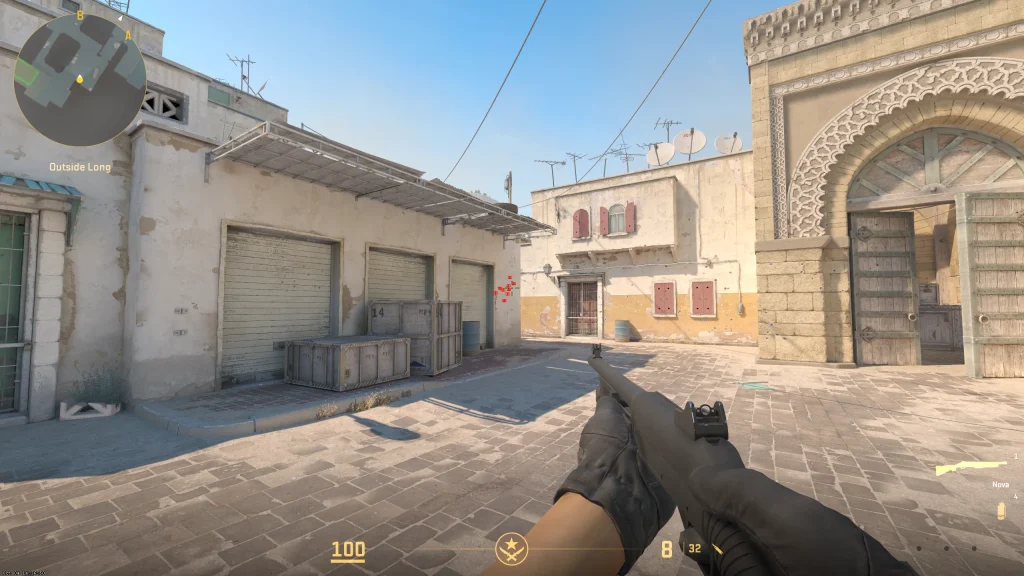
Best BIOS Options To Power Up CS2
Enable XMP or EXPO for Memory Speed
If your RAM supports a higher rated speed than its default configuration, enabling a compatible memory profile can improve memory performance. Intel XMP and AMD EXPO apply predefined memory profiles that allow compatible RAM to operate at higher, manufacturer-tested settings.
Precision Boost Overdrive and Similar CPU Features
On supported AMD Ryzen systems, Precision Boost Overdrive (PBO) can allow the processor to use additional power and thermal headroom to improve boost behavior. Intel systems use different CPU boost and tuning features, depending on the processor and platform. Performance gains vary by CPU, cooling, motherboard, and workload.
Resizable BAR
Resizable BAR allows the CPU to access a larger portion of the GPU’s framebuffer at once instead of relying on smaller access windows. Performance gains vary by game and system, and some titles may see little or no benefit. Most newer NVIDIA and AMD GPUs support Resizable BAR, although compatibility depends on the specific hardware and system configuration.
How to Test BIOS Changes Safely
Before changing BIOS settings, record your current configuration and establish a performance baseline in CS2. Change one setting at a time, then test frame rates, frame times, temperatures, and system stability. If a change causes crashes, instability, or boot problems, restore the previous setting or load the motherboard’s default BIOS settings.
System and In-Game Settings That Complement BIOS Tweaks
After changing BIOS settings, optimize CS2’s graphics settings based on your target frame rate and hardware. Reducing demanding visual settings can help increase performance, while limiting unnecessary background applications and overlays can reduce competing system load.
Advanced BIOS Features Worth Exploring
After configuring the main BIOS settings, you can explore a few additional options that may affect system performance and stability.
Power Saving States
CPU power-management behavior varies by platform and BIOS implementation. Disabling deep power-saving states is not a universal CS2 optimization, so test CPU temperatures, clocks, frame times, and stability before changing these settings.
Integrated Graphics
If your system has a dedicated GPU, make sure CS2 is configured to use the dedicated GPU. Disabling integrated graphics in BIOS is usually unnecessary unless you have a specific reason to do so or your motherboard/system documentation recommends it.
Final Thoughts – Boost CS2 Performance Now
BIOS optimization can improve CS2 performance when your hardware is not already configured to use its rated memory speed or supported performance features. The most useful changes depend on your CPU, motherboard, RAM, and GPU, so measure performance before and after each change rather than applying every setting blindly.
FAQs
Q1- How to make CS2 more responsive?
Start by enabling a compatible XMP or EXPO memory profile if your RAM and motherboard support it, then make sure supported CPU boost features are enabled. After that, optimize CS2’s in-game settings and reduce unnecessary background applications. Test each change to confirm whether it improves frame rates or frame times.
Q2- How to make CS2 use more CPU?
You generally cannot force CS2 to use more CPU cores simply through a BIOS setting. Instead, make sure your CPU is operating correctly, supported boost features are enabled, memory is configured properly, and unnecessary background workloads are minimized.
Q3- Does BIOS optimization increase CS2 FPS?
It can, but the improvement depends on your hardware and current BIOS configuration. Enabling a supported memory profile or other appropriate hardware features may improve performance, while some BIOS changes may have little or no effect. Benchmark before and after each change to measure the actual difference.