Email can either be a productivity booster or a daily distraction, and for most people, Gmail sits right at the center of that struggle. With 1.8 billion users worldwide, Gmail is more than just an inbox, yet many people only use a fraction of what it can actually do.
Hidden beneath its simple interface are powerful features designed to save time, reduce clutter, and help you stay focused throughout the day. That’s why I’ve curated this guide on Gmail hacks and tricks to enhance your productivity while using each Gmail feature.
From automation and organization to faster replies and inbox control, these Gmail hacks are built for professionals, students, creators, and anyone who wants to work smarter.
Gmail Hacks and Tricks to Save Time for Productivity
1. Schedule Emails to Send Later
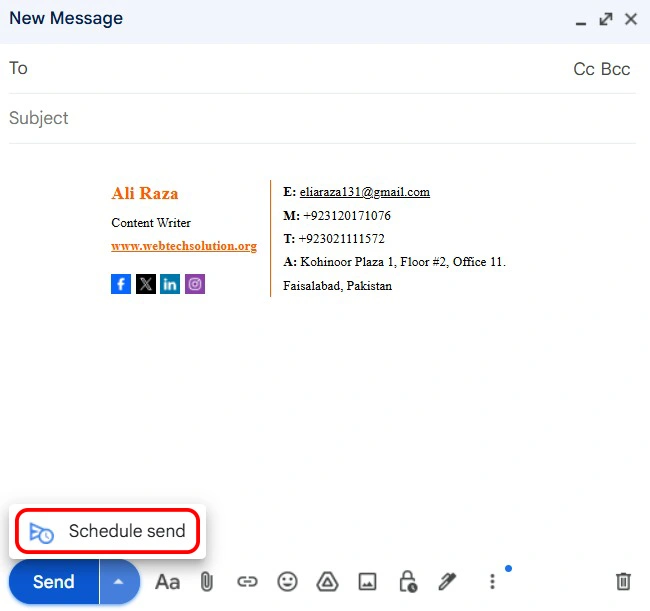
You don’t need to remember to send emails at the “right time” anymore. Gmail allows you to schedule emails in advance.
How to do it:
- Compose your email as usual
- Click the small arrow next to the Send button
- Select Schedule send
- Choose a suggested time or set a custom date and time
Why it helps:
You can write emails when you’re productive and send them during business hours, which improves response rates without extra effort.
2. Automate Your Inbox with Filters
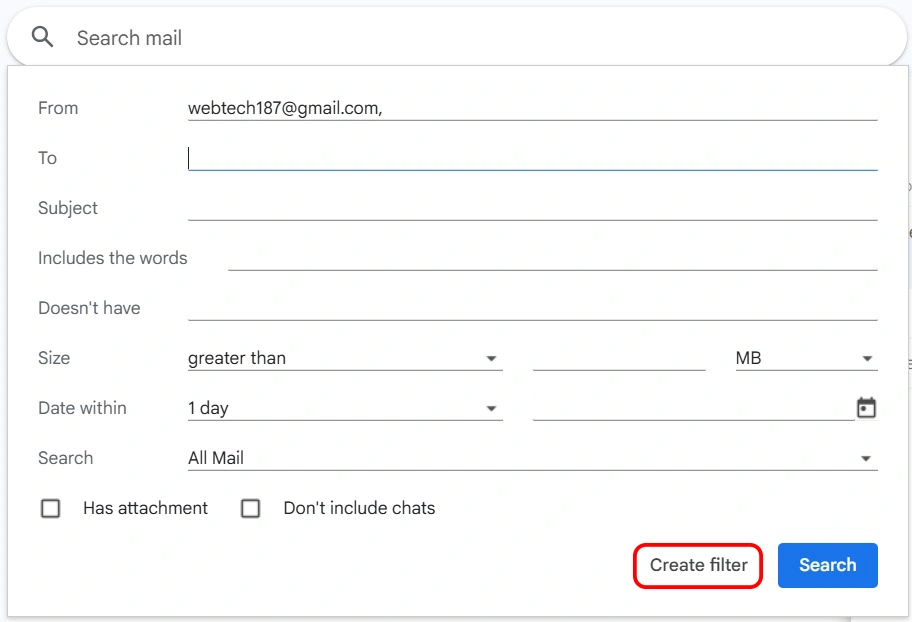
Filters can automatically label, archive, star, or forward emails based on rules you define, which also saves you time during busy hours.
How to do it:
- Click the search bar arrow in Gmail
- Enter criteria (sender, subject, keywords)
- Click Create filter
- Choose actions like label, archive, mark as read, or delete
- Save the filter
Why it boosts productivity:
Your inbox stays clean without manual sorting. Newsletters, receipts, and updates go exactly where they belong.
3. Turn Emails into Tasks Instantly
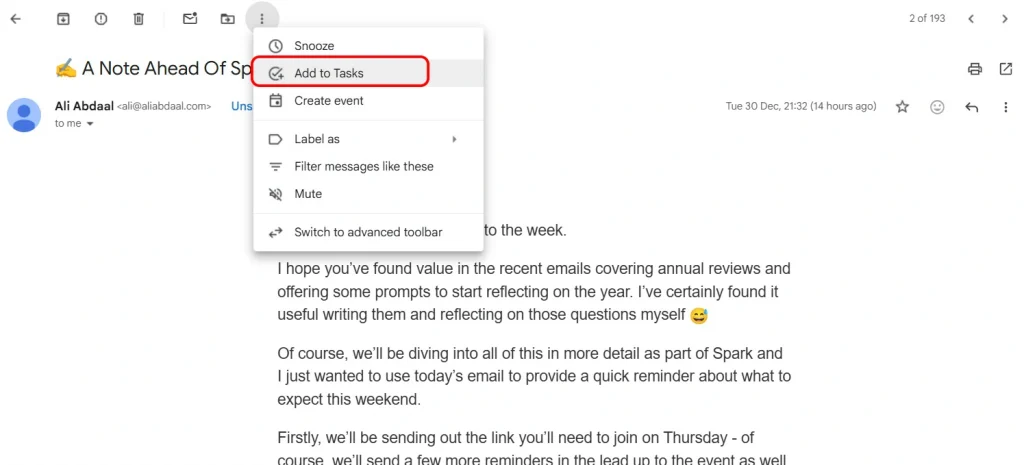
With Gmail’s built-in Tasks integration, you can convert any email into a task with one click. This would convert a simple reply into easy to do task and help you reply to them better.
How to do it:
- Open an email
- Click the Add to Tasks icon on the right panel
- Set a due date or notes if needed
Why it boosts productivity:
Emails stop being passive reminders and become actionable tasks you can track and complete.
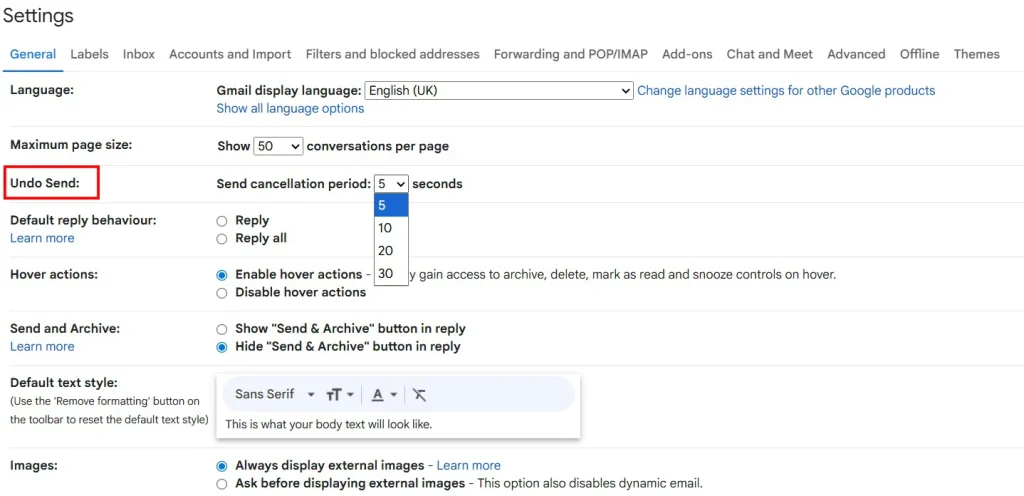
4. Enable Undo Send to Fix Mistakes
Undo Send gives you a short window to recall an email after clicking send, which saves you from making the same mistake again.
How to do it:
- Go to Settings → See all settings
- Open the General tab
- Find Undo Send
- Set the cancellation period (up to 30 seconds)
- Save changes
Why it boosts productivity:
It prevents panic moments caused by missing attachments, typos, or emails sent too early.
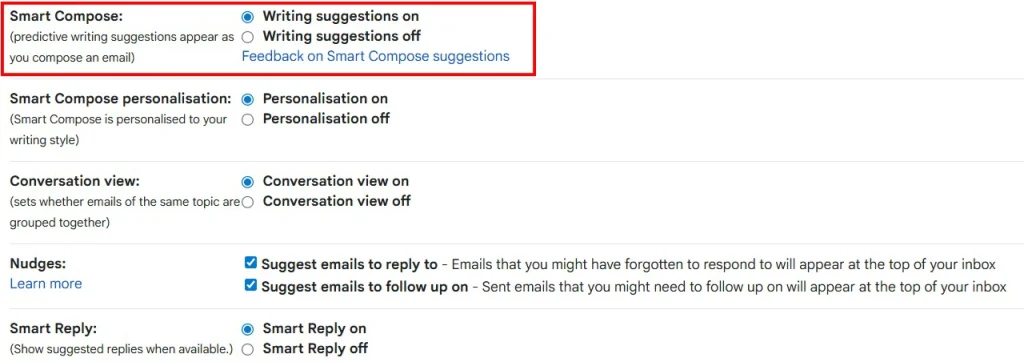
5. Write Faster with Smart Compose
Gmail’s Smart Compose suggests complete sentences as you type, which saves you time during the busiest time at the office.
How to do it:
- Open Settings
- Go to the General tab
- Enable Smart Compose
- Start typing and press Tab to accept suggestions
Why it boosts productivity:
You respond faster while maintaining a professional tone with fewer keystrokes.
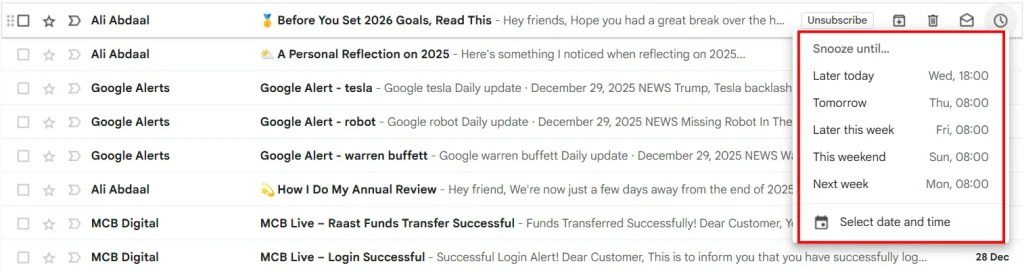
6. Snooze Emails Instead of Letting Them Pile Up
Snoozing temporarily removes an email and brings it back at a chosen time, which enables you to choose what to read at what time.
How to do it:
- Hover over an email in your inbox
- Click the Snooze icon
- Choose a date and time for it to return
Why it boosts productivity:
Your inbox stays focused on current priorities instead of becoming a reminder graveyard.
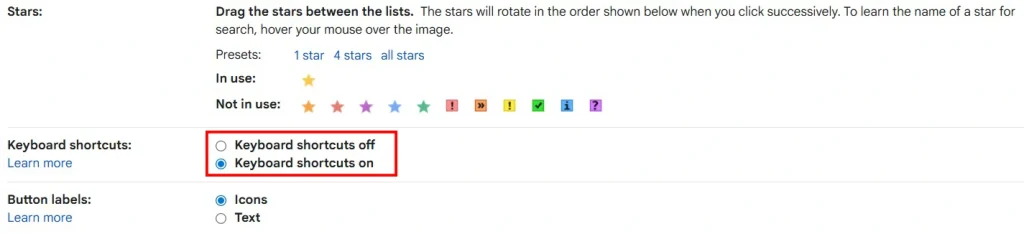
7. Enable Keyboard Shortcuts for Lightning-Fast Navigation
Enable keyboard shortcuts in settings to navigate, archive, reply, or search emails without using your mouse. You just need to click buttons, and the whole search will be there.
How to do it:
- Go to See all Settings → General
- Turn Keyboard shortcuts on
- Save changes
- Use shortcuts like:
Cto composeEto archive/to search
Why it boosts productivity:
Once memorized, shortcuts can cut email-handling time in half.
8. Use Multiple Inboxes for Priority-Based Viewing
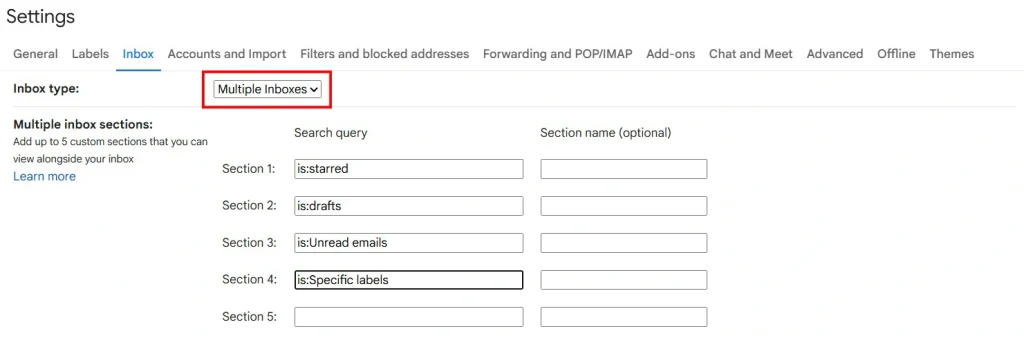
Multiple Inboxes let you split your inbox into sections, such as unread, starred, or labeled emails. This will help you categorize your entire inbox in a handy drawer.
How to do it:
- Go to Settings → Inbox
- Select Multiple Inboxes as the inbox type
- Define sections like:
- Unread emails
- Starred emails
- Specific labels
Why it boosts productivity:
You see important emails instantly without scrolling or searching.
9. Find Emails Instantly with Advanced Search Operators
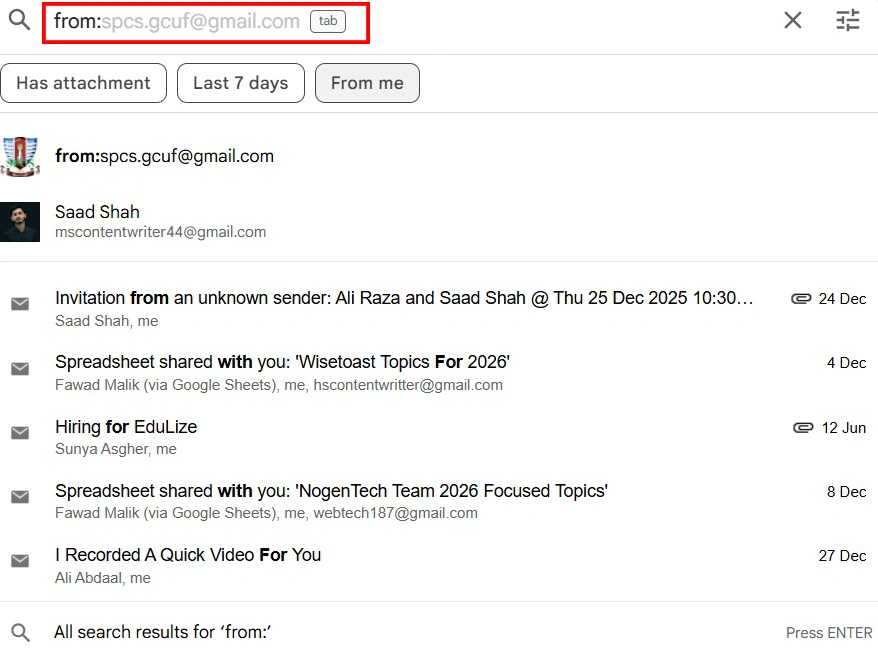
Gmail supports powerful search commands that will allow you to search the entire inbox to find your prior email.
How to do it:
Use operators like:
from:johnhas:attachmentbefore:2025/01/01subject:invoice
Why it boosts productivity:
You can locate old emails in seconds instead of digging manually.
10. Protect Sensitive Information with Confidential Mode
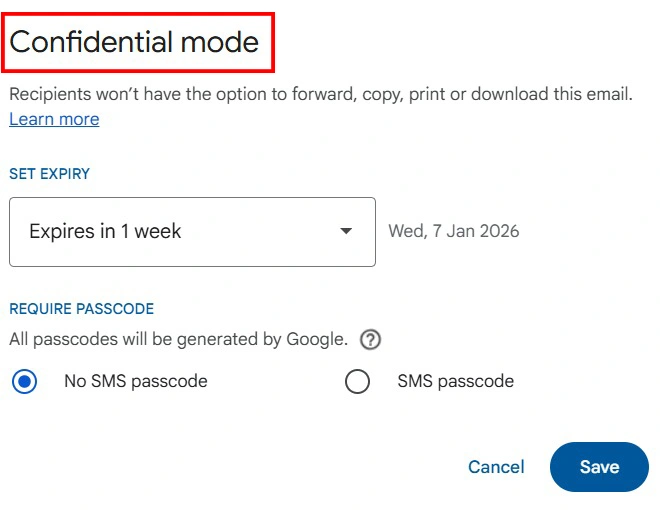
Confidential Mode allows you to set expiration dates and restrict forwarding or downloading of your information.
How to do it:
- Compose an email
- Click the Confidential Mode icon
- Set expiration date and access restrictions
- Send the email
Why it boosts productivity:
You share sensitive information confidently without follow-ups or security concerns because it adds an extra layer of privacy and control when sharing sensitive information.
Final Thoughts on Gmail Hacks & Tricks
Most people use Gmail as a basic inbox, but these hidden Gmail hacks turn it into a powerful productivity tool. By automating repetitive tasks, organizing smarter, and working faster, you can regain control of your email instead of letting it control you.
Start with just two or three of these hacks, and you’ll notice the difference almost immediately.