Every performance marketing decision is only as good as the data behind it. If you can’t see where your traffic, leads, and sales come from, you’re guessing instead of growing.
That’s why Google Analytics 4 (GA4) has become the standard platform for measuring user behavior across websites and apps. With event-based tracking, AI-powered insights, and cross-platform analytics, it helps marketers understand what drives engagement and conversions.
So, Now, you’ll learn:
- What Google Analytics 4 is and how it works
- Key GA4 features and reporting tools
- How to set up GA4 for websites and Shopify stores
- How to track UTM parameters, events, and conversions
- How GA4 connects with Search Console and BigQuery
- Whether GA4 is the right analytics solution for your business
Learning GA4 is one of the most valuable digital marketing skills for measuring campaign performance, user behavior, and conversions.
Whether you’re new to analytics or want to learn more to get desired results, this Google Analytics 4 review covers everything you need to get started with GA4.
What is Google Analytics 4?
Start creating Verdict in seconds, and convert more of your visitors into leads.
Google Analytics 4 (GA4) is Google’s analytics platform that helps businesses track user behavior, measure conversions, and analyze website and app performance using an event-based data model.
Unlike Universal Analytics, which focused mainly on sessions and pageviews, GA4 records user interactions as individual events, such as:
- Page views
- Clicks
- Scrolls
- Video plays
- Purchases
This event-based approach helps marketers understand complete user journeys across websites and apps. GA4 also uses machine learning and predictive analytics to identify trends and provide smarter insights.
With GA4, businesses can:
- Track user engagement
- Measure conversions
- Analyze marketing performance
- Understand cross-device behavior
- Connect data with Google Ads, Search Console, and BigQuery
When Did Google Analytics 4 Come Out?
Google Analytics 4 (GA4) officially launched in October 2020 and became Google’s standard analytics platform after Universal Analytics stopped processing new data on July 1, 2023.
Here’s a quick timeline of GA4’s evolution:
| Date | Milestone |
|---|---|
| 2019 | Google introduced the App + Web property in beta, which later evolved into GA4. |
| October 2020 | Google officially launched Google Analytics 4 (GA4). |
| March 2022 | Google announced the retirement of Universal Analytics. |
| July 1, 2023 | Universal Analytics stopped processing new data for standard properties. |
| Today | GA4 is Google’s primary analytics platform for websites and mobile apps. |
Since its launch, Google has continued to expand GA4 with features such as event-based measurement, machine learning insights, predictive analytics, privacy-focused reporting, and deeper integrations with Google Ads, Search Console, and BigQuery.
What Is a Google Analytics 4 Property?
A Google Analytics 4 (GA4) property is a container that stores and organizes analytics data for a specific website, mobile app, or digital product.
A typical GA4 structure looks like this:
- Google Analytics Account: The top-level account for your business.
- GA4 Property: Collects data for a website or app.
- Data Stream: Sends data from a website, iOS app, or Android app to the property.
Unlike Universal Analytics, GA4 doesn’t use Views. Instead, it organizes and analyzes data through Reports, Explorations, and Audiences, making it easier to measure user behavior across platforms.
What Is a Dimension in Google Analytics 4?
A dimension in Google Analytics 4 (GA4) is an attribute that describes your data, such as where users come from, what device they use, or which pages they visit.
Dimensions explain the characteristics behind your metrics:
- Dimensions: Country, Device category, Session source, Page title, Event name
- Metrics: Users, Sessions, Engagement, Conversions, Revenue
For example:
- Dimension: Session source = Google
- Dimension: Device category = Mobile
- Metric: Sessions = Number of visits
GA4 includes built-in dimensions and allows marketers to create custom dimensions to track business-specific data, such as membership type, content category, or customer segments.
Is Google Analytics 4 Free?
Start creating Verdict in seconds, and convert more of your visitors into leads.
Yes. Google Analytics 4 (GA4) is free for most websites and apps, while Google Analytics 360 (GA4 360) is a paid enterprise version with higher limits and advanced support.
GA4 Free vs. GA4 360
| Feature | GA4 Free | GA4 360 |
|---|---|---|
| Cost | Free | Paid enterprise pricing |
| Best For | Small businesses, marketers, agencies | Large enterprises |
| Data Limits | Standard limits | Higher limits |
| Reporting | Standard reports | Advanced reporting |
| Support | Documentation | Dedicated support |
For most businesses, the free version of GA4 is enough to track users, measure conversions, and analyze marketing performance. To build out your stack on a budget, you can also use the other SEO tools for beginners alongside Google’s free utilities.
GA4 360 is mainly designed for organizations with large-scale data and advanced analytics needs. It can also be paired with other website traffic monitoring tools to cross-verify data and gather broader analytics insights.”
Is Google Analytics 4 Certification Worth It?
Yes, the Google Analytics 4 certification is worth getting for marketers, analysts, and beginners who want to validate their GA4 knowledge.
Google offers the certification for free through Skillshop. To earn it:
- Visit Google Skillshop.
- Complete the GA4 learning course.
- Pass the certification assessment.
The certification helps you understand GA4 concepts, reports, and measurement workflows. However, it is a starting point rather than a replacement for hands-on experience with real analytics data.
How to Log In to Google Analytics 4?
Start creating Verdict in seconds, and convert more of your visitors into leads.
To log in to Google Analytics 4 (GA4), visit analytics.google.com and sign in with the Google account connected to your GA4 property.
Follow these steps:
- Go to analytics.google.com.
- Sign in with your Google account.
- Complete verification if two-step authentication is enabled.
- Select the GA4 property you want to access.
After logging in, start with Reports → Reports Snapshot to view key metrics such as users, engagement, and conversions. You can also explore Realtime, Reports, and Explore sections for deeper analysis.
GA4 login uses the same process as the standard Google Analytics, so the same steps are involved in both. Also, the Google Analytics 4 dashboard is now the default for both.
How to Set Up Google Analytics 4?
Start creating Verdict in seconds, and convert more of your visitors into leads.
You can set up Google Analytics 4 (GA4) by creating an account, adding a property, connecting a data stream, installing the tracking code, and verifying data collection.
Step 1: Create a Google Analytics Account
Sign in to Google Analytics with your Google account and create a new analytics account.

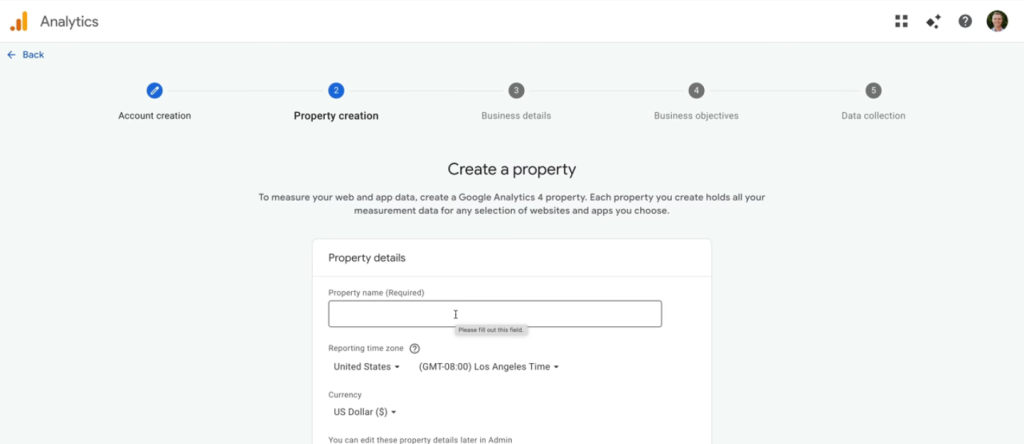
Step 2: Create a GA4 Property
Enter your property name, choose your reporting time zone and currency, then save the property.
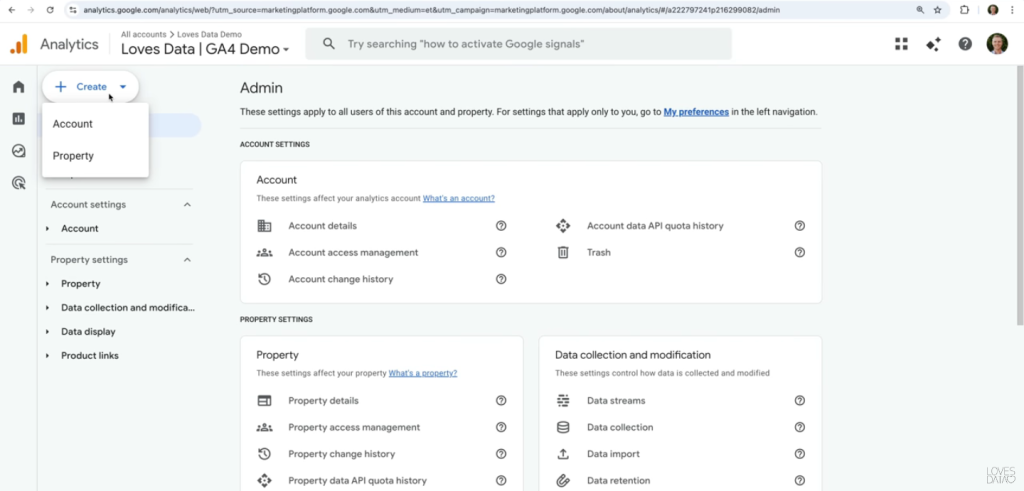
Step 3: Add a Data Stream
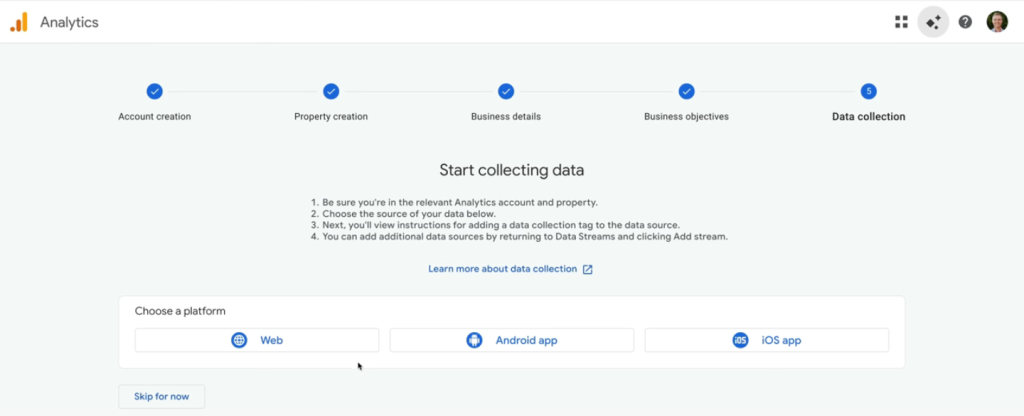
Select Web, iOS, or Android, enter your website or app details, and enable Enhanced Measurement to automatically track common user interactions.
Step 4: Install the Tracking Code
Choose one of these installation methods:
- Google Tag Manager (recommended)
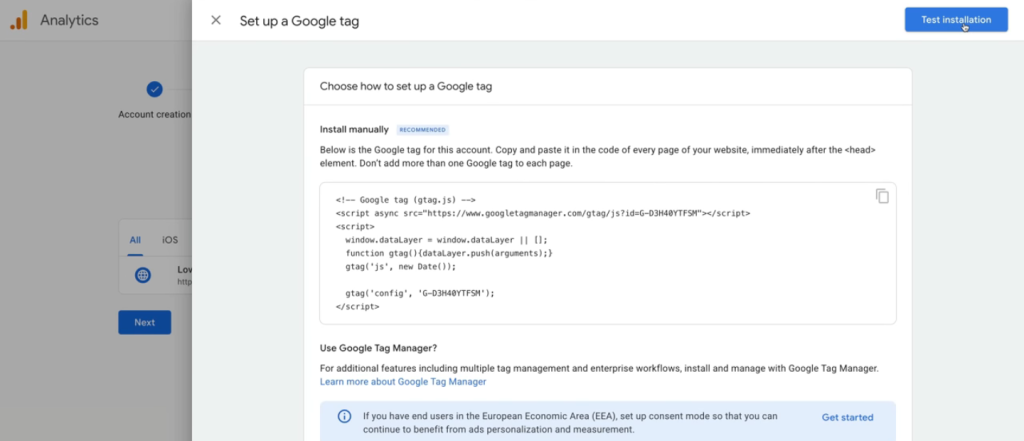
- gtag.js (manual installation)
- CMS plugins such as Site Kit or MonsterInsights
Step 5: Verify Your Setup
Open Reports → Realtime in GA4 and visit your website. If your activity appears, your tracking is working correctly.
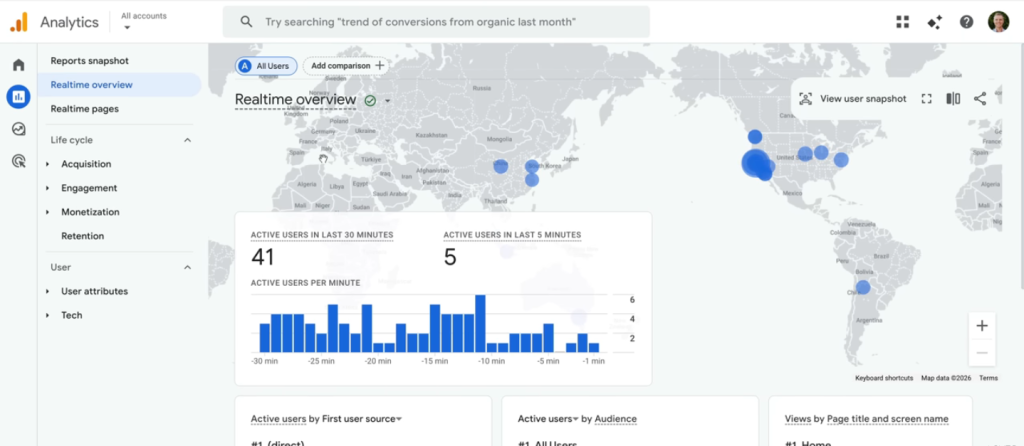
Here is also a YouTube video guide that you can follow to complete the steps:
How to Install Google Analytics 4 on Shopify?
The easiest way to install Google Analytics 4 (GA4) on Shopify is through Shopify’s official Google & YouTube app.
Follow these steps:
- Go to Shopify Admin → Online Store → Preferences.
- Click Manage Pixel in the Google Analytics section to open the Google & YouTube app.
- Sign in with your Google account.
- Select your GA4 property and click Connect.
Once connected, Shopify automatically enables standard GA4 tracking, including key ecommerce events like product views, add-to-cart actions, checkout, and purchases.
Tip: If your store previously used manual GA4 code or Google Tag Manager, remove duplicate tracking before connecting the app to avoid collecting duplicate data.
What Are the Key Features of Google Analytics 4?
Start creating Verdict in seconds, and convert more of your visitors into leads.
Google Analytics 4 (GA4) offers event-based tracking, cross-platform analytics, Artificial Intelligence insights, privacy controls, and advanced reporting to help businesses better understand user behavior and marketing performance.
1. Event-Based Tracking
GA4 records every user interaction as an event, providing more detailed insights than traditional session-based analytics.
Common event types include:
- Automatically collected events
- Enhanced Measurement events
- Recommended events
- Custom events
2. Cross-Platform Measurement
GA4 combines data from websites and mobile apps to help businesses analyze complete customer journeys across multiple devices.
3. Machine Learning and Predictive Analytics
GA4 uses machine learning to identify trends and generate predictive metrics, such as:
- Purchase probability
- Churn probability
- Revenue prediction
These insights can also be used to build audiences for Google Ads campaigns.
4. Privacy and Consent Mode
GA4 includes built-in privacy features and supports Consent Mode to help businesses comply with regulations like GDPR and CCPA while maintaining accurate reporting.
5. Enhanced Ecommerce Tracking
GA4 tracks the entire ecommerce journey, including:
- Product views
- Add to cart
- Checkout
- Purchases
- Refunds
6. Custom Reports and Explorations
The Explore workspace lets marketers create advanced reports using tools like Funnel Exploration, Path Exploration, Cohort Analysis, and Segment Overlap.
7. Attribution and Marketing Insights
GA4 uses attribution models to show how different marketing channels contribute to conversions, helping businesses measure campaign performance more accurately.
How to Find Bounce Rate in Google Analytics 4?
Start creating Verdict in seconds, and convert more of your visitors into leads.
Google Analytics 4 (GA4) includes a Bounce Rate metric, but it isn’t displayed in standard reports by default. Unlike Universal Analytics, GA4 calculates bounce rate based on user engagement rather than single-page sessions.
GA4 measures Engagement Rate as its primary metric. A session is considered engaged if it meets at least one of these conditions:
- Lasts longer than 10 seconds
- Includes a conversion (key event)
- Has 2 or more page or screen views
Bounce Rate is simply the percentage of sessions that didn’t meet these engagement criteria.
How to Calculate Bounce Rate in GA4?
GA4 calculates Bounce Rate using the following formula:
Bounce Rate = (Unengaged Sessions ÷ Total Sessions) × 100
Since Bounce Rate is the inverse of Engagement Rate:
- 80% Engagement Rate = 20% Bounce Rate
- 70% Engagement Rate = 30% Bounce Rate
How to Add Bounce Rate to Your GA4 Reports?
Bounce Rate isn’t included in most standard reports by default. To add it:
- Open a standard report, such as Pages and Screens.
- Click the Customize (pencil) icon.
- Select Metrics and click Add metric.
- Search for Bounce Rate and add it.
- Save the report.
As a general benchmark, an Engagement Rate between 60% and 75% is considered healthy for many websites, while consistently lower engagement may indicate opportunities to improve content or user experience.
How to Track UTM Parameters in Google Analytics 4?
Start creating Verdict in seconds, and convert more of your visitors into leads.
Google Analytics 4 (GA4) automatically tracks standard UTM parameters, allowing you to measure the performance of marketing campaigns without additional setup.
GA4 recognizes these standard UTM parameters:
| Parameter | Purpose |
|---|---|
| utm_source | Traffic source (e.g., Google, Facebook) |
| utm_medium | Marketing channel (e.g., CPC, Email) |
| utm_campaign | Campaign name |
| utm_content | Ad or link variation |
| utm_term | Paid search keyword |
How to View UTM Data in GA4
- Go to Reports → Acquisition → Traffic Acquisition.
- Change the primary dimension to Session source/medium or Session campaign.
- Review your campaign data, including users, engagement, and conversions.
While GA4 handles on-site metrics, platforms like Semrush and Ahrefs also help track external rankings.
Tip: Keep UTM names consistent (for example, use
How to Connect Google Search Console to Google Analytics 4?
Start creating Verdict in seconds, and convert more of your visitors into leads.
Connecting Google Search Console to Google Analytics 4 (GA4) lets you analyze organic search performance alongside user engagement and conversions in one place.
Follow these steps:
- Go to Admin in GA4.
- Scroll to the Product Links section and select Search Console Links.
- Click Link and choose your verified Search Console property.
- Select your GA4 data stream and click Submit.
After the integration is complete (typically within 24–48 hours), Search Console data will appear in your GA4 reports.
You’ll be able to analyze:
- Search queries
- Landing pages
- Impressions and clicks
- Average search position
- Engagement and conversions
Linking Search Console with GA4 gives you a complete view of how organic search traffic contributes to your website’s performance and marketing goals. To complement this data, marketers also track brand mentions in AI search to monitor visibility across AI-driven discovery platforms.
How to use Google Analytics 4 DebugView?
DebugView lets you verify that GA4 events are firing correctly before they appear in standard reports.
To use DebugView:
- Open Admin.
- Under Data Display, select DebugView.
- Enable debug mode using Google Tag Manager Preview, the GA Debugger Chrome extension, or debug mode in your app.
- Visit your website and perform actions such as viewing pages, clicking buttons, or submitting forms.
- Check DebugView to confirm that your events appear in real time.
DebugView is useful for testing event tracking, conversions, and custom events before publishing changes to your website or app.
How to connect Google Analytics 4 to BigQuery?
Start creating Verdict in seconds, and convert more of your visitors into leads.
Google Analytics 4 (GA4) can connect with Google BigQuery to export raw, unsampled event data for advanced analysis, custom reporting, and data modeling.
To connect GA4 with BigQuery:
- Go to Admin (gear icon in the bottom left).
- Scroll to the Product Links section and select BigQuery Links.
- Click Link and choose your Google Cloud project.
- Select your data location and export frequency (Daily, Streaming, or both).
- Click Submit.
GA4 BigQuery exports are useful for:
- Analyzing unsampled event data.
- Running custom SQL queries.
- Combining data from multiple sources.
- Connecting with BI tools such as Looker Studio and Tableau.
For most marketers, standard GA4 reports are enough. BigQuery is mainly valuable for advanced analytics teams that need deeper data analysis and custom reporting.
How to Exclude an IP Address in Google Analytics 4?
Start creating Verdict in seconds, and convert more of your visitors into leads.
To exclude internal traffic in Google Analytics 4 (GA4), create an internal traffic rule and activate an Internal Traffic data filter. Unlike Universal Analytics, GA4 does not have a direct IP exclusion option.
Step 1: Create an Internal Traffic Rule
- Go to Admin → Data Streams.
- Select your website data stream.
- Open Configure tag settings → Define internal traffic.
- Create a rule, add your IP address, and save it.
Step 2: Activate the Data Filter
- Go to Admin → Data collection and modification → Data Filters.
- Select the Internal Traffic filter.
- Change the filter state to Active and save.
Tip: Test the filter first to confirm it is working correctly before activating it, as incorrect filtering can affect your analytics data.
How to Delete (or Deactivate) a GA4 Event?
Start creating Verdict in seconds, and convert more of your visitors into leads.
Google Analytics 4 (GA4) doesn’t let you permanently delete historical events, but you can stop collecting future events or remove them from your reporting setup.
You have several options:
- Stop sending the event: Remove or pause the tracking in Google Tag Manager or your website’s tracking code.
- Disable a key event: If the event is marked as a Key Event (formerly a conversion), turn it off under Admin → Data display → Key events.
- Modify an event: Go to Admin → Data display → Events → Modify Event to change event names or parameters before future data is processed.
- Delete historical data (if needed): To remove accidentally collected sensitive data, use Admin → Data collection and modification → Data Deletion Requests.
Changes only affect future data collection unless you submit a Data Deletion Request, which is designed for removing eligible historical data.
People Also Ask About Google Analytics 4
Start creating Verdict in seconds, and convert more of your visitors into leads.
When Does Google Analytics 4 Start?
Google Analytics 4 launched in October 2020 and became the standard Google Analytics platform after Universal Analytics stopped processing new data on July 1, 2023.
How long does GA4 keep data?
The standard GA4 property retains user-level and event-level data for up to 14 months by default. Businesses can export data to BigQuery for longer-term storage and advanced analysis.
How is bounce rate different in GA4 vs Universal Analytics?
GA4 calculates bounce rate as the percentage of sessions that are not engaged, while Universal Analytics measured single-page sessions. The two metrics are not directly comparable.
Can I still use Universal Analytics?
No. Universal Analytics has been discontinued and no longer processes new data. Google Analytics 4 is now the standard analytics platform.
How do I get the GA4 certification?
You can earn the GA4 certification through Google Skillshop for free. It helps marketers and analysts understand GA4 reporting, measurement, and analytics concepts.
Is Google Analytics 4 Right for You?
Start creating Verdict in seconds, and convert more of your visitors into leads.
Google Analytics 4 is a strong choice for most businesses, marketers, and website owners who need to understand user behavior, measure conversions, and improve digital performance.
GA4 is especially useful for:
- Content marketers tracking engagement and content performance. Content teams often use GA4 alongside SEO plugins like Yoast SEO to improve content optimization and measure how visitors interact with published pages.
- E-commerce brands analyzing product views, purchases, and customer journeys.
- SEO professionals connecting organic traffic with on-site behavior through Search Console integration.
- App developers measuring user activity across iOS and Android apps.
- Agencies managing multiple properties and advanced analytics workflows.
Beginners building their digital marketing workflow may combine GA4 with simpler SEO platforms such as Ubersuggest for keyword research and content planning. Large enterprises with high data volumes, advanced reporting needs, or faster data processing requirements may consider Google Analytics 360.