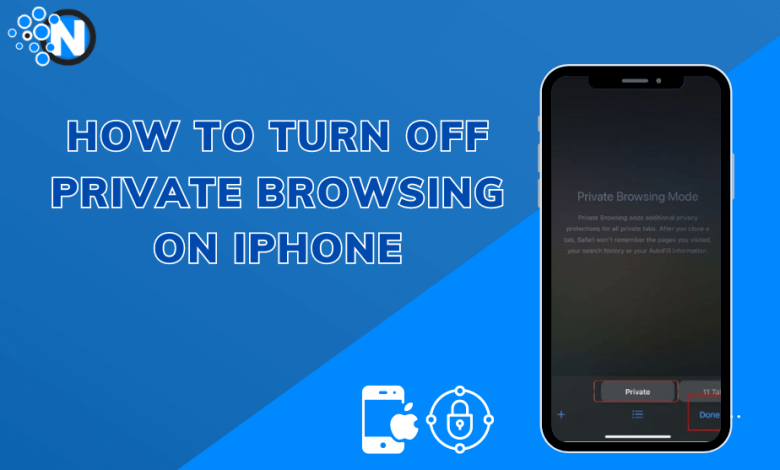
To turn off Private Browsing on an iPhone, open Safari, tap the Tabs button, switch from the Private Tab Group to a regular tab group, and tap Done. This exits Private Browsing and returns Safari to normal mode, where browsing history and website data are saved.
In this guide, you will learn how to turn off Private Browsing on iPhone step by step, how to confirm that Private Mode is no longer active, and how to fully disable Private Browsing using Screen Time restrictions if you want to prevent it from being used again.
The article focuses only on Safari on iPhone and provides clear, actionable instructions without unnecessary explanations.
Why Should You Turn Off Private Browsing?
Private Browsing is one of the beneficial features of the iPhone. It helps you take control of your Browsing; using this feature, you can limit other users and websites tracking you. This handy feature doesn’t allow cookies and ensures total safety while searching.
Search history can help you find beneficial files, while web tracking or cookies can help you have a personalized experience. You can turn off or disable this feature to exit private Browsing. Many companies don’t allow their employees to turn private Browsing on; this way, they can track whether the system is used for anything other than work.
How to Turn On Private Browsing on iPhone or iPad?
Let’s start by showing you how to turn on private browsing on an iPhone. This process is straightforward, and you can do it in seconds. Following are the steps to turn on private Browsing:
- Simply open “Safari.”
- Click on “New Page” option.
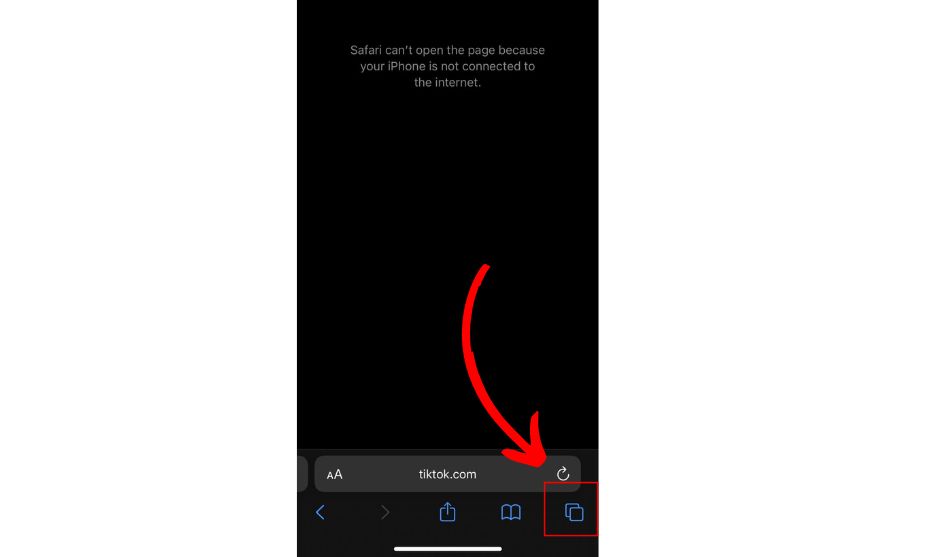
- Click “Private” and then tap “Done”. Thats it!
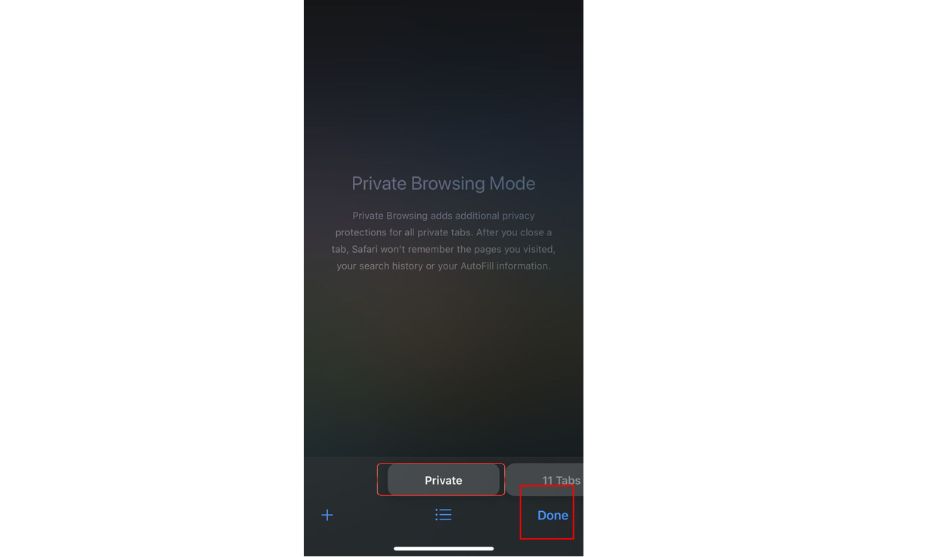
It is one of the finest features of the iPhone, and you can enjoy it on a Mac or iPad, too. It helps you browse safely without leaving any track history.
How to Turn Off Private Browsing on iPad or iPhone?
Once you’re done using the private Browsing, it’s time to get out of private tabs. Just with 3-4 steps, you can exit from private tabs. Follow these steps;
- Open “Safari”. Tap on the Safari app icon on your iPhone’s home screen.
- Click on the “New Page” or “Tabs View“. You can find them below the corner of the screen as overlapping squares.
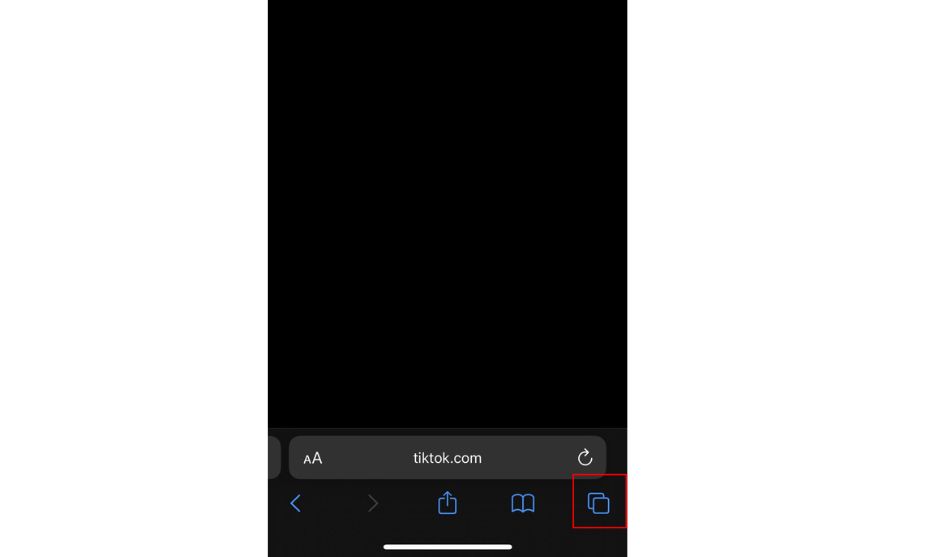
- Swipe tabs and click the “Private” Tab group.
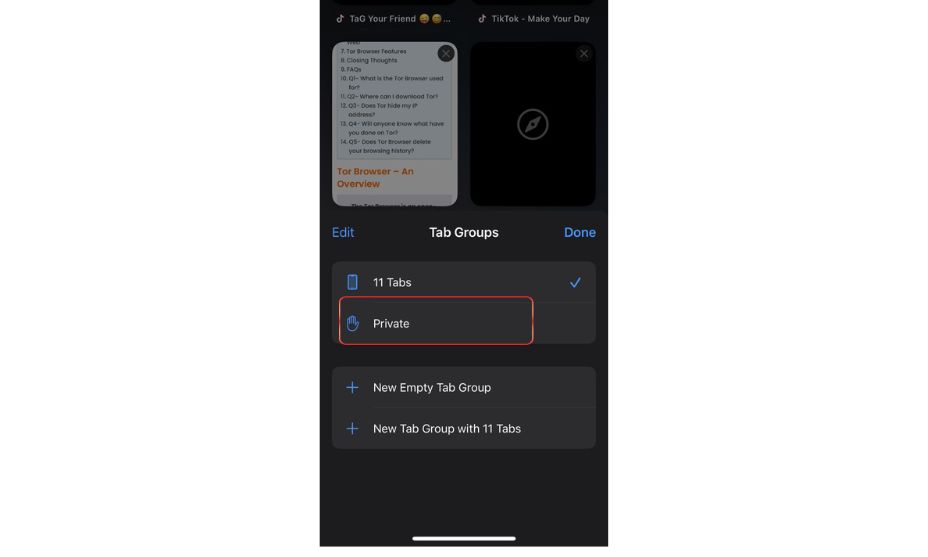
- Tap “Done” and then “Close” the tab to completely exit Private Browsing.
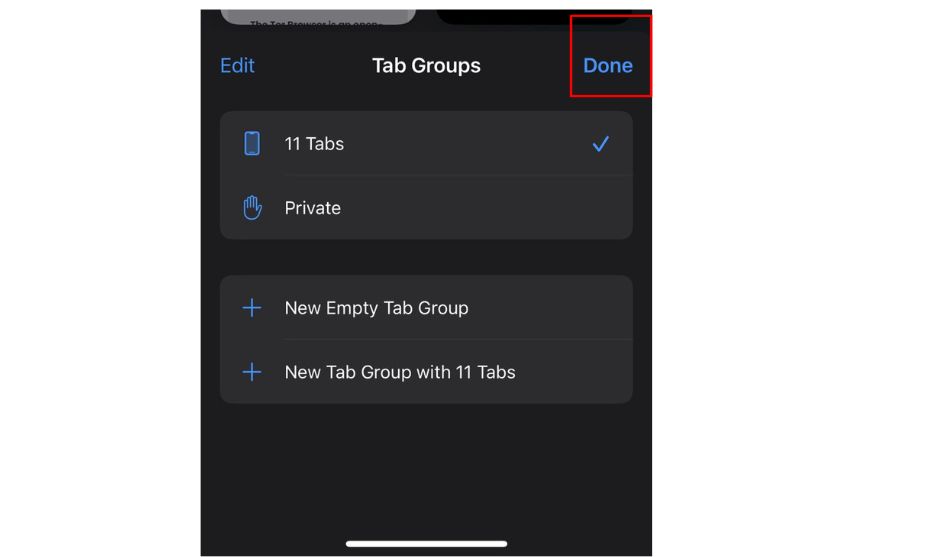
If unsure whether you’re in private mode, click “New Page” . If you see Private highlighted, that indicates you are using private Browsing; otherwise, not. Also, in private mode, the top bar and all icons turn black instead of white.
Fully Disable Private Browsing on Your iPhone
It’s easy to go on and off private Browsing whenever you want. But what if you want to turn off this feature entirely? Is it possible or not? The answer is yes, you can do it all by yourself.
With a few settings, you can quickly disable the Private Browsing. Follow these steps the steps mentioned below;
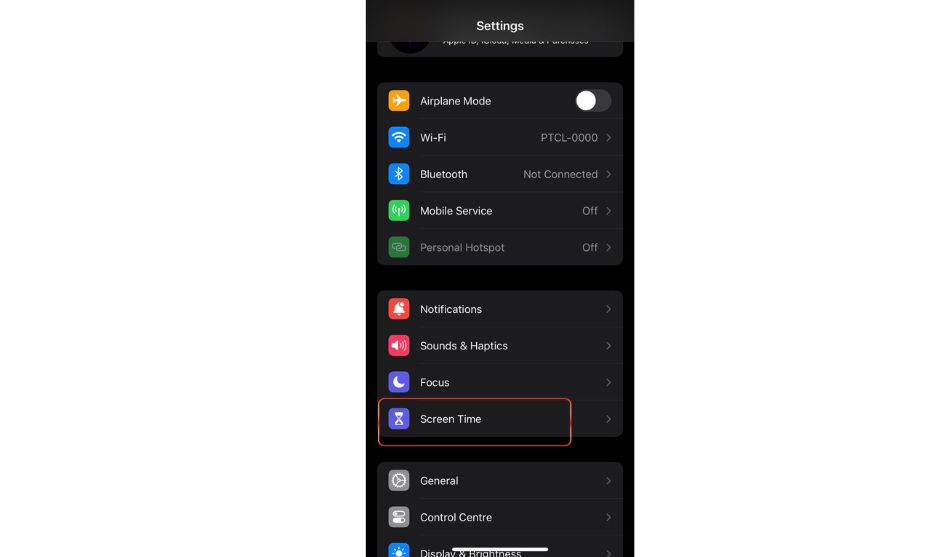
- Click the “Screen time” option available in the settings
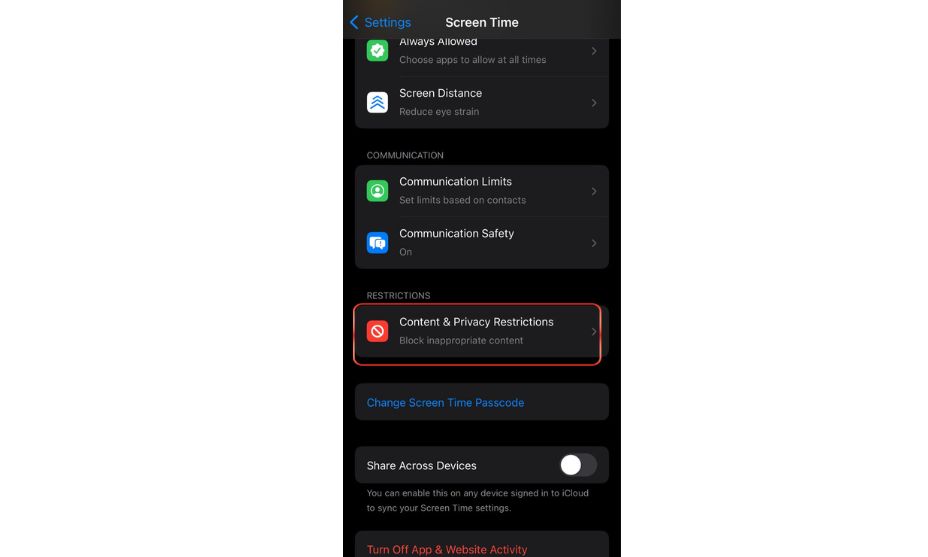
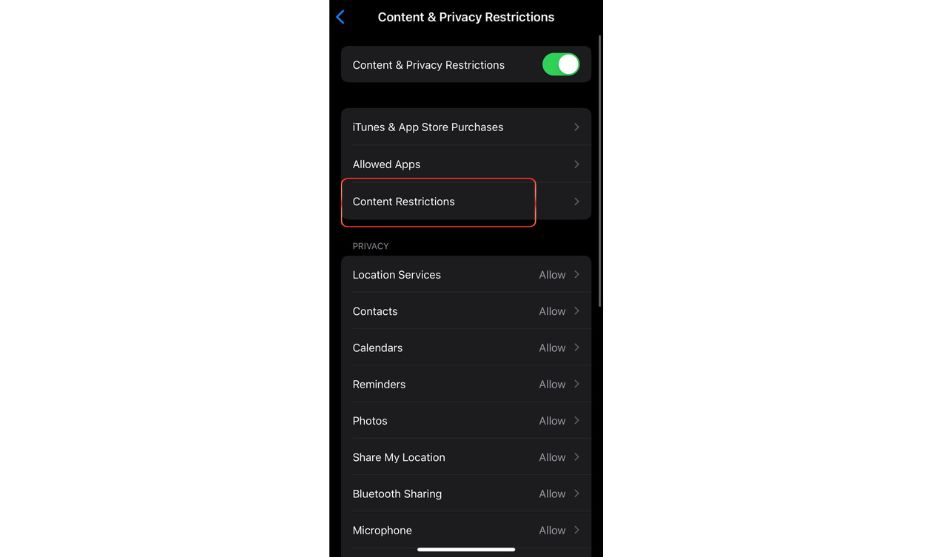
- Click on “Content and Privacy Restrictions” option and on the next page click “Content Restrictions.”
- Tap “Content Restrictions” and then type a strong passcode. And don’t forget this password, which you can use later to lift restrictions.
- Scroll down and click “Web Content”
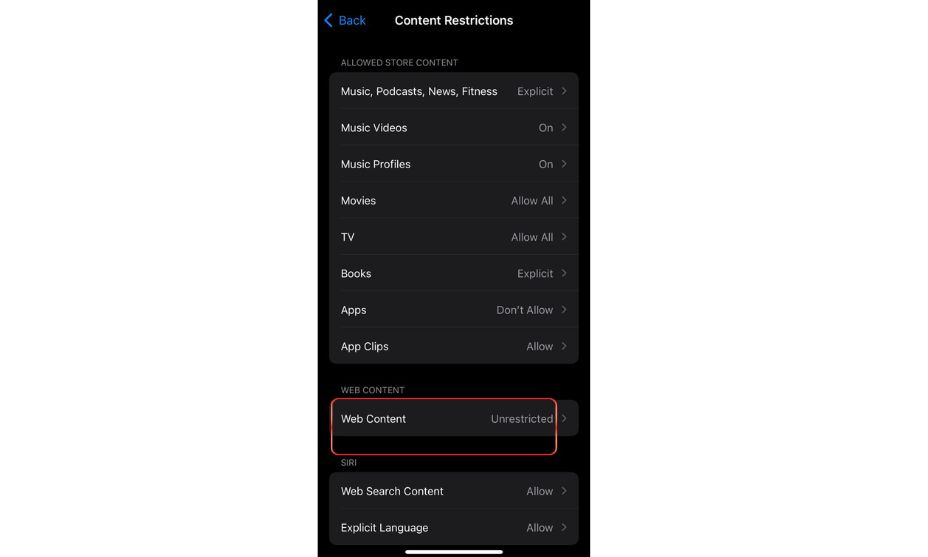
- From there, click “Limit Adult Content.” You can also disable the private browsing and turn off Allowed Websites Only to because activating this feature allows you to visit permitted sites only.
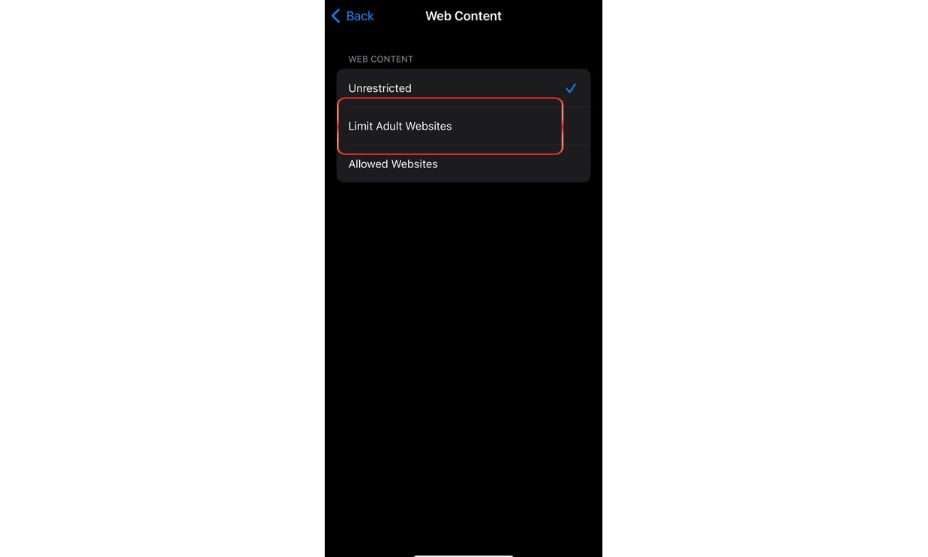
Private Browsing is a helpful feature that enables you to browse without creating a history or accepting cookies. It’s pretty simple to turn off this feature to keep track of everything you search.
Why Screen Time Disables Private Browsing?
Safari allows Private Browsing only when unrestricted web access is enabled. When Limit Adult Websites is active:
- Private Tab Groups are removed
- Safari operates only in standard mode
- Browsing activity can be monitored
This method is commonly used for parental controls or supervised devices.
Common Issues When Turning Off Private Browsing
Private Option Is Missing
This usually means Screen Time restrictions are already enabled.
Safari Keeps Opening in Private Mode
Check if Safari was last closed while in Private Tabs. Switch tab groups before closing Safari.
Cannot Disable Private Browsing
Ensure Limit Adult Websites is selected under Web Content settings.
Differences Between Turning Off and Disabling Private Browsing
| Turning off Private Browsing | Exits Private Tabs and returns to normal mode |
| Closing Private Tabs | Removes all private sessions |
| Disabling via Screen Time | Prevents Private Browsing from being used |
Sum Up
You can easily switch from private to normal Browsing in the Safari setting. Private boring allows you to use the browser without any hassle of deleting history repeatedly. It’s crucial to turn off which saves your data and enjoy a personalized browsing experience. You can quickly go on or off private Browsing on your iPhone without hassle. It is also helpful for kids doing schoolwork as this feature will only apply to selected websites. In short, you can turn off the private Browsing within your iPhone settings with just a few clicks.
Frequently Asked Questions
How can we turn off private Browsing on iPhones in simple steps?
You can always switch back to normal after browsing privately; simply open Safari. Now click the regular tabs option from tabs. And that’s it!
How can I switch back from private to normal Browsing on an iPhone?
Once you’re done browsing privately, click the regular tab from the screens top. That’s how it quickly switches back to normal, and now your next Browsing will save history.
How do you permanently turn off Private Browsing?
You can’t permanently disable Private Browsing as it’s designed for privacy concerns. However, you can disable it for some time and then switch back to it.
Can Parents disable private browsing on iPhones?
Yes, parents can also disable private browsing from settings, by enabling “Limit Adult websites”.