The best cloud storage for photographers is a split system, such as using pCloud for speed/privacy, Backblaze for unlimited archiving, and Pixieset for client delivery.
Every photographer has that nightmare: The hard drive clicks, the screen freezes, and a wedding or commercial project vanishes.
Nowadays, the problem isn’t finding storage space; it is the workflow fatigue and privacy. With AI scraping becoming a legitimate concern for creatives and file sizes for cameras such as the Sony A7RV pushing 60MB-100MB per image, the old generic advice of “just get Google Drive” no longer applies to professionals.
This isn’t a list of the cheapest hard drives. This is a blueprint for building a bulletproof photography backup system for your workflow, your speed requirements, and your data privacy.
The Photography Backup Hierarchy: Sync vs. Backup
Before buying a plan, you must understand the “Golden Error” most photographers make. They confuse syncing with Backing Up.
- Cloud Sync: This includes options such as Dropbox or Google Drive, which mirror your computer. If you delete a photo on your laptop to save space, it deletes from the cloud too. This is a workflow tool, not a disaster recovery plan.
- Cloud Backup: This includes options like Backblaze, which works as a digital vault. If you delete a file on your laptop, the backup keeps it forever or for a set retention period. This is your safety net.
The Strategy: The 3-2-1 Rule
- 3 Total Copies: You must have your photos in three different places in total. If you have only one copy, just on your laptop, you are one coffee spill away from losing everything.
- 2 Different Media Types: Two of those copies should be on different types of hardware in your house/office.
- Copy 1: On your computer’s internal drive for editing.
- Copy 2: On an external hard drive sitting on your desk in case your computer crashes.
- 1 Offsite Copy: This is the most important part of your article. One copy must be outside your house.
- Reason: In case you face an accident, your house floods, burns down, or you get robbed, both local drives (computer + external hard drive) are gone.
- The Solution: This is where Cloud Storage comes in. It is the “Offsite Copy” that survives a physical disaster.
Technical Performance Benchmarks
Speed is one of the major concerns and a performance benchmark. Testing analyzed the theoretical throughput for uploading 100GB of RAW data (approx. 2,000 files from a 45MP camera) on a standard Fiber connection (500 Mbps Up/Down).
Note: Practically, real-world speeds often throttle after sustained uploads.
| Service | Real World Time for 100GB (est) | Key Protocol and Featurable Notes |
| pCloud | ~2.5 – 3.5 hours | Fastest overall. Focus on transfer speed. No file limits. |
| Dropbox | ~4 – 6 hours | Good for small files. Block-level sync works for updates, not initial upload. |
| Google Drive | ~4 – 6 hours | Fast for large files (up to 5TB). Throttling and a 750GB daily limit. |
| Backblaze | ~5 – 8 hours | Unlimited backup focus. Speed needs manual thread adjustment. |
The Takeaway: If you need to deliver files to a client today, pCloud remains the fastest option for a full 100GB. If you are archiving a finished year of shoots, Backblaze is the efficiency winner due to its unlimited storage model. Dropbox is the speed king only for updating existing files and is also best for collaboration purposes.
Best Cloud Storage Ecosystems by Speed, Backup, and Privacy
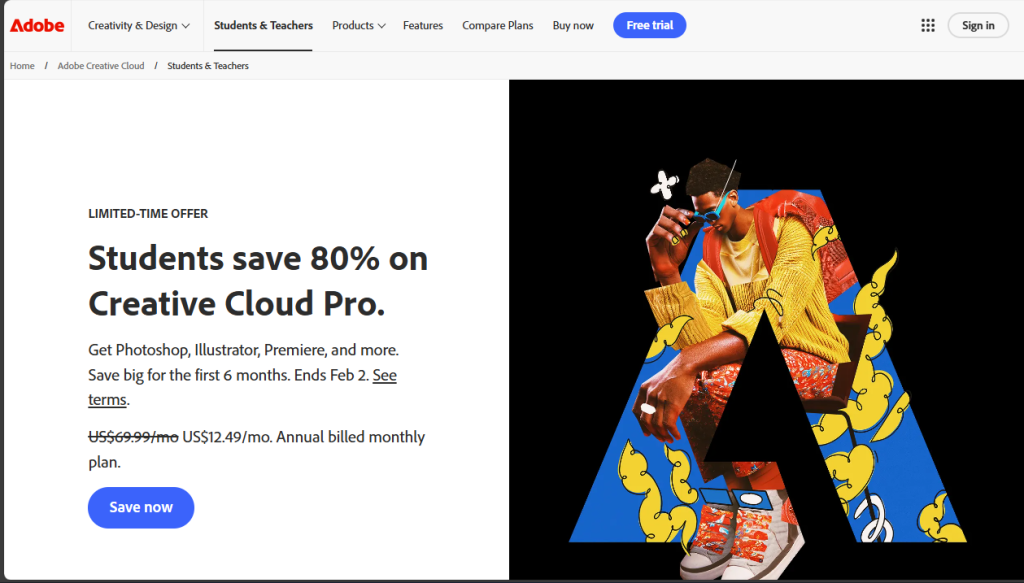
The “Seamless” Choice: Adobe Creative Cloud
- Best For: Photographers who depend on Lightroom and Photoshop.
- The Pro: Adobe Creative Cloud is the only ecosystem that allows you to edit a photo on your iPad Pro and have those edits sync instantly to your desktop Lightroom Classic catalog. It isn’t just storage; it’s a workspace.
- The Con: It is expensive per terabyte, and it is not a system backup. It only backs up the photos you import.
The “Value/Security” Choice: pCloud
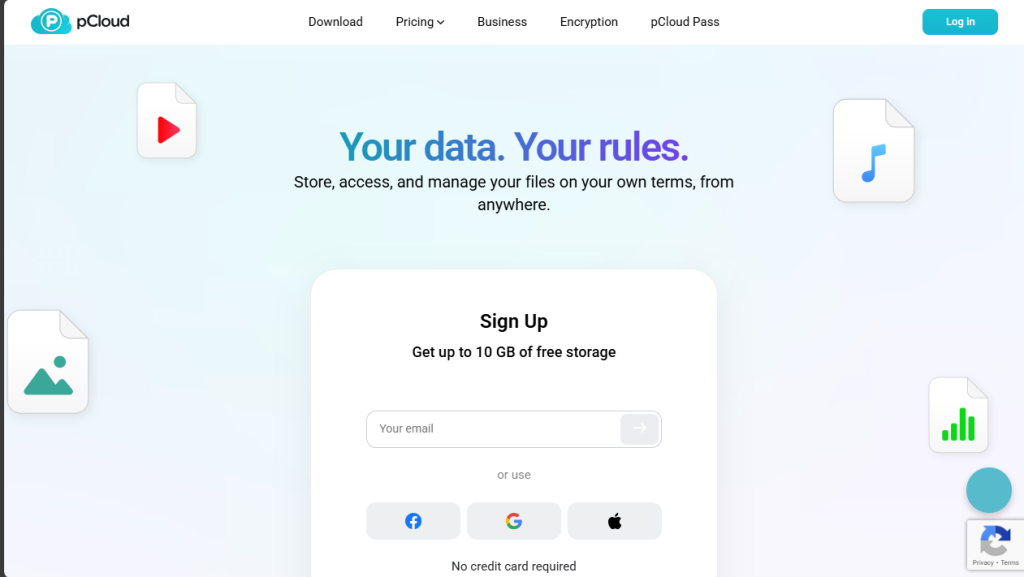
- Best For: Long-term archivists who hate monthly subscriptions.
- The Pro: pCloud is one of the few providers offering Lifetime Plans. One payment for 2TB or 10TB of storage. For a photographer planning a 5-year career, this pays for itself in 18 months.
- The Feature: Their “Virtual Drive” mounts on your computer like a USB stick, letting you browse RAW files without taking up space on your hard drive.
The “Ease-of-Use” Choice: Google Drive / Amazon Photos
- Best For: The hobbyist-to-pro transition and Prime members.
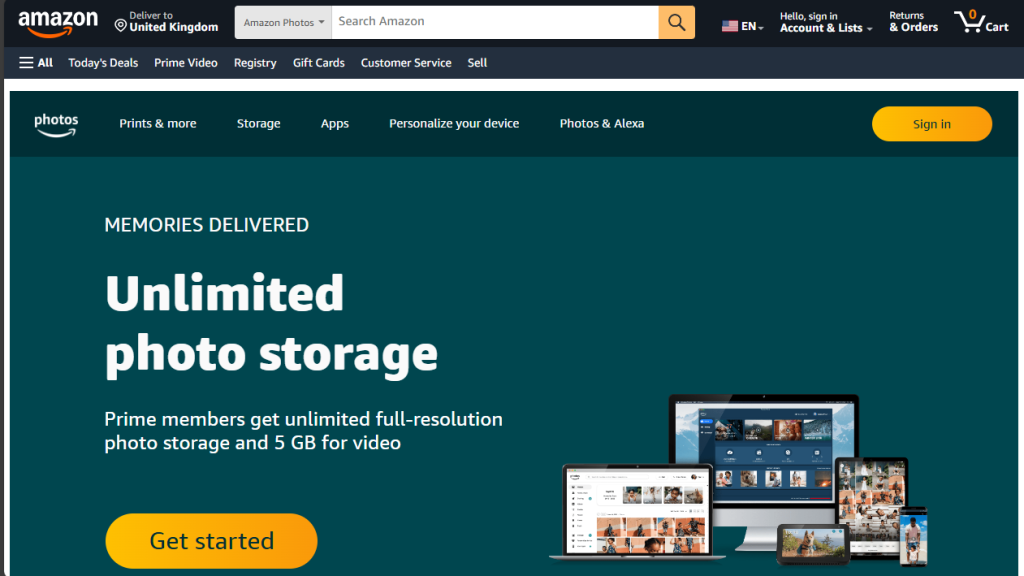
- The Pro: Amazon Photos still offers unlimited full-resolution photo storage for Prime members (i.e., for now). However, Google Drive’s search is uncompetitive. You can type “Wedding Cake,” and it will find every untagged RAW photo containing a cake.
- The Con: Privacy is the main concern. These services often scan your images to train their object recognition algorithms or serve ads.
Hidden Workflow Killers: RAW Previews and Metadata
A cloud service is useless if you can’t see what you are looking at.
Standard cloud storage, such as Google Drive, often struggles to render proprietary RAW formats like Canon’s.CR3 or Sony’s.ARW.
You often end up with a folder full of generic file icons, forcing you to download a 50MB file just to see if it’s the photo you wanted.
- The “Smart” Choice: SmugMug Source and Amazon Photos excel here. They essentially function as a cloud-based Lightroom, allowing you to view EXIF data such as Shutter speed, ISO, and lens directly in the browser.
- The “Dumb” Choice: Backblaze B2 and AWS Glacier. These are “Cold Storage” buckets. You cannot see previews. You upload a zip file and retrieve it only in an emergency. Do not use these for active client sharing.
The “AI Gap”: Privacy Concern in 2026
This is the single biggest factor changing the industry this year. AI tools are owning the rights to scan your photos.
The Risk: Many free or consumer-grade cloud services (and some social-focused galleries) have Terms of Service that allow them to use your images to train generative AI models.
The Safe Options:
- Internxt: An emerging player focusing on “Zero-Knowledge” encryption. They cannot see your photos, so they cannot scan them for AI.
- pCloud (with Crypto): Offers a secure folder option that ensures total privacy.
- Sync.com: Located in Canada with strict privacy laws, avoiding the US-based “Patriot Act” data scanning loopholes.
Client Delivery vs. Long-Term Archiving
Don’t try to use one tool for everything. The most successful photographers split their workflow:
- Delivery: Use Pixieset, Zno, or Pic-Time. While Zno and Pixieset are fantastic for selling prints and delivering beautiful galleries to clients, they are not disaster recovery solutions for your RAW files.
- Archive: Use Backblaze or Synology NAS (Private Cloud). This is where the raw data lives. It’s ugly, it’s cheap, and it’s secure.
The Final Verdict: Your Decision Matrix
Which workflow fits your business model?
| If you are a… | The Best Workflow Strategy |
| Wedding/Event Pro | Delivery: Pixieset / Active: SSD / Archive: Backblaze (Unlimited). You need volume storage at a flat rate. |
| Travel/Landscape | Delivery: SmugMug / Active: Adobe Cloud. You need mobile editing on the go more than massive storage. |
| Privacy Advocate | Delivery: Self-hosted / Active: Hard Drives / Archive: Internxt or pCloud. You prioritize ownership over convenience. |
| Studio Agency | Delivery: Dropbox / Active: NAS Server / Archive: AWS S3. You need fast sync for multiple team members. |
The best cloud storage for photographers isn’t the one with the most terabytes for free; it’s the one that fits your specific requirements.
Stop looking for the Perfect All-in-One unicorn and build the 3-2-1 system, secure your RAW files, and get back to shooting.