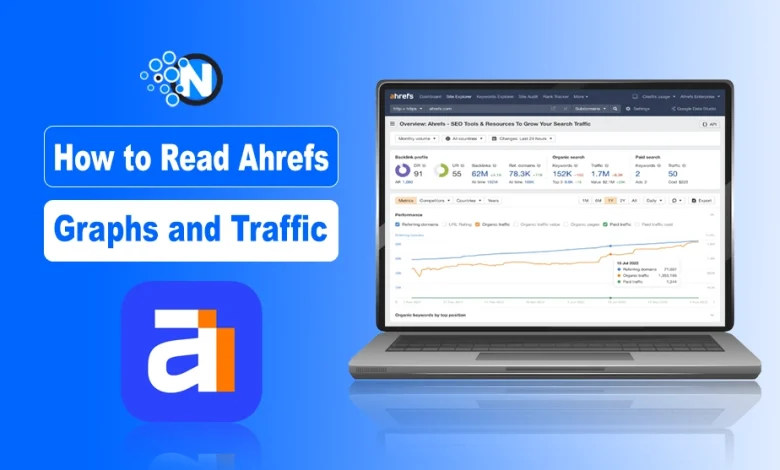
Many SEO professionals (even expert ones) admit that the dashboard can feel like the cockpit of an aeroplane. The good news?
Once you understand what each graph is actually showing, it becomes much easier to spot ranking opportunities and make smart SEO decisions.
What are the Key Metrics on Ahrefs Dashboard
At Nogentech, the team loves using Ahrefs Dashboard Overview to get a quick, clear snapshot of how the site’s doing. It includes metrics like (I took Forbes as an example):
- Organic Traffic: Estimated monthly visits based on keyword rankings.
- Organic Keywords: The number of keywords your site ranks for in Google.
- Backlinks: Total number of external links pointing to your site.
- Referring Domains: How many unique websites are linking to you.
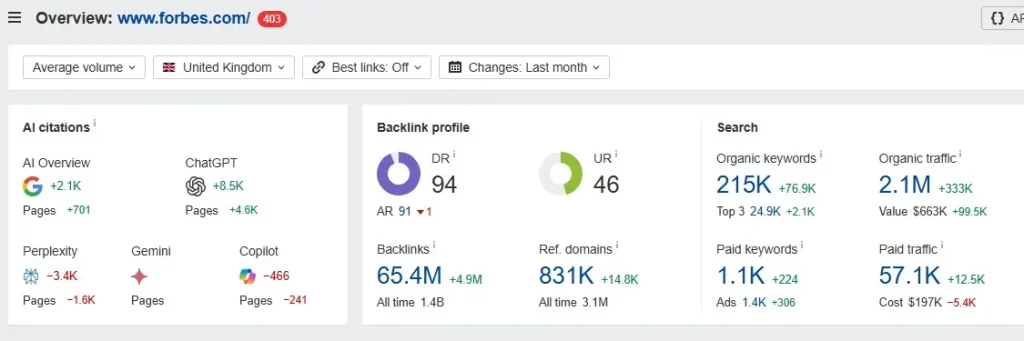
Numbers in black show the current state, while numbers in green or red show changes (usually over the last 30 days). This helps you quickly see whether you’re trending up or down.
What is Organic Traffic in Ahrefs, and how to Check?
Organic Traffic in Ahrefs is an estimated number of monthly clicks a website, or URL receives from Google’s organic search results.
How to Check Organic Traffic in Ahrefs:
- Click on “Site Explorer” in the top navigation menu
- Enter the URL “www.forbes.com” in the URL input field and hit search button
- Then click the search button in the search bar
- In the left sidebar menu, click on “Top pages” under the Organic search section
- Next click on “Organic traffic” checkbox in the Performance metrics
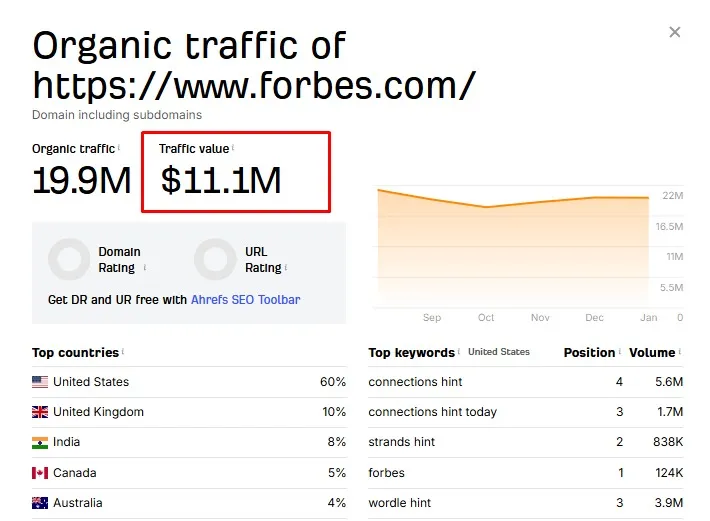
Think of this graph as your site’s “heartbeat.” Healthy sites show gradual upward trends, not wild swings.
How to Read Ahrefs Backlink Graph?
- Go to Ahrefs Site Explorer.
- Enter the domain, URL, or subdomain you want to analyze.
- In the left menu, click Backlinks or Referring Domains.
- Scroll to the Overview dashboard to see backlink graphs.
- Check graphs like:
- Backlinks growth over time
- Referring domains trend
- New vs. lost backlinks
- Use filters to adjust time range, link type, or platform
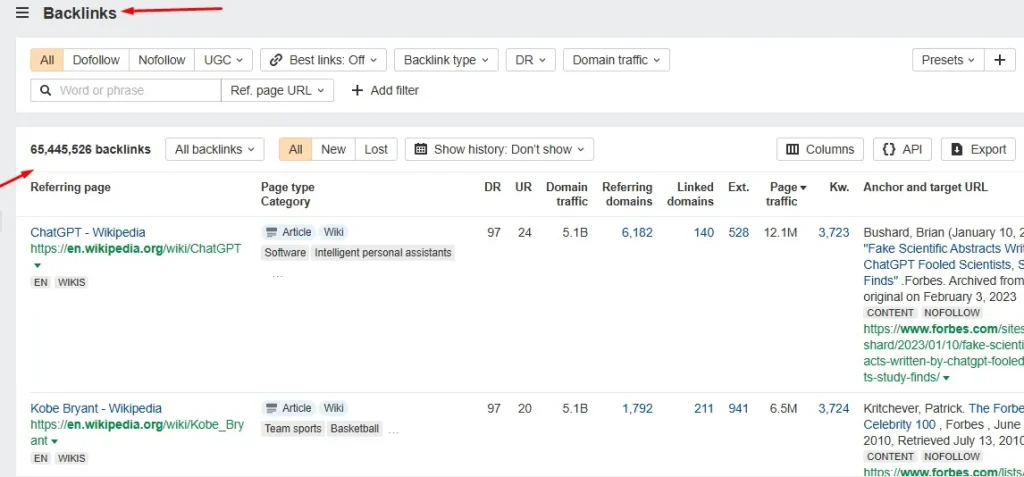
Ahrefs shows backlink growth over time. Links appear and disappear all the time. Pages get deleted, sites change structures, and nofollow links come and go. Small daily changes are normal and rarely matter.
Here’s how to read it:
- Steady growth: Indicates consistent link‑building or natural mentions.
- Sudden spikes: Could be viral content or, sometimes, spammy links.
- Declines: Suggest lost links, maybe a site removed your mention or went offline.
👉 Pro Tip: Always compare backlinks vs referring domains. A thousand links from one site aren’t as valuable as a hundred links from a hundred different sites.
How to Check Ahrefs Keyword Rankings Graph?
- Log in to your Ahrefs account and open Site Explorer.
- Enter the domain, URL, or subdomain you want to analyze.
- In the left-hand menu, click on Organic Keywords.
- Go to the Overview dashboard.
- Locate the Keyword Rankings graph (usually shows how many keywords rank in Top 1–3, Top 4–10, Top 11–50, and Top 51–100 positions).
- Use filters to adjust the time range and keyword positions
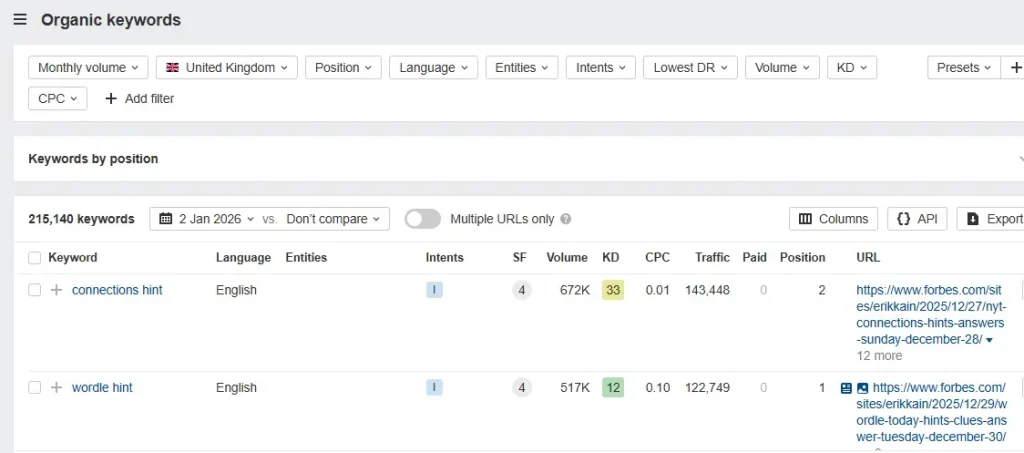
This graph shows how many keywords your site ranks for and their positions.
- Top 3 positions: Goldmine for traffic.
- Positions 4–10: Still strong, but worth optimizing.
- Beyond page 2: Low visibility — focus on improving these.
How to Check Referring (Linking) Domains in Ahrefs?
- Log in to your Ahrefs account and open Site Explorer.
- Enter your website (or competitor’s domain) in the search bar.
- In the left sidebar, click Backlink Profile → Referring (Linking) Domains.
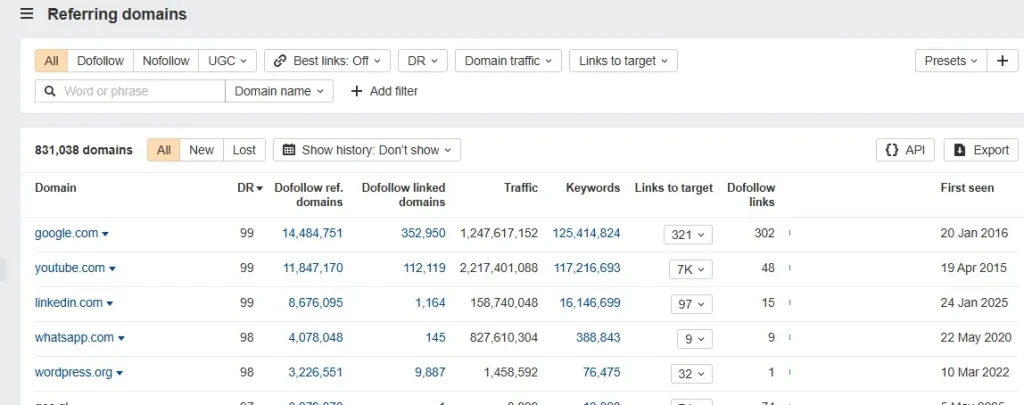
- See all domains linking to your site, along with metrics like Domain Rating (DR), backlinks count, and traffic.
- Sort by DR, check New/Lost domains, or filter by dofollow/nofollow links.
How Professionals Actually Use Ahrefs Data?
Experienced SEOs don’t use Ahrefs to report exact numbers. They use it to understand direction, visibility, and opportunity.
Ahrefs is excellent for comparing domains, identifying keyword gaps, spotting content opportunities, and tracking SEO progress over time. It works best when combined with real performance data from Google Search Console and analytics platforms.
When used this way, Ahrefs becomes a decision-making tool rather than a source of anxiety.
Final Thoughts: Read the Story, Not the Digits
Don’t let Ahrefs graphs intimidate you. They’re not just numbers, they’re stories about your site’s performance. Once you focus on patterns instead of perfection, trends instead of totals, and context instead of isolated numbers, Ahrefs becomes one of the clearest and most powerful SEO tools you can use.