Counting words should not disrupt the writing process. However, a number of Google Docs users are left-clicking through the menu over and over again, interrupting their focus on a regular basis.
Google Docs Help says that the word count cannot be easily viewed at the bottom, just like Microsoft Word. But sometimes the word counter is hidden, and users are unable to find it. You can press Ctrl + Shift + C to check the word count in Google Docs.
This blog post will explain how to check the word count in Google Docs in different ways.
What is Word Count in Google Docs?
Google Docs word count is an inbuilt feature that shows the number of words, characters, pages, and other related statistics in your document. The tool offers precise measures that assist writers in achieving certain length demands of assignments, publications, or content guidelines.
Google Docs is a cloud-operated word processor as opposed to conventional word processors. The count feature is compatible with all gadgets, whether you are using computers, tablets, or smartphones. It will automatically analyze and tell you the number of all text in your document, such as headers, footers, and table content.
How to Check the Word Count on Google Docs?
Method 1: Using the Tools Menu
This is the easiest method of counting words. One of the most convenient methods to check the Word count on your laptop/desktop is to use the Tools menu.

- Go to docs.google.com in your browser. Use your Google account when asked. Choose one of the documents you wish to verify in the Google Drive.
- Find the upper navigation bar, which has File, Edit, View, Insert, Format, Tools, Extensions, and Help. Press on the Tools dropdown menu, where there are several options.
- Expand the Tools dropdown by clicking Word count towards the bottom of the list. There will be a small box with a word count on it that shows your document statistics.
There are a number of measures that are shown on the word count dialogue:
- Pages: Number of pages in your document.
- Words: Number of words in the whole document.
- Characters: Number of characters with spaces.
- Characters without spaces: Can be applied when limited by strict characters.
When you are done reviewing, click on OK to close the dialogue.
Method 2: Using Keyboard Shortcuts
For Windows Users:
Press Ctrl + Shift + C at the same time to check the word count in Google Docs. You can see the Word count dialogue right away without going through menus.

For Mac Users:
If you are using a Mac, then Press Command + Shift + C to check the word count on Google Docs.
The technique saves a lot of time when used in terms of intensive writing. You will count words in less than a second.
Method 3: Displaying Live Word Count While Typing
Constant word-count display destroys the repetition of the check. This feature is especially for writers, students, journalists, and any person who requires meeting certain word count limits.
- Count words either by clicking the Tools menu or by using the keyboard shortcut as described above, which is different on the system you are using, whether it is Mac or Windows.
- The checkbox is found at the bottom of the word count dialogue. Make sure that you have the box about displaying word count when typing checked.
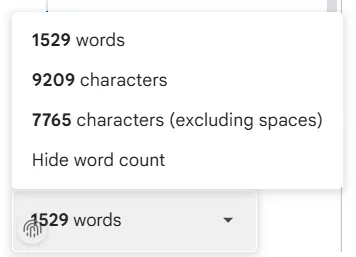
- Click “OK” to close the dialogue. According to Google Docs Help, in the lower-left corner of your document, you will be presented with a small word count box.
The counter reflects automatically when typing. You will be able to see the real-time word count without disruption of your workflow.
Alternative: Using Online Word Count Checkers
Analysis of word counts. Sometimes you require more than what Google Docs offers. Intrinsic tools are more flexible and have extra abilities.
Word Count Checker Tool
Word Count Checker offers high-quality features with an uncomplicated interface when you are required to analyse the text more thoroughly than with simple counting. This is a free online tool that will analyse your content in real time and will not require any registration or downloads.
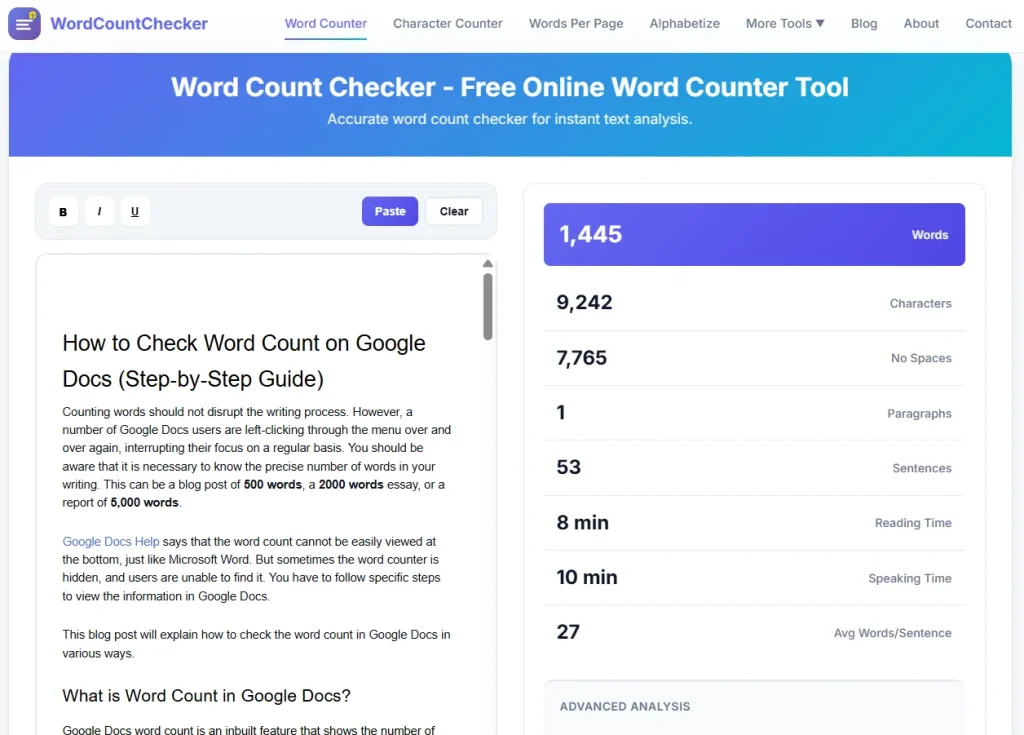
All you need to do is copy your text to Google Docs and then paste it into Word Count Checker. In a few seconds, you will get in-depth statistics such as:
- Accurate words and characters.
- Time estimates of reading by various audiences.
- Keyword density analysis
- Sentence and paragraph statistics.
This is especially useful in the case of SEO writers who require the frequency of keywords. It is applied by content marketers to make sure that the distribution of keywords in articles is done properly. Students like the fact that the estimates of reading time can be used to estimate the length of a presentation.
The tool is fully compatible with Google Docs. Having a document open in one tab and a document you are analyzing in another. The following workflow will not interfere with your writing process.
When to Use External Tools
Use Word Count Checker when:
- Analyzing keyword density for SEO optimization
- Estimating reading time for presentations or publications
- Comparing word counts across multiple documents
- Needing detailed character breakdowns, including punctuation
- Working with content from various sources simultaneously
External tools complement Google Docs rather than replace it. They provide specialised analysis that Google’s built-in counter doesn’t offer.
Final Thoughts
Knowing how to check word count in Google Docs is essential for writers, students, bloggers, and business professionals aiming to meet word limits and optimize SEO.
Using word count tools, whether through Google Docs features or external checkers, helps keep your writing concise, precise, and impactful. As someone who strives to deliver quality content, I always rely on these quick methods to track my progress and stay productive.
Remember, a clear word count not only meets requirements but also improves your writing workflow. Stay focused, utilize the right tools, and achieve your writing goals efficiently.